

Introduction
As you might be aware, Microsoft Fabric introduces a new approach to data workloads with scalable computing power, including F64 capacity—an optimal choice for high-performance analytics and large-scale data processing. Whether you’re dealing with massive datasets in Delta Lake or running complex machine learning workloads, configuring F64 capacity efficiently can make a significant impact.
In this article, we'll explore how to set up and optimize Fabric F64 capacity.
Understanding Fabric Capacity
Microsoft Fabric provides pay-as-you-go computing power through different capacity sizes, from F2 (small-scale) to F64 (large-scale). The higher the capacity, the greater the available compute and memory, making it ideal for demanding data engineering, real-time analytics, and AI-driven workloads.
Key benefits of F64 capacity.
- High scalability for big data workloads
- Optimized performance for AI and machine learning
- Seamless integration with Azure and Databricks
- Efficient multi-platform data processing
How to Create and Configure F64 Capacity in Azure Portal?
- In the Azure Portal, search for Microsoft Fabric and click on it
- Select Create.

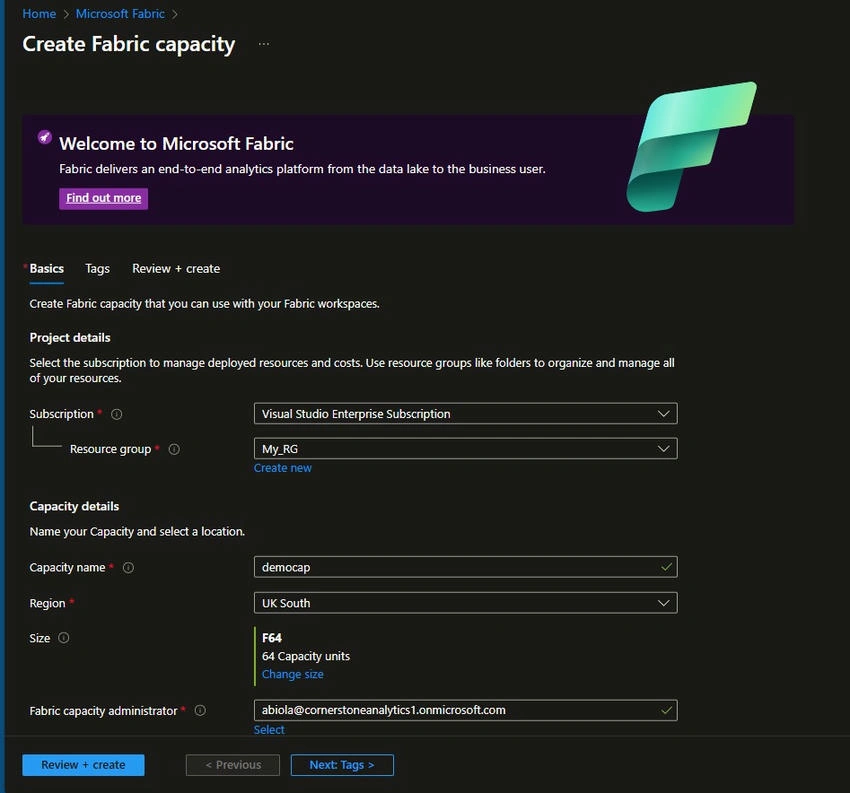
- In the Create Fabric Capacity, provide your subscription, resource group, and capacity details, which include Capacity Name, Region, Size, etc.
- Click Review + Create.
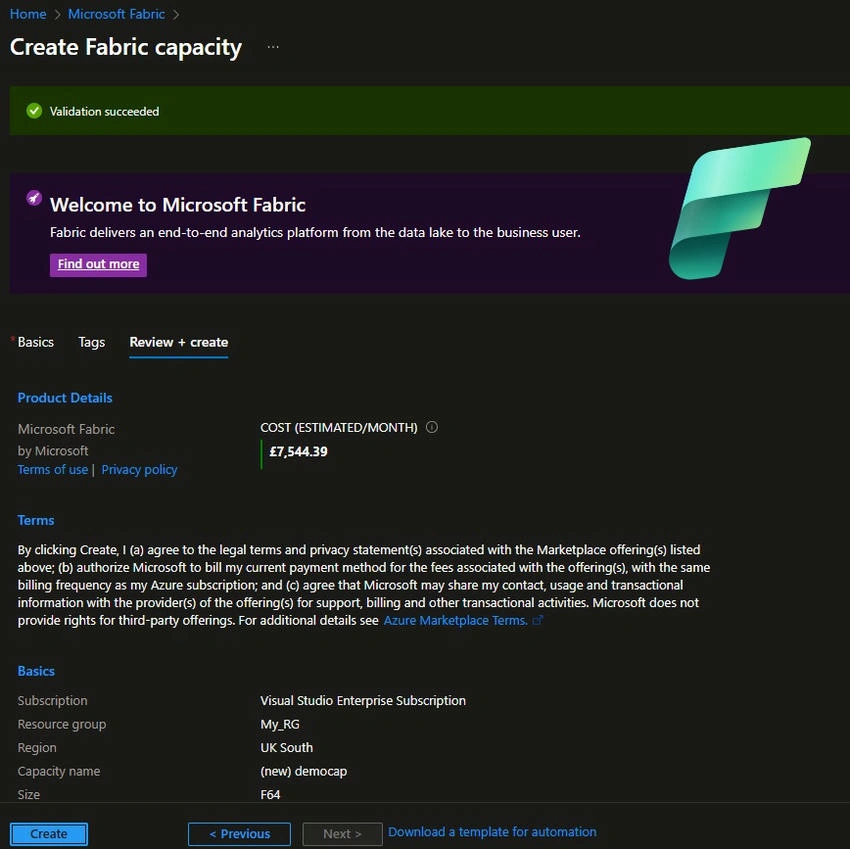
- After successful validation, click on Create, as seen below.
- After successful deployment as a resource, go back to the Microsoft Fabric service and check. In this case, the democap Fabric F64 capacity was successfully created, and it is currently running, as we can see the Active status in the screenshot below.
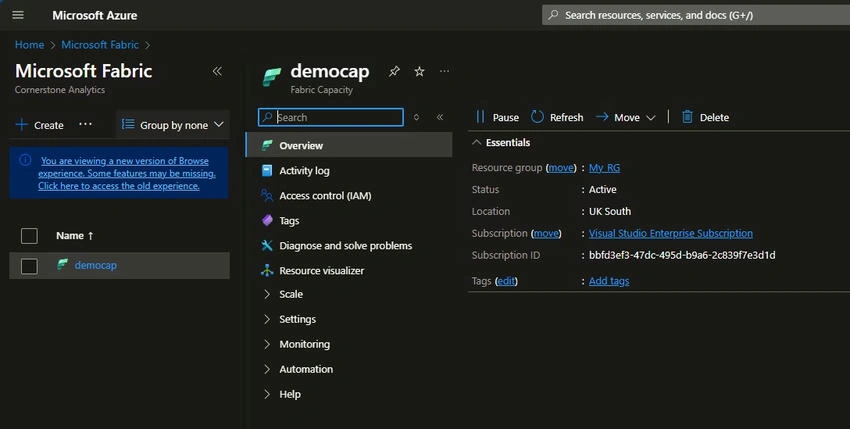
We can decide to pause the capacity when not in use for an extended period in order not to incur unplanned charges. After all this, we can proceed to app.powerbi.com to use it. I will cover that in the next article. So, stay tuned.
Join the conversation! Your thoughts help the community grow.