

This article will solve the problem of how to create a MVC 5 application with image gallery using fancy box and Entity Framework.
And upload an image to the route folder and save the path in the database from AJAX in MVC 5 applications.
First you create a model and context class. We create an Image Gallery class that has the following properties.
- public class ImageGallery
- {
- public ImageGallery()
- {
- ImageList = new List<string>();
- }
- [Key]
- public Guid ID { get; set; }
- public string Name { get; set; }
- public string ImagePath { get; set; }
- public List<string> ImageList { get; set; }
- }
Here you create a constructor to initialize the ImageList List of the string object.
And second is the context class like this that inherits from the DbContext class:
- public class DbConnectionContext : DbContext
- {
- public DbConnectionContext():base("name=dbContext")
- {
- Database.SetInitializer(new DropCreateDatabaseIfModelChanges
- <DbConnectionContext>());
- }
- public DbSet<ImageGallery> ImageGallery { get; set; }
- }
If you want to recreate data every time the model changes so will add these lines of code.
- Database.SetInitializer(new DropCreateDatabaseIfModelChanges<DbConnectionContext>());
- <connectionStrings>
- <add name="dbContext" connectionString="Data Source=localhost;
- Initial Catalog=CommonDataBase; Integrated Security=true" providerName="System.Data.SqlClient" />
- </connectionStrings>
Then you create a controller class in the controller folder and edit the name as HomeController. To add a Scaffold select MVC 5 Controller with Views, using Entity Framework.

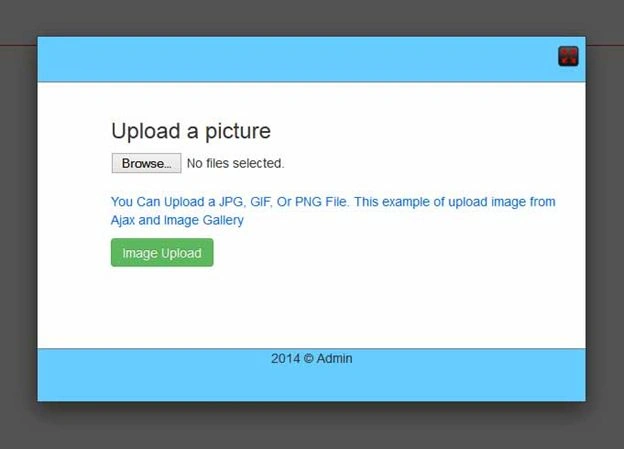
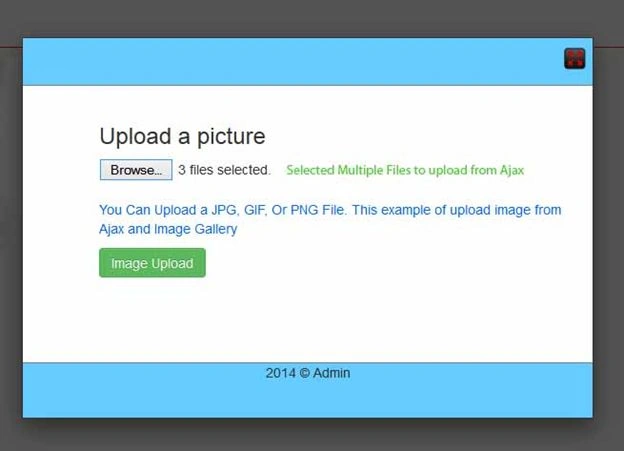
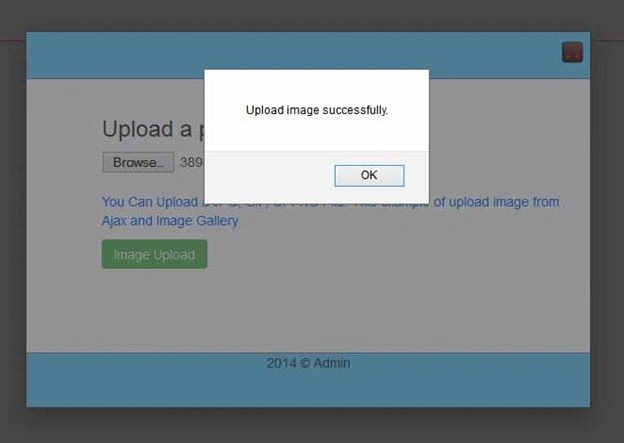
This sample creates an image gallery. Images are displayed in Index.chtml view. Click an image to show the image with large size to open the popup fancy box window
containing the images gallery. The image gallery is implemented using a fancy box.
Now you add a folder to store your images. Now to click the solution file and add a new folder edit the folder name Upload_Files.
- @model ImageGalleryInMvc5.Models.ImageGallery
- @{
- ViewBag.Title = "Home Page";
- }
- <script src="~/Scripts/jquery-1.8.2.min.js"></script>
- <script src="~/Scripts/jquery.mousewheel-3.0.6.pack.js"></script>
- <script src="~/Scripts/jquery.fancybox.js?v=2.1.3"></script>
- <link href="~/Content/jquery.fancybox.css?v=2.1.2" rel="stylesheet" media="screen" />
- <link href="~/Scripts/jquery.fancybox.css" rel="stylesheet" /> <script type="text/javascript">
- $(document).ready(function ()
- {
- $("#ShowImage").fancybox({
- helpers:
- {
- title:
- {
- type: 'float'
- }
- }
- });
- });
- </script>

- <style type="text/css">
- .imgBox
- {
- width: 200px;
- height: 200px;
- opacity: 1.0;
- filter: alpha(opacity=100);
- }
- .imgBox:hover
- {
- -moz-box-shadow: 0 0 10px #ccc;
- -webkit-box-shadow: 0 0 10px #ccc;
- box-shadow: 0 0 10px #ccc;
- opacity: 0.4;
- filter: alpha(opacity=40);
- }
- </style>
- <div class="jumbotron" style="height:600px;">
- <p>
- <a class="imageGallery btn btn-primary" data-fancybox-type="iframe"
- href="@Url.Action("UploadImage", "Home")">Upload New Image</a>
- </p>
- <div style="border-bottom:1px solid Red;"></div>
- @if (Model.ImageList.Count > 0)
- {
- <div class="row-fluid">
- <div class="span2">
- <div class="item">
- @foreach (var image in Model.ImageList)
- {
- <div style=" margin:10px; float:left; height:200px;
- overflow:hidden; width:200px;">
- <a id="ShowImage" class="fancybox-button"
- data-rel="fancybox-button"
- title="Photo" href="@Url.Content("~/Upload_Files/"+ image)">
- <div class="zoom">
- <img src="@Url.Content("~/Upload_Files/" + image)"
- class="imgBox" />
- <div class="zoom-icon"></div>
- </div>
- </a>
- </div>
- }
- </div>
- </div>
- </div>
- }
- </div>
- <script type="text/javascript">
- $(document).ready(function () {
- $('.imageGallery').fancybox({
- fitToView: false,
- width: '600px',
- height: '400px',
- autoSize: false,
- closeClick: false,
- openEffect: 'none',
- closeEffect: 'none',
- padding: 0,
- closeBtn: false,
- 'afterClose': function () {
- window.location.reload();
- },
- These lines of code use to reload index after upload image and close
- Fancy box.
- });
- });
- </script>

Utsav DwivediPosted Sep 23, 2020, 4:05 AM
If I have add caption at image then get error data not pass to the controller what can I do ??
CJ AquinoPosted Dec 10, 2018, 7:33 AM
Why i have an error on this line when i upload an image? HomeController.cs line 44 db.ImageGallery.Add(imageGallery);
Kevin MullarkeyPosted Apr 2, 2018, 9:21 AM
My image isn't popping up, it's opening on a new page instead. Any ideas? Thanks
sourav mahajanPosted Dec 10, 2017, 6:55 AM
Nice article..too much informative
Mahmoud ElshazlyPosted Aug 16, 2015, 5:39 PM
IF i need delete from my gallery ? what should i do ?
Mehmet GocergiPosted Jan 12, 2015, 11:49 AM
do we have to download fancybox from nudget for working our project?In my project i can click the picture but it doesn't open in a popup window, it opens in a new window. how can i solve this problem?
Lindile RadebePosted Sep 30, 2014, 5:46 AM
hi guys how to upload video into mvc appliacation using entity framework
hemant panditPosted Sep 25, 2014, 2:40 AM
Good Job, Thank you this is really help to learn MVC5
Josh YatesPosted Aug 6, 2014, 4:17 PM
Good Work. Thanks for sharing. The X in top right corner of image popout doesn't work in Chrome.
Abhishek LuvPosted Aug 5, 2014, 6:38 AM
Great Article
Vikas Kumar SainiPosted Aug 1, 2014, 12:55 PM
DbContext class exposes these Properties use create database automatically // DbContext class create database if model changes Database.SetInitializer(new DropCreateDatabaseIfModelChanges<DBConnectionContext>()); // DbContext class drope and create database allways Database.SetInitializer(new DropCreateDatabaseAlways<DBConnectionContext>()); // DbContext class if database not exits database allways Database.SetInitializer(new CreateIfNotExists<DBConnectionContext>()); //The DbContext class also exposes a Database property which defines the following useful methods:
Vikas Kumar SainiPosted Aug 1, 2014, 12:51 PM
http://msdn.microsoft.com/en-in/data/jj193542.aspx
gopal nimishakaviPosted Aug 1, 2014, 3:18 AM
how the database creating automatically can u plz explain...
pushpak panchalPosted Jul 31, 2014, 1:38 PM
Awesome fancybox..keep up
Vikas Kumar SainiPosted May 8, 2014, 4:32 AM
thanks for comment. Nimit Joshi.............
Nimit JoshiPosted May 6, 2014, 11:27 PM
Very Nice...