

Introduction
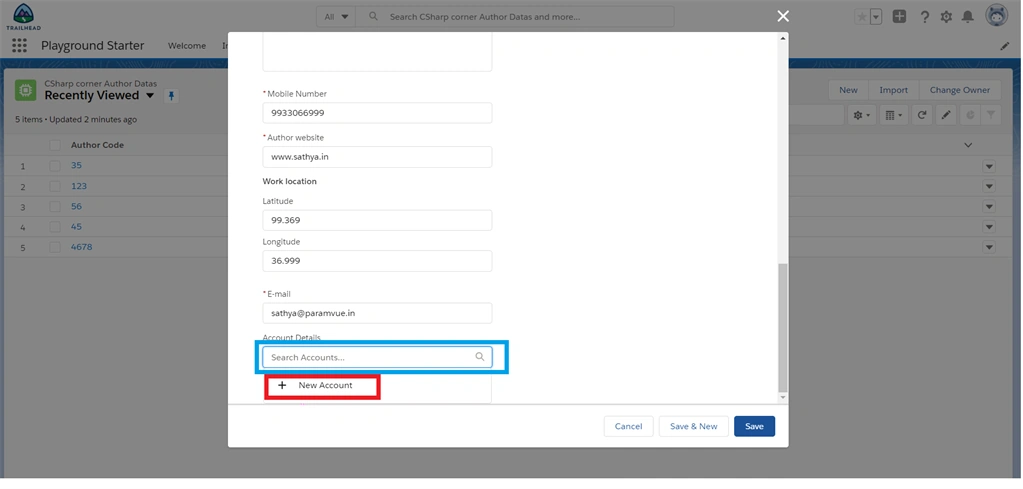
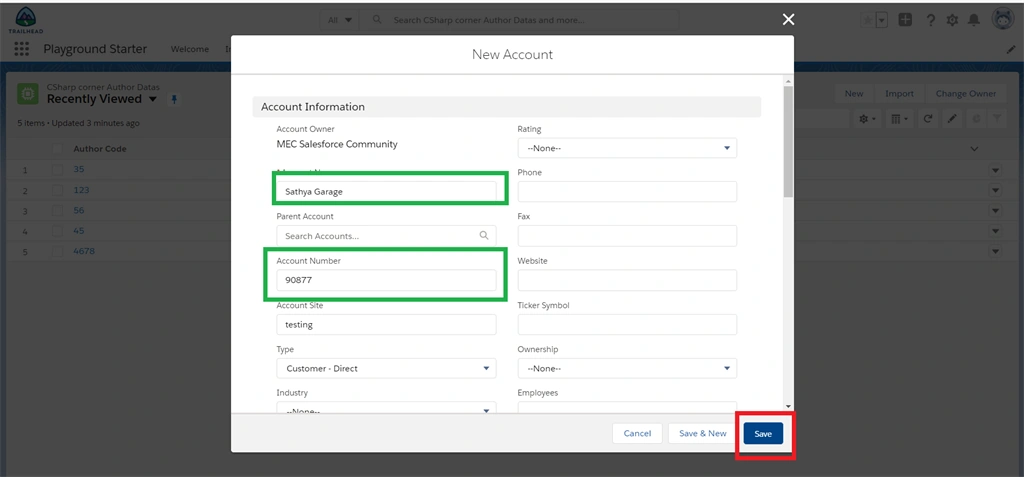
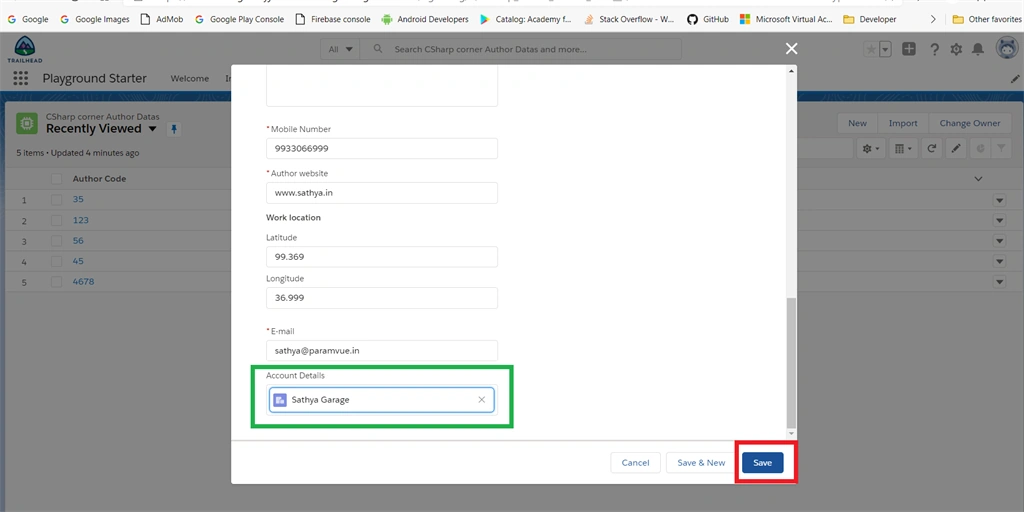
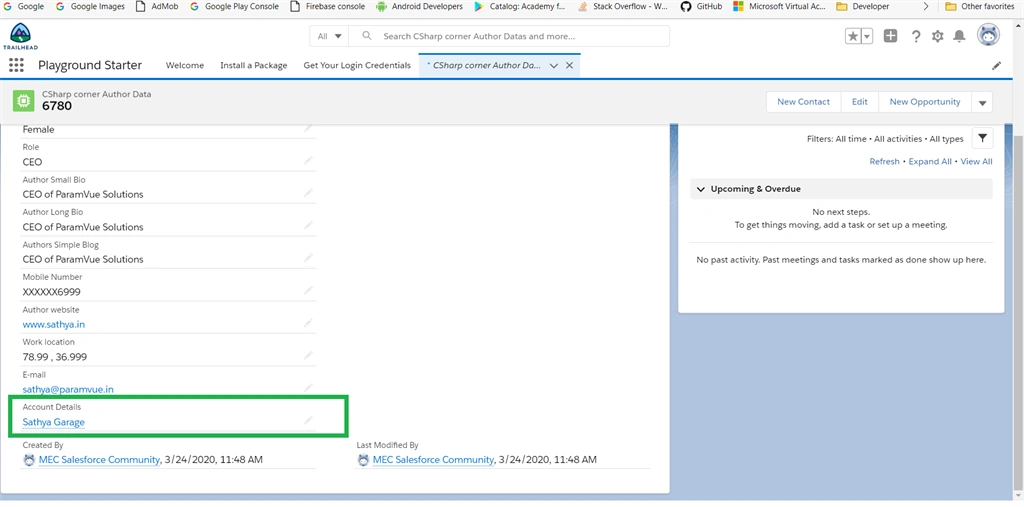
Look-Up relationship is one of the data types in Salesforce. This data type can create a relationship that links this object to another object. This relationship field allows users to click on a lookup icon to select a value from a pop-up list. The other object is the source of value in the list. If no data is existing in the object you can create a new value by clicking the “create” option.
By reading this article, you will learn about how to create a look-up relationship between two objects in Salesforce.
Prerequisites
-
Before starting this process, you must sign up on the Salesforce Trailhead lightning platform. Click here to sign up
Step 1
Login to trailhead and launch “trailhead playground” or “Developer Edition”
Step 2
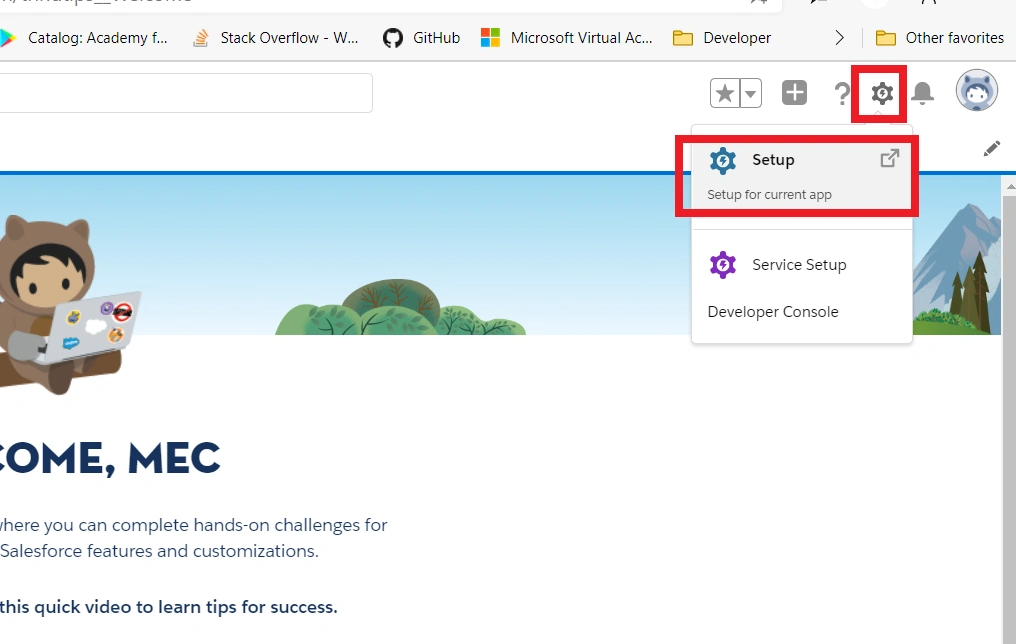
Click the “Gear” icon and then click “Setup” option.
Step 3
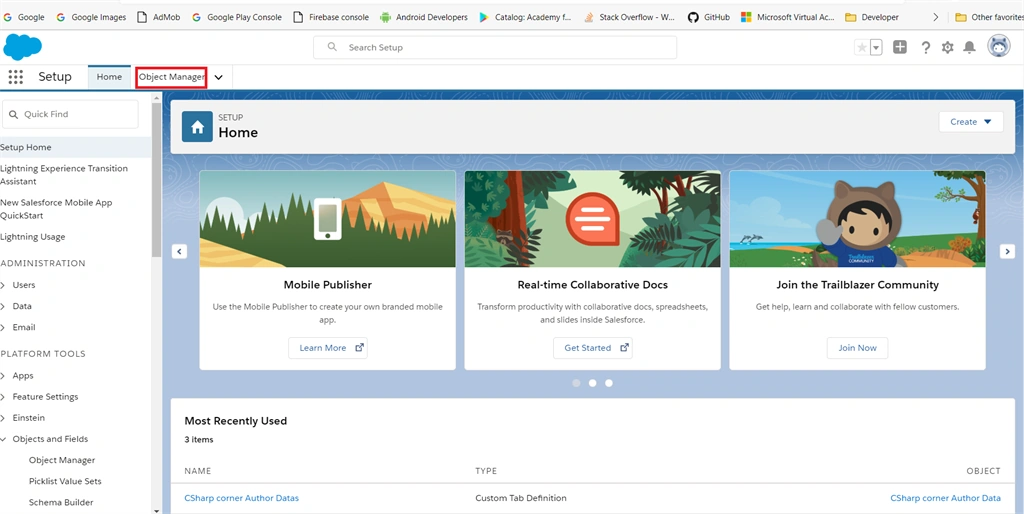
In the setup page, click the “Object manager” at the top of the page.
Step 4
Refer to my previous article, how to create a custom object in the Salesforce lightning platform.
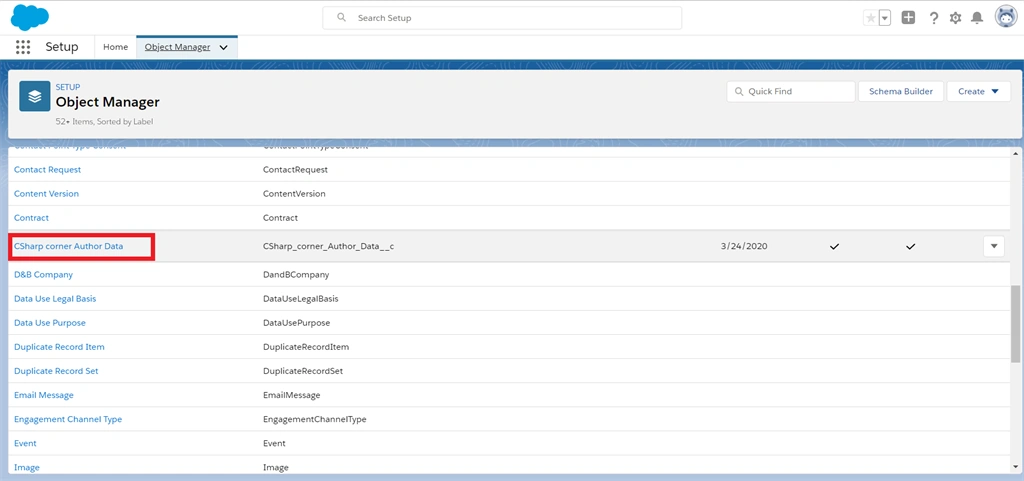
In the object manager page, scroll down and click the create our custom object name from the object list.
Step 5
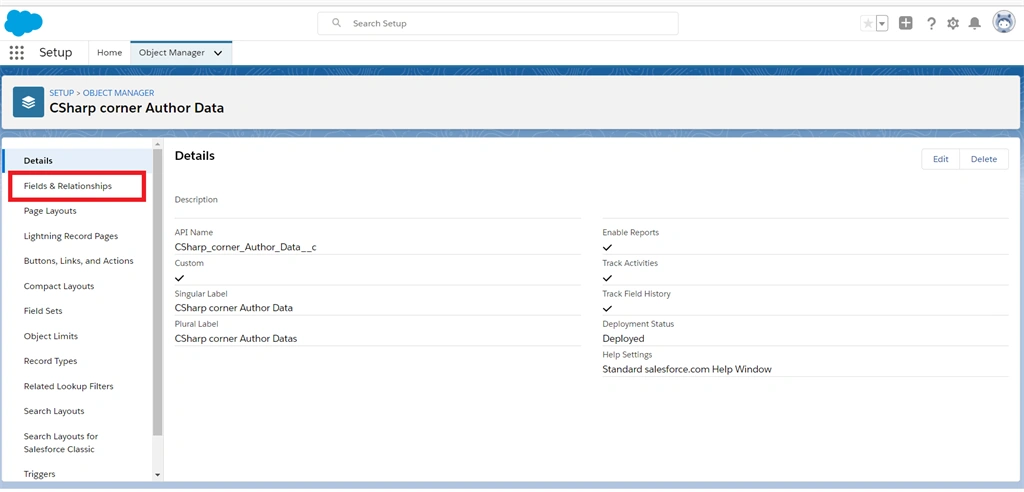
In our created custom object page, click the “Fields & Relationship” option from the left side pane.
Step 6
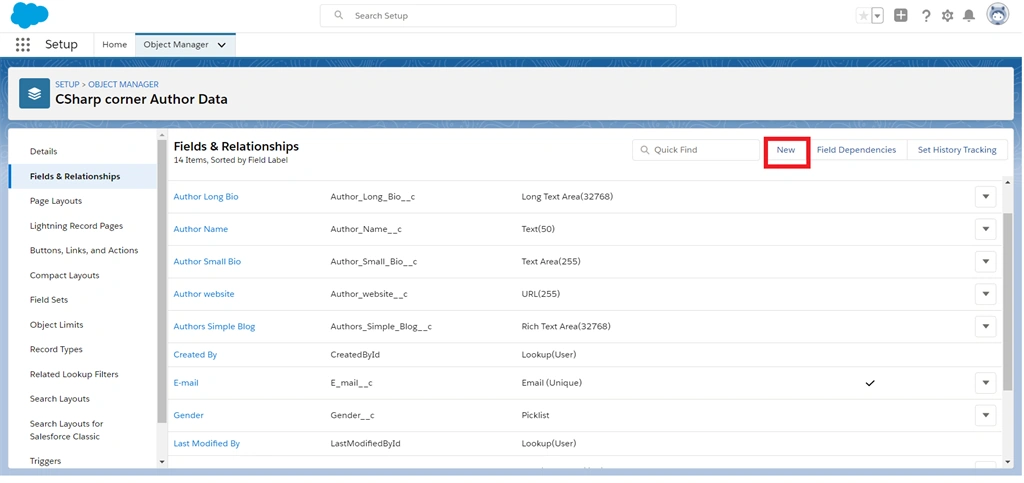
Next, in the fields and relationship page our predefined fields are listed. Now we are creating a new Look-up relationship from the data type by clicking the “New” button.
Step 7
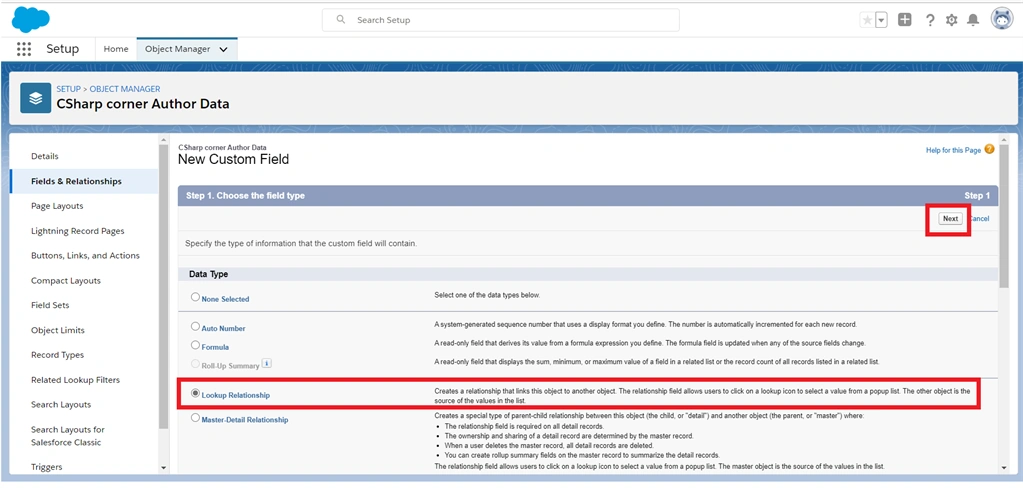
In the next page, many data types are listed on the page. Select the “Look-Up Relationship” data type radio button and then click the “Next” button.
Step 8
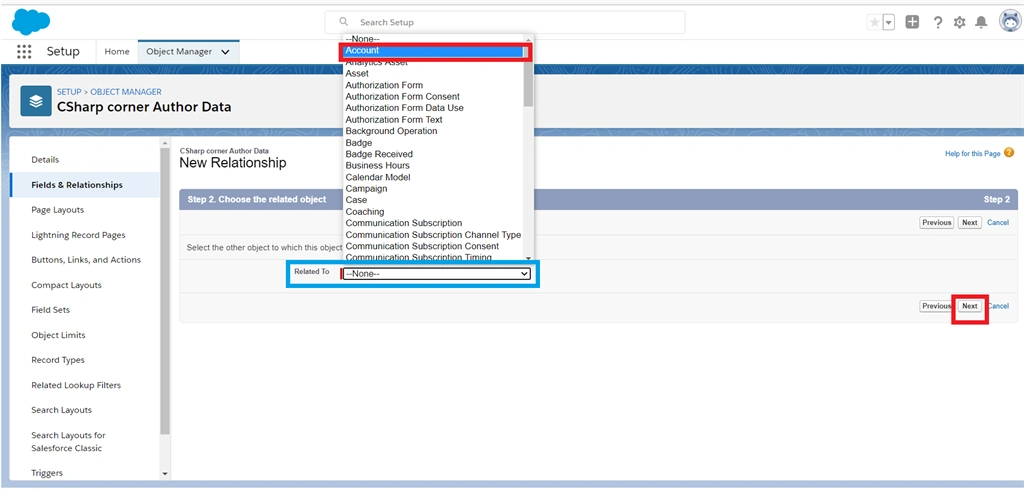
Next, we select the other object from “Related to” Drop down box. Click the dropdown box and select any one of the Salesforce objects and then click the “Next” button.
Join the conversation! Your thoughts help the community grow.