

A Master Page is a page with contents shown in approximately all pages of the website. For example, if the website logo must be displayed in all pages of the website, why should we worry about adding the HTML with styles for the logo when a new page is created? The Master Page will do the job for us. In this tutorial the Master Page design will be introduced with an introduction to website design using only the tools provided in ASP.NET. The tutorial is implemented using Visual Studio 2012 Express for the web.
2.1 Create an empty ASP.NET Project
From the main menu select "File" -> "New" -> "Project..." then from the dialog box that appears:
- Click “Web” application for the Visual C# tree item.
- Click "ASP.NET Empty Web Application"
- Provide a suitable name for the project.

2.2 Add and Customize the Master Page
Did you notice the logo that appears in approximately all pages of the website? The Master Page is used as a frame for the entire website. The frame includes all the remaining content specific for each page. It makes the process of implementing websites easier by not repeating the same contents every time a new form is created.
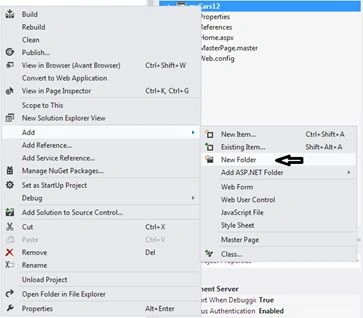
From the Solution Explorer right-click on your project and select "Add" -> "Master Page" as shown in the following figure:
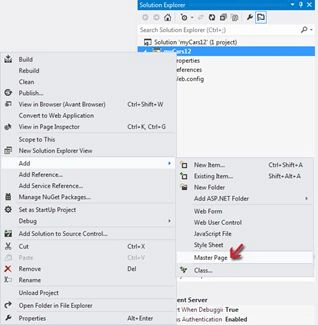
Write “MaterPage.master” as a name for the new Master Page. MasterPage.master is added to the Solution Explorer.
Prepare the draft design for the website for creating a proper Master Page. Suppose the website to be created has the following design draft.

For designing the preceding Master Page use the following procedure:
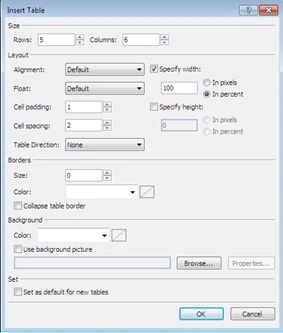
- Add a table with 5 rows by 6 columns. This is done from the main menu; select "TABLE" -> "Insert Table". Change the rows and columns of the table as shown in the following figure:
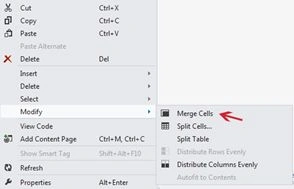
- Select all the cells of the first row and then right-click on one of them. From the context menu select "Modify" -> "Merge cells" as shown in the figure. Do the same procedure for the third row, the last row, and the row before the last row.
- Customize the row/column heights to accommodate the required design. To change the row height just point the mouse arrow toward the row border until the cursor changes to two arrowheads then drag and drop.
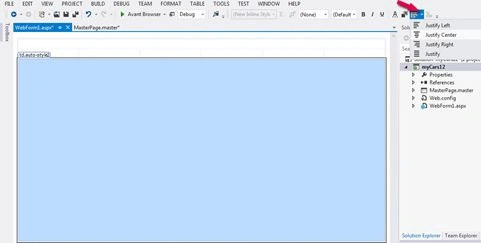
- Write the contents of the rows and cells by typing “Used and new cars for sale” in the last row right “Al rights reserved to Taibah University, Dr. Osama Hosam” right “Home”, and so on. in their suitable cells. Justify its alignment from the tools bar as shown in the figure
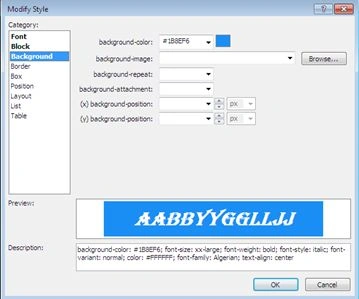
- Change the colors (background and font) of the first row by selecting the first row and then form the properties select “style”. From style click on the small button beside the style word. The following window will be shown, change the background color as shown in the following figure:
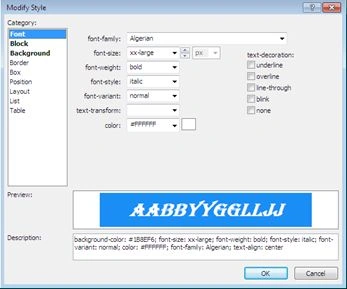
Change the Font as shown in the following figure:
You can easily change the style of the remaining cells to get the final design of the website.
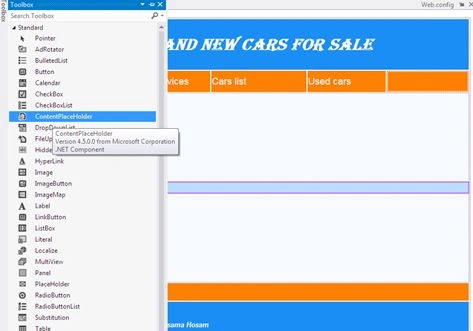
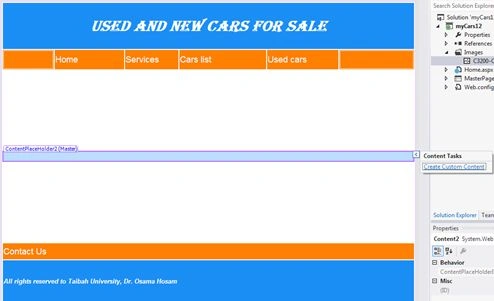
- Add a content placeholder to the middle row of the table (the third row) as shown in the figure, this content place holder defines the place that will be dynamic in the Master Page.



wanda TooPosted Dec 31, 2015, 8:11 PM
Hi there, How would you make your Master Page responsive please? Responsive to different screen sizes....?