

Introduction
When analyzing data across multiple categories, a single chart can quickly become cluttered and hard to interpret. This is where small multiples come in—a powerful visualization technique that allows you to break one chart into many smaller, comparable views.
In Microsoft Power BI, small multiples enable you to replicate a visual across different dimensions—making it easier to spot trends, patterns, and outliers at a glance.
This guide walks you through how to create small multiples charts, when to use them, and how to design them effectively.
What Are Small Multiples?
Small multiples (also known as trellis charts) are a series of similar charts:
Using the same axes
Sharing the same scale
Split by a categorical field
Instead of cramming everything into one chart, you get multiple mini-charts, each representing a subset of the data.
Example
Instead of one line chart showing sales for all regions combined:
➡ You create multiple small charts—one for each region
➡ Each chart shows its own trend
This makes comparisons far more intuitive.
Why Use Small Multiples in Power BI?
Small multiples are incredibly useful for:
Comparing trends across categories
Identifying anomalies
Reducing visual clutter
Improving readability
Enhancing storytelling
They are especially powerful when dealing with:
Time series data
Regional performance
Product category comparisons
How to Create Small Multiples in Power BI
Let’s walk through the steps. In the screenshot below, we have line chart that shows Sum of Gross Profit Year and Month
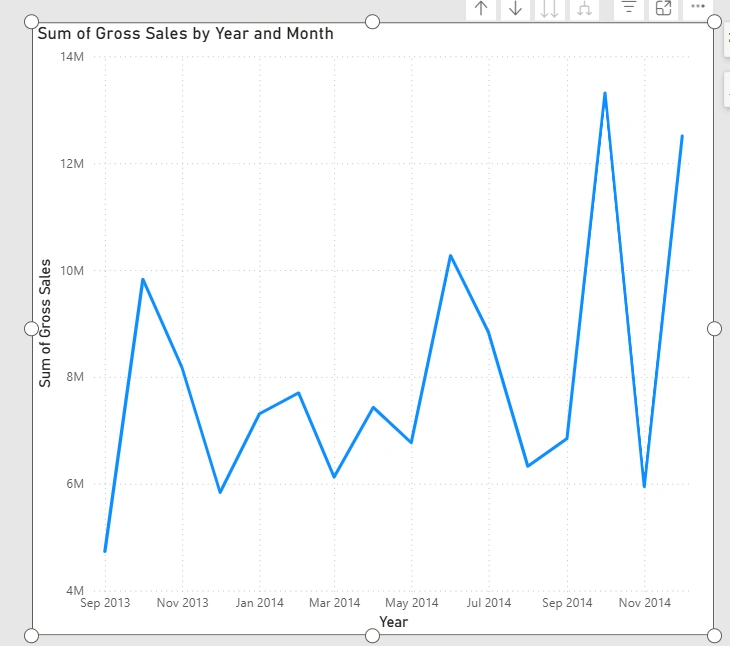
To create the small multiples within the same line chart, drag a field such as Region, Product etc into the Small multiples add data. In this article, I dragged the Product into the Small multiple and as seen below, we have line charts for each of the first four Product displayed
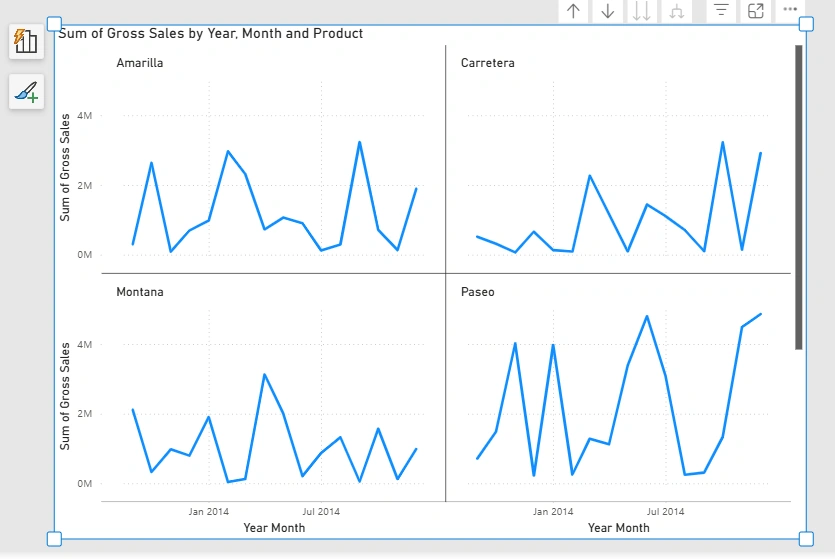
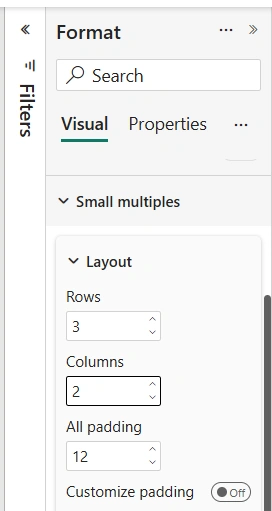
But, we've got 6 product in total that we want to see display. That would led us to line chart small multiples formatting. In the Format task pane, expand small multiples and increase the Rows from 2 to 3 in the layout subsection as seen below
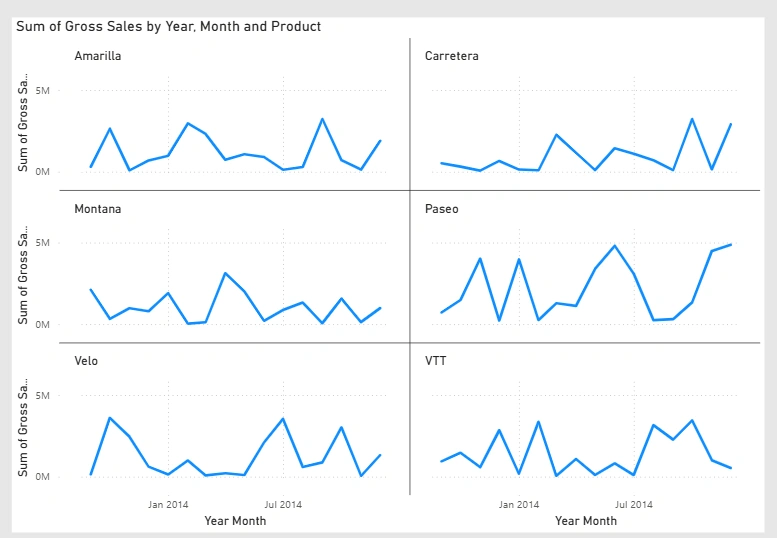
As seen below, we are able to see all the six product in small multiple line charts
Supported Visuals for Small Multiples
Power BI supports small multiples for several visuals, including:
Line charts
Column charts
Bar charts
Area charts
Not all visuals support this feature, so choose accordingly.
Real-World Use Cases
1. Sales Performance by Region
Each small chart = one region
X-axis = time
Y-axis = sales
➡ Quickly compare regional trends
2. Product Category Analysis
Each chart = product category
Identify top and underperforming categories
3. Customer Segmentation
Each chart = customer segment
Analyze behavior patterns
4. KPI Monitoring
Each chart = business unit
Track performance side-by-side
Design Best Practices
Creating small multiples is easy—designing them well is the real skill.
1. Keep It Simple
Avoid overloading each mini-chart.
✔ Use minimal labels
✔ Focus on key metrics
2. Limit the Number of Multiples
Too many charts can overwhelm users.
✔ Aim for 4–12 panels
✔ Use filters for larger datasets
3. Use Consistent Scales
This is non-negotiable.
✔ Same axis ranges
✔ Same units
Otherwise, comparisons become misleading.
4. Add Clear Titles
Each chart should clearly indicate what it represents.
✔ Use category labels
✔ Keep them concise
5. Leverage Color Strategically
Use consistent colors across all charts to avoid confusion.
In conclusion, Small multiples in Microsoft Power BI are a powerful way to transform complex datasets into clear, comparable insights.
They help you:
Simplify complex visuals
Compare trends effectively
Tell better data stories
When used correctly, small multiples turn your reports from crowded dashboards into elegant analytical tools.
Join the conversation! Your thoughts help the community grow.