

Introduction
HTML provides a simple and easy-to-use syntax for creating tables. Tables can be used to display information in a structured format, making it easier for users to read and understand the data. In addition to text and images, tables can also be used to store links, form elements, and other types of content. By using table elements such as <table>, <tr>, <th>, and <td>, web developers can create tables that are both visually appealing and functional. Overall, learning how to create tables in HTML is an important skill for anyone interested in web development.
Creating Tables in HTML
To create a table in HTML, the <table> tag is used, which is the container for all the table elements. The <tr> tag is used to define table rows, which are the horizontal lines in the table, while the <th> tag is used to define table headers, which are the cells that contain the column labels. Lastly, the <td> tag is used to define table data cells, which are the cells that contain the actual data.
Syntax
<table>
  <tr>
    <th> Table header </th>
  </tr>
  <tr>
    <td> table cell dats</td>
  </tr>
</table>
Example
<!DOCTYPE html>
  <head>
    <title></title>
  </head>
  <body>
   <table>
      <tr>
        <th>Roll</th>
        <th>Name</th>
      </tr>
      <tr>
        <td>01</td>
        <td>Ray</td>
      </tr>
      <tr>
        <td>02</td>
        <td>Paul</td>
      </tr>
    </table>
  </body>
</html>
Output
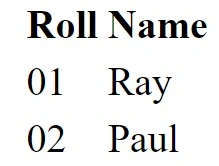
In this example, we write an HTML code that creates a table with two columns - "Roll" and "Name" - and two rows of data. The <table> tag is used to create the table, and <tr> tags are used to create rows. The first row is created using the <th> tag, which defines the header cells of the table. The second and third rows are created using the <td> tag, which defines the data cells of the table.
The table is created here, but there is no border around the cell. Hence, there is no proper border visible.
<!DOCTYPE html>
  <head>
    <title></title>
  </head>
  <body>
   <table border="1">
      <tr>
        <th>Roll</th>
        <th>Name</th>
      </tr>
      <tr>
        <td>01</td>
        <td>Ross</td>
      </tr>
      <tr>
        <td>02</td>
        <td>Paul</td>
      </tr>
    </table>
  </body>
</html>
Output
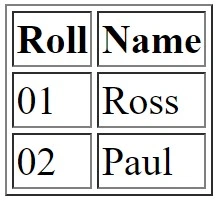
Table attributes in HTML
In HTML, we can specify some attributes in the tables. They are-
- border
- cellpadding
- cellspacing
- colspan
- rowspan
border attribute
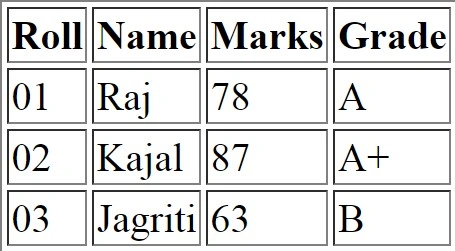
The HTML border attribute is used to add a border around the table and its cells. Setting the border attribute to zero will remove the border from the table. This can be useful when you want to create a table without any visible borders, which can be achieved by setting the border attribute to zero or by using CSS styling.
Example
<table border="1">
    <tr>
      <th>Roll</th>
      <th>Name</th>
      <th>Marks</th>
      <th>Grade</th>
    </tr>
    <tr>
      <td>01</td>
      <td>Raj</td>
      <td>78</td>
      <td>A</td>
    </tr>
    <tr>
      <td>02</td>
      <td>Kajal</td>
      <td>87</td>
      <td>A+</td>
    </tr>
    <tr>
      <td>03</td>
      <td>Jagriti</td>
      <td>63</td>
      <td>B</td>
    </tr>
</table>
Output
cellpadding attribute
The cellpadding attribute in HTML allows you to define the spacing between the content within a table cell and its borders. By default, the cellpadding value is set to 1, but you can adjust it to create more or less space according to your design preferences.
Example
<table border="1" cellpadding="5">
    <tr>
      <th>Roll</th>
      <th>Name</th>
      <th>Marks</th>
      <th>Grade</th>
    </tr>
    <tr>
      <td>01</td>
      <td>Raj</td>
      <td>78</td>
      <td>A</td>
    </tr>
    <tr>
      <td>02</td>
      <td>Kajal</td>
      <td>87</td>
      <td>A+</td>
    </tr>
    <tr>
      <td>03</td>
      <td>Jagriti</td>
      <td>63</td>
      <td>B</td>
    </tr>
</table>
cellspacing attribute
The cellspacing attribute, with its default value of 2, allows web developers to control the spacing between cells within a table. By adjusting this attribute, they can create a more visually appealing and organized layout for their table data.
Example
Join the conversation! Your thoughts help the community grow.