Introduction

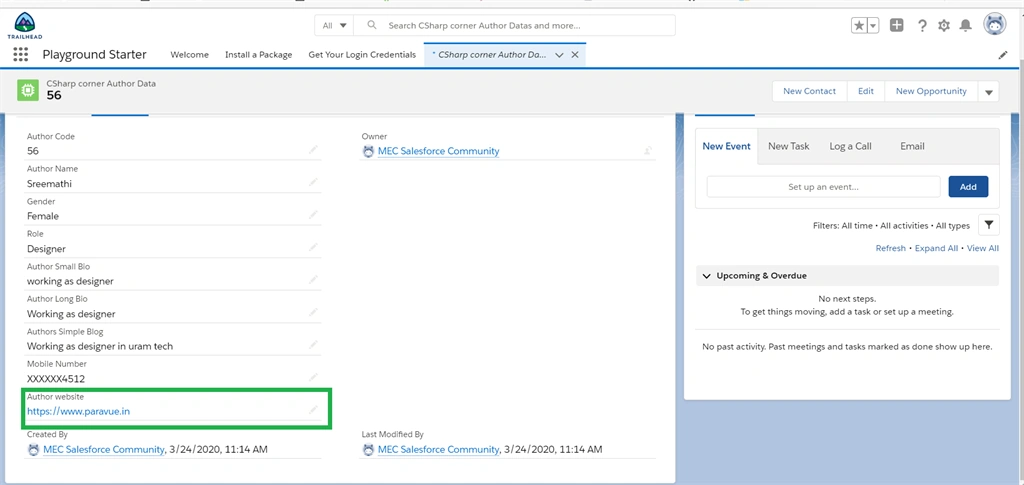
Salesforce CRM can give many data type fields to get a difference of information from users and store it in our org. URL data type field can store a user's website address and other personal URL links.
This URL field allows users to enter a valid URL link. When users click on the field, the URL will open in a separate browser.
By reading this article, you will learn about how to create a URL field data type in a salesforce object in the lightning platform.
Prerequisites
Step 1
Login to trailhead and Launch “trailhead playground” or “Developer Edition”
Step 2
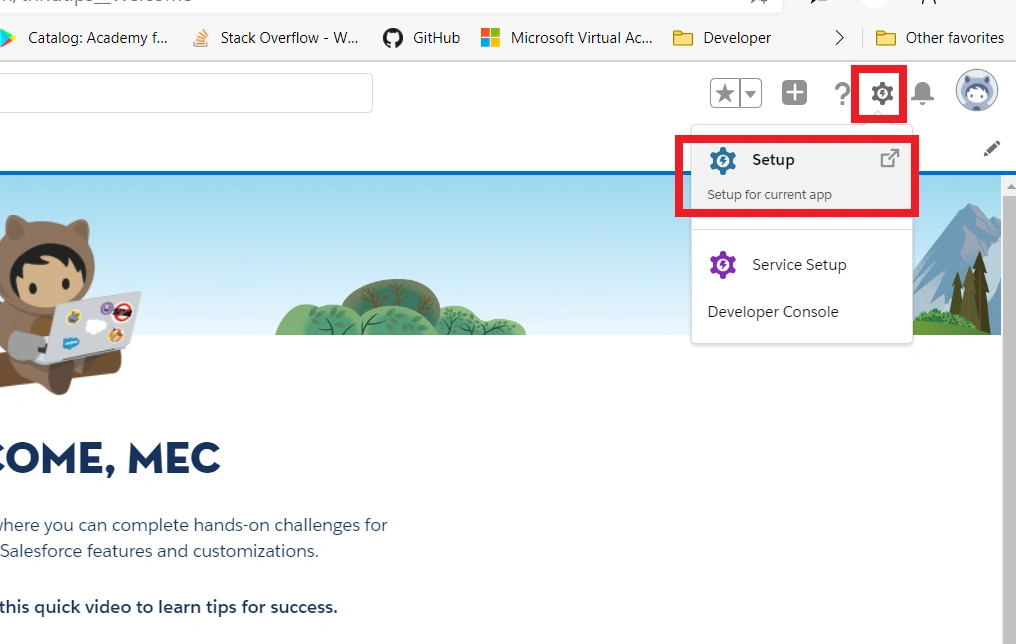
Click the “Gear” icon and then click the “Setup” option.
Creating URL Field Data Types In Salesforce Object
Step 3
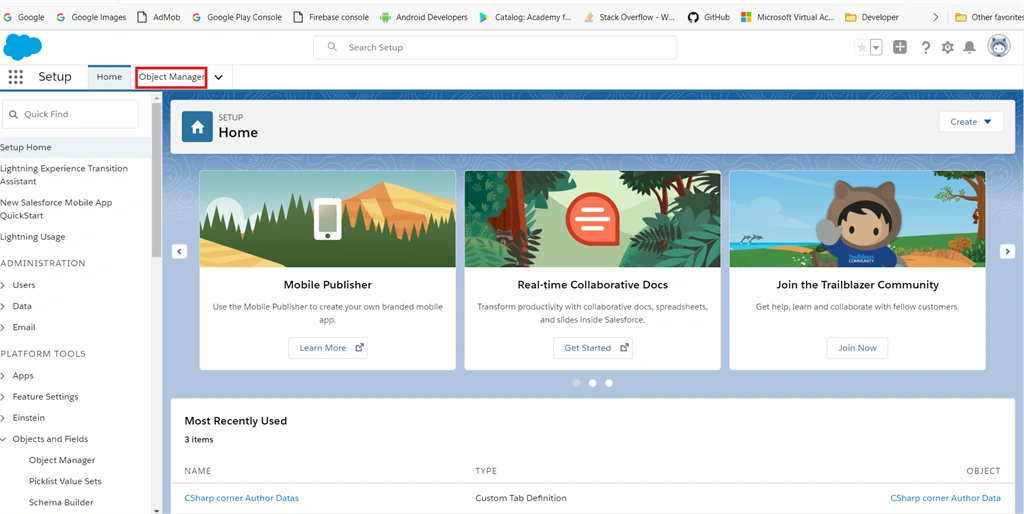
On the setup page, click “Object Manager” at the top of the page.
Creating URL Field Data Types In Salesforce Object
Step 4
Read my previous article on how to create a custom object in the Salesforce lightning platform.
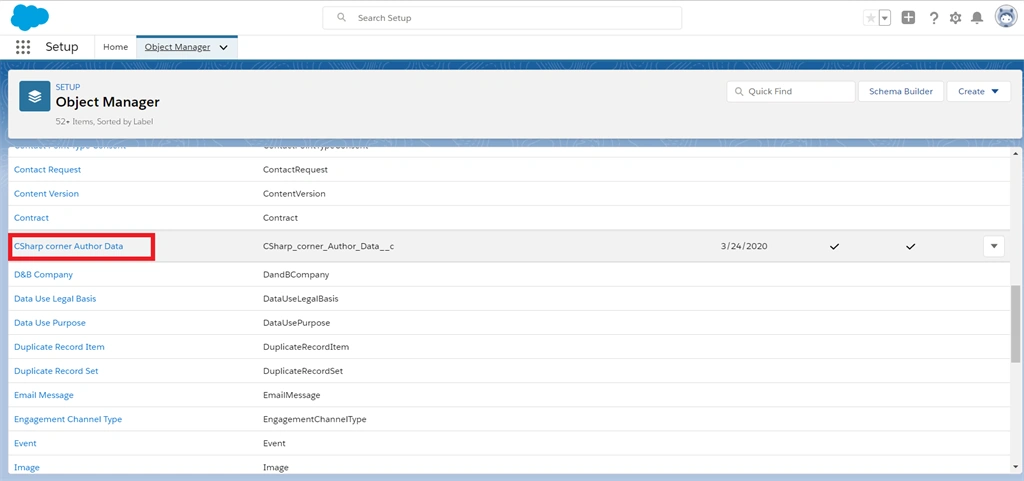
In the object manager page, scroll down and click the created our custom object name from the object list.
Creating URL Field Data Types In Salesforce Object
Step 5
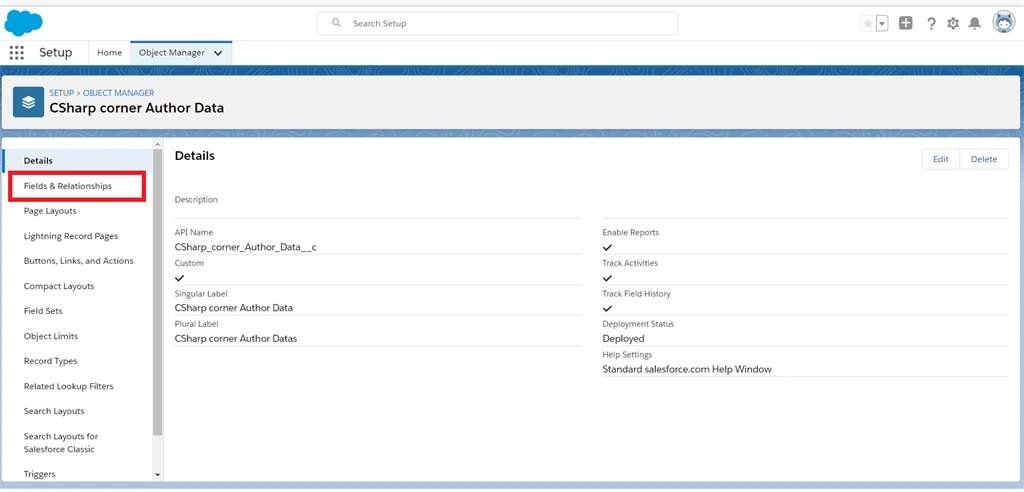
In our created custom object page, click the “Fields & Relationship” option from the left side pane.
Creating URL Field Data Types In Salesforce Object
Step 6
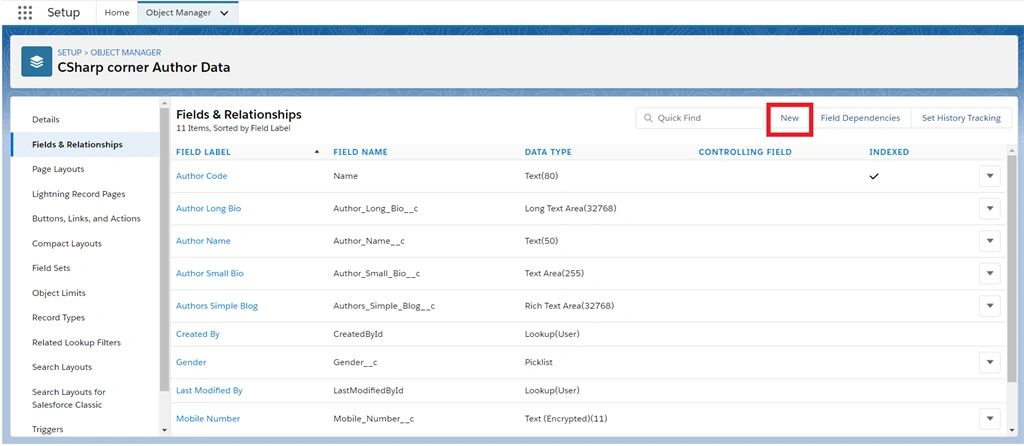
Next, in fields and relationship pages, our predefined fields are listed. Now create a new URL field from datatype by clicking the “New” button.
Creating URL Field Data Types In Salesforce Object
Step 7
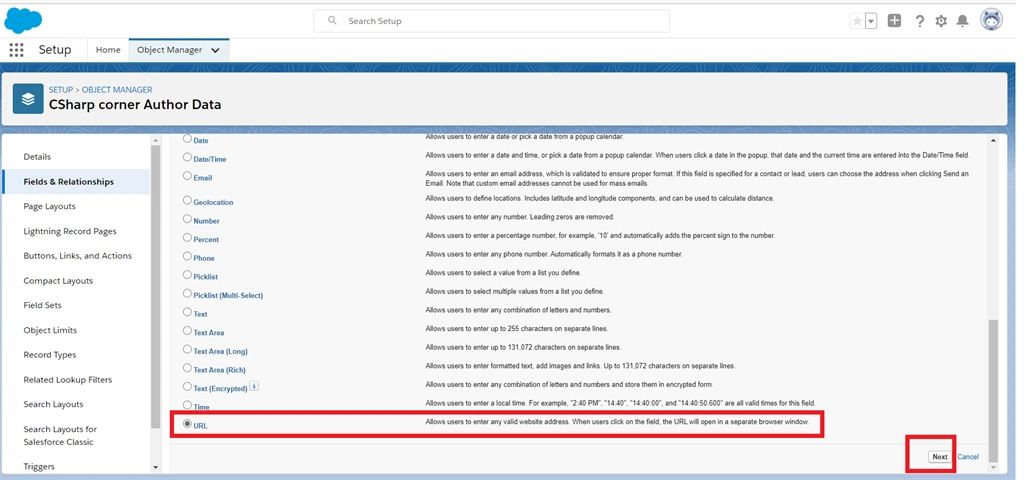
On the next page, many data types are listed on the page. Select the “URL” data type radio button and then click the “Next” button.
Creating URL Field Data Types In Salesforce Object
Step 8
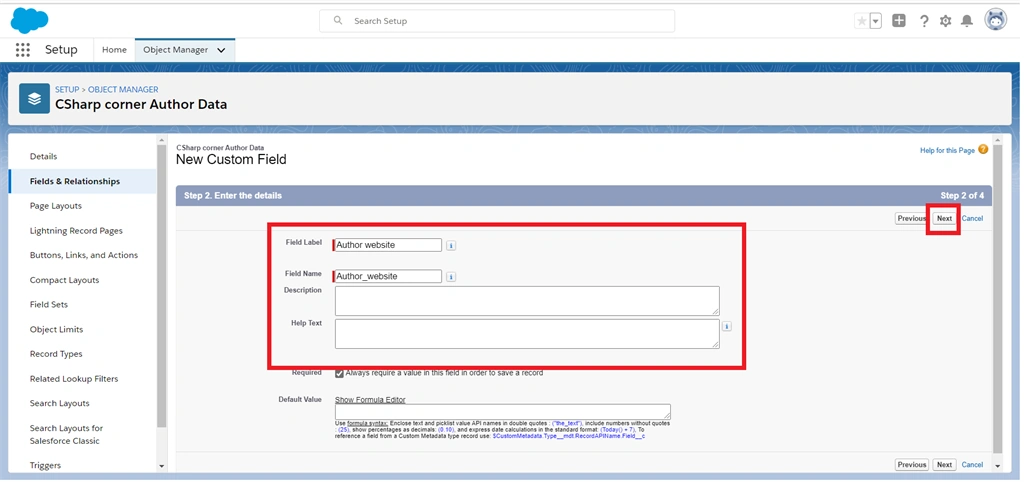
Enter the all required fields and then click the “Next” button.
Creating URL Field Data Types In Salesforce Object
Step 9
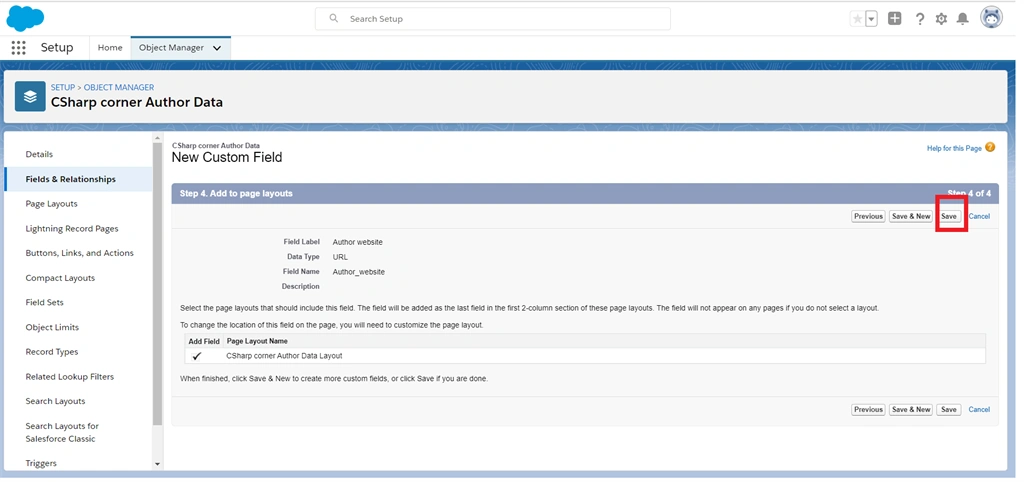
Click the “Next” button in the field level security page. In the Add to page, layout page click the “Save” button.
Creating URL Field Data Types In Salesforce Object
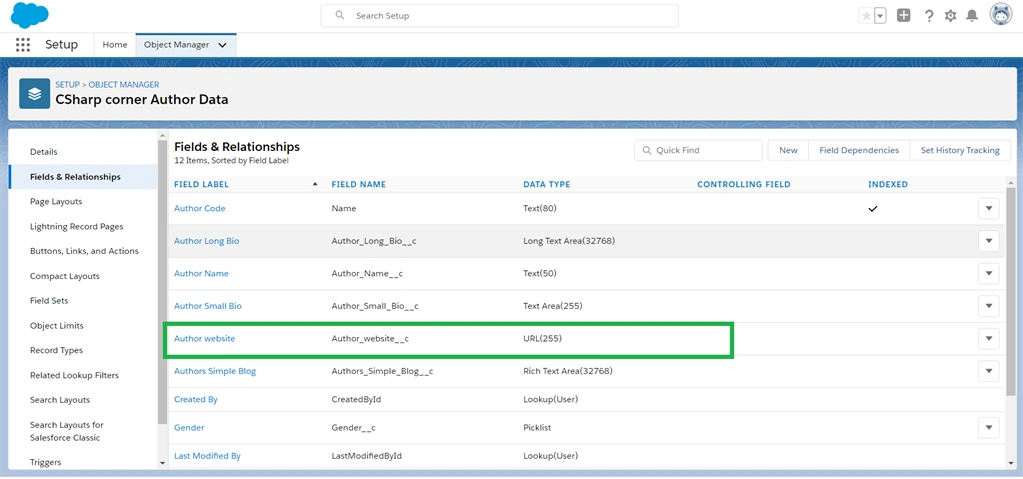
Our created object displays in our fields and relationship page.
Creating URL Field Data Types In Salesforce Object

Test Our Created URL Data Type Field

Step 1
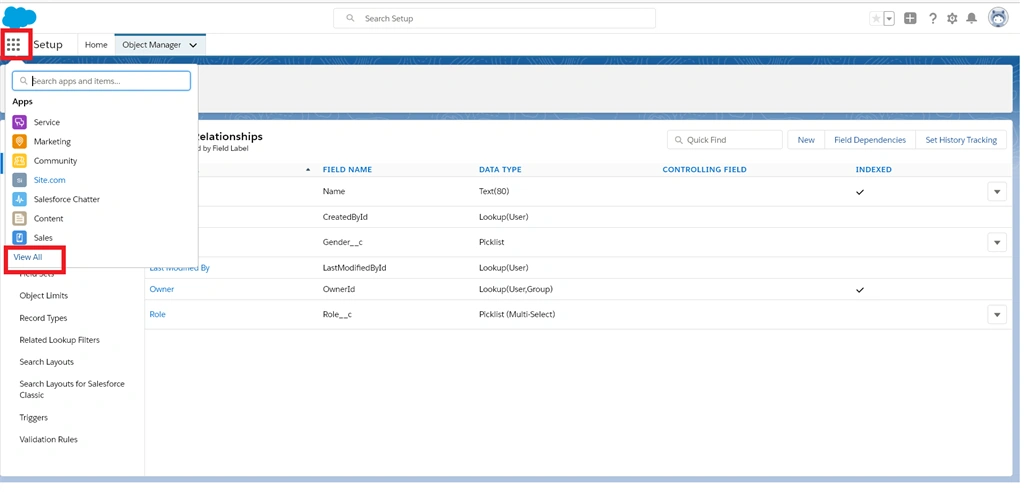
Click the “App launcher” icon at the top left corner on the page and then click the “View all” option.
Creating URL Field Data Types In Salesforce Object
Step 2
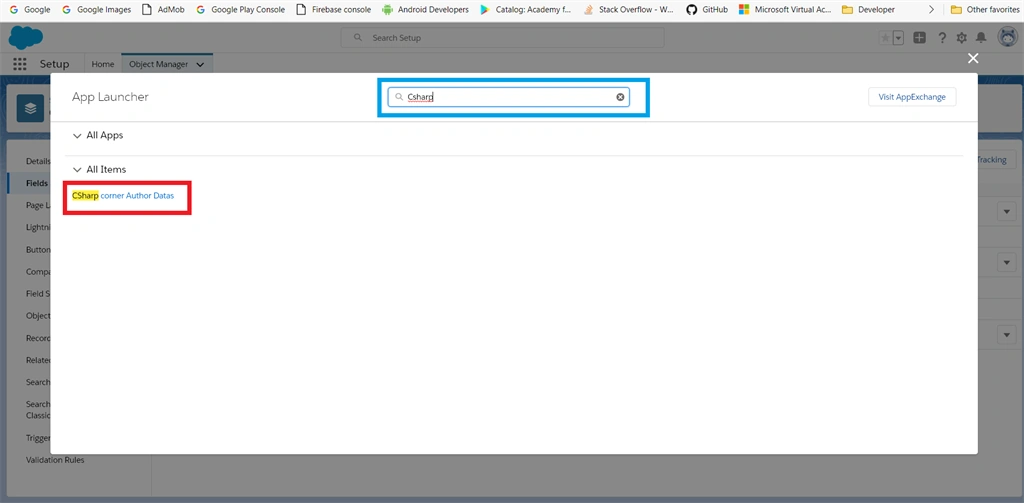
App launcher pop-up window will be opened, search our created object name in the search box and then click the object name.
Creating URL Field Data Types In Salesforce Object
Step 3
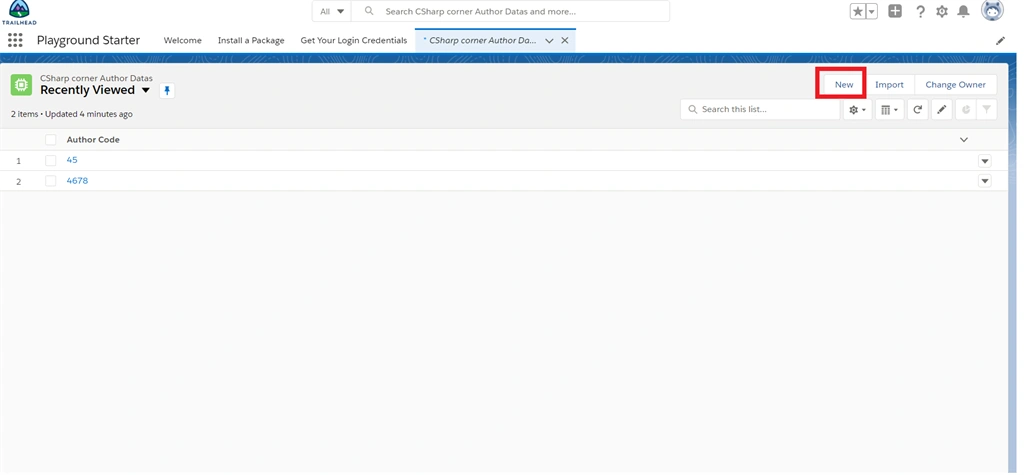
Our object page will be opened, click the “New” button.
Creating URL Field Data Types In Salesforce Object
Step 4
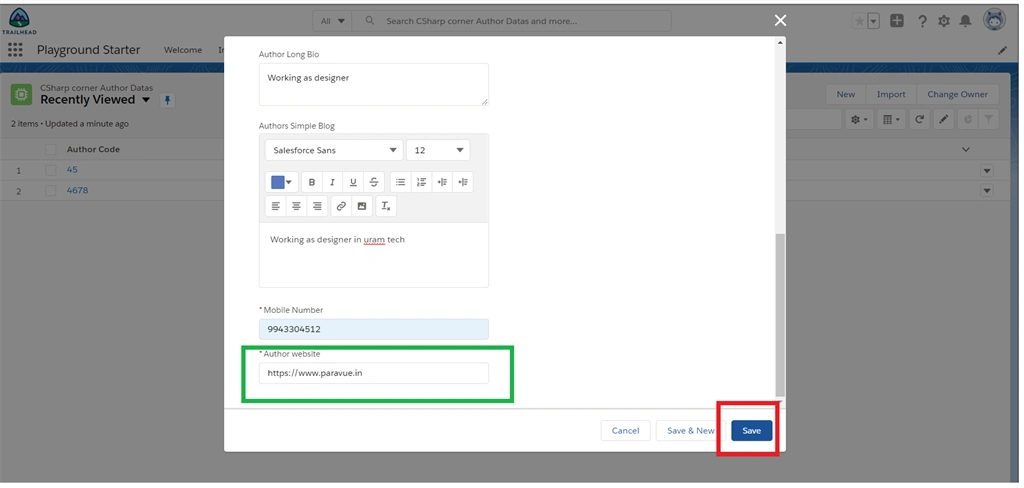
In the pop-up window, Enter all the details in the required field and scroll down to the last. Our created URL field will be displayed. Enter the sample Website address and then click the “Save” button.
Creating URL Field Data Types In Salesforce Object

Summary

Finally, we created a URL data type field and then tested it successfully. Our stored website info will be displayed in clickable type.
Creating URL Field Data Types In Salesforce Object