

Introduction
Azure is a cloud service provider developed by Microsoft. It gives many services for software developers, and one of these services is “Virtual Machines”. Virtual machines are created virtually in Azure clouds, they normally look like a normal computer.
Azure can provide many virtual machine images in our cloud platform. So, it easily deploys our virtual machine within a few minutes.
By reading this article, you will learn how to create and connect a virtual machine using the Azure cloud.
Prerequisites for creating virtual machines
Software Requirements
- Azure cloud account
- Edge or other browsers
- RDP software
- Stable internet connection
Create a Virtual machine
Step 1
Login to Azure portal.
Step2
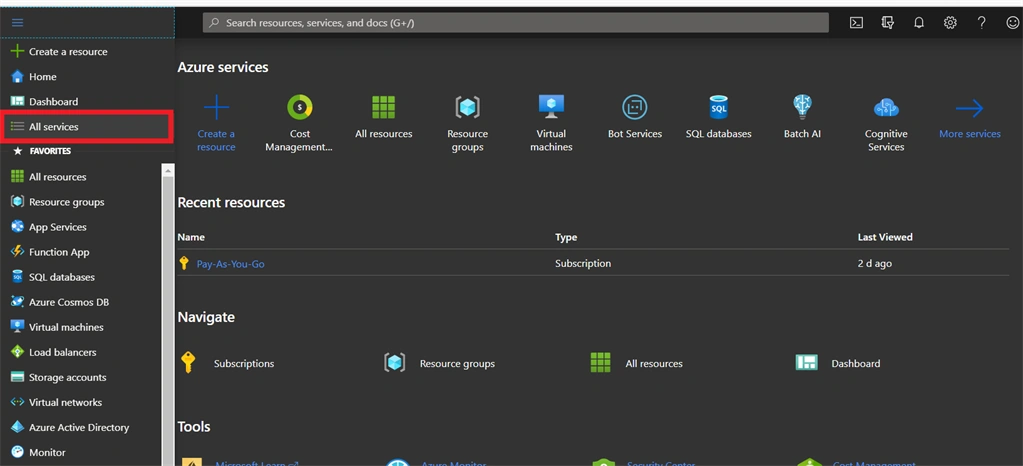
In the left side navigation pane, click “All Services”.
Step 3
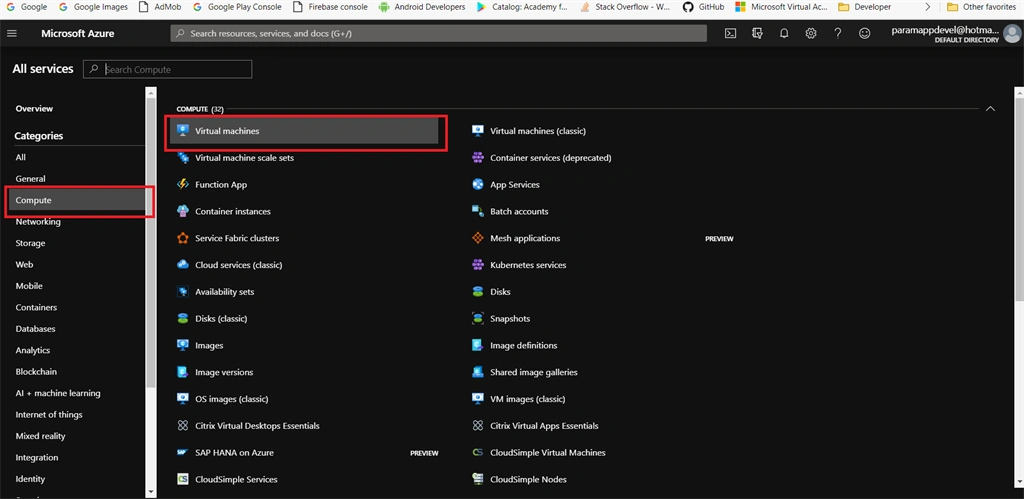
In all services page, you can select “Compute” and then click the “Virtual Machines”.
Step 4
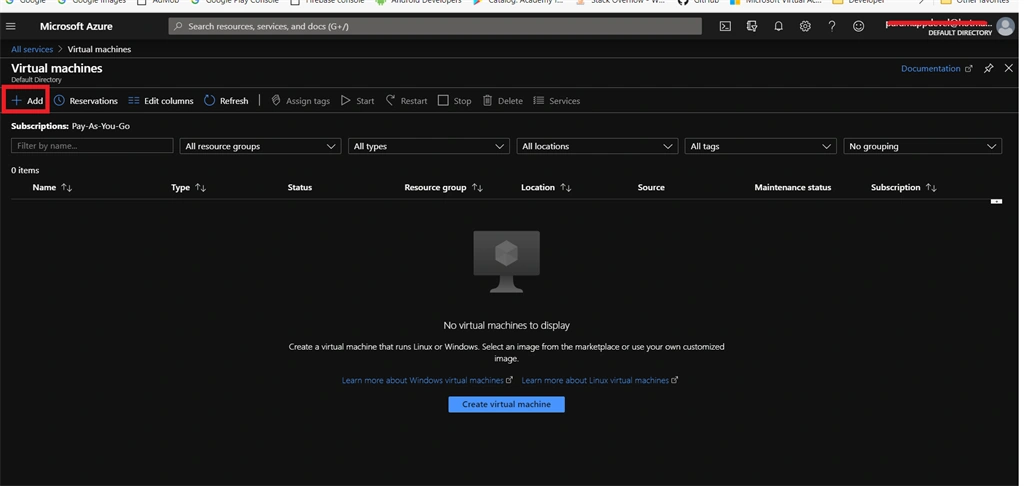
Now you have entered the Virtual machine page. Then after clicking the “Add” button we can enter in “Create a virtual machine page”.
Step 5
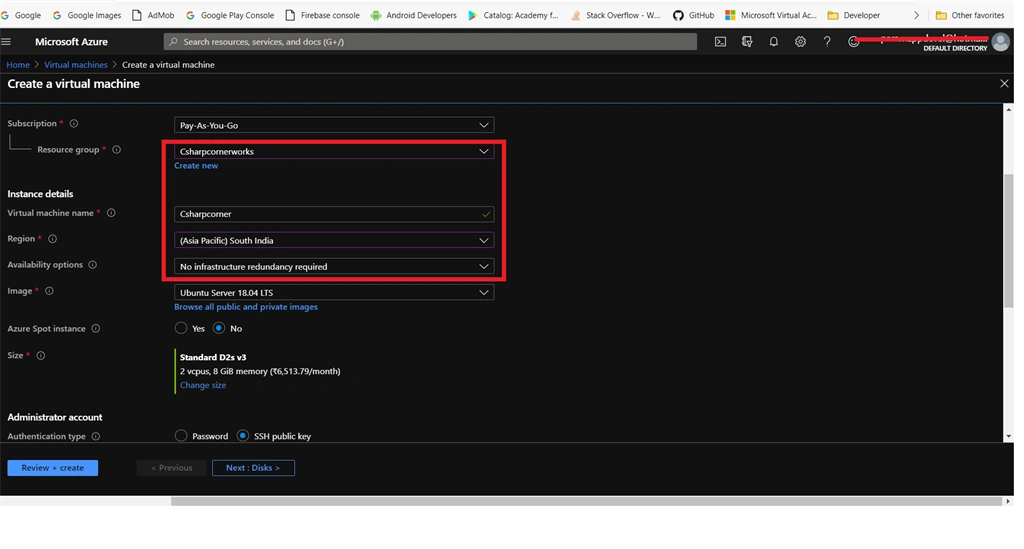
- Select your Subscription plan.
- Choose your “Resource Group”. If you are not creating any resources in your Azure account, read my previous article to “Creating Resource group in Azure cloud”.
- Under the instance details give our virtual machine name and region.
Step 6
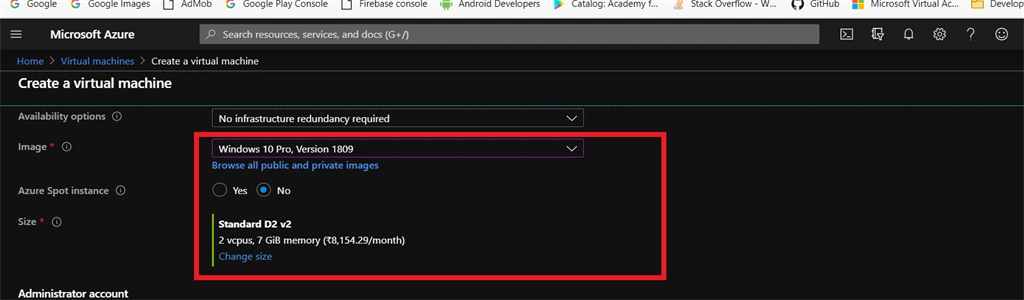
Next, choose an image for our virtual machine, we can select “Windows 10 Pro 1809” and then select “size” of our machine. We can select (2 Vcpu`s and 7GB RAM).
Step 7
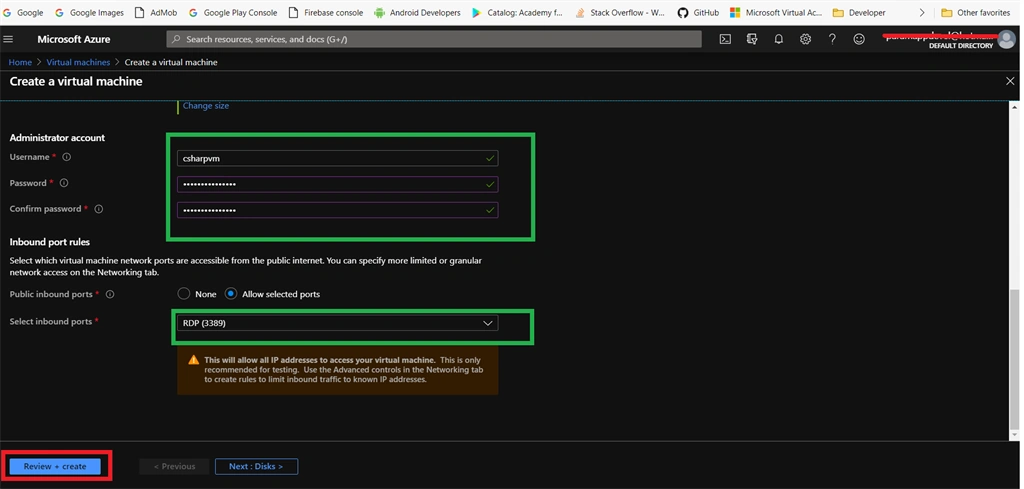
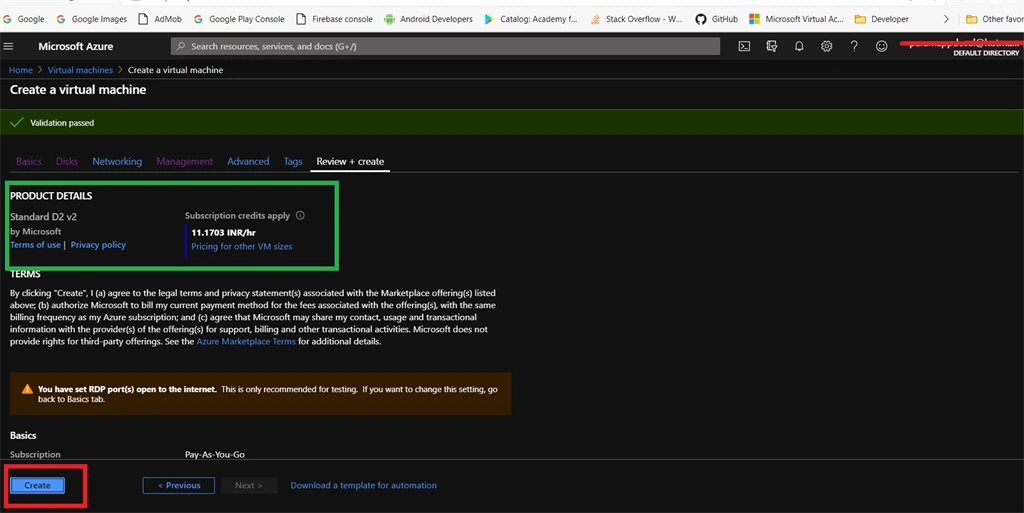
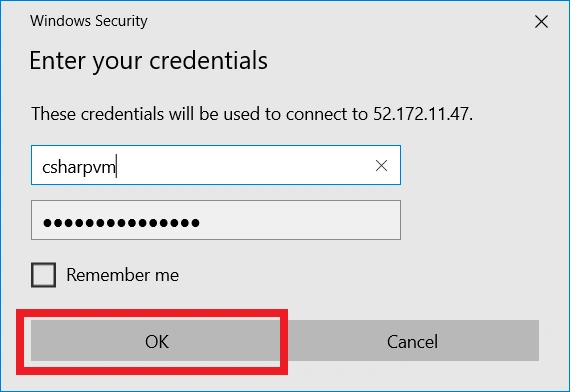
Next, give your username and password to your virtual machine. Finally select inbound ports as “RDP 3389” and then click the “Review + Create” Button.
Fajar PriyatnaPosted Feb 17, 2020, 9:45 PM
Great tutorial.