

Step 1
Create two different databases using one of the ways given below in Windows Azure portal (https://portal.azure.com)
Way 1
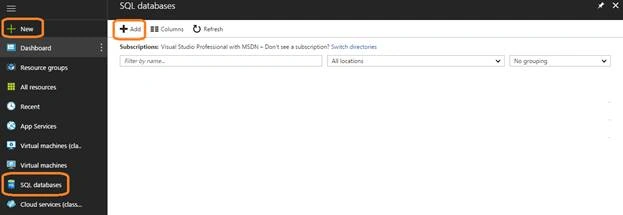
New - SQL databases - Add.
Way 2
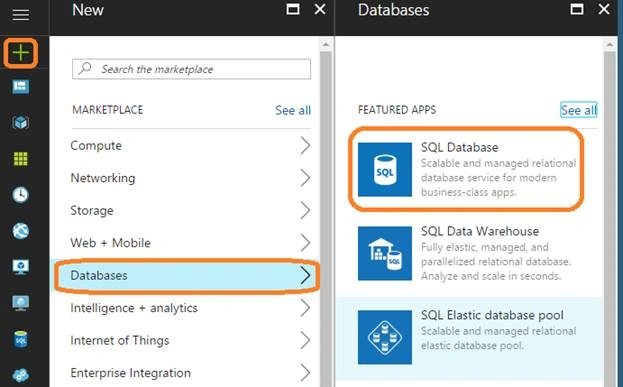
New - Databases - SQL database.
Please fill in the details on the screen given below.
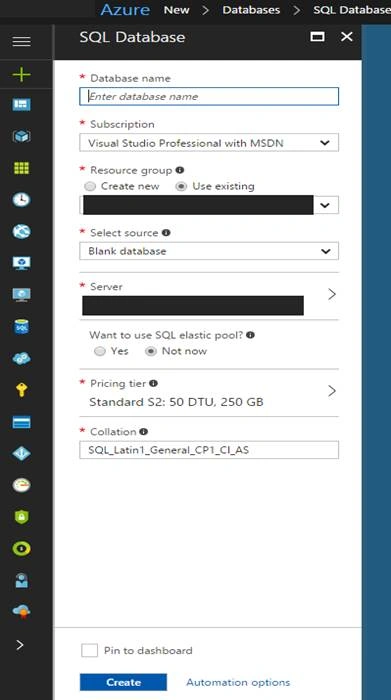
If you do not have resource group, please select Create new.
If you do not have Server, create new Server, using the screen given below.
Please note the Server admin login & Password. This will be required for the further process.
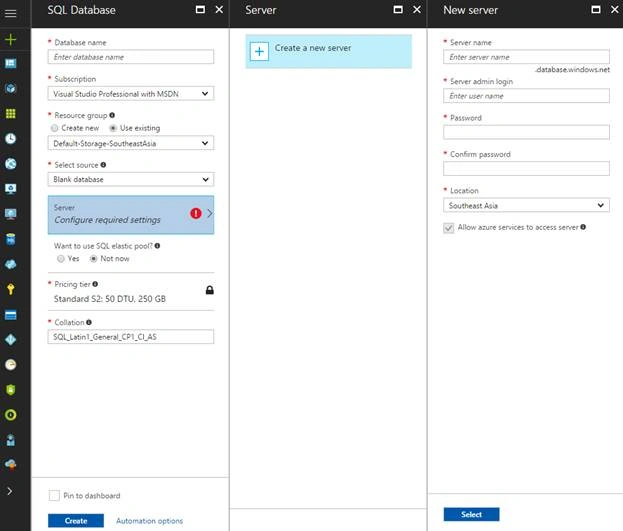
Once you have filled all the required information, please click Create.
Repeat the process given above to create another database.
In this case, we have created two different databases, as shown below.
- myDemoDB1
- myDemoDB2
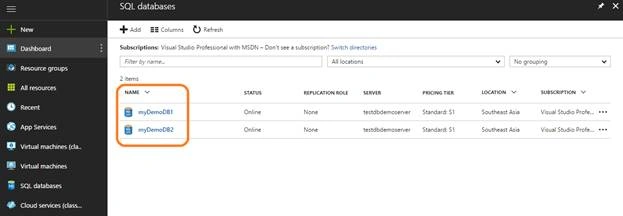
Once the databases are created, you need to set the Firewall rules (either Server level or database level) depending on your requirement.
For setting rules, you can refer to
https://docs.microsoft.com/en-us/azure/sql-database/sql-database-firewall-configure
Step 2
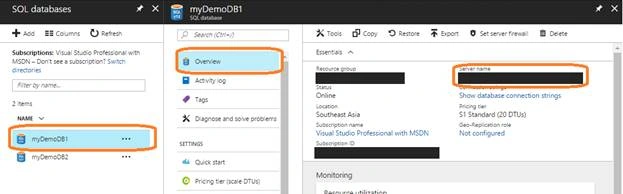
Open SQL Server Management Studio and connect to the Server, which we have created, using the Server admin login & Password, which we have used while creating the Server.
You can get the Server name by going to Yourdatabasename - Overview - Server name.
Now, create two different tables in two databases.
- Employee in myDemoDB1
- USE [myDemoDB1]
- GO
- /****** Object: Table [dbo].[Employee] Script Date: 04/05/2017 15:14:33 ******/
- SET ANSI_NULLS ON
- GO
- SET QUOTED_IDENTIFIER ON
- GO
- CREATE TABLE [dbo].[Employee](
- [Id] [int] NOT NULL,
- [FirstName] [varchar](50) NULL,
- [LastName] [varchar](50) NULL,
- [DeptId] [int] NULL
- )
- GO
- Department in myDemoDB2
- USE [myDemoDB2]
- GO
- /****** Object: Table [dbo].[Department] Script Date: 04/05/2017 15:17:02 ******/
- SET ANSI_NULLS ON
- GO
- SET QUOTED_IDENTIFIER ON
- GO
- CREATE TABLE [dbo].[Department](
- [DeptId] [int] NOT NULL,
- [Name] [varchar](50) NULL
- )
- GO
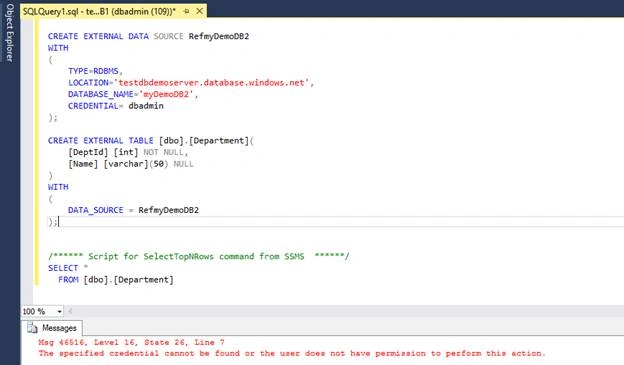
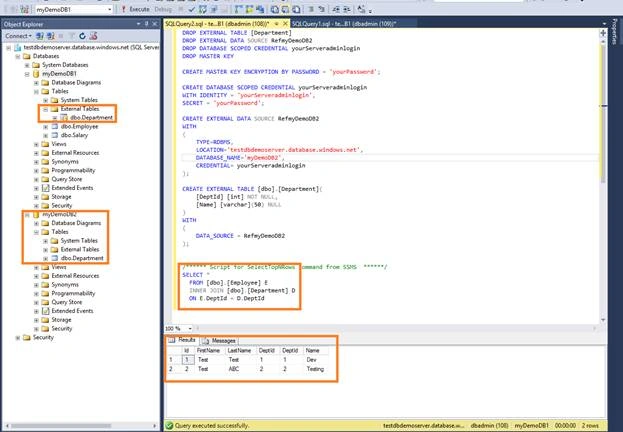
To access the table from the remote database, we need to create elastic database query.
For this, we need to define an external data source, which will point to the target database.
Koshila SenadhiraPosted Nov 30, 2022, 6:52 AM
Interesting Article!
Ajay PunekarPosted May 11, 2018, 4:52 AM
I don't see external tables folder when I try your steps. Can you please tell how can I add external tables in "External Tables" folder?
Adilson JrPosted Jan 18, 2018, 5:31 PM
This happening on run select in external table: "Failed to initialize the global query module."
yash singhPosted Aug 15, 2017, 11:42 PM
If i have same table in both DB then how SQL how identity which table i want to refer without specify the DB name
Saravanakumar SekaranPosted May 8, 2017, 5:46 AM
Very nice article. keep sharing !!!!!
Jayant KulkarniPosted May 8, 2017, 1:56 AM
Nice Article Arvind. All the best.