

In this article we will learn how to achieve CRUD (Create, Read, Update, and Delete) operations in UWA (Universal Windows App) using Web API.
First of all create a new Web API.
Create Web API
- Start Visual Studio 2015
- Create a new project
- Click Visual C# and Web
- Click on ASP.NET Web Application
- Provide the name and location of project and OK
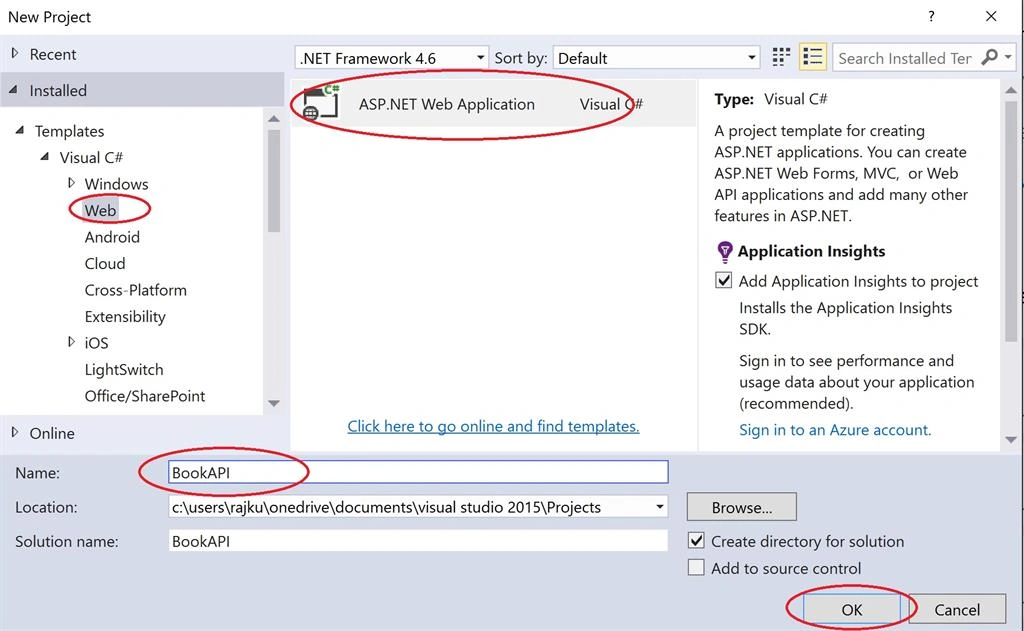
Image 1.
Now select Web API template and click OK.

Image 2.
Without wasting no more time I am attaching a screenshot of my Web API Data.

Image 3.
Getting Started UWA
Here are the steps to get started with Windows Universal App:
- Start Visual Studio 2015
- Create a new project
- Click Visual C# and Windows, then select Universal
- Click on Blank App (Universal Windows)
- Provide the name and location of project
- Click OK

Image 4.
First of all start App.xaml.cs and declare the members and initialize the singleton application object.
- // Declare the members
- public static Uri BaseUri = new Uri("http://localhost:40752/api/books");
- public static Frame RootFrame { get; set; }
- public static Book Books { get; set; }
- public App()
- {
- this.InitializeComponent();
- this.Suspending += OnSuspending;
- using (var client = new HttpClient())
- {
- var response = "";
- client.MaxResponseContentBufferSize = 266000;
- client.DefaultRequestHeaders.Accept.Add(new MediaTypeWithQualityHeaderValue("application/json"));
- Task task = Task.Run(async () =>
- {
- response = await client.GetStringAsync(App.BaseUri);
- });
- task.Wait(); // Wait
- App.Books = JsonConvert.DeserializeObject<List<Book>>(response)[0];
- }
- }
Now change RootFrame which is initialized as Frame property in OnLaunched application event.
- protected override void OnLaunched(LaunchActivatedEventArgs e)
- {
- #if DEBUG
- if (System.Diagnostics.Debugger.IsAttached)
- {
- this.DebugSettings.EnableFrameRateCounter = true;
- }
- #endif
- RootFrame = Window.Current.Content as Frame;
- // Do not repeat app initialization when the Window already has content,
- // just ensure that the window is active
- if (RootFrame == null)
- {
- // Create a Frame to act as the navigation context and navigate to the first page
- RootFrame = new Frame();
- RootFrame.NavigationFailed += OnNavigationFailed;
- if (e.PreviousExecutionState == ApplicationExecutionState.Terminated)
- {
- //TODO: Load state from previously suspended application
- }
- // Place the frame in the current Window
- Window.Current.Content = RootFrame;
- }
- if (RootFrame.Content == null)
- {
- // When the navigation stack isn't restored navigate to the first page,
- // configuring the new page by passing required information as a navigation
- // parameter
- RootFrame.Navigate(typeof(MyBooks), e.Arguments);
- }
- // Ensure the current window is active
- Window.Current.Activate();
- }
<Grid Background="{ThemeResource ApplicationPageBackgroundThemeBrush}">
<Grid Margin="10">
<Grid.RowDefinitions>
<RowDefinition Height="110"/>
<RowDefinition />
</Grid.RowDefinitions>
<StackPanel Grid.Row="0">
<TextBlock FontSize="30" HorizontalAlignment="Center" FontWeight="Bold">Universal Windows App Using Web API</TextBlock>
<TextBlock HorizontalAlignment="Center" TextWrapping="Wrap" FontStyle="Italic">This application would guide you through different stages of performing CRUDs operations in Universal Windows APP using WebAPI.</TextBlock>
</StackPanel>
<StackPanel Grid.Row="1" Margin="10, 0, 10, 0">
<Button Margin="0, 10, 0, 0" Click="Button_Click">Create New Book</Button>
<Button Margin="0, 10, 0, 0" Click="Button_Click">My Books</Button>
<Button Margin="0, 10, 0, 0" Click="Button_Click">Update Book</Button>
<Button Margin="0, 10, 0, 0" Click="Button_Click">Delete a Book</Button>
</StackPanel>
</Grid>
</Grid>
- private void Button_Click(object sender, RoutedEventArgs e)
- {
- switch ((sender as Button).Content.ToString())
- {
- case "Create":
- App.RootFrame.Navigate(typeof(CreateOrUpdate), true);
- break;
- case "My Books":
- App.RootFrame.Navigate(typeof(ShowBooks));
- break;
- case "Update Book":
- App.RootFrame.Navigate(typeof(CreateOrUpdate), false);
- break;
- case "Delete":
- App.RootFrame.Navigate(typeof(DeleteBook));
- break;
- default:
- break;
- }
- }
<Grid Background="{ThemeResource ApplicationPageBackgroundThemeBrush}" >
<Grid Name="viewList">
<Grid.RowDefinitions>
<RowDefinition Height="100"/>
<RowDefinition />
</Grid.RowDefinitions>
<StackPanel Grid.Row="0">
<TextBlock FontSize="25" FontWeight="Bold" HorizontalAlignment="Center">Books</TextBlock>
<TextBlock HorizontalAlignment="Center">On this page you will see a list of books.</TextBlock>
<Button Margin="10, 0, 0, 0" Click="Button_Click">Go Back</Button>
</StackPanel>
<StackPanel Grid.Row="1">
<ListView Name="listView" SelectionChanged="listView_SelectionChanged" >
<ListView.ItemTemplate>
<DataTemplate>
<Grid Margin="5" Background="AliceBlue" Width="900" >
<Grid.RowDefinitions>
<RowDefinition></RowDefinition>
<RowDefinition></RowDefinition>
<RowDefinition></RowDefinition>
</Grid.RowDefinitions>
<Grid.ColumnDefinitions>
<ColumnDefinition Width="300"></ColumnDefinition>
<ColumnDefinition Width="200"></ColumnDefinition>
<ColumnDefinition></ColumnDefinition>
</Grid.ColumnDefinitions>
<TextBlock Text="{Binding Title}" Grid.Row="0" Grid.Column="0" Style="{StaticResource BaseTextBlockStyle}"></TextBlock>
<TextBlock Text="{Binding PublishDate}" Grid.Row="0" Grid.Column="1" Style="{StaticResource CaptionTextBlockStyle}"></TextBlock>
<TextBlock Text="{Binding Author}" Grid.Row="0" Grid.Column="2" Style="{StaticResource CaptionTextBlockStyle}"></TextBlock>
<TextBlock Text="{Binding Description}" Grid.Row="1" Grid.ColumnSpan="2"></TextBlock>
<TextBlock Text="{Binding Price}" Grid.Row="2" Grid.Column="0"></TextBlock>
<TextBlock Text="{Binding Genre}" Grid.Row="2" Grid.Column="1" Grid.ColumnSpan="1"></TextBlock>
</Grid>
</DataTemplate>
</ListView.ItemTemplate>
</ListView>
</StackPanel>
</Grid>
<Grid Name="viewSingle" Visibility="Collapsed">
<StackPanel Margin="10">
<TextBlock Name="Title" Style="{StaticResource BaseTextBlockStyle}"></TextBlock>
<TextBlock Name="Author" FontStyle="Italic"></TextBlock>
<TextBlock Name="Genre" FontStyle="Italic"></TextBlock>
<TextBlock Name="Price" FontStyle="Italic"></TextBlock>
<TextBlock Name="PublishDate" FontStyle="Italic"></TextBlock>
<TextBlock Name="Descrition" FontStyle="Italic"></TextBlock>
<Button Click="Button_Click">View Books</Button>
</StackPanel>
</Grid>
</Grid>
- protected override void OnNavigatedTo(NavigationEventArgs e)
- {
- using (var client = new HttpClient())
- {
- var response = "";
- Task task = Task.Run(async () =>
- {
- response = await client.GetStringAsync(App.BaseUri);
- });
- task.Wait(); // Wait
- listView.ItemsSource = JsonConvert.DeserializeObject<List<Book>>(response);
- App.Books = JsonConvert.DeserializeObject<List<Book>>(response)[0];
- }
- }
- private void listView_SelectionChanged(object sender, SelectionChangedEventArgs e)
- {
- var item = ((sender as ListView).SelectedItem as Book);
- App.Books = item;
- Title.Text = item.Title;
- Author.Text = item.Author;
- Genre.Text = item.Genre;
- Price.Text = item.Price.ToString();
- PublishDate.Text = item.PublishDate.ToString();
- Descrition.Text = item.Description;
- // Change the UI
- viewList.Visibility = Windows.UI.Xaml.Visibility.Collapsed;
- viewSingle.Visibility = Windows.UI.Xaml.Visibility.Visible;
- }
- private void Button_Click(object sender, Windows.UI.Xaml.RoutedEventArgs e)
- {
- switch ((sender as Button).Content.ToString())
- {
- case "Go Back":
- App.RootFrame.Navigate(typeof(MyBooks));
- break;
- case "View Books":
- viewList.Visibility = Windows.UI.Xaml.Visibility.Visible;
- viewSingle.Visibility = Windows.UI.Xaml.Visibility.Collapsed;
- break;
- default:
- break;
- }
- }

Image 5.
If you click on a book.
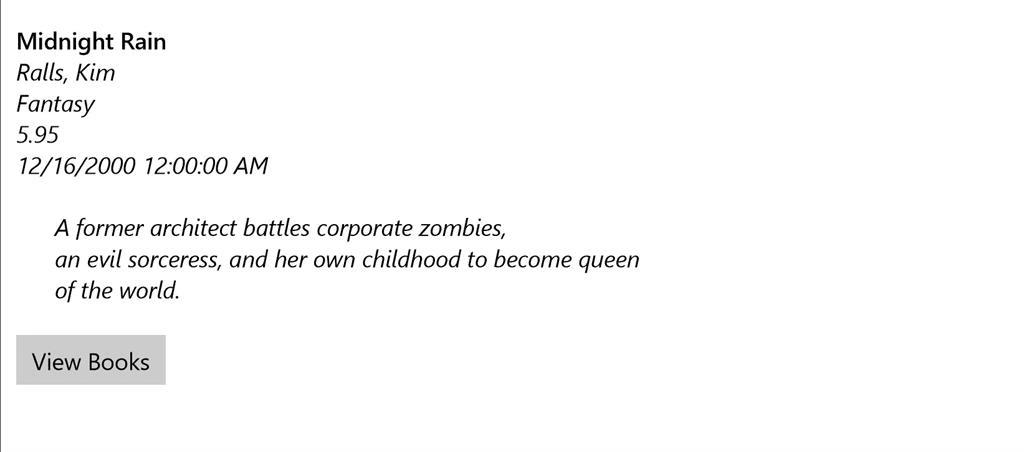
Image 6.
Click on delete button
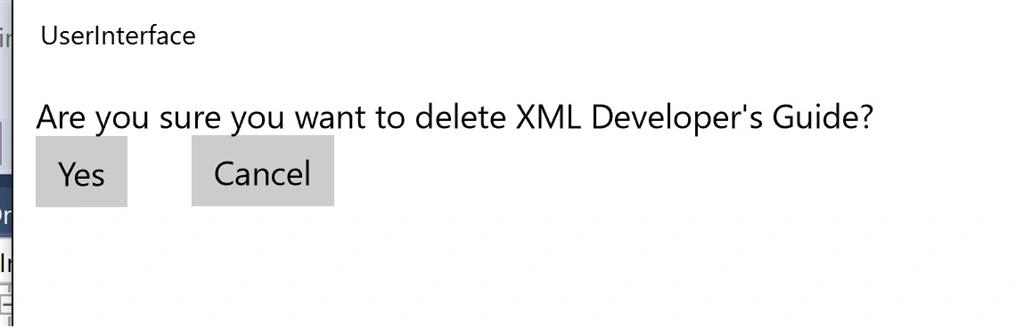
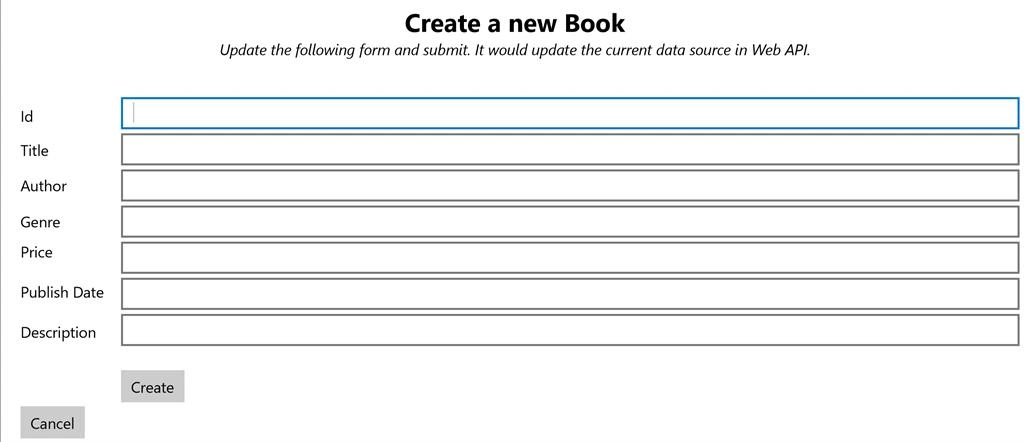
Santhakumar MunuswamyPosted Jan 29, 2016, 2:15 AM
Thanks for nice article
Arul RPosted Jan 27, 2016, 8:34 AM
Nice share
Ankit BansalPosted Jan 27, 2016, 6:16 AM
Nice share..thanks..
Debasis SahaPosted Jan 26, 2016, 11:43 PM
Good one..
Mahesh ChandPosted Jan 25, 2016, 11:46 PM
Nice. Good start. You can use Code Tag in the editor and select C, C++, C# option to format code so article will be nicely formatted and easy to read. Too much spacing in code.
Ankur MistryPosted Jan 25, 2016, 10:48 PM
Helpful article, thanks for sharing
Humayun Kabir MamunPosted Jan 25, 2016, 10:43 PM
Nice...
Debasis SahaPosted Jan 25, 2016, 1:21 PM
Nice One..