

Nowadays, as a developer, if we want to develop any web-based applications, we can develop them in many ways. Now, we have several options to build any Web-based Application like MVC framework, API-based structure along with any client-side framework like Angular or ReactJs. Similarly, now we have another option for developing Web applications, i.e. Blazor Framework. As we know, the Blazor framework provides different hosting models like Blazor Server or Blazor WebAssembly. Now, in this article, we will demonstrate how we can perform the CRUD-based operation using Blazor WebAssembly with the help of Entity Framework core.
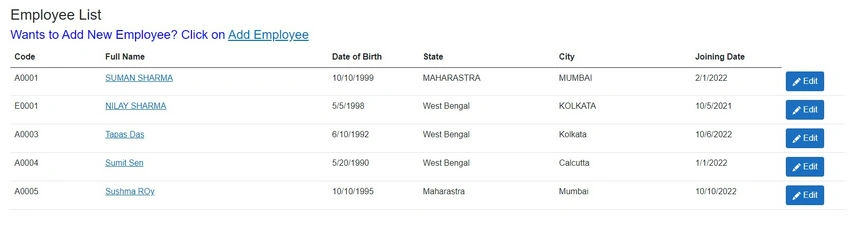
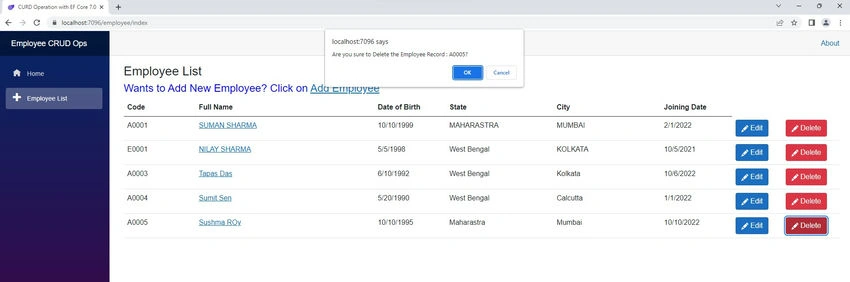
So, in this, we demonstrate how to develop complete UI-based components for Employees. After this demonstration, we can perform the below operations –
- Can view the list of the employee.
- Can Add new Employee Details
- Can Update/Edit any Existing Employee Details
- Can Delete any Employee Records
- Pass Id Field Value to the child page as Route Params
As we know, the Blazor Web Assembly framework supports the component-based concept, which is one the best approach for the code reusability concept. For this reason, in our demonstration, we will create a once single component called EmployeeInfo which will be used for Employee Add, Edit, or View-based Operations. We will discuss in detail related this in the related section.
Github Repo Links :- debasis-saha/blazor_wasm_employee_crud_ops (github.com)
Pre-requisite for the Demo
Before starting the coding work, first, we need to know the pre-requisite related to this application. The main pre-requisites are –
- .Net Framework 7.0
- Code editor which supports Blazor ( we will use Visual Studio 2022, but we can also Visual Studio code)
- Database Application (we will use SQL Server).
Create a Database Structure for the Demo
Before starting working with the Blazor WebAssembly projects, first, we need to create the database table structure for our example. For that purpose, we are using an SQL Server database. So, we need to create a table called “Employees” in the database as below.
CREATE TABLE [dbo].[Employees](
    [Id] [int] IDENTITY(1,1) NOT NULL,
    [Code] [nvarchar](20) NOT NULL,
    [FullName] [nvarchar](100) NULL,
    [DOB] [datetime] NOT NULL,
    [Address] [nvarchar](200) NULL,
    [City] [nvarchar](100) NULL,
    [State] [nvarchar](100) NULL,
    [Country] [nvarchar](100) NULL,
    [PostalCode] [nvarchar](15) NULL,
    [EmailId] [nvarchar](100) NULL,
    [PhoneNo] [nvarchar](50) NULL,
    [JoiningDate] [datetime] NULL,
    CONSTRAINT [PK_Employees] PRIMARY KEY CLUSTERED ([Id] ASC) ON [PRIMARY]
)
Now, for our testing purpose, we will insert one record into the table –
SET IDENTITY_INSERT [dbo].[Employees] ON
GO
INSERT [dbo].[Employees] ([Id], [Code], [FullName], [DOB], [Address], [City], [State], [Country], [PostalCode], [EmailId], [PhoneNo], [JoiningDate]) VALUES (1, N'E0001', N'NILAY SHARMA', CAST(N'1998-05-05T00:00:00.000' AS DateTime), N'CENTRAL ROAD', N'KOLKATA', N'WB', N'INDIA', N'700001', N'[email protected]', N'9830198301', CAST(N'2021-10-05T00:00:00.000' AS DateTime))
GO
SET IDENTITY_INSERT [dbo].[Employees] OFF
GO
Create the Employee Listing Page
Step 1. First, open Microsoft Visual Studio 2022 and then click Create a New Project.
Step 2. Now select the Blazor WebAssembly App option and the click on Next Button.
Step 3. In the Next window, provide the Project name and then click on the Next Button.
Step 4. Now, select the Framework version.Net7 and then click on the create button.
Step 5. Now open the NavMenu.razor page under the shared folder of client projects and the below code to create the link of the Employee.
<div class="@NavMenuCssClass nav-scrollable" @onclick="ToggleNavMenu">
    <nav class="flex-column">
        <div class="nav-item px-3">
            <NavLink class="nav-link" href="" Match="NavLinkMatch.All">
                <span class="oi oi-home" aria-hidden="true"></span> Home
            </NavLink>
        </div>
        <div class="nav-item px-3">
            <NavLink class="nav-link" href="employee/index">
                <span class="oi oi-plus" aria-hidden="true"></span> Employee List
            </NavLink>
        </div>
    </nav>
</div>
Step 6. Now, select the Shared Project and add the below-mentioned Nuget Packages to that project.
- Microsoft.EntityFrameworkCore
- Microsoft.EntityFrameworkCore.SqlServer
- Microsoft.EntityFrameworkCore.Tools
Step 7. Now, in the Shared Project, add a new folder called Models and add the new file called Employee.cs as below.
public class Employee
{
    public int Id { get; set; }

    [Required]
    public string Code { get; set; }

    [Required]
    public string FullName { get; set; }

    [Required]
    [DataType(DataType.Date)]
    public DateTime DOB { get; set; }

    public string? Address { get; set; }

    [Required]
    public string City { get; set; }

    [Required]
    public string State { get; set; }

    [Required]
    public string Country { get; set; }

    [Required]
    public string PostalCode { get; set; }

    [Required]
    public string EmailId { get; set; }

    [Required]
    public string PhoneNo { get; set; }

    [Required]
    [DataType(DataType.Date)]
    public DateTime JoiningDate { get; set; }
}
Step 8. Now, add another new folder called DBContexts under the shared folder and create a new file called SQLDBContext.cs and add the below code there.
public partial class SQLDBContext: DbContext
{
    public SQLDBContext()
    {
    }

    public SQLDBContext(DbContextOptions<SQLDBContext> options)
        : base(options)
    {
    }

    public virtual DbSet<Employee> Employees { get; set; }

    protected override void OnConfiguring(DbContextOptionsBuilder optionsBuilder)
    {
        if (!optionsBuilder.IsConfigured)
        {
            optionsBuilder.UseSqlServer("Server=DEB-HP-NOTEBOOK;Database=PracticeDB;user id=debas; Trusted_Connection=True; MultipleActiveResultSets=true; Encrypt=False;");
        }
        base.OnConfiguring(optionsBuilder);
    }

    protected override void OnModelCreating(ModelBuilder modelBuilder)
    {

    }
}
Step 9. Select the controller folder under the Server Projects and add a new controller called EmployeeController.cs.
Step 10. Now, add the below code in the Employee Controller to fetch the Employee List data.
[Route("api/[controller]")]
[ApiController]
public class EmployeeController: ControllerBase
{
    private readonly SQLDBContext _dbContext;

    public EmployeeController(SQLDBContext context)
    {
        _dbContext = context;
    }

    [Route("GetEmployees")]
    [HttpGet]
    public async Task<IList<Employee>> GetEmployees()
    {
        try
        {
            var _data = await _dbContext.Employees.ToListAsync();
            return _data;
        }
        catch (Exception ex)
        {
            throw (ex);
        }
    }

    [Route("GetEmployee/{id}")]
    [HttpGet]
    public async Task<Employee> GetEmployee(int id)
    {
        try
        {
            var _data = await _dbContext.Employees.FindAsync(id);
            return _data;
        }
        catch (Exception ex)
        {
            throw (ex);
        }
    }

    [Route("SaveEmployee")]
    [HttpPost]
    public async Task<IActionResult> SaveEmployee(Employee employee)
    {
        try
        {
            if (_dbContext.Employees == null)
            {
                return Problem("Entity set 'AppDbContext.Employee'  is null.");
            }

            if (employee != null)
            {
                _dbContext.Add(employee);
                await _dbContext.SaveChangesAsync();

                return Ok("Save Successfully!!");
            }
        }
        catch (Exception ex)
        {
            throw (ex);
        }

        return NoContent();
    }

    [Route("UpdateEmployee")]
    [HttpPost]
    public async Task<IActionResult> UpdateEmployee(Employee employee)
    {
        _dbContext.Entry(employee).State = EntityState.Modified;

        try
        {
            await _dbContext.SaveChangesAsync();
            return Ok("Update Successfully!!");
        }
        catch (DbUpdateConcurrencyException)
        {
            if (!EmployeeExists(employee.Id))
            {
                return NotFound();
            }
            else
            {
                throw;
            }
        }

        return NoContent();
    }


    [HttpDelete("DeleteEmployee/{id}")]
    public async Task<IActionResult> DeleteProduct(int id)
    {
        if (_dbContext.Employees == null)
        {
            return NotFound();
        }
        var product = await _dbContext.Employees.FindAsync(id);
        if (product == null)
        {
            return NotFound();
        }

        _dbContext.Employees.Remove(product);
        await _dbContext.SaveChangesAsync();

        return NoContent();
    }

    private bool EmployeeExists(int id)
    {
        return (_dbContext.Employees?.Any(e => e.Id == id)).GetValueOrDefault();
    }
}
Step 11. Our Employee GetAll API End Point is ready to retrieve all employee list data.
Step 12. Now, return to the Client Project and Add a new Folder Called Employee under the Pages folder.
Step 13. Now, add a new Razor Component called EmployeeList as below.
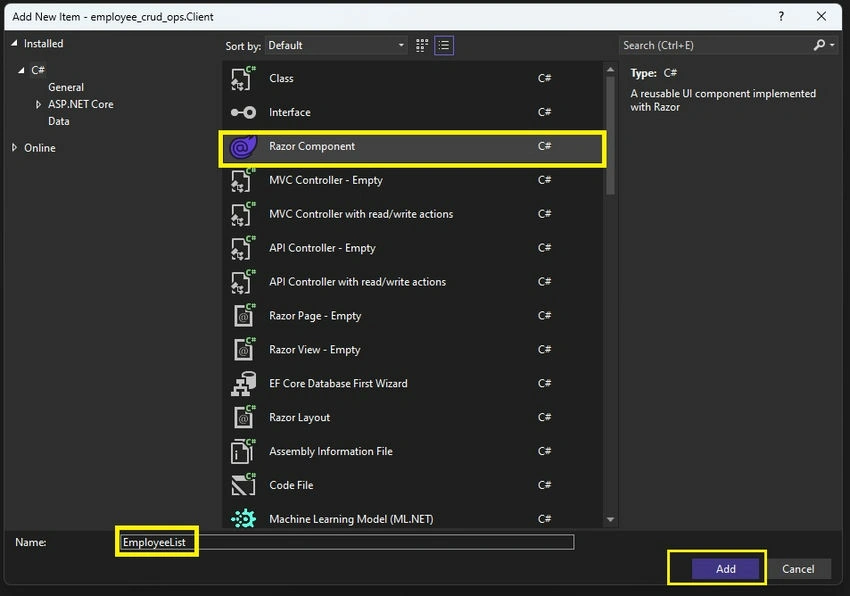
Step 14. Now, add the below code in the EmployeeList.razor component.
@page "/employee/index"
@using employee_crud_ops.Shared.Models
@inject HttpClient Http

<h3>Employee List</h3>

<h4 style="color:blue;">
    Wants to Add New Employee? Click on <a href="/employee/create">Add Employee</a>
</h4>
<table class="table">
    <thead>
        <tr>
            <th>Code</th>
            <th>Full Name</th>
            <th>Date of Birth</th>
            <th>State</th>
            <th>City</th>
            <th>Joining Date</th>
        </tr>
    </thead>
    <tbody>
        @if (employees == null)
        {
            <tr>
                <td colspan="8" align="center">No Data Found</td>
            </tr>
        }
        else
        {
            @foreach (var employee in employees)
            {
                <tr>
                    <td width="10%">@employee.Code</td>
                    <td width="25%">employee.FullName</td>
                    <td width="10%">@employee.DOB.ToShortDateString()</td>
                    <td width="15%">@employee.State</td>
                    <td width="15%">@employee.City</td>
                    <td width="10%">@employee.JoiningDate.ToShortDateString()</td>

                </tr>
            }
        }
    </tbody>
</table>

@code {
    private Employee[]? employees;

    protected override async Task OnInitializedAsync()
    {
        await this.FetEmployees();
    }

    private async Task FetEmployees()
    {
        employees = await Http.GetFromJsonAsync<Employee[]>("/api/employee/getemployees");
    }
}



راكان حسوPosted Sep 8, 2026, 11:07 AM
Thanks'
Jose Luis MunozPosted Feb 29, 2024, 4:38 PM
Hi, just a simple precision. In order to try the tutorial, When you create the Blazor Assembly App in Visual Studio, check the option "ASP.NET Core hosted" on the panel "Additional Information"/"Advanced". Thanks
Jose Luis MunozPosted Feb 23, 2024, 10:06 PM
I cannot see neither "Shared Project" nor "Server Project" after selecting "Blazor Webassembly app". Also GetAll APi?
Mukesh SagarPosted Aug 1, 2023, 8:00 AM
Nice explanation....
Rajdeep SahaPosted Jul 24, 2023, 2:36 AM
Thanks for sharing this great aricle..
Amir NavedPosted Jul 20, 2023, 11:22 AM
Amazing Article for the beginners