
We will first download the SAP Crystal report from the source, and install it on our system, then with the help of some simple code we will go ahead.
Initial chamber
Firstly, download the SAP Crystal report for respective IDE’s of Visual Studio,
For Visual Studio 2010 -
For Visual Studio 2013
Step 1: Open Visual Studio 2010 and create an Empty Website. Give it a suitable name crystalrpt_demo.
Step 2: In Solution Explorer you will get your empty website, then add a Web Form and SQL Server Database and Dataset. By following these steps:
For Web Form
crystalrpt_demo(Your Empty Website) - Right Click, Add New Item, then Web Form. Name it crystalrpt_demo.aspx.
For SQL Server Database
crystalrpt_demo(Your Empty Website) - Right Click, Add New Item, then SQL Server Database. Add Database inside the App_Data_folder.
For DataSet
crystalrpt_demo (Your Empty Website) - Right Click, Add New Item, then DataSet[Add DataSet inside the App_Code_folder].
Database chamber
Step 3: In Server Explorer, click on your Database [Database.mdf] - Tables, then Add New Table. Make table like the following:
Table - tbl_data [Don’t Forget to make ID as IS Identity - True].
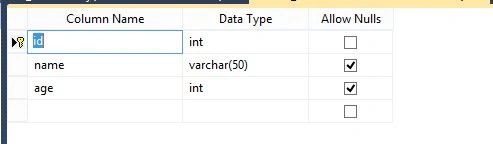
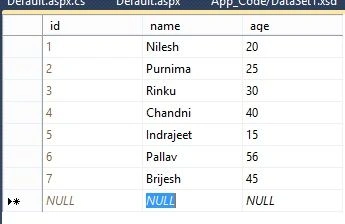
Insert some data inside your table by going to your table - tbl_data - Right Click and show tbl_data. Add data in the table.
Show table data
Store Procedure sp_select:

Double click on the dataset that resides under App_code_Folder. Here's an image:

When you double click the dataset you get the blank area, there you have to do something like the following:
Right Click on the blank area and Add DataTable.
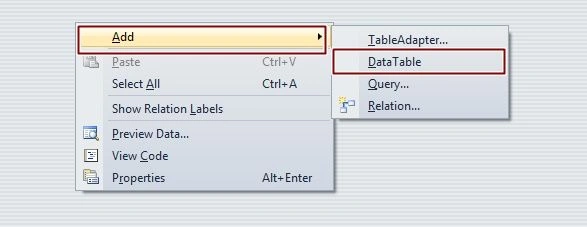
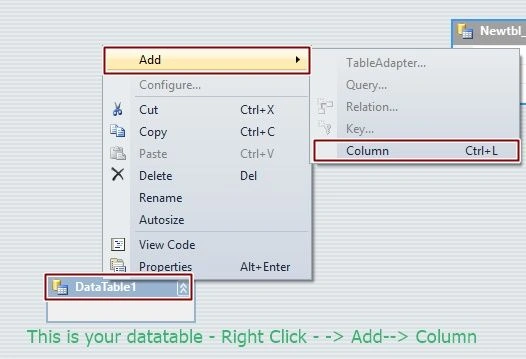
Change the name to table from Datatable1 to Newtbl_data, there you have to add 3 columns for ID, Name, City as we had taken in tbl_data, so add three Columns. You will get something like the following image:

After this process you have to go to the crystalrpt_demo - Right Click, Add New Item and find Crystal Report.rpt file.
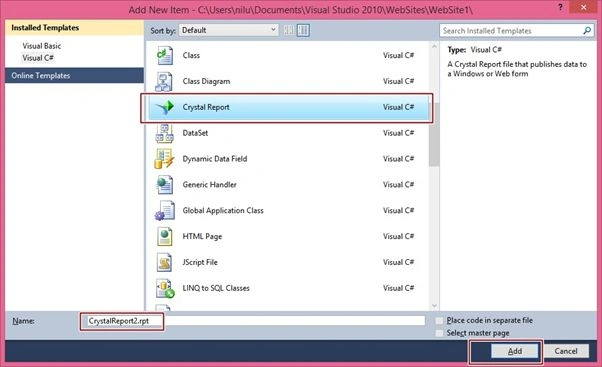
When you add this new Crystal Report Gallery opened there you can see the following image:
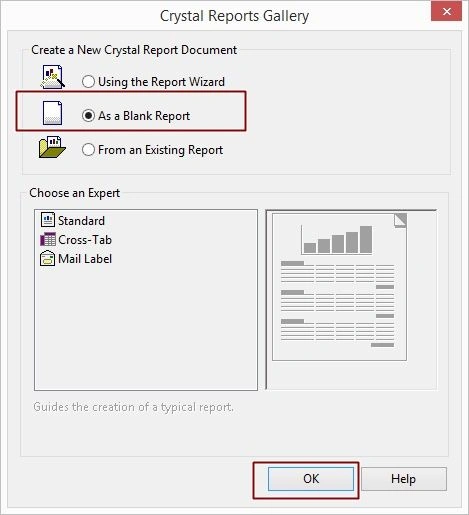
You got something like the following image:
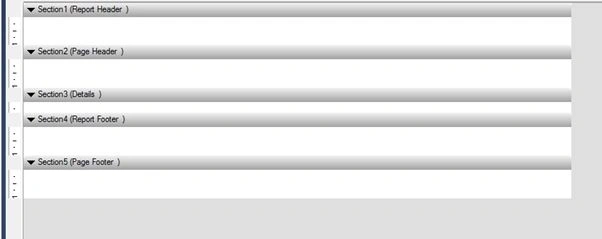
When your crystal report opens like the above image, then you can find that on the left or right dock Field Explorer opens up.
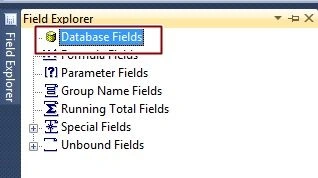
Right Click on Field Explorer - Database Expert, Create New Connection - you have to find the table that we had made in Dataset i.e Newtbl_data.
Once your table is visible Add that table to the right hand side pane using “ >>” button an Press OK. See the following image.

You will get you Newtbl_data in Field Explorer like the following screenshot:

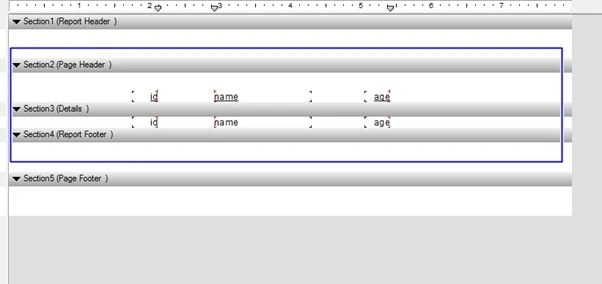
Here you have to add these ID, Name and City from Database Fields to the Crystal Report - Section 3 Page Details. You can drag these fields to the Crystal Report Page Details.
In the Field Explorer - Right Click on Parameter, then clicck New. Here's the screenshot:
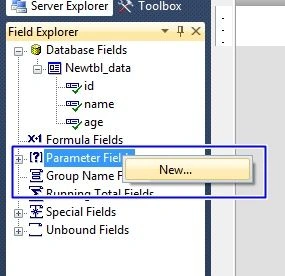
It will open up the Parameter Window where you have to add one parameter that is “age1”.

Now go the Crystal Report Detail Section - Right Click - Report, then click Section Formula and Record. Refer the following image:
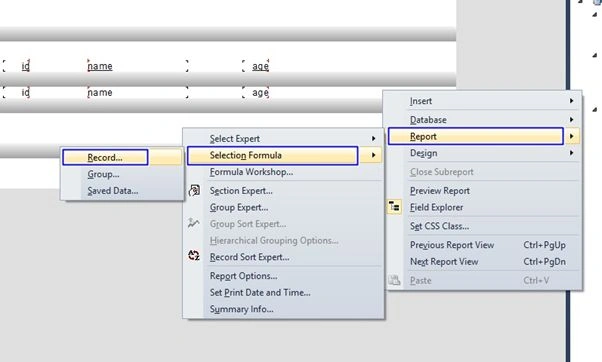
It will open up the Formula Workshop.

Design chamber
Step 4: Now open your crystalrpt_demo.aspx file, where we create our design for crystal report. We will add Crystal Report Viewer here.
Go to the toolbox and find Reporting, then Drag and Drop Crystal Report Viewer.
crystalrpt_demo.aspx

Crystal Report With Parameter In ASP.NET Using C#
Join the conversation! Your thoughts help the community grow.
Sign in to leave a comment
It is the same account you read, post and publish with — and you will come straight back to this page.


KANWAL SHAHIDPosted Jun 22, 2019, 3:35 PM
I am having a error in this line-------------- rd.SetDataSource(dt); what should i do ???
Venkat JegadesanPosted Jul 23, 2018, 7:26 AM
Im working in form1 and have crystal report viewer in form2 . shall i proceed to generate.
Sonu ChaudharyPosted Mar 31, 2016, 12:02 PM
nice one
Arul RPosted Oct 28, 2015, 5:28 AM
Good one !!!
Priyaranjan K SPosted Oct 19, 2015, 12:42 PM
Good One
AnithaPosted Oct 19, 2015, 9:09 AM
Great work
Sibeesh VenuPosted Oct 19, 2015, 8:53 AM
Nice Share
Humayun Kabir MamunPosted Oct 19, 2015, 6:48 AM
Nice...
Ramchand RepallePosted Oct 19, 2015, 5:32 AM
Good one..
Mukesh KumarPosted Oct 19, 2015, 5:12 AM
Great Work
Debendra DashPosted Oct 19, 2015, 4:01 AM
good one.....
Ratnesh SinghPosted Oct 19, 2015, 3:46 AM
good....
Harshad PansuriyaPosted Oct 19, 2015, 3:25 AM
Nice one