CSS clear Property example
The CSS clear property is used to clear space for an element that has preceding elements that use the float property.
Possible Values-
left- No floating elements allowed on the left side
- right- No floating elements allowed on the right side
- both- No floating elements allowed on either the left or the right side
- none- Default. Allows floating elements on both sides.
- <html>
- <head>
- <title>Styling Text</title>
- <style type="text/css">
- #div1 {float: left; background: #F0F; width: 260px; height: 120px;}
- #div2 {clear: left; background: #0FF; width: 260px; height: 120px;}
- </style>
- </head>
- <body>
- <div id="div1">div content ...</div>
- <div id="div2">div content ...</div>
- </body>
- </html>
CSS color Property example
The CSS color property is used to specify the foreground color for the text inside your elements.
- <style type="text/css">
- #p1{ color:#099;}
- </style>
- <p id="p1">This is my paragraph....</p>
CSS display property example
The CSS display property is used to alter the default display behavior of elements.
"Block display" elements cannot be laid side-by-side horizontally unless you apply the float property to them for strategic positioning.
While other elements are "inline display" elements, that are side-by-side horizontally by default.
CSS float property example
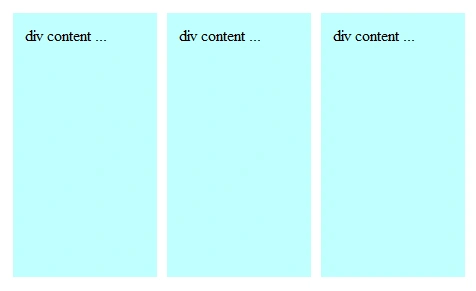
The CSS float property is used to float elements to a specific side. You can strategically float block elements and specify widths, heights, and margins for them.
- <style type="text/css">
- .columnLayout{ float: left;background: #BFFFFF;padding: 12px;width: 120px;height: 240px;margin: 5px;}
- .columnLayout:hover{ border: #00D2D2 1px solid;}
- </style>
- <div class="columnLayout"></div>
- <div class="columnLayout"></div>
- <div class="columnLayout"></div>
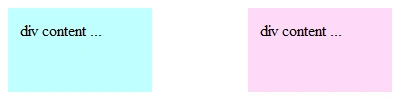
or
- <style type="text/css">
- #div1{ float: left;background: #BFFFFF;padding: 12px;width: 120px;height: 60px;}
- #div1:hover{border: red 1px solid; }
- #div2{ float: right;background: #FFD9F8;padding: 12px;width: 120px;height: 60px;}
- #div2:hover{border: red 1px solid; }
- </style>
- <div id="div1">div content ...</div>
- <div id="div2">div content ...</div>
CSS font Property
CSS font-family Property example
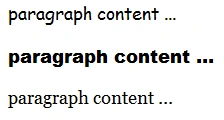
The CSS font-family property is used to define a font family for an element. It will also affect any child elements of the specified element.
- <style type="text/css">
- p{ font-size:18px;}
- #p1{ font-family: "Comic Sans MS", "Trebuchet MS", Arial;}
- #p1:hover{ color:Red;}
- #p2{ font-family: "Arial Black", Impact, Verdana;}
- #p2:hover{ color:Green;}
- #p3{ font-family: Georgia, "Times New Roman", serif;}
- #p3:hover{ color:pink;}
- </style>
- <p id="p1">paragraph content ...</p>
- <p id="p2">paragraph content ...</p>
- <p id="p3">paragraph content ...</p>
CSS font-size Property example
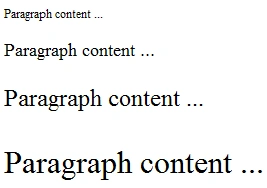
The CSS font-size property is used to specify the size of the text inside of elements.
- <style type="text/css">
- #p1 { font-size: 12px; }
- #p1:hover{ font-size: 14px; color:Red; }
- #p2 { font-size: larger; }
- #p2:hover{ font-size: 16px; color:Green; }
- #p3 { font-size: x-large; }
- #p3:hover{ font-size: 18px; color:Blue; }
- #p4 { font-size: 200%; }
- #p4:hover{ font-size: 20px; color: Maroon; }
- </style>
- <p id="p1">Paragraph content ...</p>
- <p id="p2">Paragraph content ...</p>
- <p id="p3">Paragraph content ...</p>
- <p id="p4">Paragraph content ...</p>
CSS font-style Property
The CSS font-style property is used to specify italic or oblique font faces of text in an element.
- <style type="text/css">
- #p1{ font-style: italic;}
- </style>
- <p id="p5">Paragraph content ...</p>
CSS font-variant Property example
The CSS font-variant property is used to specify that all lowercase letters be replaced by small capital letters.
The lowercase letters will become capitalized while keeping their small size in proportion to the actual capital letters.
- <style type="text/css">
- h2 { font-variant:small-caps;}
- </style>
- <h2>This is my section heading</h2>
CSS font-weight Property example
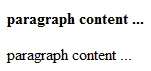
The CSS font-weight property is used to specify the thickness of the font.
- <style type="text/css">
- .myClass { font-weight: 600;}
- </style>
- <p class="myClass">paragraph content ...</p>
- <p>paragraph content ...</p>
CSS font property example
The CSS font property is CSS shorthand for specifying font-style, font-variant, font-weight, font-size and font-family properties.
- <style type="text/css">
- p.myClass { font: italic small-caps bold 18px Arial, Verdana;}
- p.myClass:hover{ color:Red;}
- </style>
- <p>Paragraph Content</p>
- <p class="myClass">Paragraph Content</p>
CSS height Property example
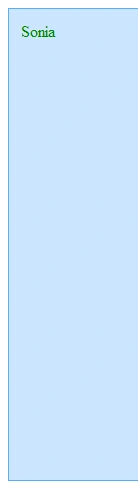
The CSS height property is used to specify the height setting that some content containers can receive.
This only works on elements that are "block" display type content boxes.
For instance if you try to set the height on an <span> element, by default, it will not adhere to your height property, but if you try to set height for an <div> element it will adhere to the height property.
- <style type="text/css">
- #myDiv { height: 50%; width: 75%;border: #59ACFF 1px solid;background: #CCE6FF;padding: 12px; color:Green;}
- </style>
- <div id="myDiv">Sonia</div>
CSS letter-spacing Property example
The CSS letter-spacing property is used to specify the amount of space that your text should have between each letter.
Use this with the word-spacing and line-height properties to really fine-tune your font and text rendering for better readability.
- <style type="text/css">
- p.class1 { letter-spacing: 0.3em;}
- p.class1:hover{ color:Red;}
- p.class2 { letter-spacing: 4px;}
- p.class2:hover{ color:Green;}
- </style>
- <p class="class1">Sonia</p>
- <p class="class2">Sonia</p>
- <p>Sonia</p>
CSS line-height Property example
The CSS line-height property is used to specify the amount of space between each new line of text and the height of line breaks.
Use this with the word-spacing and letter-spacing properties to really fine-tune your font and text rendering for better readability.
- <style type="text/css">
- p.class1 { line-height: 2.5em; color:Red;}
- p.class2 { line-height: 50px; color:Green;}
- p.class3 { line-height: 300%; color:Blue;}
- </style>
- <p>Sonia <br /> and more <br /> and more</p>
- <hr />
- <p class="class1">Sonia <br /> and more <br /> and more</p>
- <hr />
- <p class="class2">Sonia <br /> and more <br /> and more</p>
- <hr />
- <p class="class3">Sonia <br /> and more <br /> and more</p>
CSS list-style Property
CSS list-style-position Property example
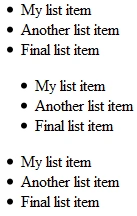
The CSS list-style-position property is used to specify the position of list item markers and their content.
- <style type="text/css">
- #list1 { list-style-position: outside;}
- #list2 { list-style-position: inside;}
- </style>
- <ul id="list1">
- <li>My list item</li>
- <li>Another list item</li>
- <li>Final list item</li>
- </ul>
- <ul id="list2">
- <li>My list item</li>
- <li>Another list item</li>
- <li>Final list item</li>
- </ul>
- <ul id="list3">
- <li>My list item</li>
- <li>Another list item</li>
- <li>Final list item</li>
- </ul>
CSS list-style-type Property example
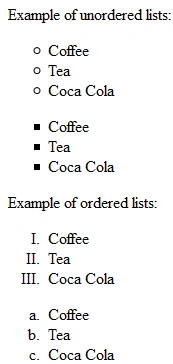
The type of list item marker is specified with the list-style-type property.
- <!DOCTYPE html>
- <html>
- <head>
- <style>
- ul.a {list-style-type:circle;}
- ul.b {list-style-type:square;}
- ol.c {list-style-type:upper-roman;}
- ol.d {list-style-type:lower-alpha;}
- </style>
- </head>
-
- <body>
- <p>Example of unordered lists:</p>
-
- <ul class="a">
- <li>Coffee</li>
- <li>Tea</li>
- <li>Coca Cola</li>
- </ul>
-
- <ul class="b">
- <li>Coffee</li>
- <li>Tea</li>
- <li>Coca Cola</li>
- </ul>
-
- <p>Example of ordered lists:</p>
-
- <ol class="c">
- <li>Coffee</li>
- <li>Tea</li>
- <li>Coca Cola</li>
- </ol>
-
- <ol class="d">
- <li>Coffee</li>
- <li>Tea</li>
- <li>Coca Cola</li>
- </ol>
-
- </body>
- </html>
CSS list-style Property example
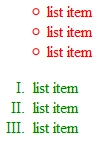
The CSS list-style property is CSS shorthand for specifying the list-style-image, list-style-position and list-style-type properties.
- <style type="text/css">
- #list1 { list-style: inside circle; color:red;}
- #list2 { list-style: outside upper-roman; color:Green;}
- </style>
- <ol id="list1">
- <li>list item</li>
- <li>list item</li>
- <li>list item</li>
- </ol>
- <ol id="list2">
- <li>list item</li>
- <li>list item</li>
- <li>list item</li>
- </ol>
CSS margin Property
CSS margin-top Property example
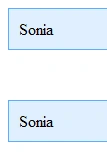
The CSS margin-top property is used to create marginal space on the top side of elements.
- <style type="text/css">
- #myDiv { margin-top: 50px;}
- .divClass { background:#DFEFFF; border:#5BADFF 1px solid; padding:10px; }
- </style>
- <div class="divClass">Sonia</div>
- <div class="divClass" id="myDiv">Sonia</div>
CSS margin-right Property example
The CSS margin-right property is used to create marginal space on the right side of elements.
- <style type="text/css">
- #myDiv{ margin-right: 50%;}
- .divClass{ background:#DFEFFF; border:#5BADFF 1px solid; padding:10px; color:Red; }
- .divClass:hover{ color:Green;}
- </style>
- <div class="divClass">Sonia</div>
- <div class="divClass" id="myDiv">Sonia</div>
CSS margin-bottom Property example
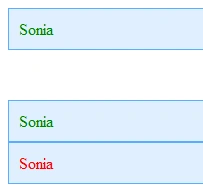
The CSS margin-bottom property is used to create marginal space on the bottom side of elements.
- <style type="text/css">
- #myDiv { margin-bottom: 50px;}
- .divClass { background:#DFEFFF; border:#5BADFF 1px solid; padding:10px; color:green; }
- .divClass:hover{ color:Red;}
- </style>
- <div class="divClass" id="myDiv">Sonia</div>
- <div class="divClass">Sonia</div>
- <div class="divClass">Sonia</div>
CSS margin-left Property example
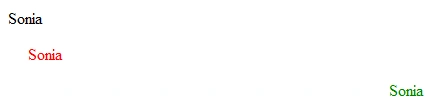
The CSS margin-left property is used to create marginal space on the left side of elements.
- <style type="text/css">
- .class1 { margin-left: 20px; color:Red;}
- .class2 { margin-left: 20%; color:Green;}
- </style>
- <p>Sonia</p>
- <p class="class1">Sonia</p>
- <p class="class2">Sonia</p>
CSS margin Property example
The CSS margin property is CSS shorthand for specifying margin-top, margin-right, margin-bottom, and margin-left properties.
- <style type="text/css">
- #div1 { margin: 30px 50% 20px 20%; color:Red; }
- #div2 { margin: 10px 25% 20px 20%; color:Green;}
- .divClass { background:#DFEFFF; border:#5BADFF 1px solid; padding:10px; }
- </style>
- <div id="div1" class="divClass">Sonia</div>
- <div id="div2" class="divClass">Sonia</div>
CSS padding Property
CSS padding-top Property example
The CSS padding-top property is used to create top inner cushion space inside elements.
- <style type="text/css">
- #div1 { padding-top: 40px;background:#DFEFFF;border:#5BADFF 1px solid; color:red;}
- </style>
- <div id="div1">Sonia</div>
CSS padding-right Property example
The CSS padding-right property is used to create the right inner cushion space inside elements.
- <style type="text/css">
- #div1 { padding-right: 80px;background:#DFEFFF;border:green 1px solid; color:red;}
- </style>
- <div id="div1">Sonia ... Sonia ... Sonia ... Sonia ... Sonia ... Sonia ... Sonia ... Sonia ... Sonia ... Sonia ... Sonia ... Sonia ... Sonia ... Sonia ... Sonia ... </div>
CSS padding-bottom Property example
The CSS padding-bottom property is used to create bottom inner cushion space inside elements.
- <style type="text/css">
- #div1 { padding-bottom: 50px;background: #DFEFFF;border: #5BADFF 1px solid; color:Red;}
- </style>
- <div id="div1">Sonia ... </div>
CSS padding-left Property example
The CSS padding-left property is used to create left inner cushion space inside elements.
- <style type="text/css">
- #div1 { padding-left: 50%;background: #DFEFFF;border: #5BADFF 1px solid; color:Red;}
- </style>
- <div id="div1">Sonia ... Sonia ... Sonia ... Sonia ... Sonia ... Sonia ... Sonia ... Sonia ... Sonia ... Sonia ... Sonia ... Sonia ... Sonia ... Sonia ... Sonia ... Sonia ... Sonia ...</div>
CSS padding Property example
The CSS padding property is CSS shorthand for specifying padding-top, padding-right, padding-bottom, and padding-left properties.
You can set even padding on all four inner sides by using 1 value instead of four values. You can set top + bottom padding evenly and right + left padding evenly by using two values instead of four.
The code comments below also explain those concepts.
- <style type="text/css">
- #div1 { padding: 20px 25% 20px 25%; background:#DFEFFF; border:#5BADFF 1px solid;}
- #div1 p{ background: #FFF; border: #999 2px dashed; color:green;}
- </style>
- <div id="div1">
- <p>child of div1... Sonia ...</p>
- </div>
CSS text Property
CSS text-align Property example
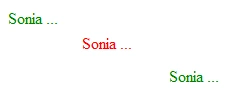
The CSS text-align property is used to align inline elements or text inside of an element.
- <style type="text/css">
- p{ color:green;}
- #p1{ text-align: center; color:Red;}
- #p2{ text-align: right; color:green;}
- </style>
- <p>Sonia ...</p>
- <p id="p1">Sonia ...</p>
- <p id="p2">Sonia ...</p>
CSS text-decoration Property example
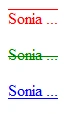
The CSS text-decoration property is used to add specific decorations to your text inside of elements.
- <style type="text/css">
- #p1{ text-decoration: overline; color:Red;}
- #p2{ text-decoration: line-through; color:green;}
- #p3{ text-decoration: underline; color:Blue;}
- </style>
- <p id="p1">Sonia ...</p>
- <p id="p2">Sonia ...</p>
- <p id="p3">Sonia ...</p>
CSS text-indent Property example
The CSS text-indent property is used to indent the first line of text inside of an element.
- <style type="text/css">
- #p1{ text-indent: 50px; color:Red;}
- #p2{ text-indent: 10%; color:green;}
- </style>
- <p id="p1">Sonia ...<br /> Sonia ...</p>
- <p id="p2">Sonia ...<br /> Sonia ...</p>
CSS text-transform Property example
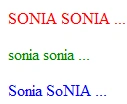
The CSS text-transform property is used to control text capitalization and casing inside of an element.
- <style type="text/css">
- #p1{ text-transform: uppercase; color:Red;}
- #p2{ text-transform: lowercase; color:Green;}
- #p3{ text-transform: capitalize; color:Blue;}
- </style>
- <p id="p1">sonia soNIA ...</p>
- <p id="p2">sonia soNIA ...</p>
- <p id="p3">sonia soNIA ...</p>
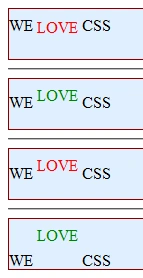
CSS vertical-align Property example
The CSS vertical-align property is used to specify the vertical positioning of inline child elements in relation to the height and line-height their parent element.
- <style type="text/css">
- #div1 span { vertical-align: sub; color:Red; }
- #div2 span { vertical-align: super; color:Green; }
- #div3 span { vertical-align: 25%; color:Red; }
- #div4 span { vertical-align: 25px; color:green;}
- .divClass { line-height:2em; background-color:#DFEFFF; border:maroon 1px solid; height:50px;}
- </style>
- <div id="div1" class="divClass">
- WE <span>LOVE</span> CSS
- </div>
- <hr />
- <div id="div2" class="divClass">
- WE <span>LOVE</span> CSS
- </div>
- <hr />
- <div id="div3" class="divClass">
- WE <span>LOVE</span> CSS
- </div>
- <hr />
- <div id="div4" class="divClass">
- WE <span>LOVE</span> CSS
- </div>
CSS white-space property example
The CSS white-space property is CSS shorthand logic for the text-space-collapse and text-wrap properties.
- <!DOCTYPE html>
- <style type="text/css">
- #div1 { white-space: normal; color:red; }
- #div2 { white-space: nowrap; color:red; }
- #div3 { white-space: pre-line; color:red; }
- .divClass { line-height:2em; background: #C1E0FF; border:#09F 1px solid; height:50px; }
- </style>
- <div id="div1" class="divClass">
- Blah blah blah blah blah blah blah blah blah blah blah blah blah blah blah blah blah blah blah blah blah blah blah blah blah blah blah blah blah blah blah blah blah blah blah blah blah blah blah blah blah.
- </div>
- <hr />
- <div id="div2" class="divClass">
- Blah blah blah blah blah blah blah blah blah blah blah blah blah blah blah blah blah blah blah blah blah blah blah blah blah blah blah blah blah blah blah blah blah blah blah blah blah blah blah blah blah.
- </div>
- <hr />
- <div id="div3" class="divClass">
- Blah blah blah blah blah blah blah blah blah blah blah blah blah blah blah blah blah blah blah blah blah blah blah blah blah blah blah blah blah blah blah blah blah blah blah blah blah blah blah blah blah.
- </div>
Possible Values-
normal- Sequences of whitespace will collapse into a single whitespace. The text will wrap when necessary. This is the default.
- nowrap- Sequences of whitespace will collapse into a single whitespace. The text will never wrap to the next line. The text continues on the same line until a <br /> tag is encountered.
- pre- Whitespace is preserved by the browser. The text will only wrap on line breaks Acts like the <pre> tag in HTML.
- pre-line- Sequences of whitespace will collapse into a single whitespace. The text will wrap when necessary and on line breaks.
- pre-wrap- Whitespace is preserved by the browser. The text will wrap when necessary and online breaks.
- inherit- Specifies that the value of the white-space property should be inherited from the parent element.
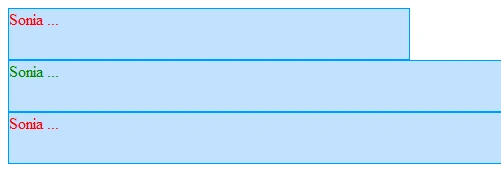
CSS width Property example
The CSS width property is used to specify the width that some elements can receive. This only works on elements that are "block" display type content boxes. For instance, if you try to set the width on an <span> element then by default it will not adhere to your width property, but if you try to set the width for an <div> element or paragraph element it will adhere to the width property.
- <style type="text/css">
- #div1{ width:400px; color:Red; }
- #div2{ width:50%; color:Green; }
- #div3{ width:auto; color:Red; }
- .divClass{ height:50px; background: #C1E0FF; border:#09F 1px solid; }
- </style>
- <div id="div1" class="divClass">Sonia ...</div>
- <div id="div2" class="divClass">Sonia ...</div>
- <div id="div3" class="divClass">Sonia ...</div>
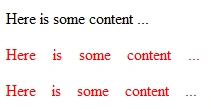
CSS word-spacing Property example
The CSS word-spacing property is used to specify the amount of space that your text should have between each word. Use this with the letter-spacing and line-height properties to really fine-tune your font and text rendering for better readability.
- <style type="text/css">
- p.class1 { word-spacing: 0.8em; color:Red;}
- p.class2 { word-spacing: 12px; color:Red;}
- </style>
- <p>Here is some content ...</p>
- <p class="class1">Here is some content ...</p>
- <p class="class2">Here is some content ...</p>
Summary
Through this article, you are able to design a web-page.














Join the conversation! Your thoughts help the community grow.