

Here I will explain how to use a SQL Server Compact Database (SDF) file in your C# Windows application. I will also explain how to save and update records in the local database. I will explain the following points:
- How to add a SDF file to an application
- How to create a table in a SDF Database
- How to save data in a SDF database table using a query
- How to update data in a SDF database table using a query
- How to delete data from a local database (.sdf) table using a query
Step 1: How to add a SDF file to an application
(a) Execute Solution Explorer then right-click on your application then select "Add" -> "New Item".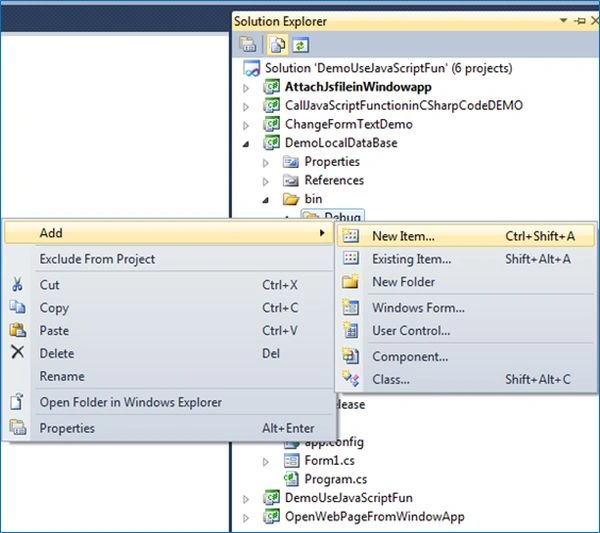
(b) Go to "Data" -> "Local database" then click on the "Add" button.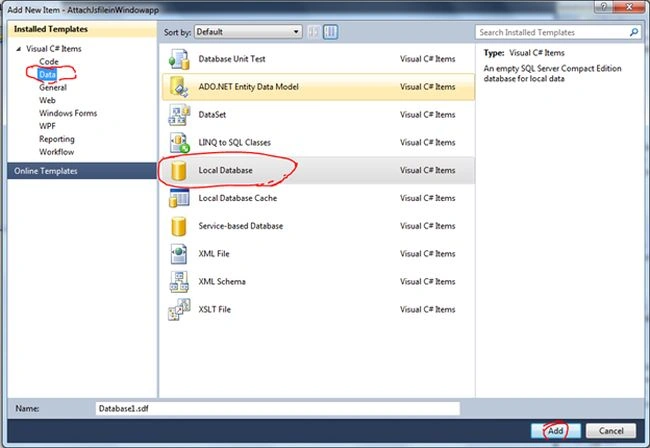
(c) Then go to the "View" menu and select "Server Explorer".
Here you can see the local database you created.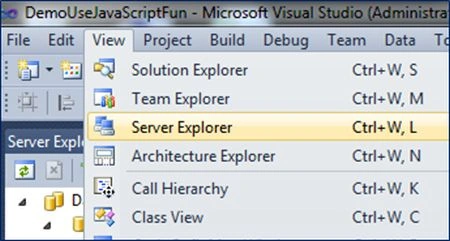
Step 2: How to create a table in a SDF Database
(a) Then go to the Server Explorer then expand your database ("MyDB.sdf") then right-click on "Table" then select "Create Table".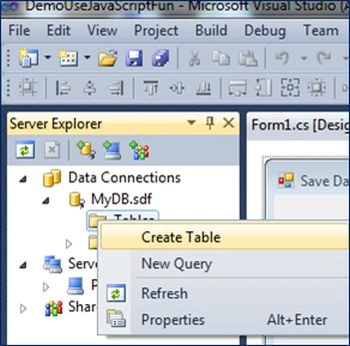
(b) Write your table name and add a column name, column data type, length and so on and click "OK".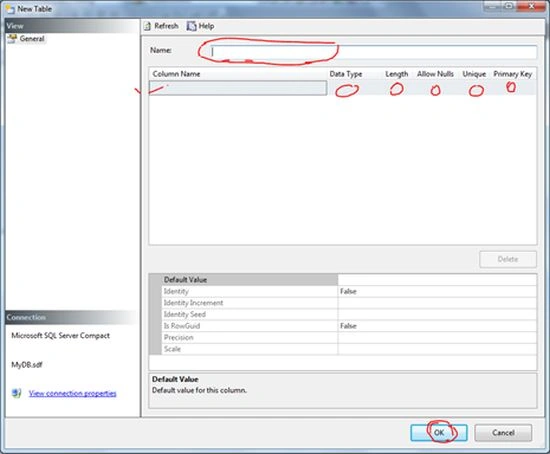
In this screen are my table name and my column name. 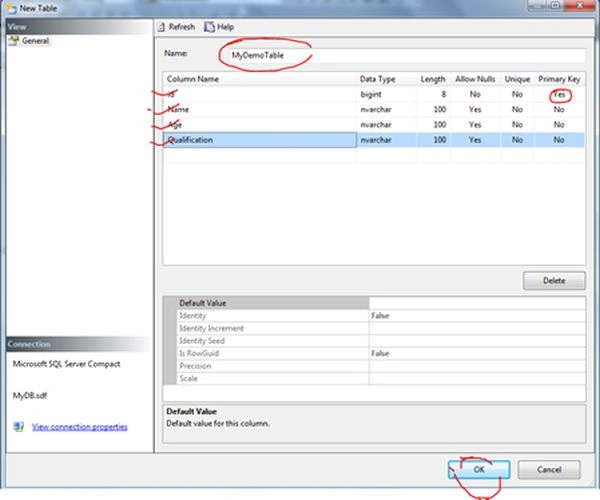
Step 3: How to save data in a SDF database table using query
With this code:
Step 4: How to update data in a SDF database table using a query
Write this code: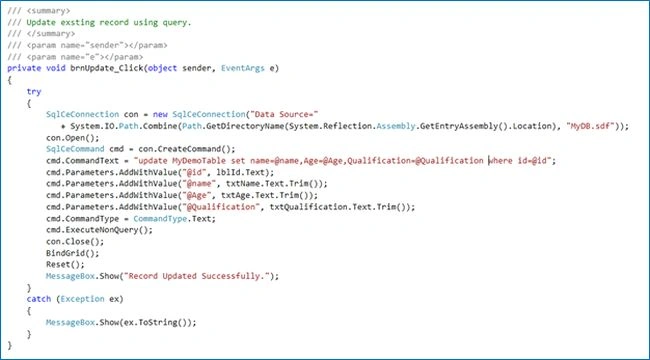
Step 5: How to delete data from a local database (.sdf) table using query
Write this code: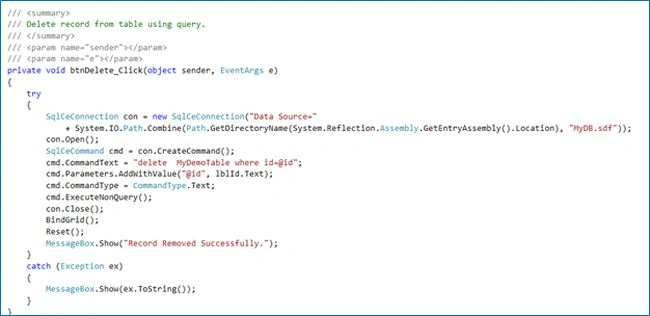
Bind Grid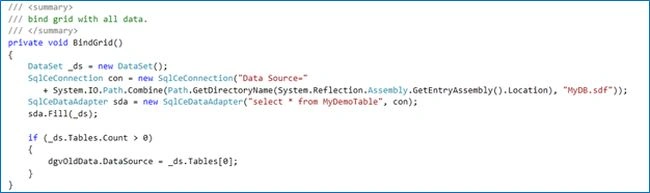
This is my complete demo. Please download the attachment for the complete demo.
Arvind GuravPosted Jan 20, 2015, 3:18 AM
How to export and import database from wpf form using button.........plz help me out...