
Introduction
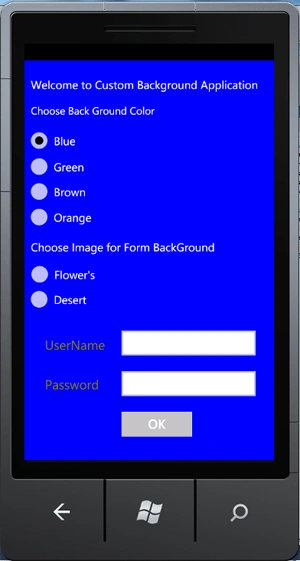
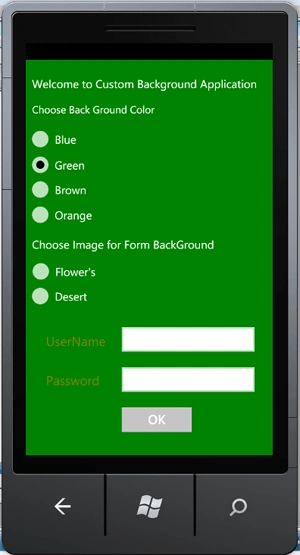
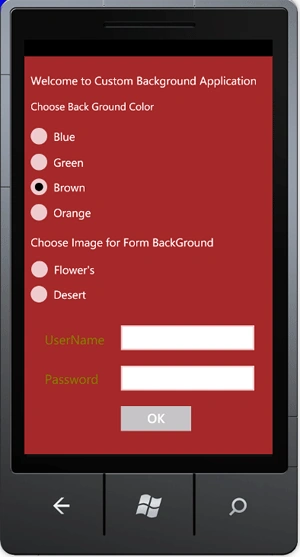
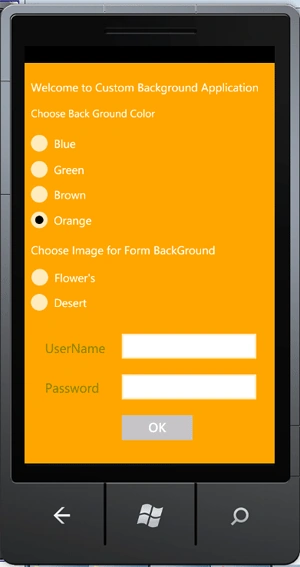
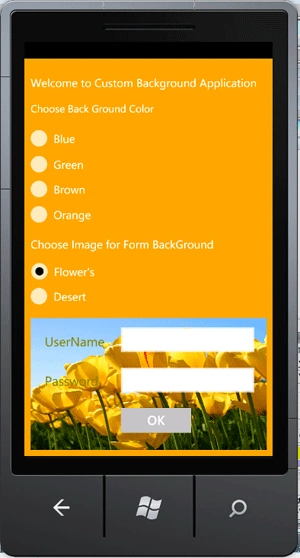
This article describes how you can make your background customizable in Windows Phone 7. In this article we'll see how color and image will change upon the click of a radiobutton.
Getting Started
Step 1:
Open new Windows Phone Application named CustoBackGround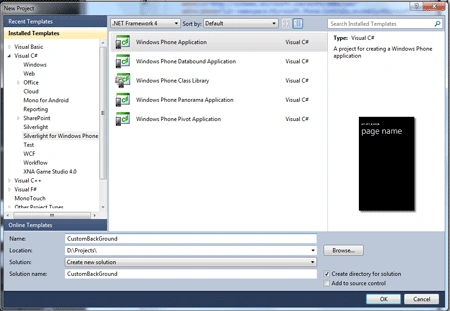
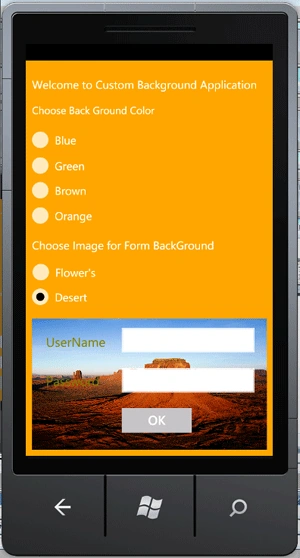
First we design the application by go to MainPage.xaml file, we added RadioButton's, TextBlock's, Button and PasswordBox. The RadioButton has event's handlers to manage selected states. When the RadioButton is selected, the background of the page will be change automatically according to the RadioButton event.
Step 2:
Go to
MainPage.xaml file and drag
and drop five TextBlock's, six RadioButton's, one TextBox, one PassworBox and
one Button. Arrange all the controls according to there positions looks like
below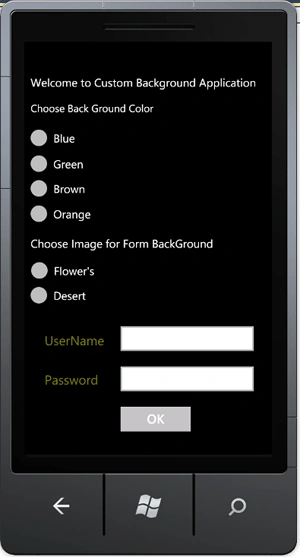
Here is the complete code of
MainPage.xaml
file
<phone:PhoneApplicationPage
x:Class="CustomBackground.MainPage"
xmlns="http://schemas.microsoft.com/winfx/2006/xaml/presentation"
xmlns:x="http://schemas.microsoft.com/winfx/2006/xaml"
xmlns:phone="clr-namespace:Microsoft.Phone.Controls;assembly=Microsoft.Phone"
xmlns:shell="clr-namespace:Microsoft.Phone.Shell;assembly=Microsoft.Phone"
xmlns:d="http://schemas.microsoft.com/expression/blend/2008"
xmlns:mc="http://schemas.openxmlformats.org/markup-compatibility/2006"
mc:Ignorable="d"
d:DesignWidth="480"
d:DesignHeight="768"
FontFamily="{StaticResource
PhoneFontFamilyNormal}"
FontSize="{StaticResource
PhoneFontSizeNormal}"
Foreground="{StaticResource
PhoneForegroundBrush}"
SupportedOrientations="Portrait"
Orientation="Portrait"
shell:SystemTray.IsVisible="True">
<Grid
x:Name="PhoneBackGround"
Background="Transparent">
<TextBlock
Height="69"
HorizontalAlignment="Left"
Margin="12,31,0,0"
Name="textBlock1"
Text="Welcome
to Custom Background Application"
FontSize="22"
VerticalAlignment="Top"
Width="444"
/>
<TextBlock
Height="30"
HorizontalAlignment="Left"
Margin="12,82,0,0"
Name="textBlock2"
Text="Choose
Back Ground Color"
VerticalAlignment="Top"
Width="381"
/>
<RadioButton
Content="Blue"
Height="72"
HorizontalAlignment="Left"
Margin="0,118,0,0"
Name="BlueButton"
VerticalAlignment="Top"
BorderThickness="0"
FontSize="22"
Checked="BlueButton_Checked"
/>
<RadioButton
Content="Green"
Height="72"
HorizontalAlignment="Left"
Margin="0,168,0,0"
Name="GreenButton"
VerticalAlignment="Top"
BorderThickness="0"
FontSize="22"
Checked="GreenButton_Checked"
/>
<RadioButton
Content="Brown"
Height="72"
HorizontalAlignment="Left"
Margin="0,216,0,0"
Name="BrownButton"
VerticalAlignment="Top"
BorderThickness="0"
FontSize="22"
Checked="BrownButton_Checked"
/>
<RadioButton
Content="Orange"
Height="72"
HorizontalAlignment="Left"
Margin="0,265,0,0"
Name="OrangeButton"
VerticalAlignment="Top"
BorderThickness="0"
FontSize="22"
Checked="OrangeButton_Checked"
/>
<TextBlock
Height="56"
HorizontalAlignment="Left"
Margin="12,343,0,0"
Name="textBlock3"
Text="Choose
Image for Form BackGround"
VerticalAlignment="Top"
FontSize="22"
Width="422"
/>
<RadioButton
Content="Flower's"
Height="72"
HorizontalAlignment="Left"
Margin="1,375,0,0"
Name="FlowerButton"
VerticalAlignment="Top"
BorderThickness="0"
FontSize="22"
Checked="FlowerButton_Checked"
/>
<RadioButton
Content="Desert"
Height="72"
HorizontalAlignment="Left"
Margin="0,423,0,0"
Name="DesertButton"
VerticalAlignment="Top"
BorderThickness="0"
FontSize="22"
Checked="DesertButton_Checked"
/>
<Grid
Height="255"
HorizontalAlignment="Left"
Margin="12,501,0,0"
Name="LoginForm"
VerticalAlignment="Top"
Width="456">
<TextBlock
Height="30"
HorizontalAlignment="Left"
Margin="27,28,0,0"
Name="textBlock4"
Text="UserName"
VerticalAlignment="Top"
FontSize="25"
Foreground="Olive"
/>
<TextBlock
Height="30"
HorizontalAlignment="Left"
Margin="27,104,0,0"
Name="textBlock5"
Text="Password"
VerticalAlignment="Top"
FontSize="25"
Foreground="Olive"
/>
<TextBox
Height="72"
HorizontalAlignment="Right"
Margin="0,6,12,0"
Name="textBox1"
VerticalAlignment="Top"
Width="282"
Background="White" />
<PasswordBox
Height="72"
HorizontalAlignment="Left"
Margin="162,84,0,0"
Name="passwordBox1"
VerticalAlignment="Top"
Width="282"
Background="White"
/>
<Button
Content="OK"
Height="72"
HorizontalAlignment="Left"
Margin="162,162,0,0"
Name="button1"
VerticalAlignment="Top"
Width="160"
BorderThickness="0"
Background="Silver"
/>
</Grid>
</Grid>
</phone:PhoneApplicationPage>
Join the conversation! Your thoughts help the community grow.