

Introduction
A Dialog in Android is a small box that asks the user to choose, provide extra data, and receive instructions for a specific job. By default, Android shows its default dialog box, but sometimes it requires a custom layout dialog box.
So, here we learn about how to create a custom dialog box in Android.
Create a custom dialog box in Android
Step 1
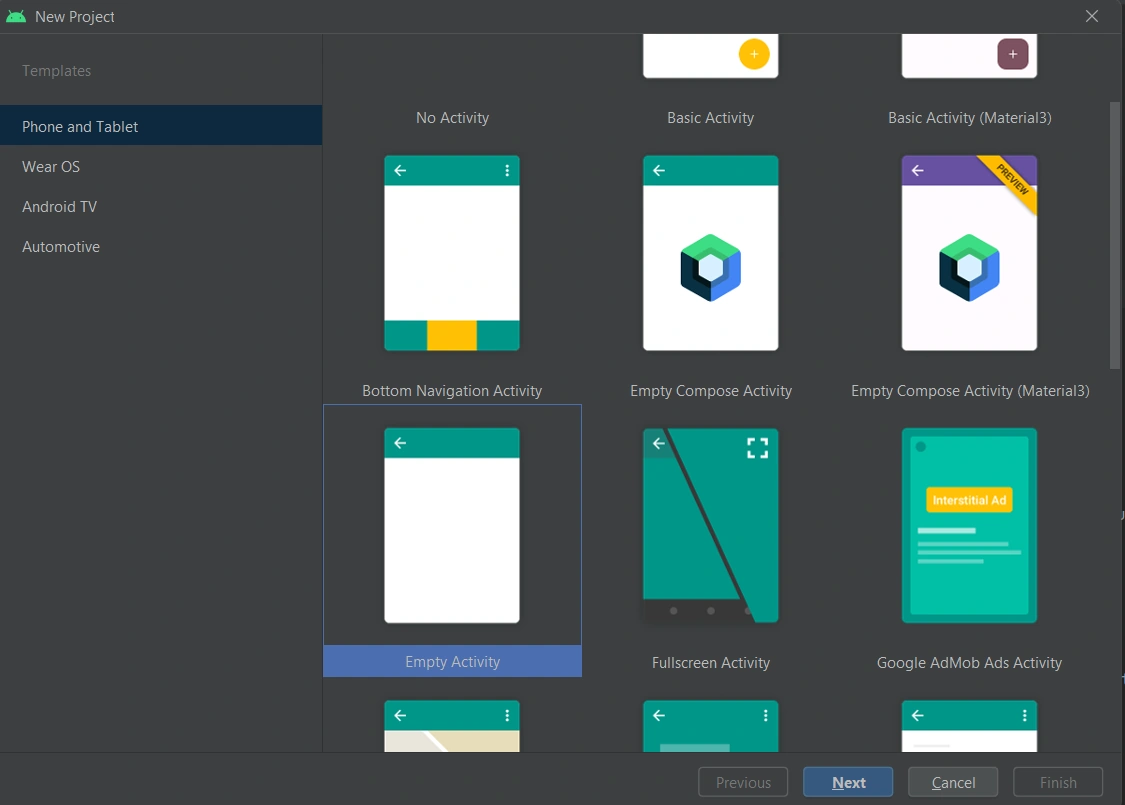
Create a new project in the Android Studio and select an empty activity.
Step 2
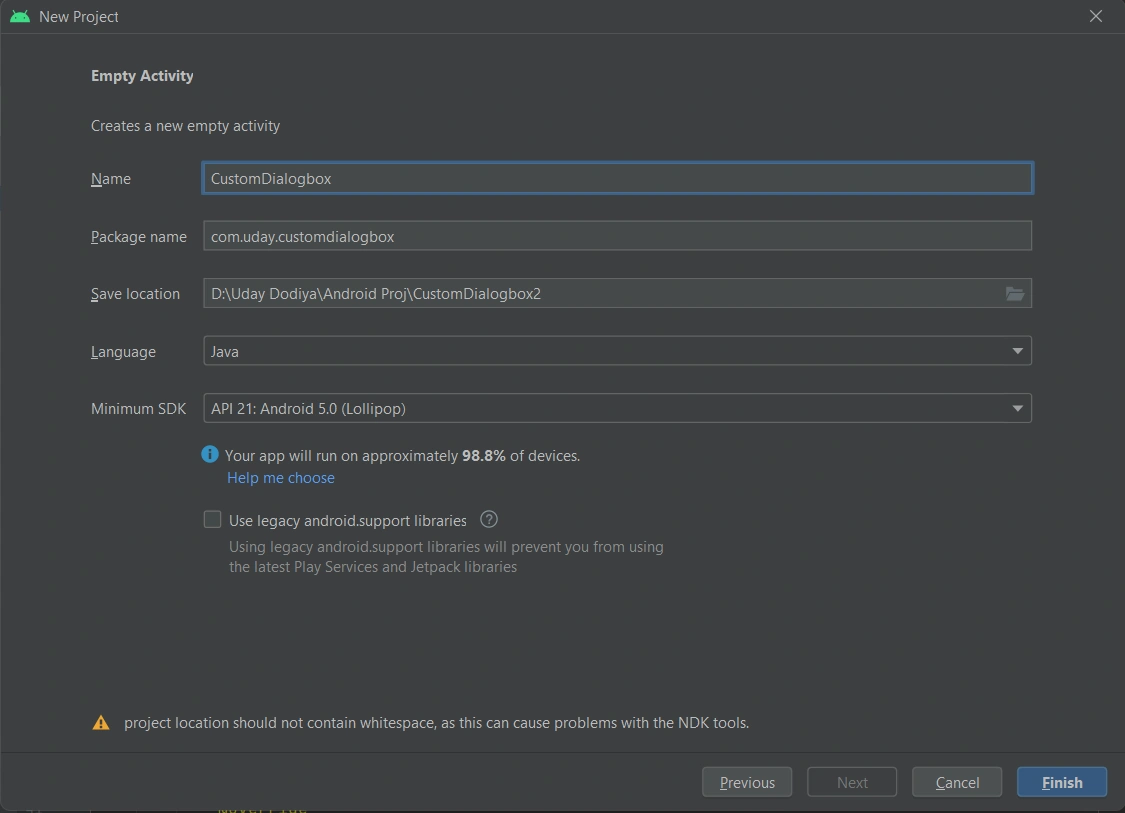
Give the project a name, select the save location folder, and click on the finish button.
Step 3
Create the activity_main.xml file as shown below.
<?xml version="1.0" encoding="utf-8"?>
<androidx.constraintlayout.widget.ConstraintLayout xmlns:android="http://schemas.android.com/apk/res/android"
    xmlns:app="http://schemas.android.com/apk/res-auto"
    xmlns:tools="http://schemas.android.com/tools"
    android:layout_width="match_parent"
    android:layout_height="match_parent"
    tools:context=".MainActivity">

    <TextView
        android:id="@+id/lblHeader"
        android:layout_width="wrap_content"
        android:layout_height="wrap_content"
        android:text="Custom Dialog Box Demo"
        app:layout_constraintBottom_toBottomOf="parent"
        app:layout_constraintEnd_toEndOf="parent"
        android:textSize="25dp"
        app:layout_constraintStart_toStartOf="parent"
        app:layout_constraintTop_toTopOf="parent"
        android:textColor="#0000aa"/>

    <Button
        android:id="@+id/btnDialog"
        android:layout_width="wrap_content"
        android:layout_height="wrap_content"
        android:text="Show Custom Dialog"
        android:layout_marginTop="20dp"
        android:textSize="15dp"
        app:layout_constraintEnd_toEndOf="parent"
        app:layout_constraintStart_toStartOf="parent"
        app:layout_constraintTop_toBottomOf="@+id/lblHeader" />

</androidx.constraintlayout.widget.ConstraintLayout>
Step 4
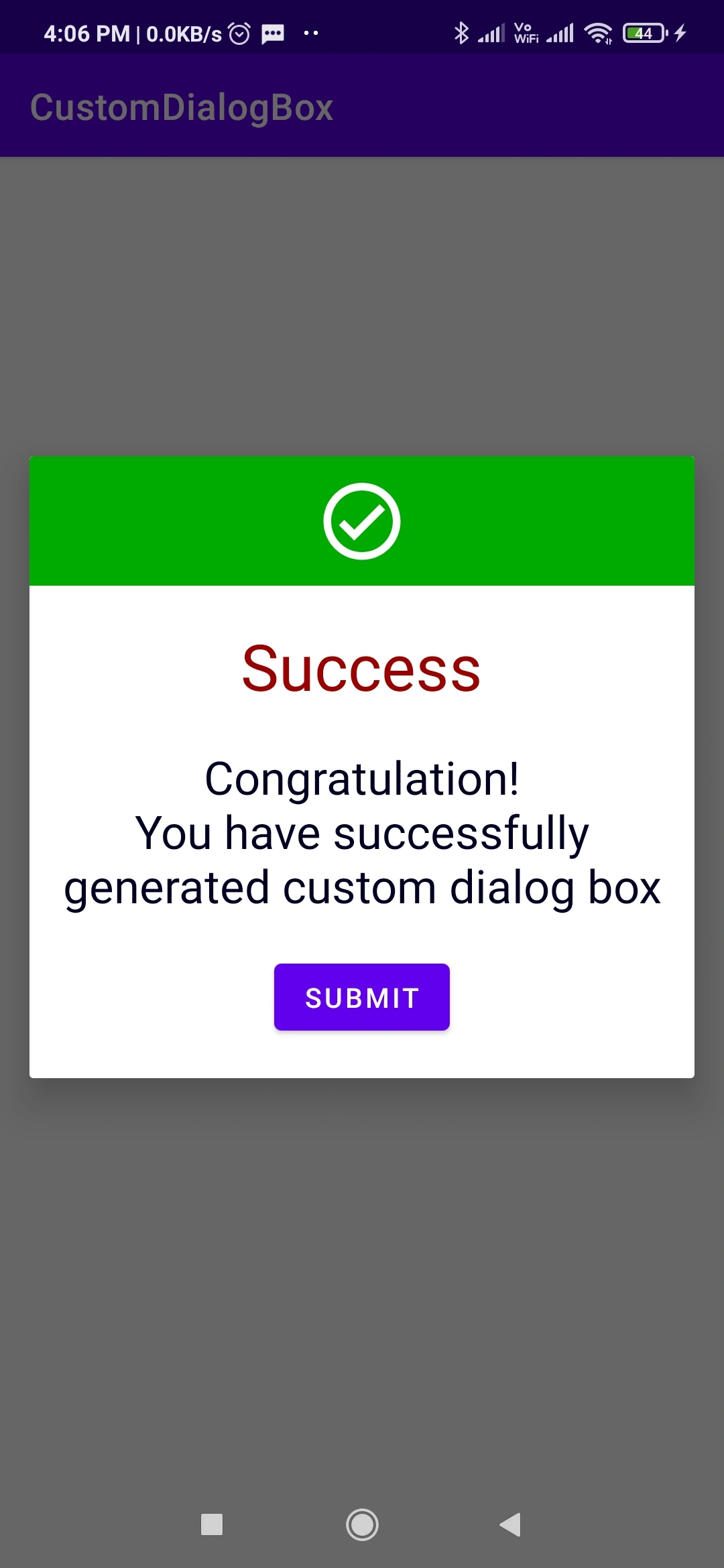
Create the custom dialog box file with the name custom_dialog_resource.xml, as shown below.
<?xml version="1.0" encoding="utf-8"?>
<androidx.constraintlayout.widget.ConstraintLayout
    xmlns:android="http://schemas.android.com/apk/res/android"
    xmlns:tools="http://schemas.android.com/tools"
    android:layout_width="match_parent"
    android:layout_height="match_parent">

    <LinearLayout
        android:layout_width="match_parent"
        android:layout_height="wrap_content"
        android:orientation="vertical"
        tools:ignore="MissingConstraints">

        <LinearLayout
            android:layout_width="match_parent"
            android:layout_height="70dp"
            android:orientation="vertical"
            android:background="#00AA00">

            <ImageView
                android:layout_width="50dp"
                android:layout_height="50dp"
                android:layout_marginTop="10dp"
                android:src="@drawable/ic_outline_check_circle_24"
                android:layout_gravity="center"/>
        </LinearLayout>

        <TextView
            android:layout_width="wrap_content"
            android:layout_height="wrap_content"
            android:layout_marginTop="20dp"
            android:text="Success"
            android:textSize="35dp"
            android:textColor="#990000"
            android:layout_gravity="center"/>

        <TextView
            android:layout_width="wrap_content"
            android:layout_height="wrap_content"
            android:layout_marginTop="20dp"
            android:text="Congratulation!\nYou have successfully generated custom dialog box"
            android:textSize="25dp"
            android:textColor="#000022"
            android:textAlignment="center"
            android:layout_gravity="center"/>

            <Button
                android:id="@+id/btnSubmit"
                android:layout_width="wrap_content"
                android:layout_height="wrap_content"
                android:text="Submit"
                android:textSize="15dp"
                android:layout_marginTop="20dp"
                android:layout_marginRight="10dp"
                android:layout_marginLeft="10dp"
                android:layout_gravity="center"
                android:layout_marginBottom="20dp"/>
    </LinearLayout>
</androidx.constraintlayout.widget.ConstraintLayout>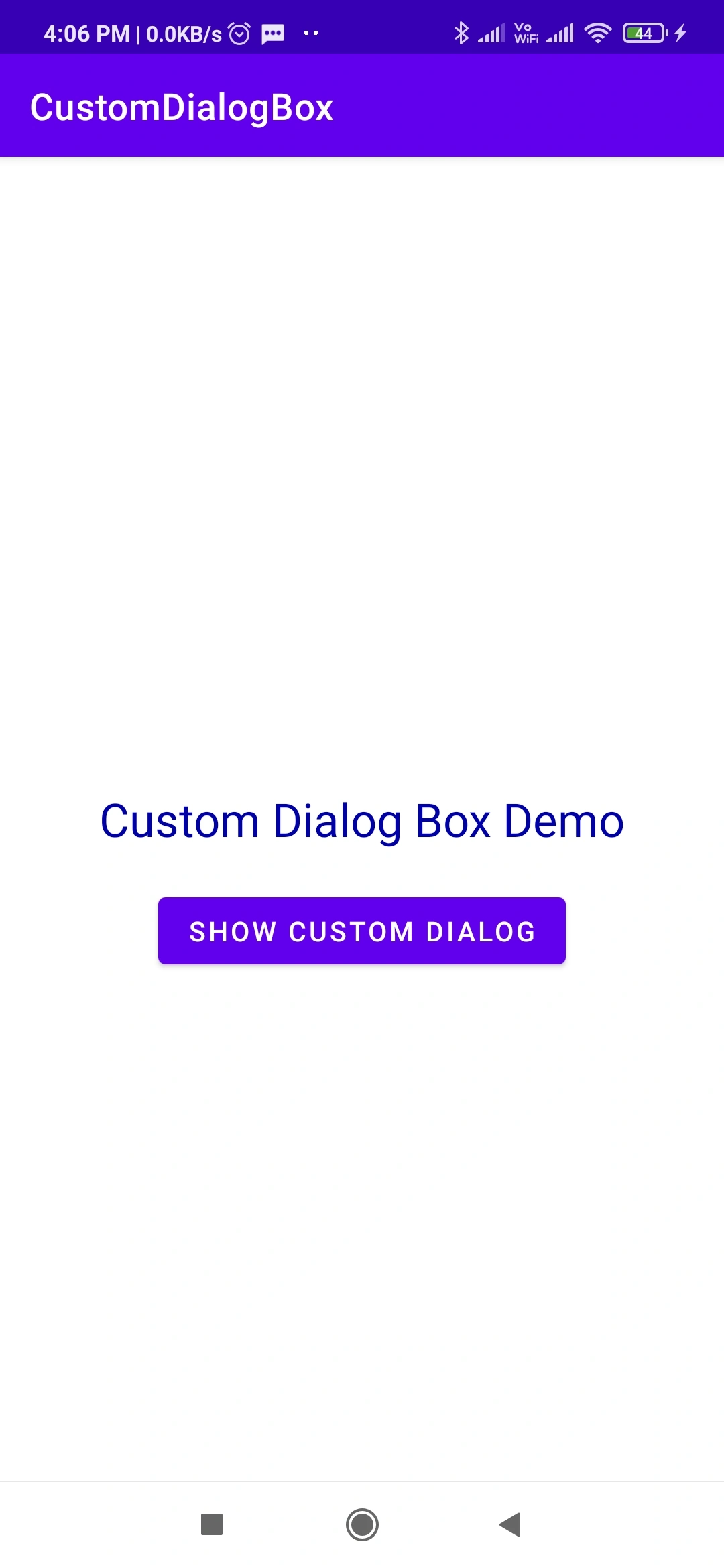
Tushar ZanzrukiyaPosted Nov 19, 2022, 7:37 AM
Awesome and very useful article bro.