

Introduction
In this article, we go step by step to build a custom popup dialog for Xamarin Android. The popup dialog is just a window that prompts to enter additional details. Where we can use the popup dialog means, in some cases, we want some decision from the user without changing the activity or screen.
Output

Let's start.
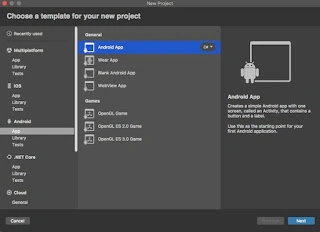
Step 1. First, create a simple Xamarin Android Application by going to New, Select Android, followed by clicking Next.
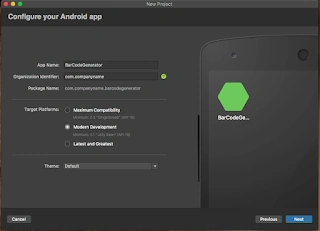
Step 2. Here give the project name, organization name, app compatibility, and app theme, then click Create project.
Step 3. After the project creation, double-click to open Main. axml. For that, Solution Explorer >> expand the Resources folder and Layout folder, double click to open Main. axml. Now, drag and drop to place one button, this page code is given below.
<?xml version="1.0" encoding="utf-8"?>
<LinearLayout xmlns:android="http://schemas.android.com/apk/res/android"
    android:orientation="vertical"
    android:layout_width="match_parent"
    android:layout_height="match_parent">
    <Button
        android:text="Show Popup"
        android:layout_width="match_parent"
        android:layout_height="wrap_content"
        android:textAllCaps="false"
        android:id="@+id/btnPopup" />
</LinearLayout>
Step 4. Now, add a new Layout named Popup. axml. For that, right-click the Layout Folder and select Add New, and the new popup window will appear, select Layout and name as Popup.axml and click Add.
<?xml version="1.0" encoding="utf-8"?>
<FrameLayout
    xmlns:android="http://schemas.android.com/apk/res/android"
    xmlns:app="http://schemas.android.com/apk/res-auto"
    android:layout_width="match_parent"
    android:layout_height="wrap_content">
    <android.support.constraint.ConstraintLayout
        android:layout_width="match_parent"
        android:layout_height="wrap_content"
        android:layout_marginLeft="10dp"
        android:layout_marginRight="10dp"
        android:background="@android:color/white">

        <TextView
            android:id="@+id/allocate_collector"
            app:layout_constraintTop_toTopOf="parent"
            app:layout_constraintStart_toStartOf="parent"
            android:layout_width="wrap_content"
            android:layout_height="18dp"
            android:layout_marginTop="15dp"
            android:layout_marginLeft="10dp"
            android:text="Custom Title"
            android:textStyle="bold"
            android:textSize="16dp"
            android:maxLines="1"
            android:textColor="@android:color/black"/>

        <TextView
            android:id="@+id/patient"
            app:layout_constraintTop_toBottomOf="@+id/allocate_collector"
            app:layout_constraintStart_toStartOf="parent"
            android:layout_marginTop="20dp"
            android:layout_marginLeft="10dp"
            android:layout_width="wrap_content"
            android:layout_height="14dp"
            android:text="My Name"
            android:textSize="12dp"/>

        <android.support.design.widget.TextInputLayout
            android:id="@+id/collector_name_txt_lyt"
            app:layout_constraintTop_toBottomOf="@+id/patient"
            app:layout_constraintStart_toStartOf="parent"
            android:layout_width="match_parent"
            android:layout_height="51dp"
            android:layout_marginTop="15dp"
            android:layout_marginLeft="10dp"
            android:layout_marginRight="10dp">
            <AutoCompleteTextView
                android:layout_width="match_parent"
                android:layout_height="wrap_content"
                android:id="@+id/autocomplete"
                android:inputType="textAutoComplete"
                android:completionThreshold="1"
                android:singleLine="true"
                android:gravity="bottom"
                android:hint="Name"
                android:textSize="14dp"
                android:paddingRight="20dp"
                android:textColor="@android:color/black"/>
        </android.support.design.widget.TextInputLayout>

        <View
            android:id="@+id/topview_of_logout"
            app:layout_constraintTop_toBottomOf="@+id/collector_name_txt_lyt"
            app:layout_constraintStart_toStartOf="parent"
            app:layout_constraintEnd_toEndOf="parent"
            android:layout_width="match_parent"
            android:layout_height="1dp"
            android:background="#000000"
            android:layout_marginTop="30dp"/>

        <View
            android:id="@+id/midview_of_logout"
            app:layout_constraintTop_toBottomOf="@+id/topview_of_logout"
            app:layout_constraintStart_toStartOf="parent"
            app:layout_constraintEnd_toEndOf="parent"
            android:layout_width="1dp"
            android:layout_height="37dp"
            android:layout_marginLeft="1dp"
            android:layout_marginRight="1dp"
            android:background="@android:color/black"/>

        <Button
            android:id="@+id/btnCancel"
            app:layout_constraintTop_toBottomOf="@+id/topview_of_logout"
            app:layout_constraintStart_toStartOf="parent"
            app:layout_constraintEnd_toStartOf="@+id/midview_of_logout"
            android:layout_width="0dp"
            android:layout_height="43dp"
            android:background="@null"
            android:text="Cancel"
            android:textAllCaps="false"
            android:textSize="12dp"/>

        <Button
            android:id="@+id/btnOk"
            app:layout_constraintTop_toBottomOf="@+id/topview_of_logout"
            app:layout_constraintStart_toEndOf="@+id/midview_of_logout"
            app:layout_constraintEnd_toEndOf="parent"
            android:layout_width="0dp"
            android:layout_height="43dp"
            android:text="Submit"
            android:textSize="12dp"
            android:textColor="@android:color/black"
            android:textAllCaps="false"
            android:background="@android:color/white"/>

    </android.support.constraint.ConstraintLayout>
</FrameLayout>
Chris DrososPosted Feb 22, 2020, 2:07 AM
Hello, thanks for this tutorial but you dont show how from BtnPopOk_Click we can access autocomplete value (android.support.design.widget.TextInputLayout) and also how we can give a default value to autocomplete textview programmatically (so if we enter something and press ok and open the dialog again, the previous value should exist on autocomplete)