

We are all aware Microsoft announced that there will be no new release for InfoPath and advised us to start using PowerApps instead of InfoPath.
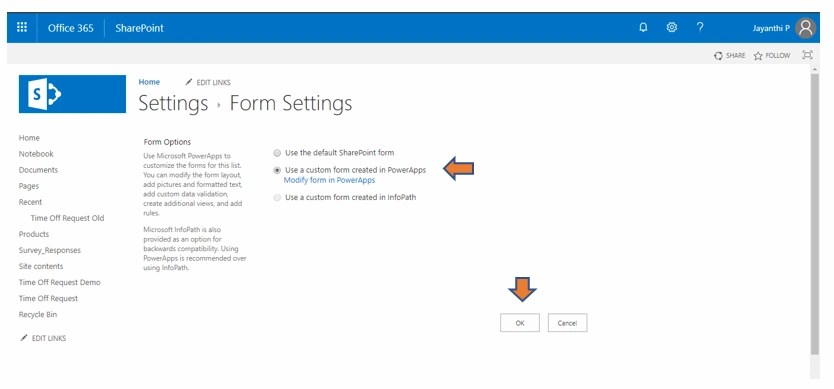
The long awaited feature to create custom SharePoint list forms with PowerApps has been released now. This only exists in the SharePoint Modern Experience, so you won’t get this in classic.
In this article, I will explain how to customize SharePoint Online List Forms using Power Apps and show you how easy it is.
First let’s try to understand what PowerApps is all about.
What is PowerApps?
PowerApps is a software to build custom business applications without writing single line of code. It’s designed to work with a number of different sources. You can create, manage and share business apps on iOS, Android and Windows devices.
Let’s start to customize SharePoint List Forms using PowerApps
PowerApps Forms is directly integrated to the SharePoint List Modern UX. Using the modern experience, I’ve created a new SharePoint list called Time Off Request with some fields such as Leave Date, Reason, Leave Status, Manager Email, Approvers Comment.
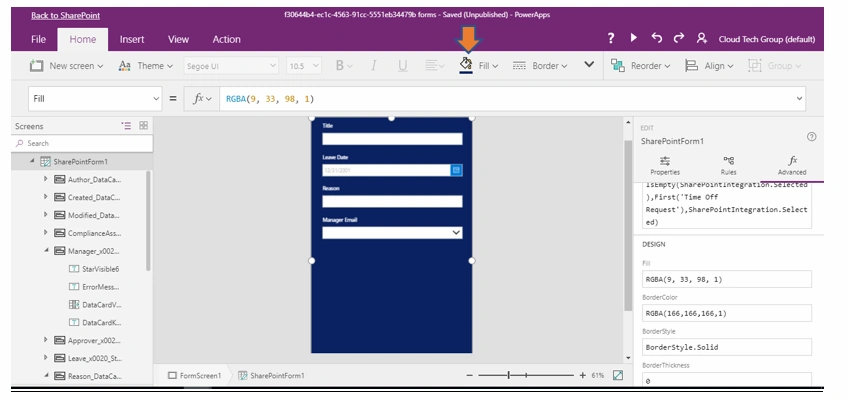
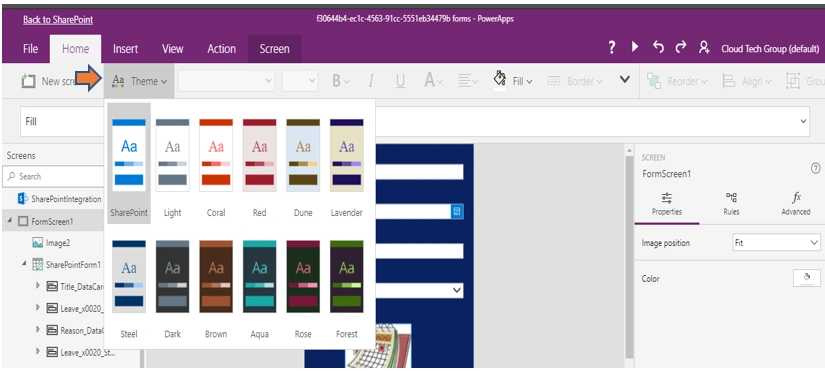
We want our forms to be pretty, or more importantly to better represent the look and feel.
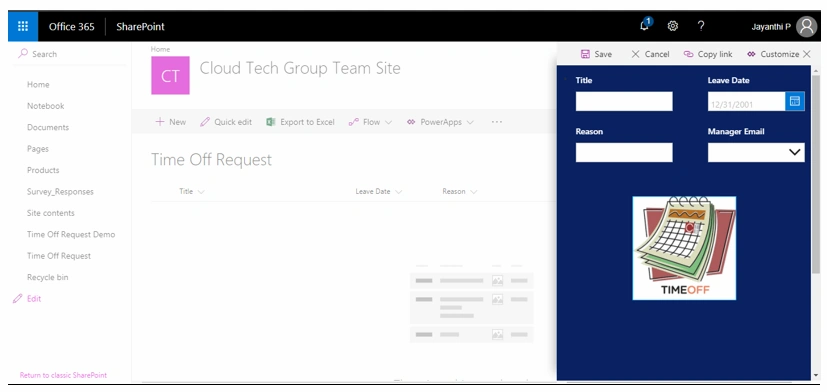
Now I’ll go ahead and select PowerApps -> Customize Forms
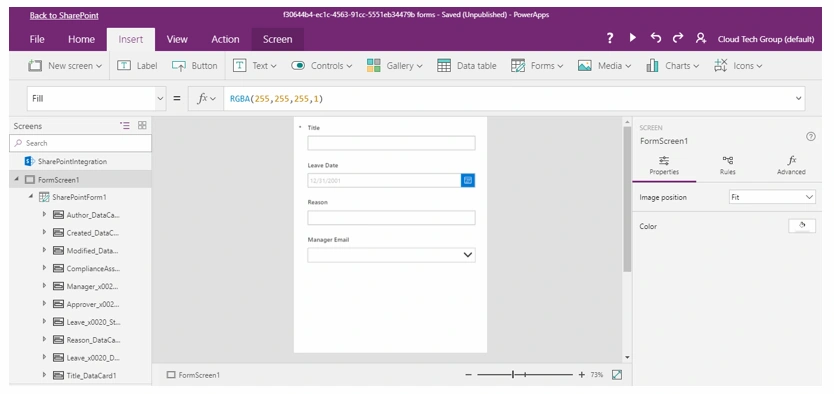
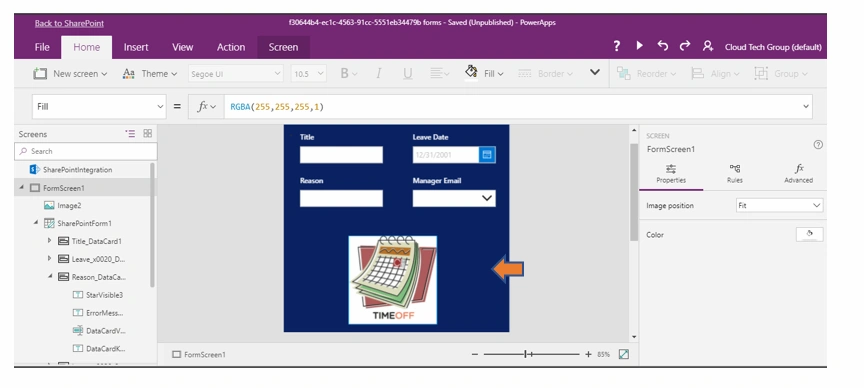
This will take you to PowerApps studio to build the form.
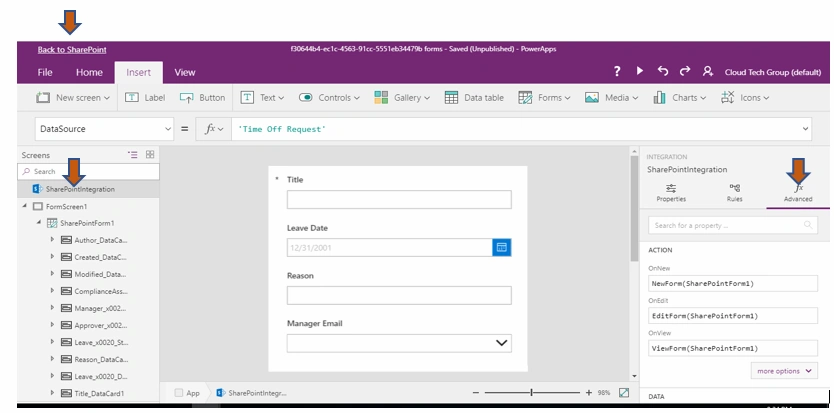
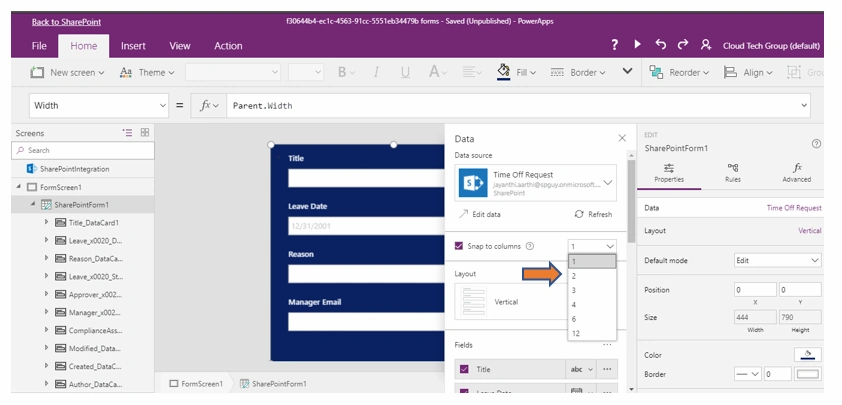
Once you are landed in PowerApps console, here are a couple of things to notice.
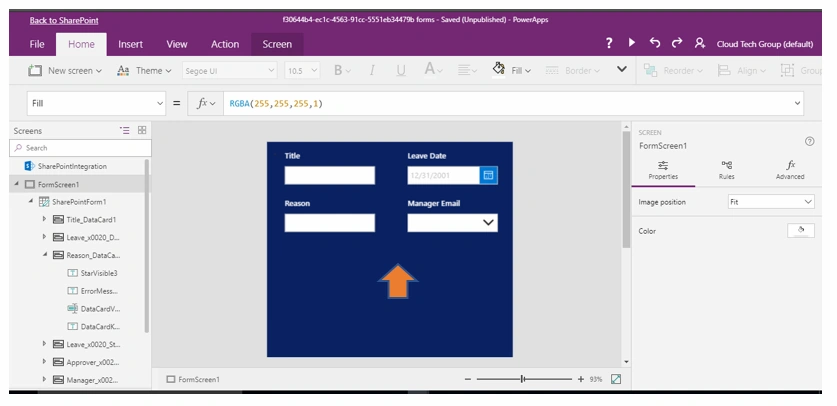
- By default, your app will only have one screen (SharePointForm1).
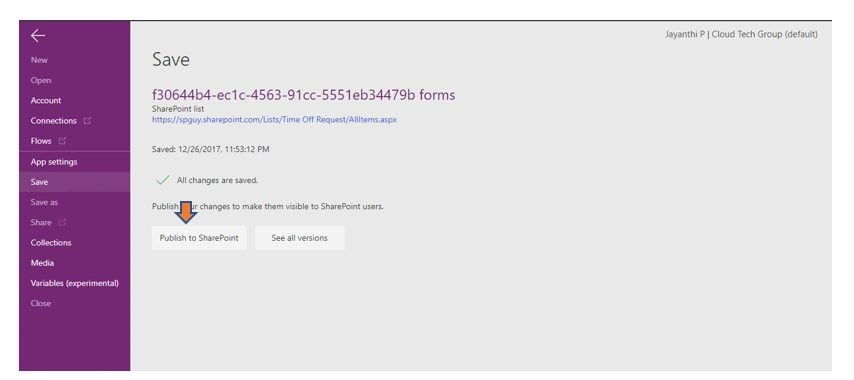
- On the Top Back to SharePoint
- On the left, click SharePoint Integration, and on the right, click Advanced.
Hiding Fields in SharePoint List Forms
One common scenario is that you might want to show or hide different fields depending on whether the user is creating a new item or editing an existing one.
In our scenario, we have a simple Time Off Request form. The requester will fill out fields on when they are going to take leave. The approver will edit the form and fill in comments and mark it as approved. The requester shouldn’t see these fields.
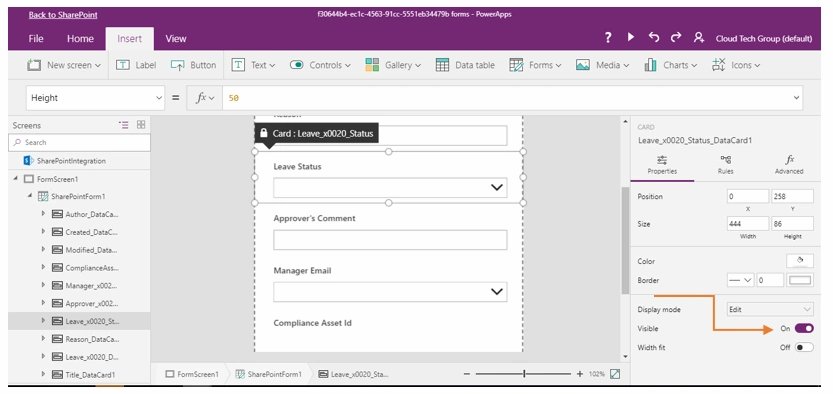
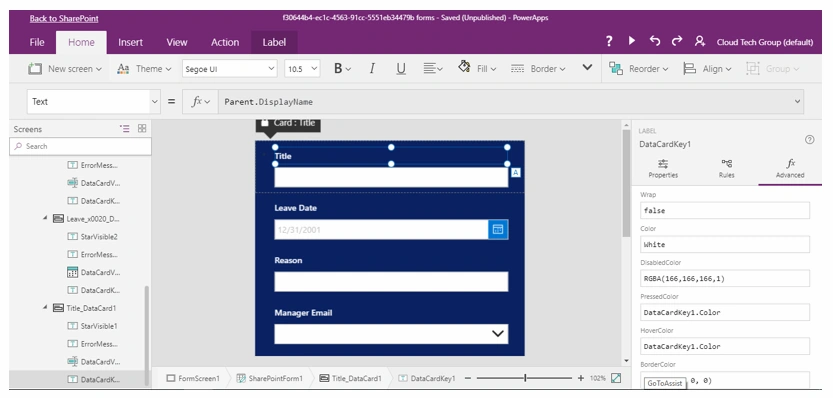
Let's say we have Leave Status, Approver Comments that you don't want visible. Hiding the field is easy in PowerApps - in the property options, just select the field and turn off the visibility
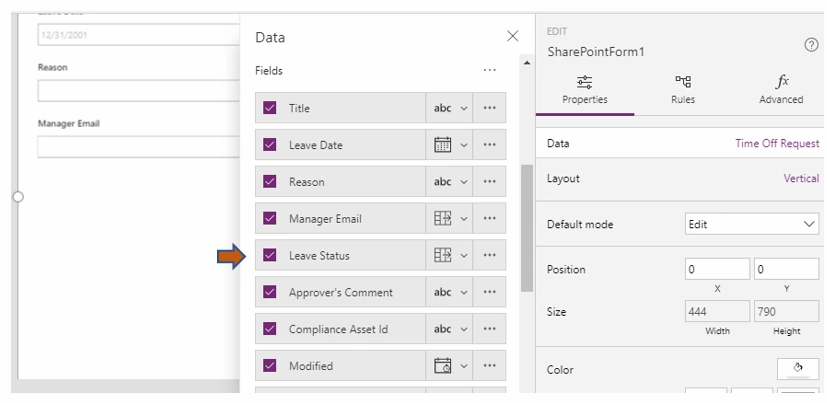
Or just clear the Field Check Box that you don’t want to show
Otah ThothoPosted Aug 11, 2022, 9:00 PM
Thank you for sharing. Is it possible to use Powerapps on a classic SharePoint list? Create a form in Powerapps and open it on Classic Sharepoint.
Almaze hailuPosted Oct 12, 2019, 9:23 AM
Thank you for sharing and explaining it clearly
Ramakrishna BasagallaPosted Apr 23, 2019, 3:33 AM
Good One, very useful
Vinod KumarPosted Jun 4, 2018, 12:35 AM
Good one. Is it possible to use jquery in Power apps for custom validation?
Dinesh DDStarPosted Jan 1, 2018, 7:21 AM
Super.....................................
Vinodh NarayananPosted Dec 29, 2017, 12:46 PM
Good one thanks for sharing all the best keep going