

The usual behavior of a ListView is to display items as a list in a single column. The ItemSource property of Listview accepts the list of data to be displayed and rendered on the screen.
The code for a simple list to display the Students of a class would be as in the following image.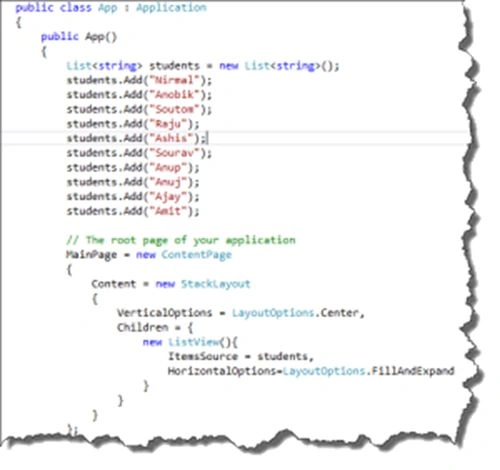
Now let's customize this ListView in a way to display the Student Name along with the Class and School they belong to.
As in the image above, the data contains a single record. So to accommodate the data in a single record, let's create a Student model class.
- public class Student
- {
- public string StudentName { get; set; }
- public string Class { get; set; }
- public string School { get; set; }
- }
- public class StudentCell : ViewCell
- {
- public StudentCell()
- {
- Label nameCell = new Label
- {
- TextColor = Color.Blue,
- FontSize = 30
- };
- nameCell.SetBinding(Label.TextProperty, "StudentName");
- Label classCell = new Label
- {
- TextColor = Color.Gray,
- FontSize = 20
- };
- classCell.SetBinding(Label.TextProperty, "Class");
- Label schoolCell = new Label
- {
- TextColor = Color.Gray,
- FontSize = 20
- };
- schoolCell.SetBinding(Label.TextProperty, "School");
- View = new StackLayout()
- {
- Children = { nameCell, classCell, schoolCell}
- };
- }
- }
- List<Student> students = new List<Student>();
- students.Add(new Student() { StudentName = "Nirmal Hota", Class = "10th", School = "Bhagabati High School" });
- students.Add(new Student() { StudentName = "Tadit Dash", Class = "6th", School = "Student High School" });
- students.Add(new Student() { StudentName = "Suraj Sahoo", Class = "5th", School = "Khannagar High School" });
- students.Add(new Student() { StudentName = "Suvendu Giri", Class = "9th", School = "Baleswar High School" });
- students.Add(new Student() { StudentName = "Subhasish Pattanaik", Class = "8th", School = "Rourkela High School" });
- // The root page of your application
- MainPage = new ContentPage
- {
- Content = new StackLayout
- {
- VerticalOptions = LayoutOptions.Center,
- Children = {
- new ListView(){
- ItemsSource = students,
- ItemTemplate = new DataTemplate(typeof(StudentCell)),
- HorizontalOptions=LayoutOptions.FillAndExpand
- }
- }
- }
- };
Happy coding.
Gowtham RajamanickamPosted Mar 13, 2015, 1:16 AM
good...
Rahul Kumar SaxenaPosted Mar 2, 2015, 8:45 AM
Good Work..
Tom MohanPosted Mar 2, 2015, 4:38 AM
You are welcome. Nirmal Hota
Tom MohanPosted Mar 1, 2015, 6:02 AM
Cool.. one