

Hi Guys, It's my pleasure to find you reading this article and this is what helps me to bring to you the easiest and intricate concept of the technology so that whatever you learn from here not only becomes sufficient enough for you to acquire significant knowledge of the technology but also understand it thoroughly that's what is the motive behind bring up articles for you.
So let's move on to work, In my last article you came across how to create a simple website in Expression Web using predefined templates and In this article you will learn how to customize the settings of the site we created in the last article. Follow the steps below
Step 1 : Go to the Open site tool in the toolbar and select open site.

Step 2 : Now as soon as you click on the open site tool a window as shown below appears and alas!! what you see is the list of sites you have created so far. In this window it shows only the site that we have created in the last article and hence we select the site named "mysite".

Step 3 : Now as you have selected the site the page named "site view" opens up and it shows all the files and folders used in the site. It basically opens the contents of the entire site selected.

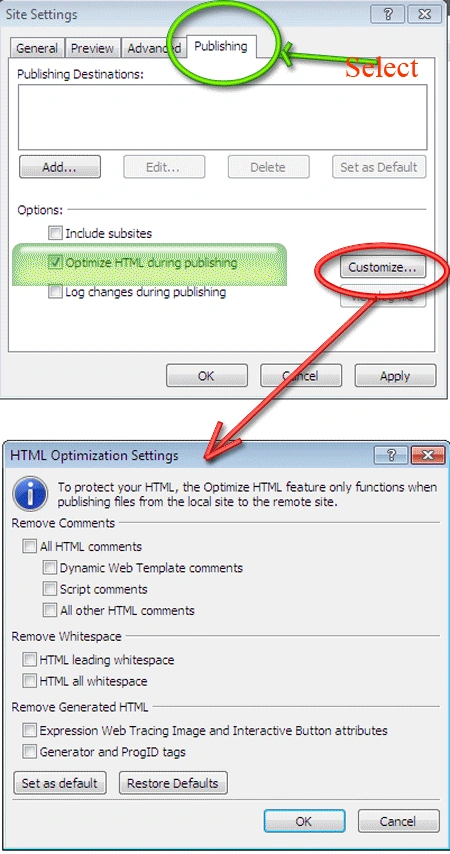
Step 4 : After the site contents are displayed on the page or you can say on selecting the site to which the changes in the setting are to be applied. go to the "Site" menu bar and select "site setting".

Step 5 : Selecting the site setting opens up the widow with four modes of changing the site setting. These modes are :
1. General
2. Preview
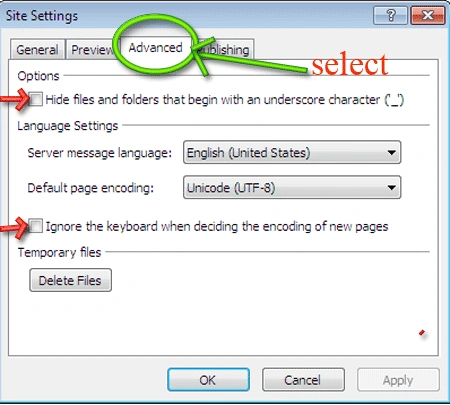
3. Advance
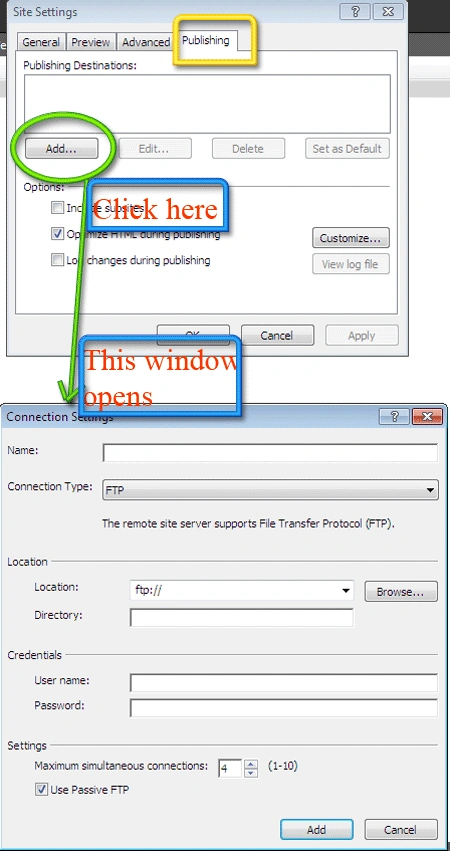
4. Publishing

Step 6 : Learning each mode thoroughly we start with the General mode. In this you see the first option that appears is Site name, you can change the name of the site you have opened before and this name will be used to refer to this site in the future. Hence you can bring changes to the name of your site from here.
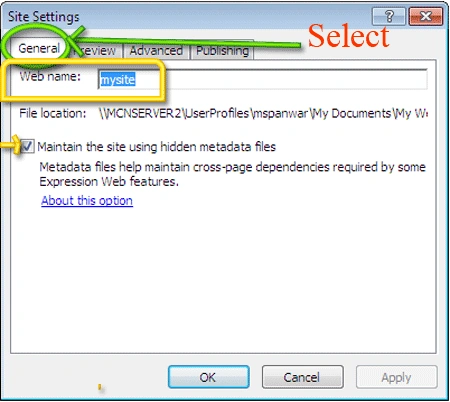
In the general mode you have a check box which is by default checked to " Maintain The Site Using Hidden Metadata Files is selected ". This option has to be selected, If it's not selected, be sure to select it before moving on to the next steps. This is because some features of Expression Web demand for the dependencies on other pages so checking this option maintains this feature.
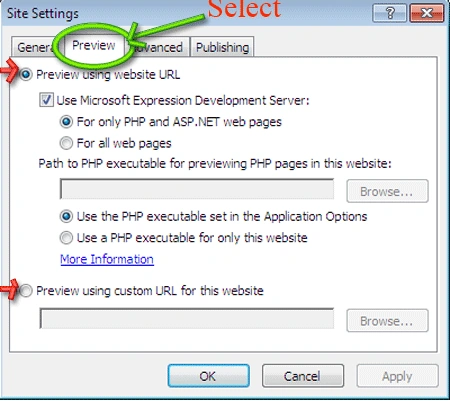
Step 7 : Moving on to the next mode that is the preview mode. The figure below shows the options provided under the preview tab.

Join the conversation! Your thoughts help the community grow.