

As data may come from heterogeneous sources, there is often the need of converting data before the data is loaded into the destination. The problem can also rise when Unicode format is converted into non-Unicode format e.g. SSIS assumes all the data coming from Excel in Unicode format, and if the destination table is designed to store the data only in non-Unicode format, the execution fails as Unicode conversion fails to non-Unicode.
There is one point to remember, and that is that data conversion is done on column basis.
Having said that, this article focuses on how data can be converted in SQL Server Integration Service (SSIS). Let’s go through it step by step:
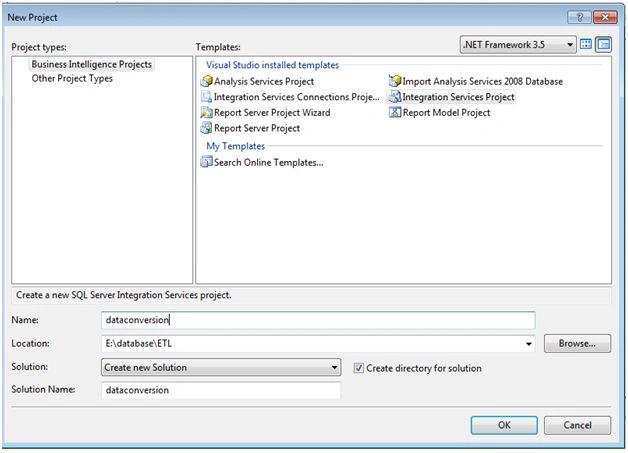
- Create a SSIS project, name it and save it locally.
- Drag and drop a excel source on dataflow tab in the middle.
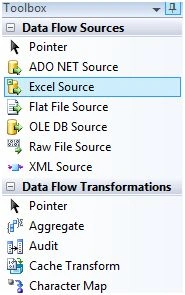
- Assign a name to the source and double click on it.

- Assign a connection to Excel or create a new one depending on the excel version available.
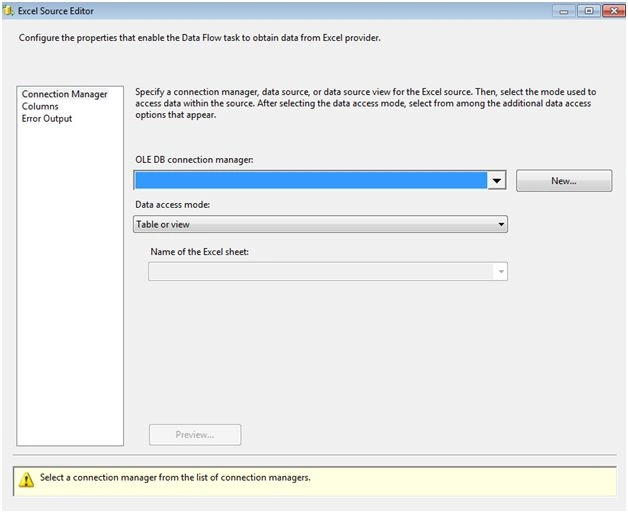
- Browse the Excel file on the local system and map the columns. Make sure to select the check box to consider column names from first row:
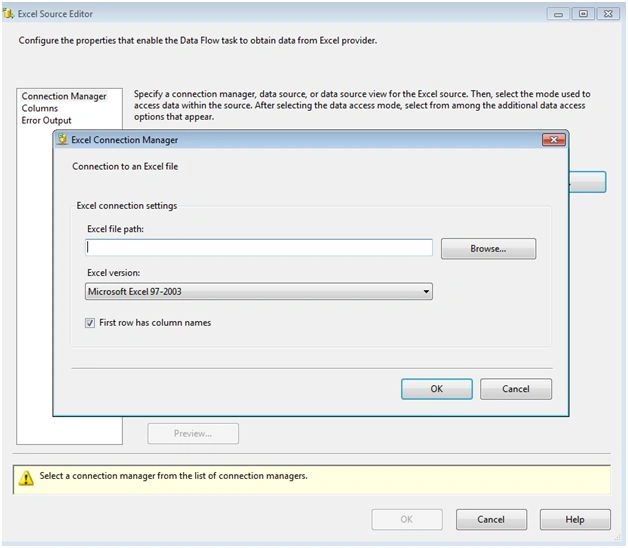
Select excel file:
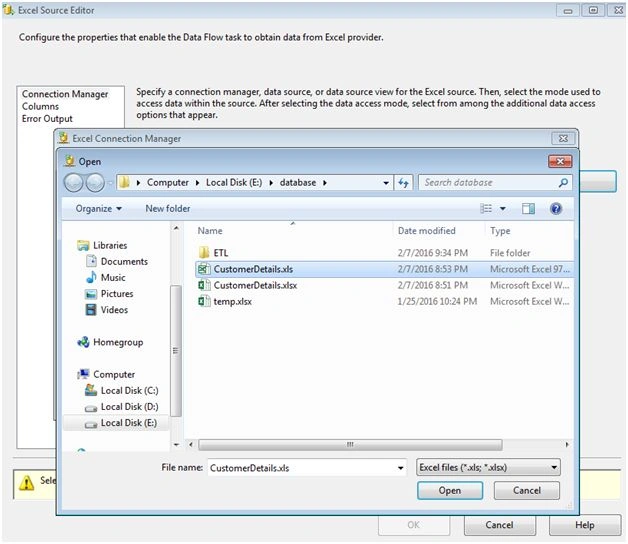
Choose the sheet from the workbook that contains data.

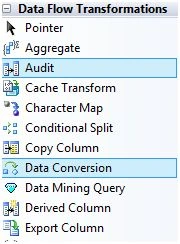
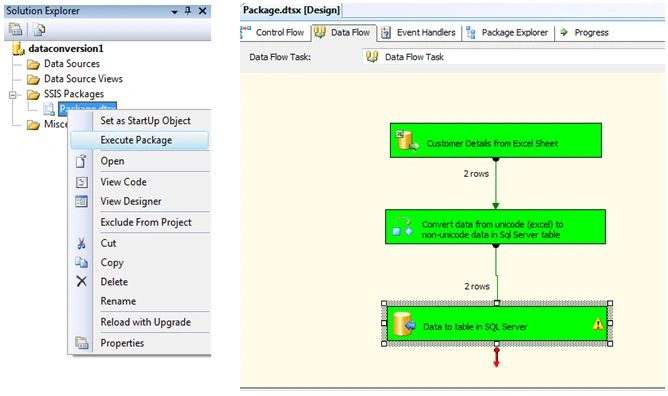
- Drag and drop a data conversion from toolbox on to dataflow
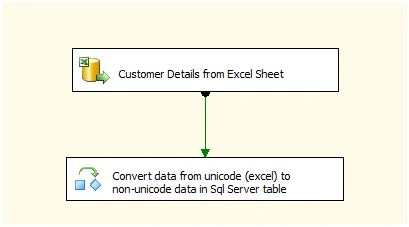
Connect Excel data source and data conversion with the green arrow coming out from the Excel data source.
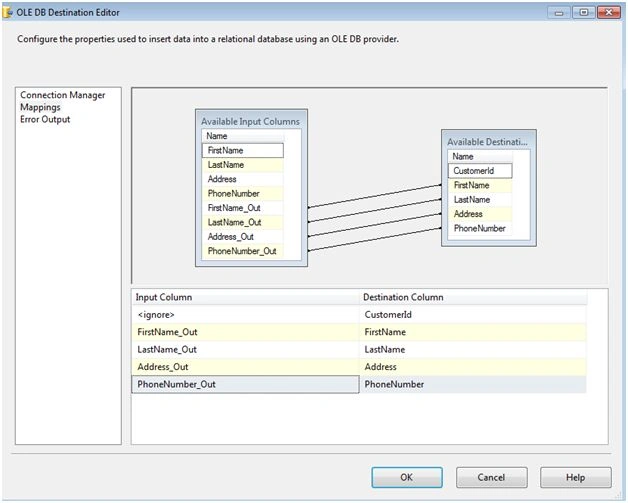
Double click on the data conversion control and map the columns. If necessary assign new names in the output column. Don’t forget to choose the appropriate conversion datatype from the dropdown. In my example, the destination table has column in non-unicode format and SSIS considers data in Unicode format from Excel, therefore, I select string datatype (DT_STR). Provide the length of the new column so that there is no data loss.
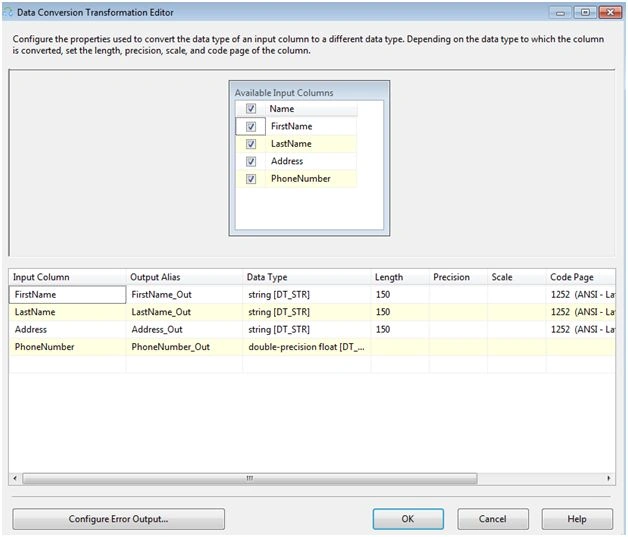
- Close the data conversion window and connect the green arrow coming out from Data conversion control to newly dragged OLE db destination.

- Create a connection manager or connect to the one available from the list.
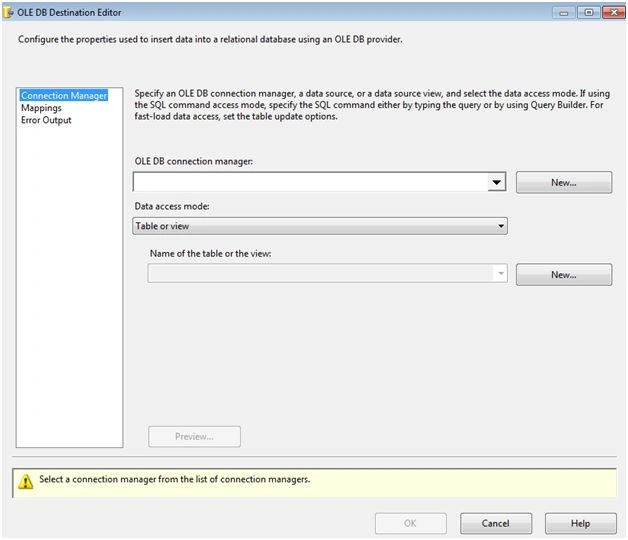
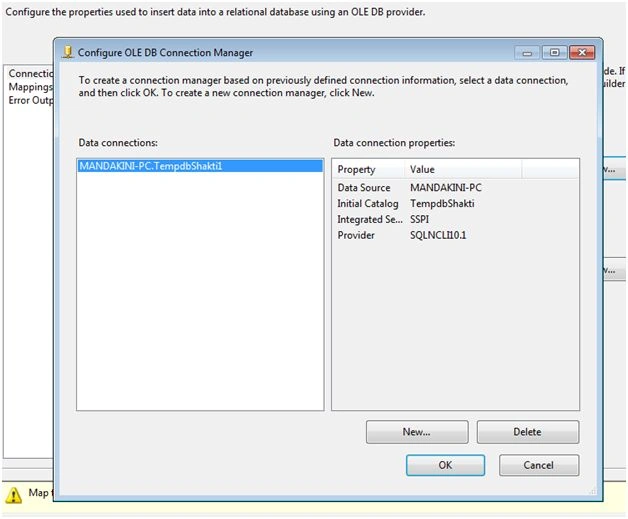
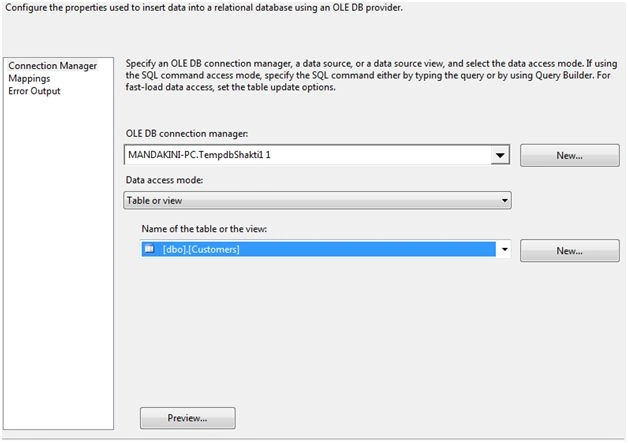
- Choose the destination table from the dropdown and go to mapping columns from the left hand side menu.
- Map column either on grid or by dragging and dropping arrows from available input columns to available destination columns. Make sure you chose the converted columns not the original one from the Excel sheet.
- Save the project and execute it.
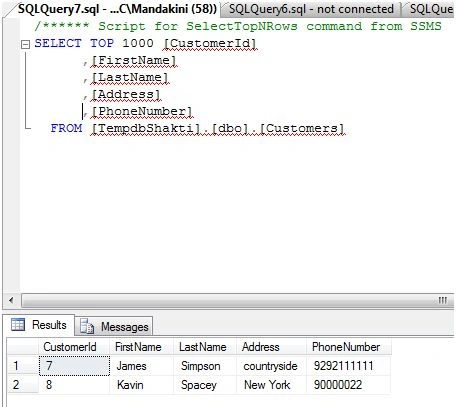
- Check the result in the SQL server if data is entered correctly.
Read more articles on SQL Server:
Humayun Kabir MamunPosted Feb 10, 2016, 11:08 PM
Nice...
Shubham KumarPosted Feb 10, 2016, 4:53 AM
Interesting
Pramod ThakurPosted Feb 9, 2016, 12:18 PM
nice one..
Santhakumar MunuswamyPosted Feb 9, 2016, 11:39 AM
Thanks for nice article
Pankaj Kumar ChoudharyPosted Feb 9, 2016, 11:22 AM
Nice Information Sir..........
Raja TPosted Feb 9, 2016, 8:40 AM
Nice, Thanks for sharing
Sibeesh VenuPosted Feb 9, 2016, 7:15 AM
Nice Share