
Background
In our normal working days, we may need export data from database into
Excel. During or after exporting, we may have requirements on style settings
to have the output Excel worksheet with good appearance for that readers can easily get
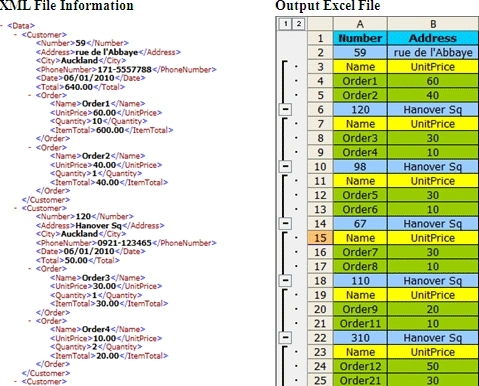
data information, such as create a group report. Suppose we have an XML file
with "Customers" and "Orders" information. One customer has multiple orders.
Now, we need export the information from XML to Excel with Dataset
Master-details for C#/VB.NET.
View Video on YouTube:
http://youtu.be/TbKHAW7RrQ0http://youtu.be/TbKHAW7RrQ0
Tool Introduction
A professional Excel component, Spire.XLS offers a solution which can help us
export the data information into Excel file with Master-details setting.
Spire.XLS is a professional Excel component which enables developers/programmers
fast generate, read, write and modify Excel document for .NET and Silverlight.
It supports C#, VB.NET, ASP.NET, ASP.NET MVC and Silverlight.
Steps and Details
By using Spire.XLS, there are only 4 steps to finish the job. Table of content:
- Step 1 Read XML File
- Step 2 Create Excel Worksheet
- Step 3 Import Data into Excel Worksheet
- Import Master Table
- Import Child Table
- Remove Columns Generated by System
- Step 4 Save output information into Excel Worksheet
Step 1:
Read XML file. Use Dataset read XML file information from your local PC.
DataSet
ds = new DataSet();
ds.ReadXml(@"..\..\Orders.xml");
Step 2:
Create a new Excel worksheet for storing data after exporting.
Workbook
workbook = new
Workbook();
Worksheet sheet = workbook.Worksheets[0];
Step 3:
Import data information from XML to Excel worksheet. (Details are below)
Step 4:
Save output information into Excel worksheet
workbook.SaveToFile("sample.xlsx",
ExcelVersion.Version2010);
System.Diagnostics.Process.Start("sample.xlsx");
Importing process is the core part for this
solution. "Orders" information and "Customers" information are relative. It's
obviously that "Orders" information is part of "Customers" information. So when
we read XML information as DataTable, "orders" information is Child Table, and
"Customers" information is Master Table.
1. Import Master Table
Use the following code can insert master table into Excel worksheet.
sheet.InsertDataTable(dataTable,
true, 1, 1, -1, -1, exportedColumns,
false);
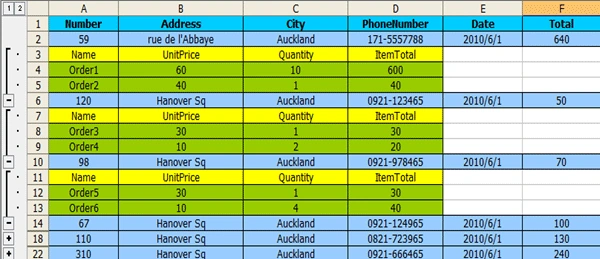
Spire.XLS enables users to design output information. For example, we can design the borders, font and color at will.
sheet.Range[1, 1, 1,
exportedColumns.Length].Style.Borders.LineStyle =
LineStyleType.Thin;
sheet.Range[1, 1, 1, exportedColumns.Length].Borders[BordersLineType.DiagonalDown].LineStyle
= LineStyleType.None;
sheet.Range[1, 1, 1, exportedColumns.Length].Borders[BordersLineType.DiagonalUp].LineStyle
= LineStyleType.None;
sheet.Range[1, 1, 1, exportedColumns.Length].Style.Color =
Color.DeepSkyBlue;
sheet.Range[1, 1, 1, exportedColumns.Length].Style.Font.IsBold =
true;
sheet.Range[2, 1, dataTable.Rows.Count + 1,
exportedColumns.Length].Style.Color = Color.LightSkyBlue;
2. Import Child Table
Because the first 2 rows of "Output Worksheet" have been taken by information of
Master Table, we have to insert the Child Table information starting from the
third row. Clone the Child Table information from XML to a sub DataTable which
can be recognized as a temporary table.
int
childDataInSheetRowIndex = 3;
DataTable subDataTable = childDataTable.Clone();
Nitin SontakkePosted Dec 8, 2016, 4:55 AM
Good post. Query: How to put the expand/collapse icon above the group using spire xls?
Deepak SinghPosted Sep 24, 2014, 9:33 AM
Great Post for me. is Spire.XLS dll free?
Nedim SahinPosted Apr 12, 2012, 11:59 PM
Great post! Thank you. I have a question. I downloaded the source code and give my own xml. I faced an error: "Cannot find relation 0." at this row: "DataRelation relation = dataTable.ChildRelations[0];". What should I do? My XML file is here: <?xml version="1.0" standalone="yes"?> <mfh> <ffv>32</ffv> <sn>SubNetwork</sn> <cbt>20120410000000Z</cbt> </mfh>
Darwin ChaudharyPosted Dec 29, 2011, 1:54 AM
Thanks for sharing nice work plz keep posting..
Stephen JohnsonPosted Dec 28, 2011, 11:05 PM
Great what an article. I will surely implement it.
Vineet Kumar SainiPosted Dec 21, 2011, 12:18 PM
Good..
Sonakshi SinghPosted Dec 20, 2011, 5:51 AM
Good work
Manish SinghPosted Dec 10, 2011, 12:29 AM
Hi.. Tom, it's really good one
Sharon WhitePosted Dec 2, 2011, 4:35 AM
Good job. It's really very useful. Thanks for sharing.
Manish SinghPosted Nov 30, 2011, 6:24 PM
It is really helpful and i hope next article is more friendly...............
Vikas MishraPosted Nov 30, 2011, 12:03 PM
Thanks tom for sharing such a very good and attractive article........
Arjun PanwarPosted Nov 29, 2011, 11:00 PM
Very good explanation
Akash AhlawatPosted Nov 29, 2011, 10:56 PM
Great work Tom..very useful article please keep posting
Dinesh BeniwalPosted Nov 29, 2011, 10:38 PM
Thanks for sharing
Michell JohnsonPosted Nov 29, 2011, 1:41 PM
Dear Tom It's great effort but coding part is not clear to see as in xml file so you should use clear image inside your article, further it is very helpful to us thanks.
Manoj Singh PanwarPosted Nov 29, 2011, 11:43 AM
Thank u Tom for this advantageous article