

Introduction
In this article, I will demonstrate database driven development and developing the user interface using Windows Form and C#.
step 1
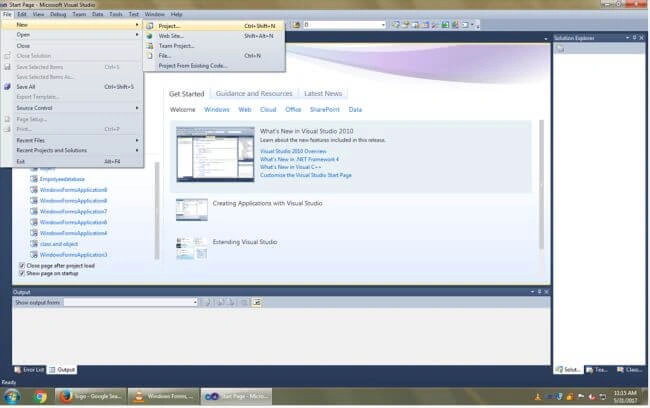
Create new project in Windows Form application and save the project in AGContactDirectory.
Step 2
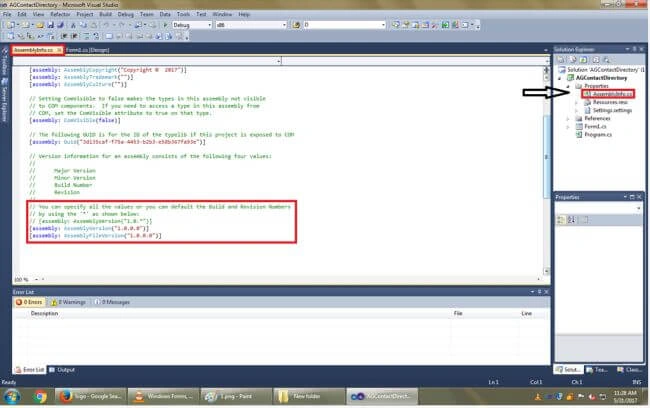
Select the Assemblyinfo.cs. It will generate the code like this,
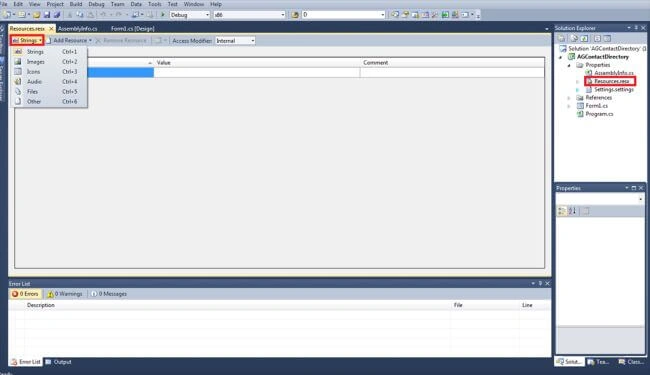
Resource.resx window has strings default. For exmple you can put any images in your form, resource.resx will be changed to images.
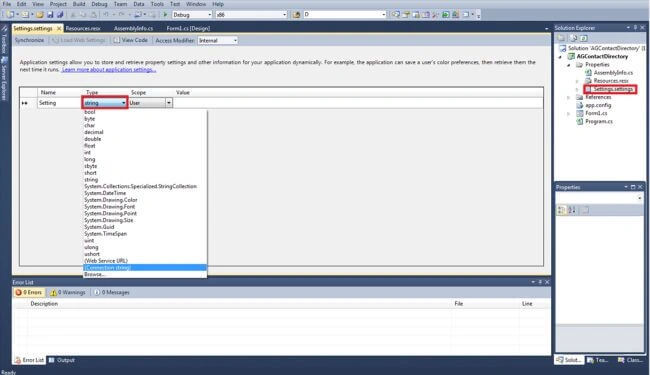
Settings window is like this; it has default string type.
Step 3
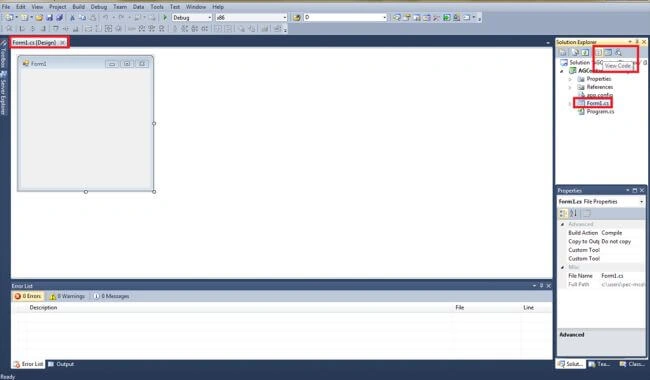
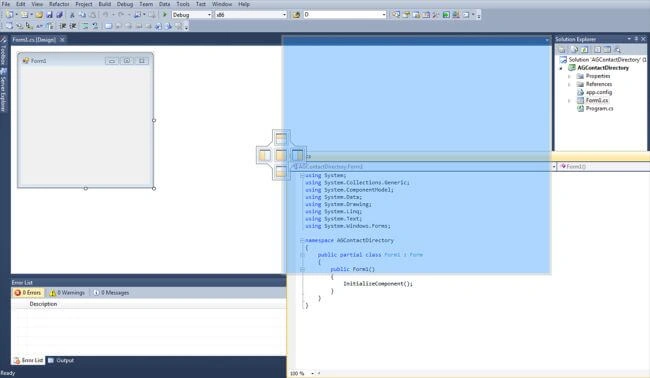
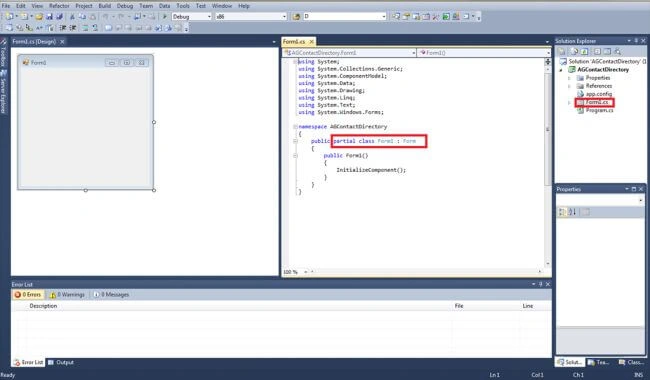
Now, you click on the Form1.cs and click to view code icon. and drag the code window to your right side for your convenience.
Step 4
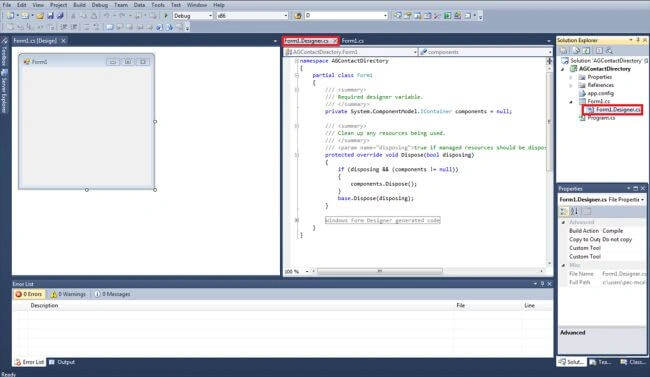
Click Form1.Designer.cs; the window is like this,
Designer window already generates the code. Small changes in your program will be generate the code.
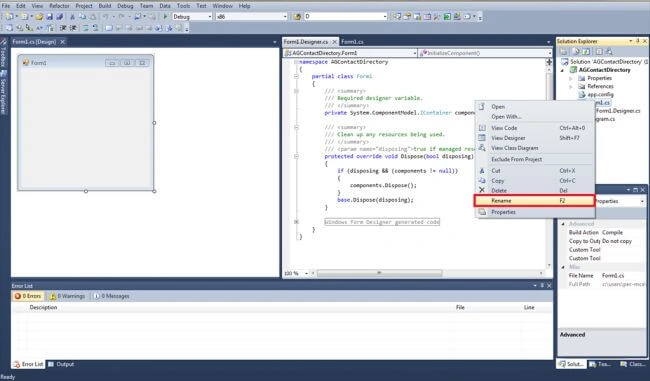
Rename the Form1.cs to AGContactDirectory.
In this article, I will demonstrate database driven development and developing the user interface using Windows Form and C#.
step 1
Create new project in Windows Form application and save the project in AGContactDirectory.
Step 2
Select the Assemblyinfo.cs. It will generate the code like this,
Resource.resx window has strings default. For exmple you can put any images in your form, resource.resx will be changed to images.
Settings window is like this; it has default string type.
Step 3
Now, you click on the Form1.cs and click to view code icon. and drag the code window to your right side for your convenience.
Step 4
Click Form1.Designer.cs; the window is like this,
Designer window already generates the code. Small changes in your program will be generate the code.
Rename the Form1.cs to AGContactDirectory.
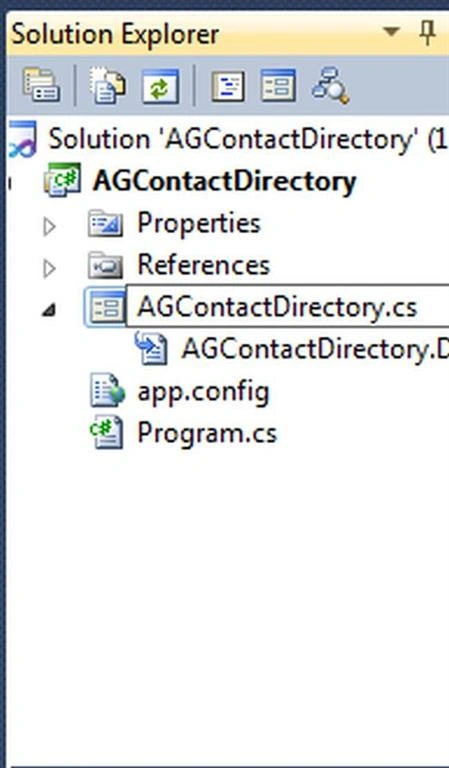
The Form name will be changed into AGContactDirectory.
Step 5
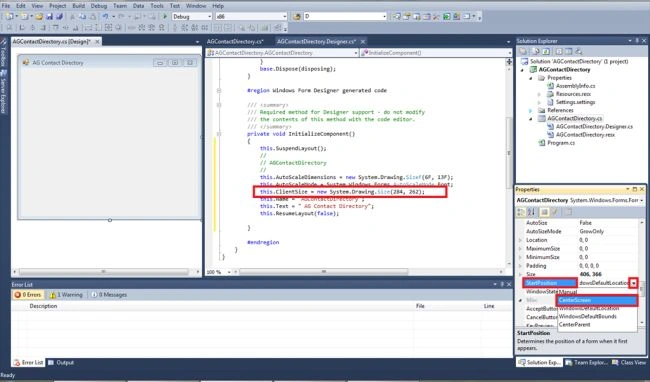
Click on the Form and go to the property and change the text into AG Contact Directory. The Designer code text will be changed.
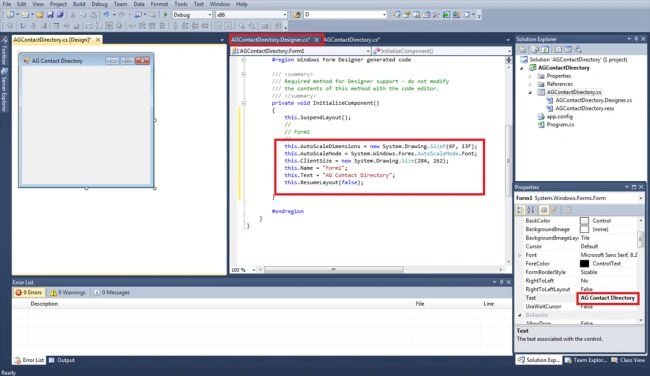
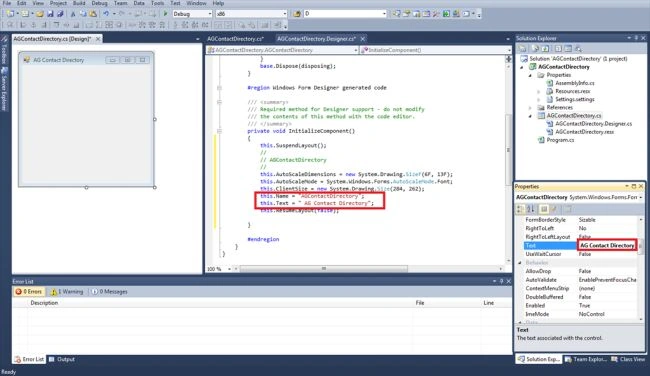
Here, the name and Text will be changed.
Step 6
Click your Form and go to the property. select the start position. It has Manual, Center screen, windowsDefaultLocation,
windowsDefaultBounds and centerParent. Choose the centerScreen option.
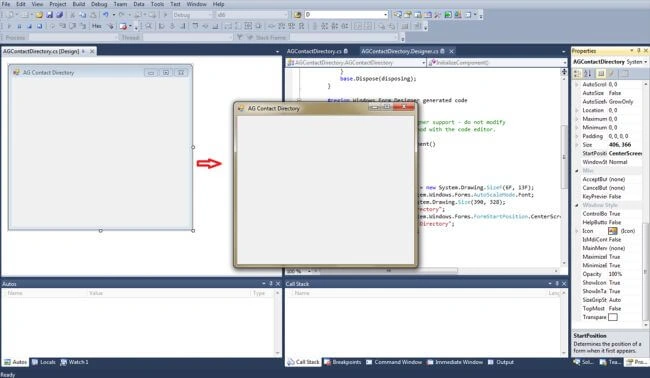
Run your program; the output window will be displayed in the center of the screen.
Step 7
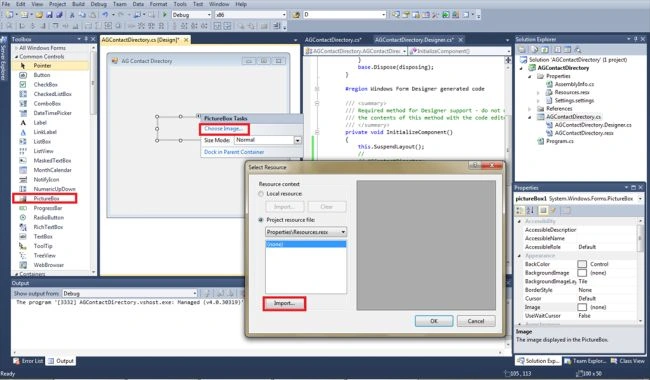
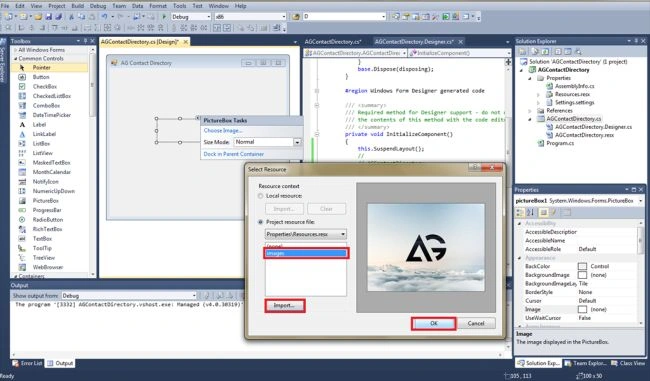
Choose the picture box, click the arrow and it will be displayed on PictureBox Task. Click the choose image option and import the image for your company logo or any image you want, click ok.
Change the size mode to zoom because the size mode is in default for Normal mode.
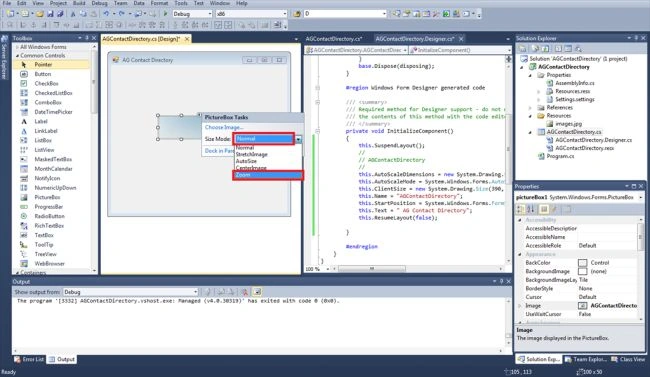
Step 8
Resource.resx window is changed into images.
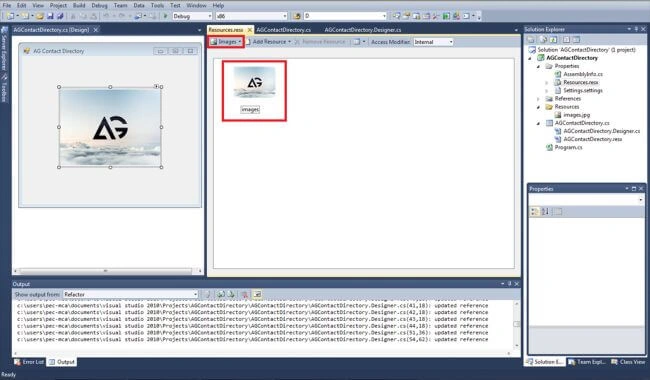
Step 9
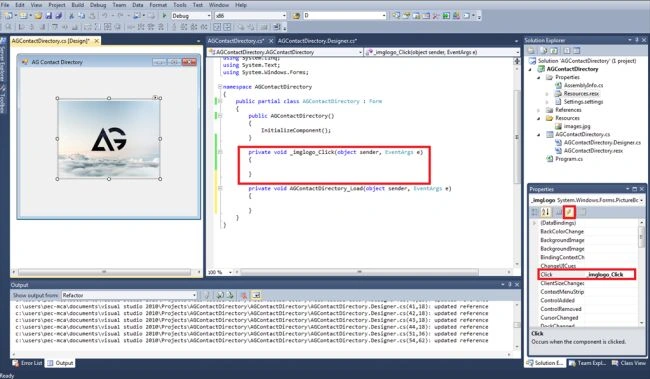
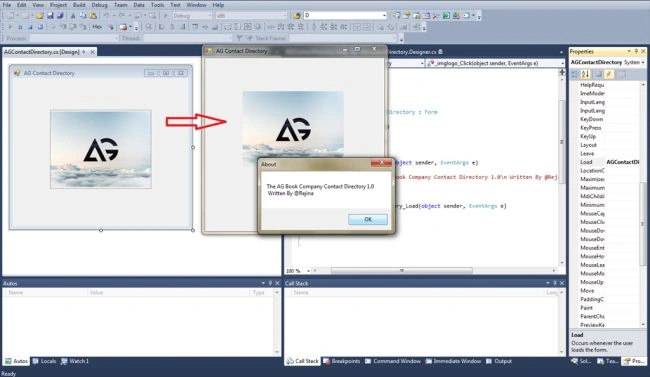
Click the image and go to the property window. Click Event; change the click event for _imglogo_click. The coding window will be displayed for _imglogo_click.
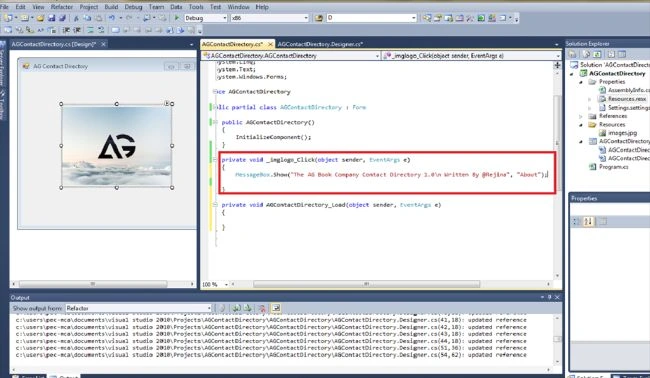
Write the coding for MessageBox it will display the contact directory.
Step 10
Run the program. The output will be displayed. When you click on the picture box, the contact directory will be displayed.
Summary
In this article, I discussed how we can create database driven development and develop the user interface using Windows form and C#. We also saw how we can put in the picture box and how it's stored in resourece.resx and database driven developing.Ffinally we got an output for displaying the contact directory.
I hope in this airticle has helped you to understand database driven development.
Run your program; the output window will be displayed in the center of the screen.
Step 7
Choose the picture box, click the arrow and it will be displayed on PictureBox Task. Click the choose image option and import the image for your company logo or any image you want, click ok.
Change the size mode to zoom because the size mode is in default for Normal mode.
Step 8
Resource.resx window is changed into images.
Step 9
Click the image and go to the property window. Click Event; change the click event for _imglogo_click. The coding window will be displayed for _imglogo_click.
Write the coding for MessageBox it will display the contact directory.
Step 10
Run the program. The output will be displayed. When you click on the picture box, the contact directory will be displayed.
Summary
In this article, I discussed how we can create database driven development and develop the user interface using Windows form and C#. We also saw how we can put in the picture box and how it's stored in resourece.resx and database driven developing.Ffinally we got an output for displaying the contact directory.
I hope in this airticle has helped you to understand database driven development.
SystemTak SistemasPosted Feb 3, 2018, 3:53 AM
Great publication.
Former memberPosted Jun 22, 2017, 9:04 AM
@Sundar what do you mean "samr" ? nowadays rare company work with windows. if they has old one then they just give support because WPF has many advantages.
Sundaram SubramanianPosted Jun 22, 2017, 7:15 AM
very nice and well explained Gayathri.
Former memberPosted Jun 22, 2017, 5:31 AM
Windows form application is outdated. all people now run after WPF and this is so basic article i guess it will not help any one. ;)
Vignesh ManiPosted Jun 21, 2017, 3:55 PM
Good article. Thank you for sharing
Shovan SahaPosted Jun 21, 2017, 12:32 PM
This is nice. I have another query. I have developed a desktop data entry application by C#, in visual studio 2015 connected with MS Access database. Can I make any setup exe that any one can use this with this database?
Satyaprakash SamantarayPosted Jun 21, 2017, 11:50 AM
Windows form application is outdated in today's market. So, what's your point of view in which direction we can use
Vidyadharran GPosted Jun 21, 2017, 11:13 AM
It's nice keep sharing sister.......