
In previous part of this series, you learned how to create database for the ASP.NET MVC application. In this part, we will see how to create model classes from database using Edmx file.
To create new project, Open Visual Studio, I am using Visual Studio 2013. Click File Menu, then New and choose Project.
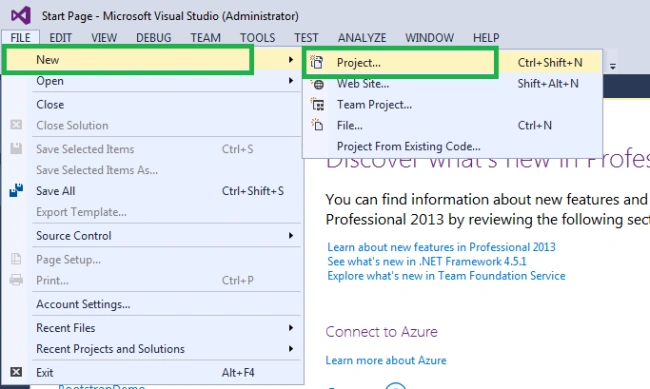
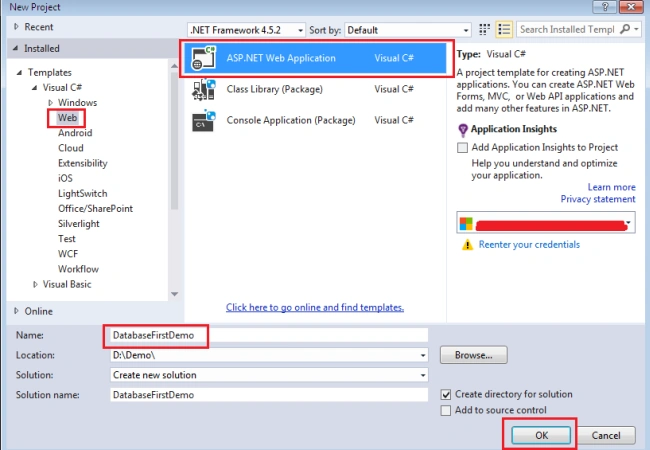
It will open a new window from where you can choose the application type. Choose Web from Installed and then choose ASP.NET Web Application. Give it proper project name and also provide the location of project to save and click on OK.
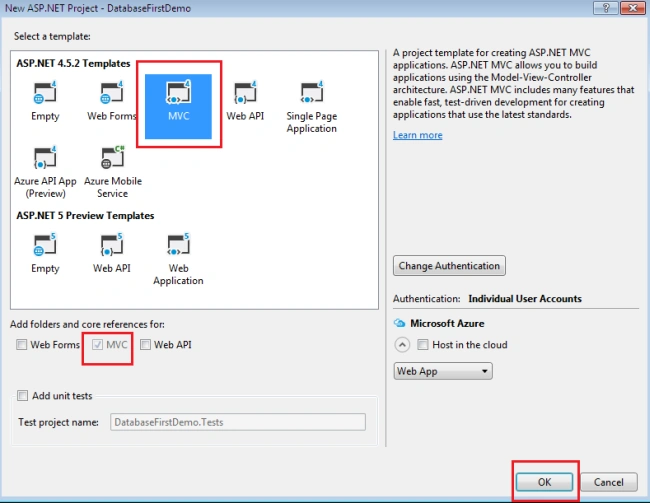
This will open a dialog where we can choose New ASP.NET Project, So, here we are going to choose an MVC, and choose OK.
So, finally we have created an ASP.NET MVC application. When you go through the Solution Explorer, project structure will look like the following. Here we can see different type of folders and files, such as Controllers, Models, etc.

So, we have created an MVC project. Now it is time to create models from existing database.
To Add Models, Right Click on Models folder and choose Add and then choose New Item.
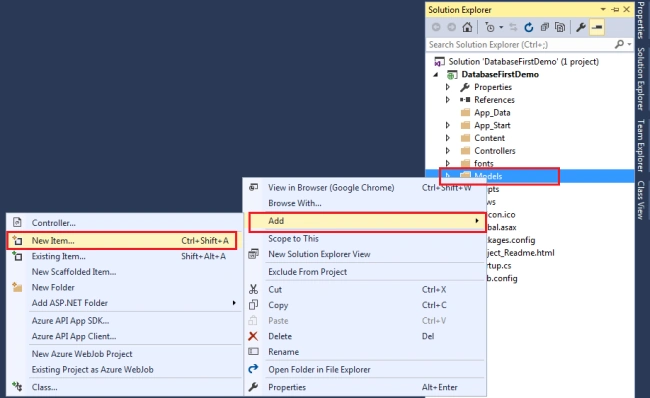
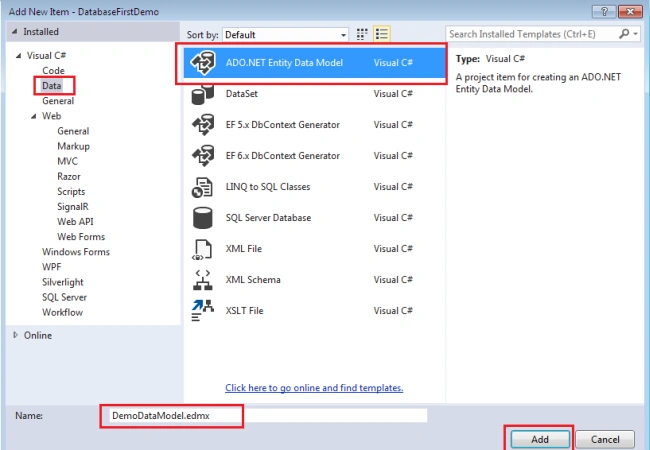
It will open a dialog where we need to choose Data node then ADO.NET Entity Data Model. Provide the valid name and chick OK.
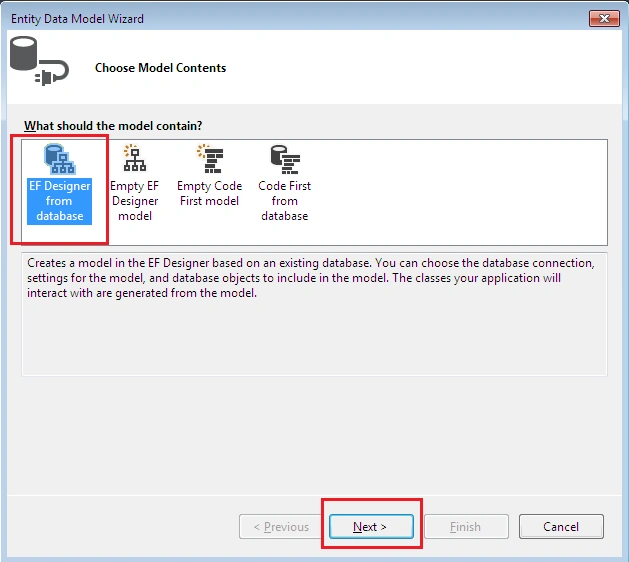
In the Entity Data Model Wizard, select EF Designer from database and click Next.
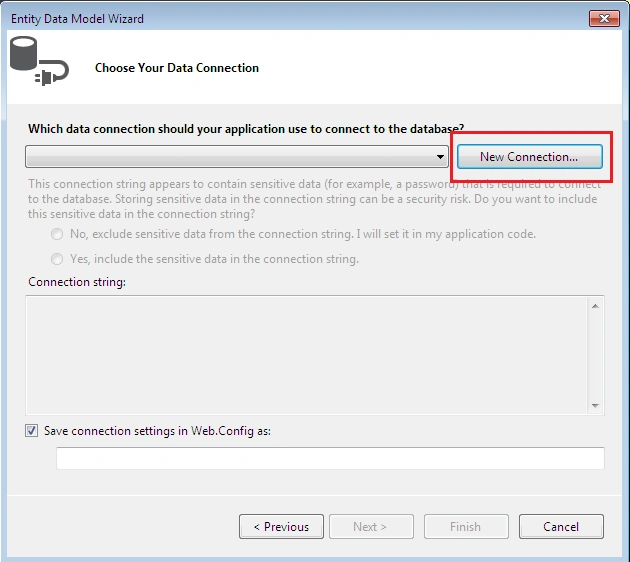
Click the New Connection button where you will define the database connection.
In the Choose Data Source window, we need to choose Data source and click Continue.

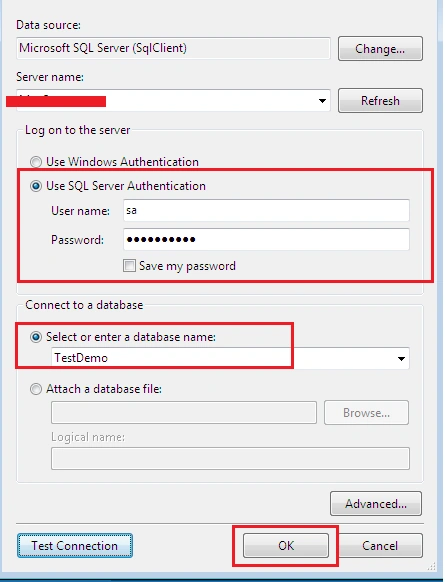
It will open a new dialog where you need to specify everything about database connection. Here we will pass the user name and password and also choose the database. We can also check our database connection to click on Test Connection.
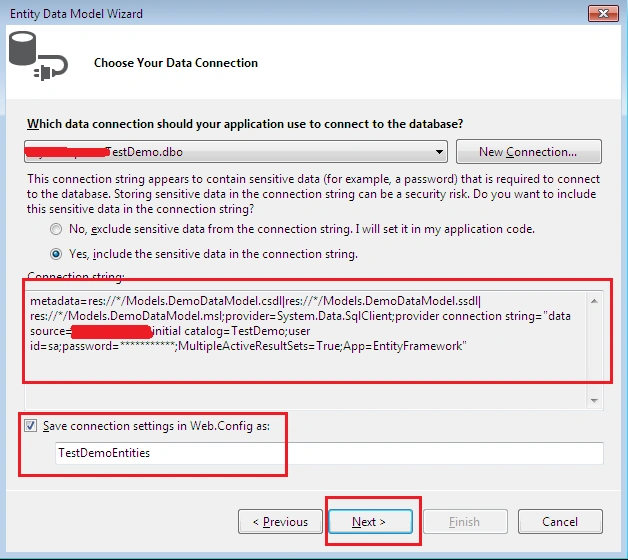
It will create database connection string in the Entity Data Model Wizard. Click Next.
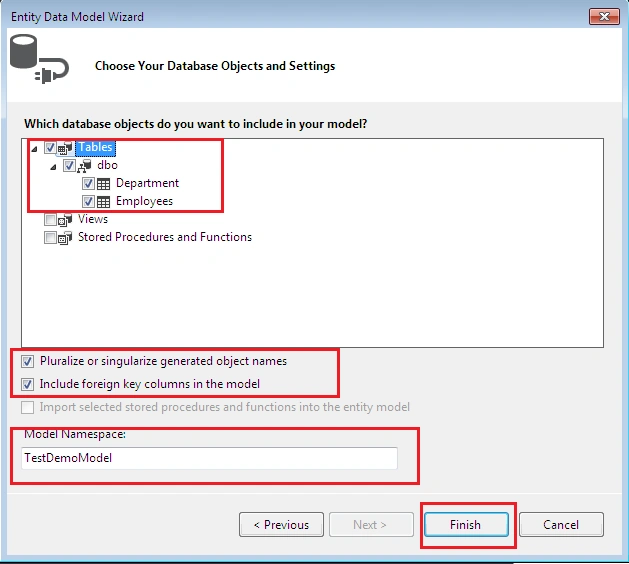
From the next Entity Data Model Wizard, we can choose database items, such as Tables, Views, Stored Procedures and Function. Choose as per your requirement and pass the Model Name and click to Finish.
The DemoDataModel.Context.cs file contains a class that derives from the DbContext class. It also provides a property for each model class that corresponds to a database table. The Department.cs and Employee.cs files contain the model classes that represent the databases tables. Here you can see Department.cs and Employee.cs represent the database the database table. They contain all columns as properties.
The following is the code for Department.cs.

Database First Approach With ASP.NET MVC Step By Step Part 2
Join the conversation! Your thoughts help the community grow.
Sign in to leave a comment
It is the same account you read, post and publish with — and you will come straight back to this page.
Santhakumar MunuswamyPosted Nov 9, 2015, 1:03 AM
Good one