

Introduction
- First, we will add a Java file and name it Second.java.
- Then, we will add an XML file that will define the UI of that second activity and the name would be second.xml
- After that, we will link the Java and XML files to each other to act as one activity using setContentView()
- Add a Button in Main Activity.
- On clicking that button, the app will navigate to the second activity.
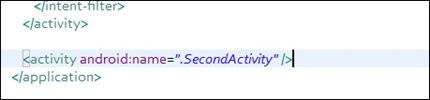
- Finally, we specify the second activity in the manifest file. Since every activity must be there in the Manifest file.
Procedure
Step 1
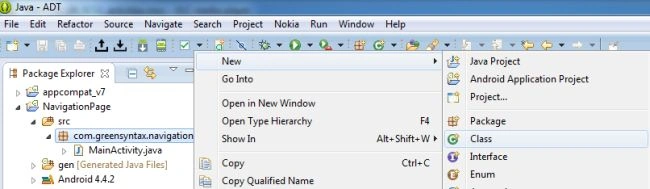
Right-click on the package name under the /src folder. Then select New > Class.
 And then add the class name as SecondActivity and choose Superclass as Activity. Either you write android.app.Activity or choose it from Browse.
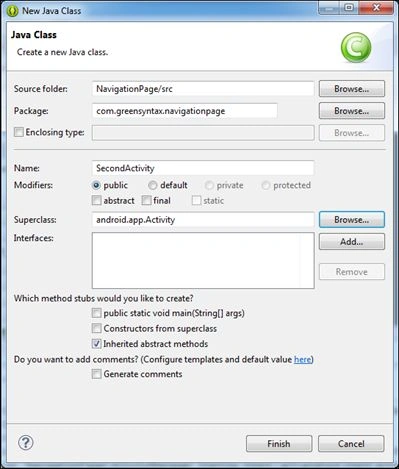 And, click on Finish.
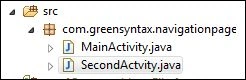 Finally, we have these Java files under the package.
Step 2
Finally, we have these Java files under the package.
Step 2
We will now add an XML Layout file.
Either follow this procedure.
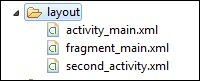
 Under the res folder, right-click on the Layout folder then select the New > Android XML file.
Or, just click on the button.
Under the res folder, right-click on the Layout folder then select the New > Android XML file.
Or, just click on the button.
 And, name the XML layout.
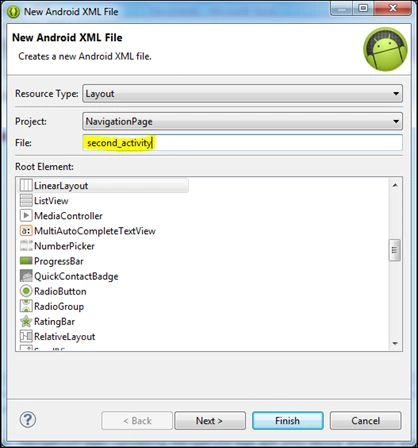 I have named it second_activity with Linear Layout as default.
Convention: Whenever you are naming any XML file then you must use lower-case letters, numbers, and underscore (_) only.
Last, we will click on Finish.
I have named it second_activity with Linear Layout as default.
Convention: Whenever you are naming any XML file then you must use lower-case letters, numbers, and underscore (_) only.
Last, we will click on Finish.
 Step 3
Now, it's time to link the XML layout file to the Java file.
So, open the SecondActivity.java under the src/ folder.
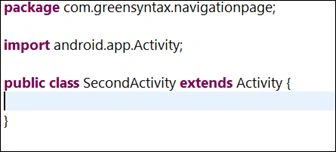 Next, we will add an onCreate() method first.
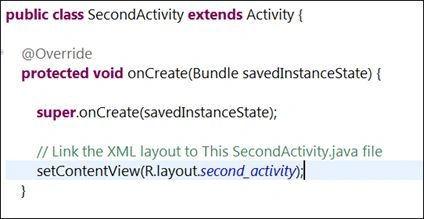 Tips: Whenever you are creating any pre-defined method then always use Template Proposal (or, Intellisence), in other words, Ctrl+Spacebar.
For example: Type void OnCreat <PRESS> Ctrl+Space and <ENTER>.
Now, why are we creating the onCreate() method?
This is the first question everyone has in their mind. So, onCreate() is the first method called whenever an activity is called. So, whenever the second activity is called, then its onCreate() method will be executed first.
Analogous: It's the same as Form_Load() in C# (or the .NET Language).
Inside onCreate() we are setting the XML layout file. We specify that this Java file is linked to the XML layout file, in other words second_activity.xml . And this has ben done by the setContentView() method.
And, why the heck did we have to write R.layout.second_activity?
Actually, it is a path of second_activity. And, it is similar to res/layout/second_activity.
Note: Whenever we want to access the res folder we use the R keyword to point to it.
Step 4
Tips: Whenever you are creating any pre-defined method then always use Template Proposal (or, Intellisence), in other words, Ctrl+Spacebar.
For example: Type void OnCreat <PRESS> Ctrl+Space and <ENTER>.
Now, why are we creating the onCreate() method?
This is the first question everyone has in their mind. So, onCreate() is the first method called whenever an activity is called. So, whenever the second activity is called, then its onCreate() method will be executed first.
Analogous: It's the same as Form_Load() in C# (or the .NET Language).
Inside onCreate() we are setting the XML layout file. We specify that this Java file is linked to the XML layout file, in other words second_activity.xml . And this has ben done by the setContentView() method.
And, why the heck did we have to write R.layout.second_activity?
Actually, it is a path of second_activity. And, it is similar to res/layout/second_activity.
Note: Whenever we want to access the res folder we use the R keyword to point to it.
Step 4




Join the conversation! Your thoughts help the community grow.