

Introduction
While Alexa still holds the majority of the smart speaker market at 61.1% (as of Jan. 2019), Google is catching up with a 23.9% share. When most people think of Google and smart speakers, Google Home devices come to mind. Voice apps on Alexa are deployed to the Alexa Skill Store. On Google, developers deploy Google Actions to Google Assistant, which is on every Android device. While the Android mobile phone market share is at 44% in the United States, it's at 75% worldwide. This makes Google Actions hard to ignore.
This article walks through how to create a Google Action, connect it to Dialogflow, and then create an Azure Function. It is based on the Alexa Space Facts tutorial. In that example, a user requests a random fact that is chosen from a list and read to the user. It uses an Alexa Skill backed by a Lambda hosted on Amazon Web Services. The code in this article uses the same voice commands and facts as the original tutorial but creates a Google Action backed by an Http Trigger hosted in an Azure Function.
This article steps should be creating an Azure Function based on the node.js code in the Alexa tutorial. It then sets up a Google Action, connects it to Dialogflow, and sets up a public tunnel for development and testing. Finally, the Azure Function is deployed and the Dialogflow configuration is updated to use it.
Create the Space Facts Azure Function
The code to support the Action is too large to cover completely in the space of a single article. Download the attached demo and use it locally. These steps cover the key steps taken to create the Azure Function. They apply to Visual Studio 2017, any edition.
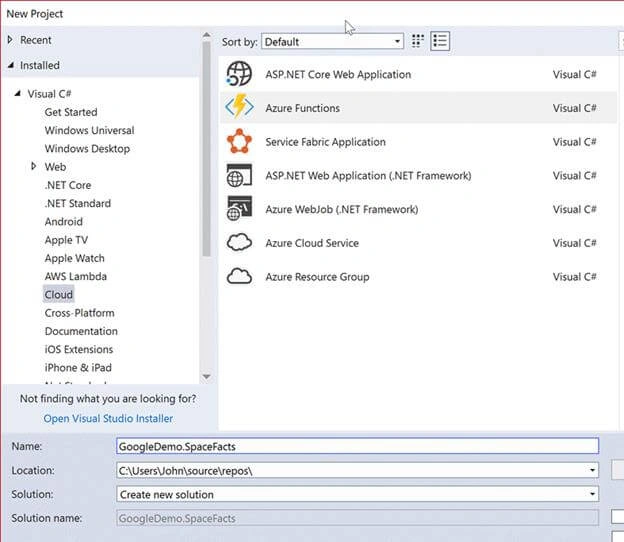
- Create a new project. Select Cloud in the left navigation bar. Select Azure Function.
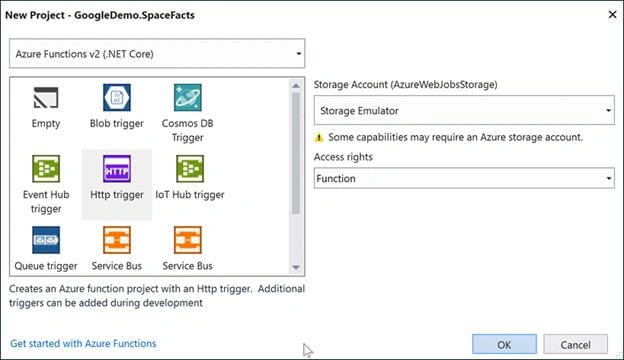
- Select Http trigger.
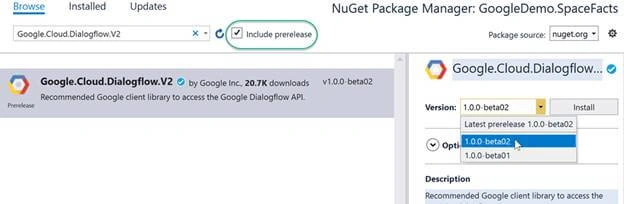
- Add the Google.Cloud.Dialogflow.V2 NuGet package. Make sure to check to Include prerelease. Chose the latest beta. At the time of this writing, it's 1.0.0-beta02. This package is used to serialize the Dialogflow WebhookRequest and WebhookResponse messages.
Inside the Space Facts Azure Function
The Azure Function sits at the end of an HTTP endpoint and receives a POST request. It loads the request body text into a string.
- [FunctionName("GoogleSpaceFactsFunction")]
- public static async Task<IActionResult> Run(
- [HttpTrigger(AuthorizationLevel.Function, "get", "post", Route = null)] HttpRequest req,
- ILogger log)
- {
- . . .
- string requestBody = await new StreamReader(req.Body).ReadToEndAsync();
- . . .
Action Health Check
When in production, Google monitors the Action using a health check request. Even when using Dialogflow, the health check message format is a Conversation message. Surprisingly, I was able to put a Google Action in production without supporting the Google Action Health Check. I immediately started getting email notifications indicating the Google Action is not healthy and would be delisted until it responds to the health check message.
The IsHealthCheck method attempts to deserialize the request into a ConversationRequest class and detect if it is a health check. Since the message could be "Dialogflow Webhook deserialization errors are logged", but don't cause the method to raise an exception. The response to a health check can be a valid Dialogflow Webhook response. The attached project sends the same response to a health check as it does when a user makes a request satisfying the health check.
- public static bool IsHealthCheck(string requestBody, ILogger log)
- {
- bool isHealthCheck = false;
- ConversationRequest convReq = null;
- try
- {
- convReq = JsonConvert.DeserializeObject<ConversationRequest>(requestBody);
- }
- catch (Exception ex)
- {
- log.LogInformation(ex, "Web hook request is not a health check. Cannot deserialize request as a health check.");
- }
- var firstInput = convReq?.Inputs?.FirstOrDefault(x => (x.Intent?.Equals(INTENT_MAIN)).GetValueOrDefault(false));
- if (firstInput != null)
- {
- var arg = firstInput.Arguments?.FirstOrDefault(x => (x.Name?.Equals("is_health_check")).GetValueOrDefault(false));
- if (arg != null)
- {
- isHealthCheck = arg.BoolValue;
- }
- }
- return isHealthCheck;
- }
UserId Management
If you've developed an Alexa Skill, then you have come to expect a userId to be provided the Alexa request. Google Action requests (both Dialogflow and Conversation Webhooks) currently include a userId, but that is going away as of May 31st, 2019 (see Anonymous User Identity). It's up to the Azure Function to provide a new userId and place it in a userStorage property on the response. The contents of the property are returned on subsequent requests. The GetUserId method first checks the userStorage property and then falls back to the legacy userId. If no validation is found in either location, it generates a new unique user id.
- private static string GetUserId(WebhookRequest request)
- {
- string userId = null;
- Struct intentRequestPayload = request.OriginalDetectIntentRequest?.Payload;
- var userStruct = intentRequestPayload.Fields?["user"];
- string userStorageText = null;
- if ((userStruct?.StructValue?.Fields?.Keys.Contains("userStorage")).GetValueOrDefault(false))
- {
- userStorageText = userStruct?.StructValue?.Fields?["userStorage"]?.StringValue;
- }
- if (!string.IsNullOrWhiteSpace(userStorageText))
- {
- UserStorage userStore = JsonConvert.DeserializeObject<UserStorage>(userStorageText);
- userId = userStore.UserId;
- }
- else
- {
- if ((userStruct?.StructValue?.Fields?.Keys.Contains("userId")).GetValueOrDefault(false))
- {
- userId = userStruct?.StructValue?.Fields?["userId"]?.StringValue;
- }
- if (string.IsNullOrWhiteSpace(userId))
- {
- // The user Id is not provided. Generate a new one and return it.
- userId = Guid.NewGuid().ToString("N");
- }
- }
- return userId;
- }
Locally Running the Azure Function
Start your project in Debug mode. This should result in a command line window that looks similar to,
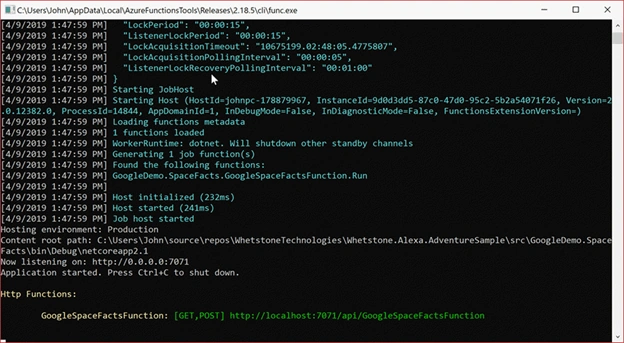
By default, Http Trigger Azure Functions launch locally on port 7071. Dialogflow REST API fulfillment requires a publicly accessible endpoint. ngrok is a free utility that creates a public endpoint on port 80 and 443 and maps them to a local port.
Go to ngrok.com, sign up for an account, and download the ngrok command line utility. Follow the instructions to connect the ngrok utility to your account. Add it to your PATH in your local environment so it's accessible when you create a command line window. Open a command line window and start ngrok with:
ngrok http 7071
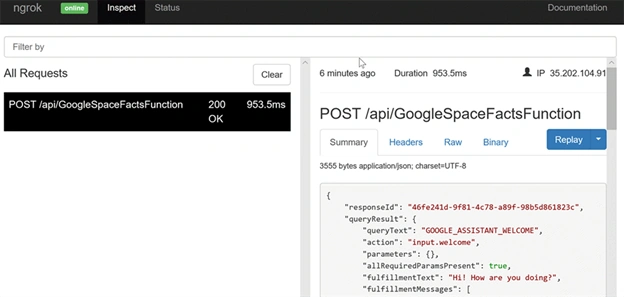
This will launch a window that looks similar to:
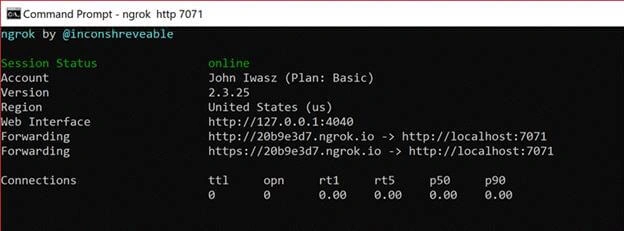
This makes the Azure Function available at:
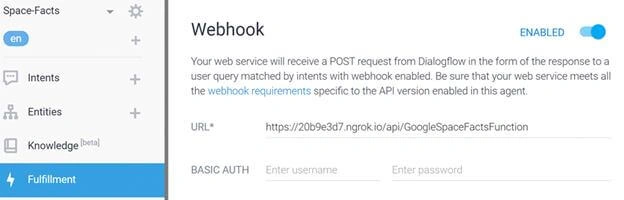
https://20b9e3d7.ngrok.io/api/GoogleSpaceFactsFunction
The first portion of the URL is a random string that's regenerated each time ngrok is executed. The endpoint will remain available for over eight hours. This URL will be used in the next.

Join the conversation! Your thoughts help the community grow.