

Introduction
This article explains how to use Azure Virtual WAN to connect to your Azure resources. In this article, you will set up a certificate-based Point-to-Site (P2S) VPN connection using OpenVPN or IPsec/IKE (IKEv2) via the Azure portal. Each client device will need the native VPN client configured to connect.
For this demonstration, I have an Azure VM hosting a web server, and the tutorial shows how to access it through a certificate-based P2S VPN using Azure Virtual WAN.
Prerequisites
An Azure Virtual Machine with IIS or any other web server installed
An existing Azure Virtual WAN
A configured Virtual WAN hub
Basic familiarity with navigating the Azure portal
A client device with a certificate for authentication. If a certificate is not available, you can follow this guide to generate one: Certificates for Point-to-Site VPN
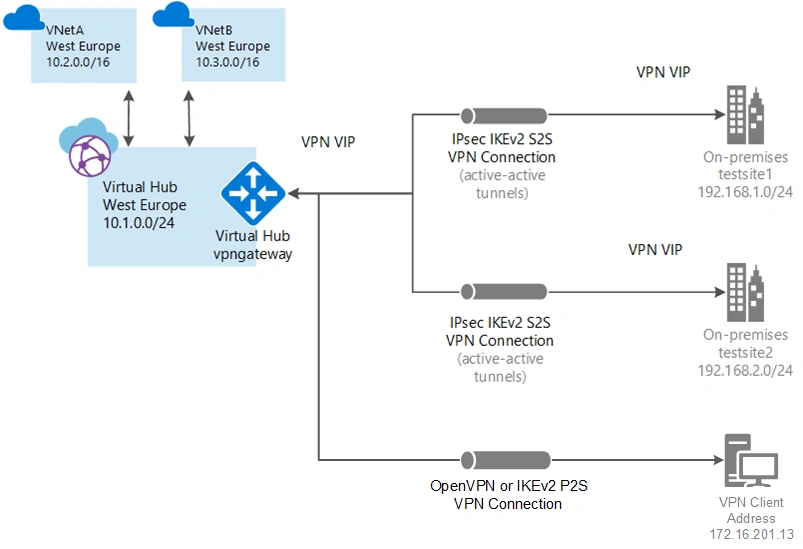
Architecture Diagram
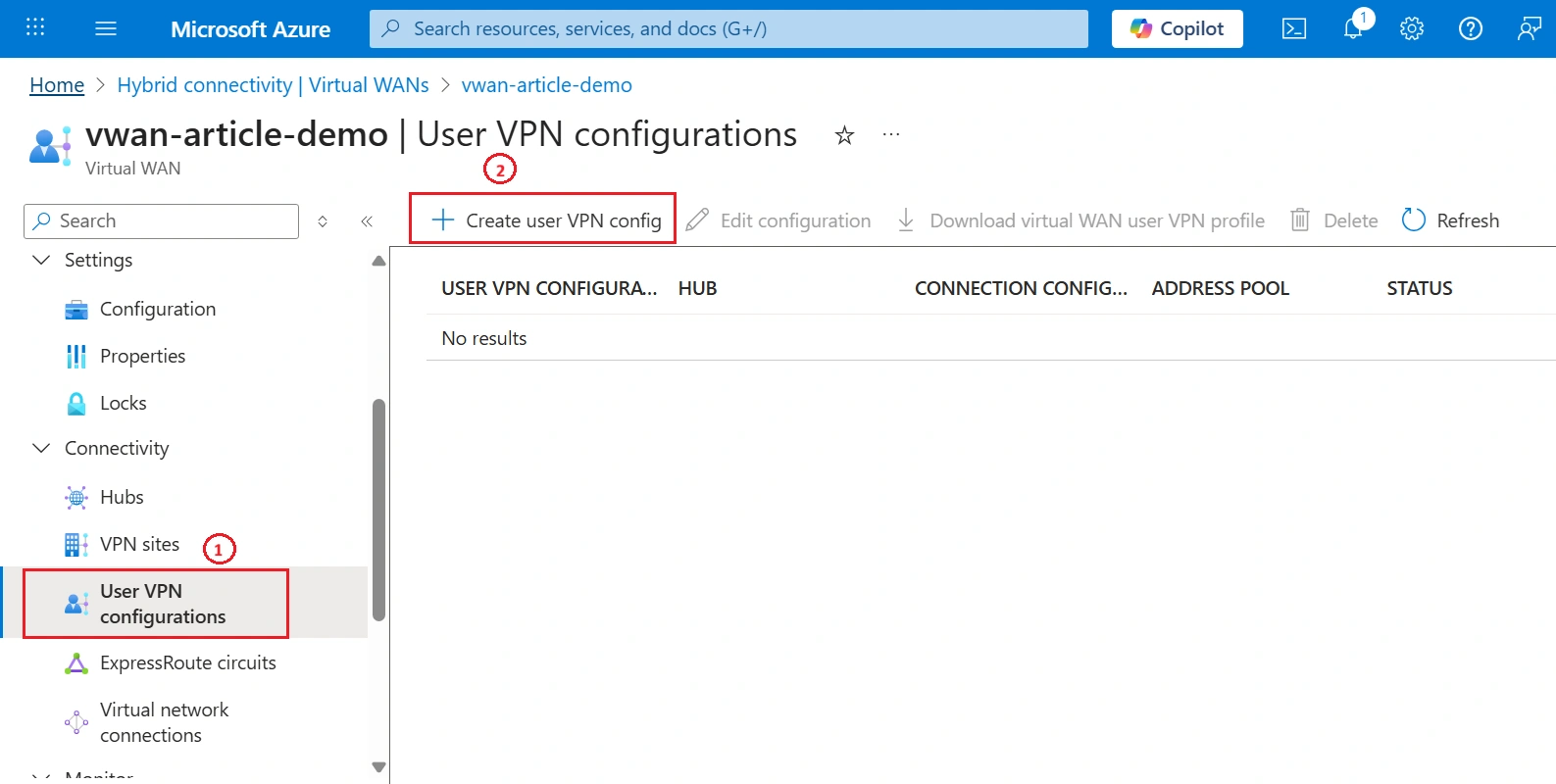
Step 01: Go to your Virtual WAN, select User VPN Configuration, and click Create User VPN Configuration.
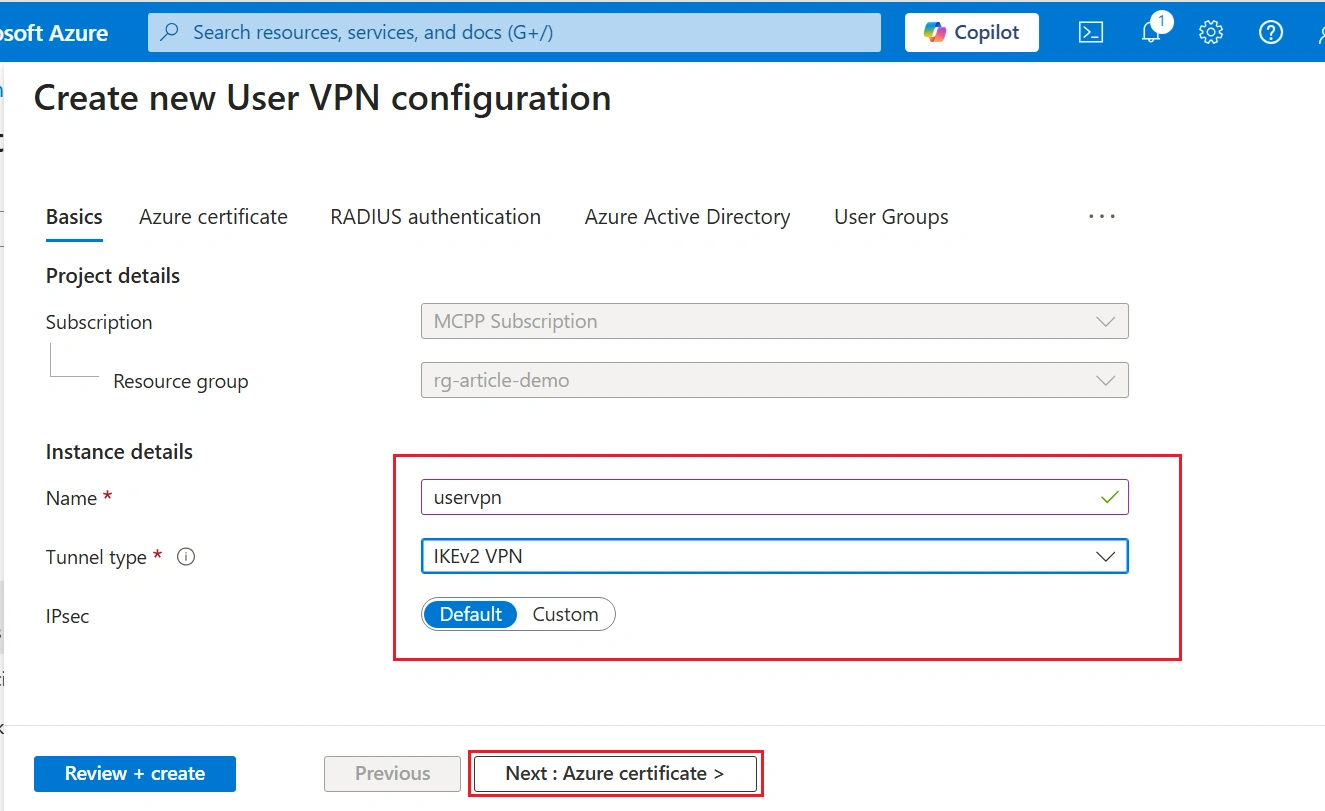
Step 02: Provide a name for the VPN in this example, uservpn, and then click Next: Azure Certificate.
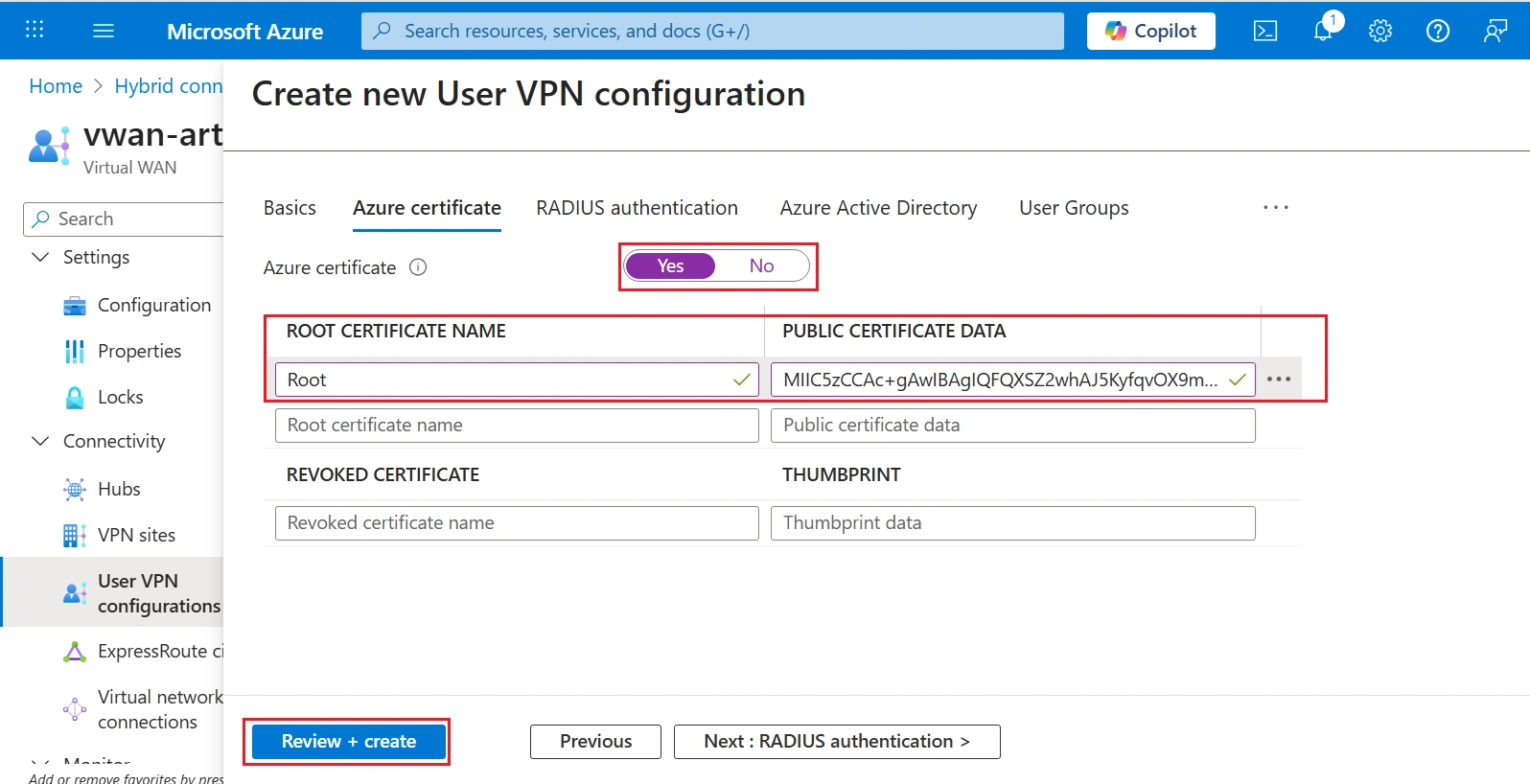
Step 03: Export the root certificate from your client machine, enter its value here as shown below, and then click Review + Create.
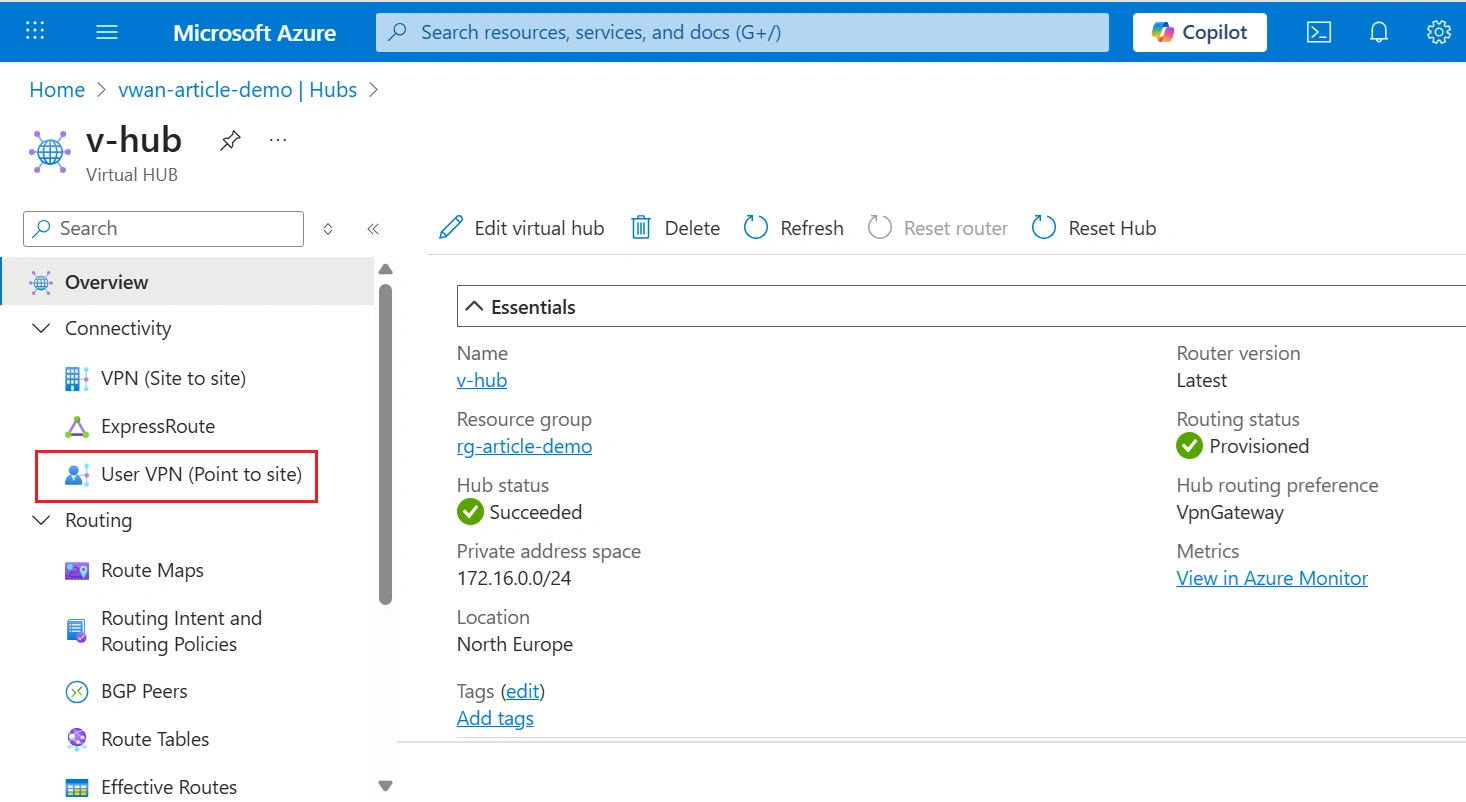
Step 04: Navigate to your hub, and under the Connectivity blade, select VPN Point-to-Site.
Step 05: Select the scale unit. In this example, I chose the minimum of 1 and configured the VPN address pool with private IPs for the VPN users.
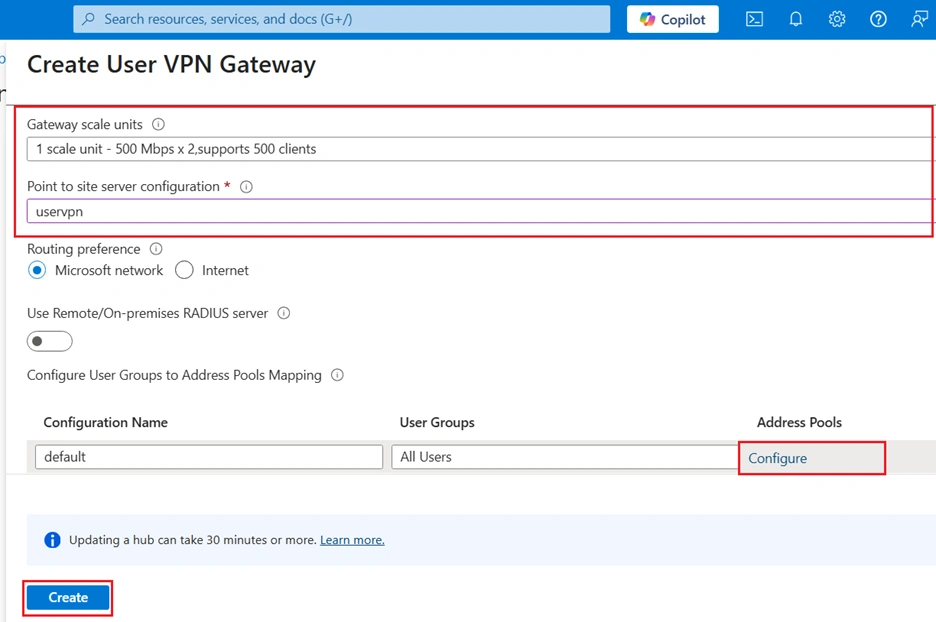
Note: Deploying the VPN gateway through Virtual WAN may take up to 30 minutes to complete.
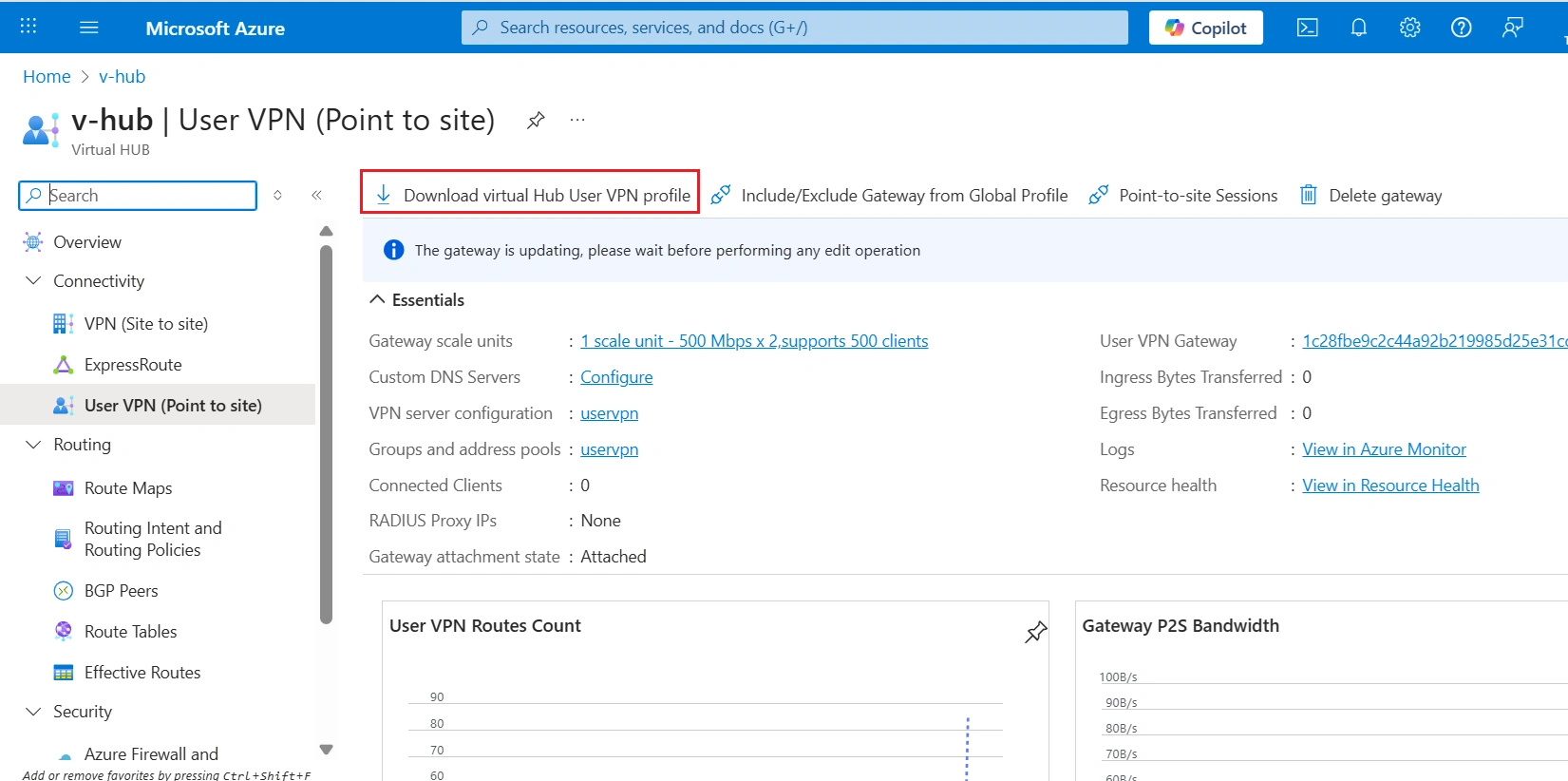
Step 06: Once the VPN gateway is successfully created, you can download the VPN configuration settings and install the VPN client on your local machine.
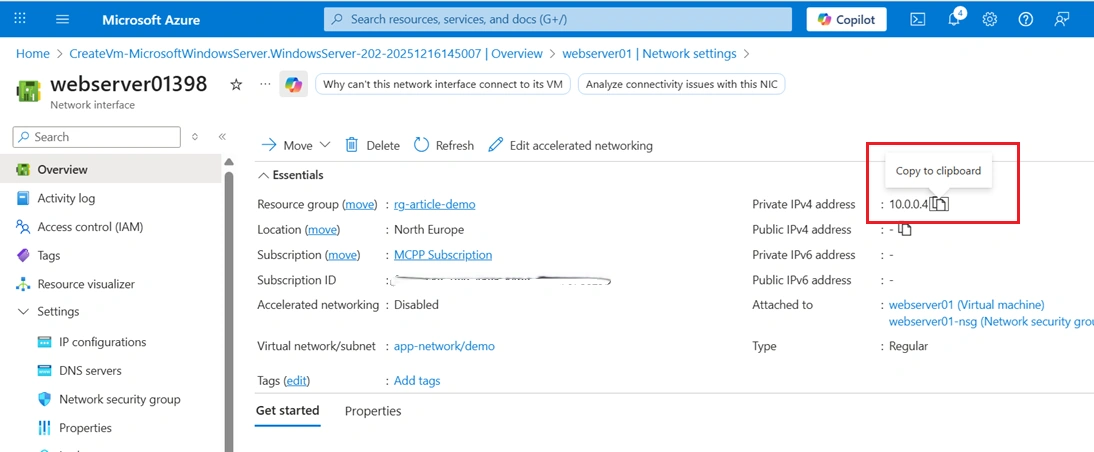
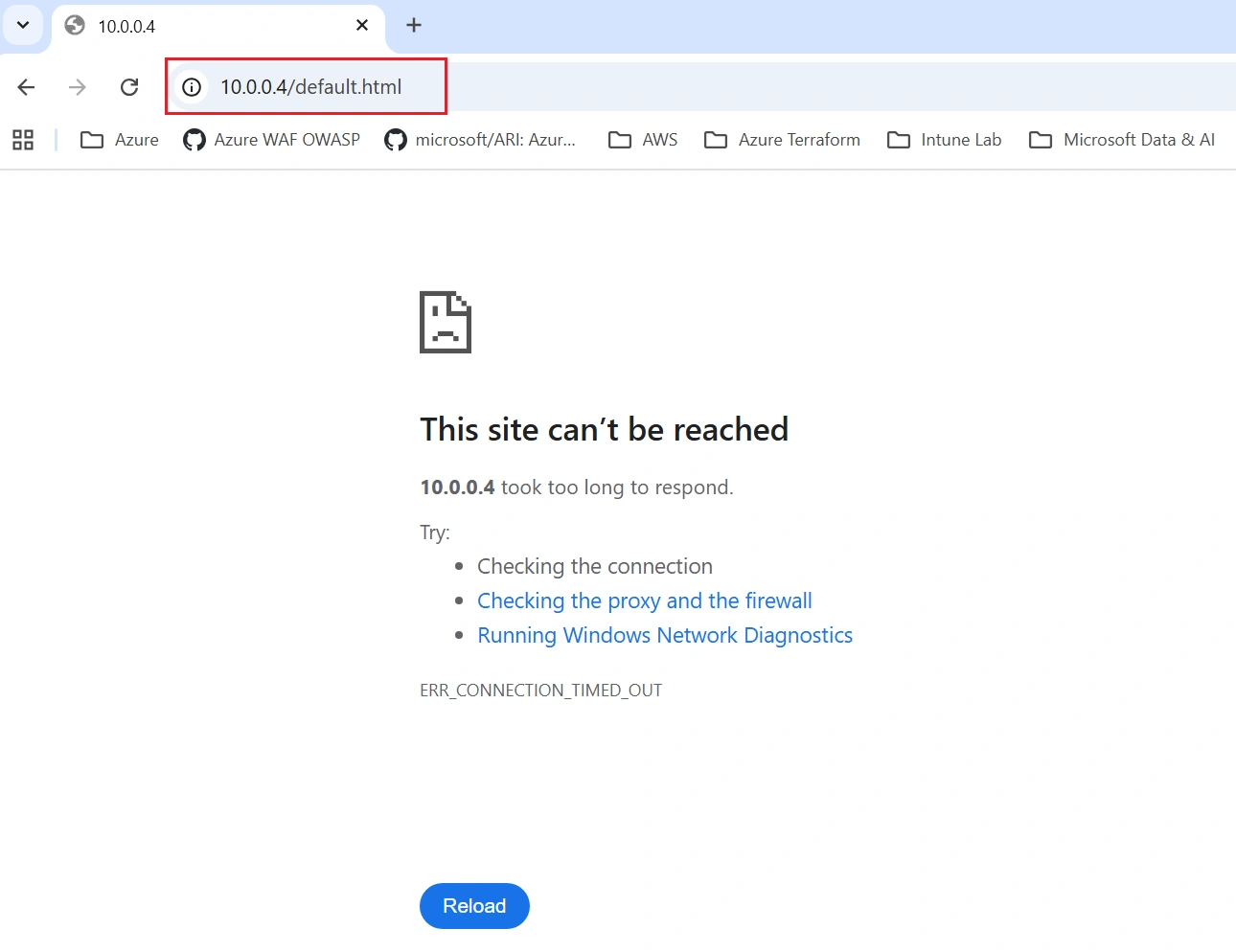
Important: Before installing the VPN client, I’ll show you my IIS server in Azure, which does not have a public IP. I’m attempting to access the web server via its private IP in a browser, which results in an “unreachable” error until the P2S VPN is connected.
Unable to access the web server until the VPN connection is established.
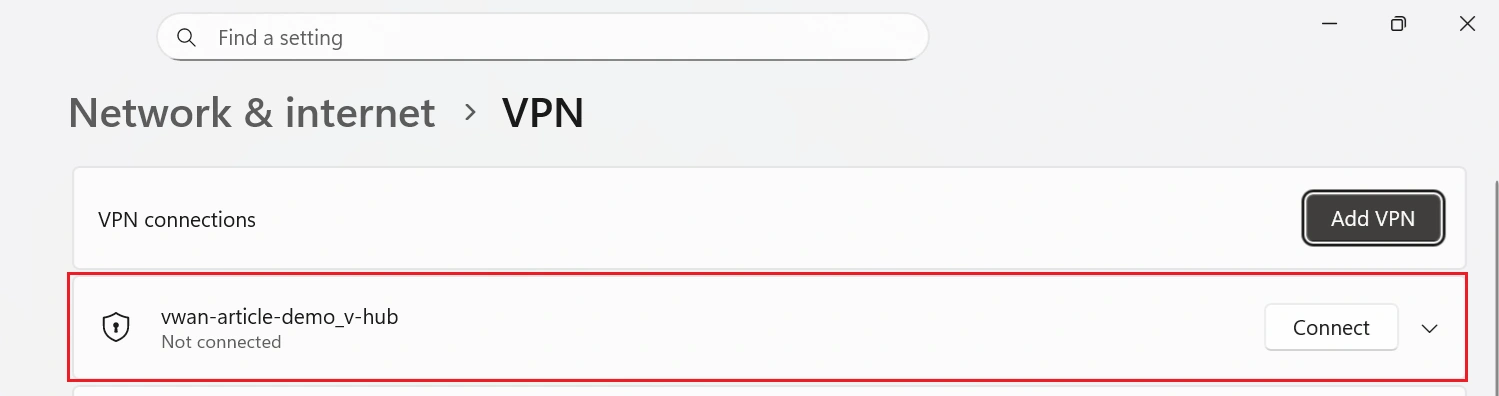
Step 07: After installing the P2S VPN client on my Windows machine, press the Windows key and search for VPN settings. The configured VPN will appear there, select it, and click Connect.
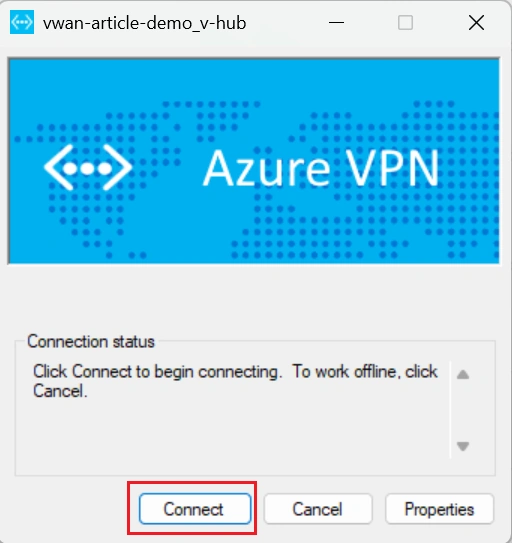
Step 08: Click Connect and complete the connection process.
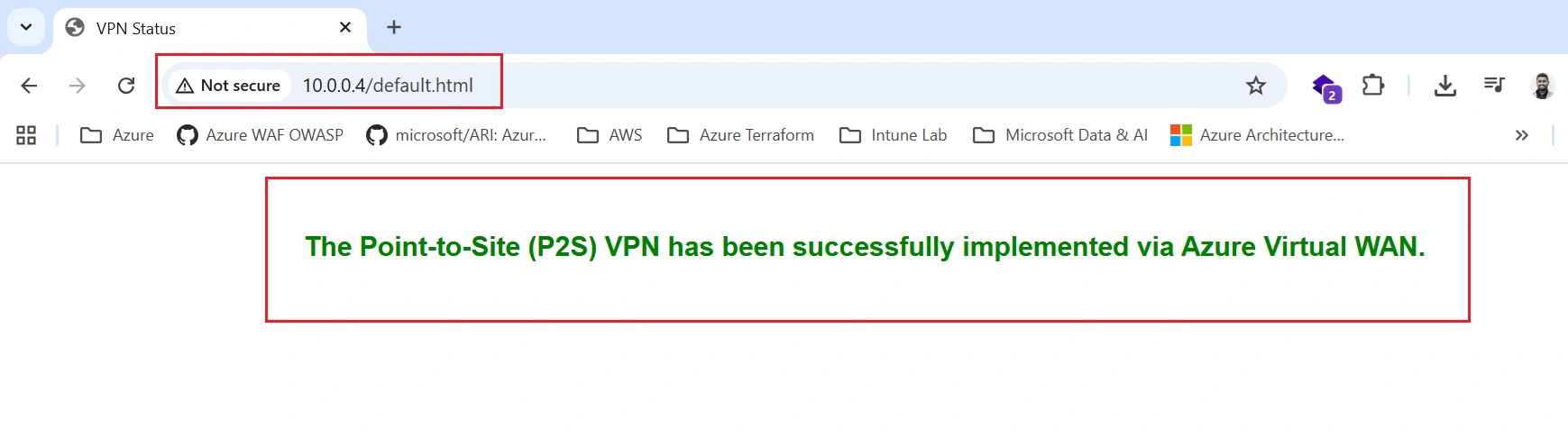
Step 09: Once the VPN is successfully connected, I can access the IIS server on the Azure VM from my local machine using its private IP address.
Conclusion
In this article, we successfully implemented an Azure Point-to-Site (P2S) VPN using certificate-based authentication via Azure Virtual WAN. After establishing the VPN connection, secure access to the Azure VM hosting IIS over a private IP was achieved, validating the effectiveness of the configuration.
Join the conversation! Your thoughts help the community grow.