

Let’s get started
1. Open Visual Studio, click “File”, “New “and then click on “Website”.

2. After that you will see another screen as shown below. Here it will let you choose programming language and other things, but if you already have your website, then you can choose anything.
Now choose “ASP.NET Empty Website” and then click on OK.

3. Now you will see this screen. This will show there is nothing, since we have choosen empty website; therefore an empty website is visible:

4. Now you need to drag and drop your already developed Website folder in the Solution Explorer. Just like I already developed my website and now I will drag the folder in solution explorer. For this just hold your folder and drag it on the website under Solution Explorer as in the following screenshot:

5. After dragging the folder Visual Studio will import all the files. After importing you will be able to see all your files such as Html files, script files, CSS files, and others.
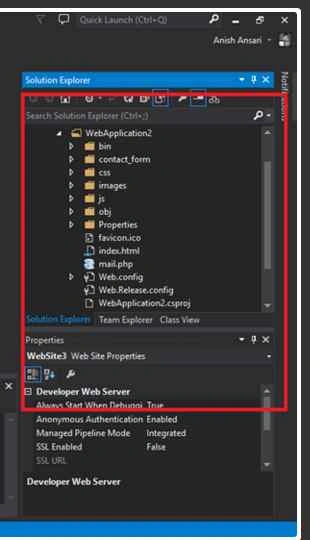
6. After that click on any of the HTML file and test it if your website is working well or not. For example, I will choose index.html and will click on “Google chrome”. For me, its working correctly.

7. If everything is working fine, then its fine and if not, then fix the errors.
Note: For deploying websites on azure you need Active Azure Subscription. If you don’t have subscription then you can get a trial. See here how to get Azure Trial.
Now lets deploy our site to Azure
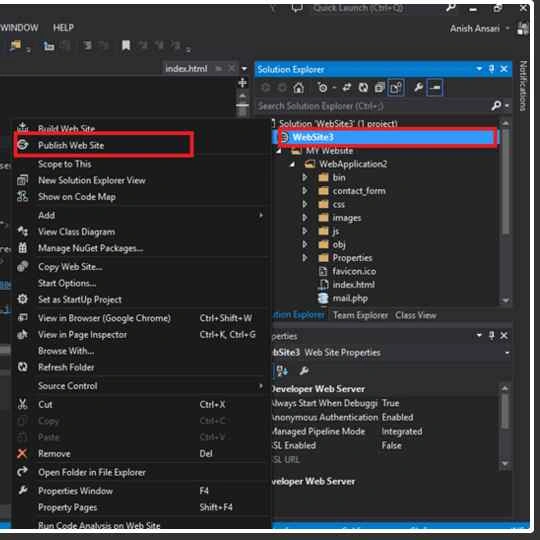
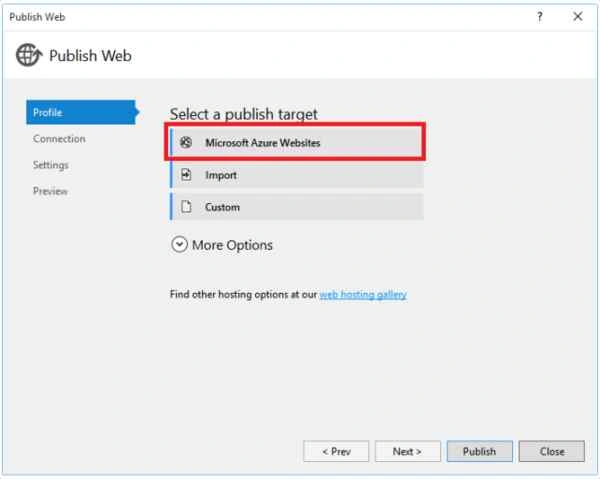
8. And then you will see the following screen. Click "Microsoft Azure Websites" and after that you may need to sign in with Email that is associated with your Subscription.
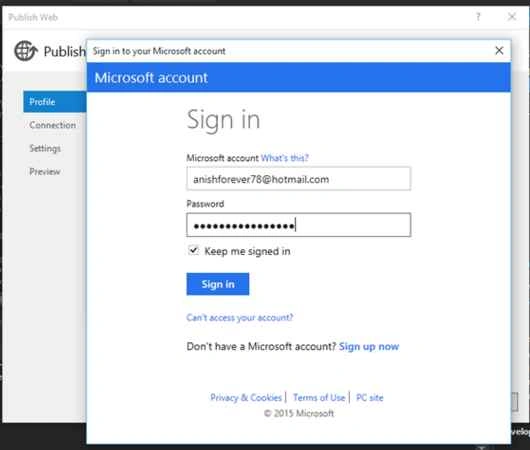
If it will ask you to Sign in and after that you must see this screen; enter your Credentials to sign in.
9. After Sign in, if you have already created a website in azure, then you can see the list of your website. Choose from the list and publish.

If you don’t know how to create, then you can visit the following link: How to create websites in Azure.
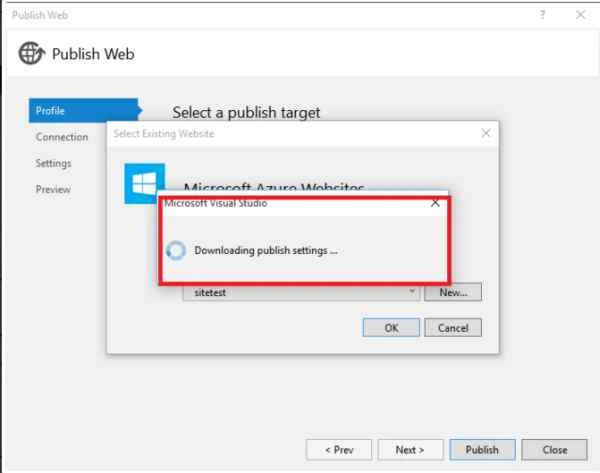
10. Now I will choose one of my site which I already created and here we have “Sitetest". After that click on OK.

After that it will download the publish settings,
11. After that it will show connections information settings and preview. You can also preview from here.

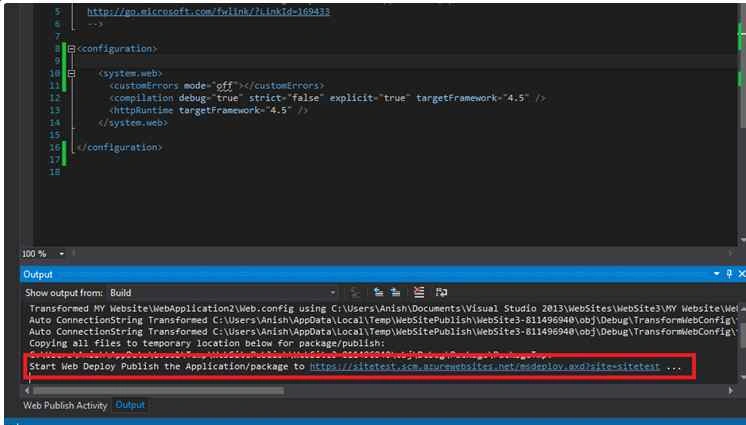
12. Now click on “Publish”, It will start publishing your Site and will take some time to upload all the files.
Sibeesh VenuPosted Oct 27, 2015, 8:35 AM
Nice Share
Mukesh KumarPosted Oct 27, 2015, 7:38 AM
Good One
Nilesh JadavPosted Oct 27, 2015, 2:57 AM
Good Work Sir !!
Humayun Kabir MamunPosted Oct 27, 2015, 12:18 AM
Nice...
Harshad PansuriyaPosted Oct 27, 2015, 12:11 AM
Nice one
Dominique CejaPosted Oct 26, 2015, 3:27 PM
Great!
Debendra DashPosted Oct 26, 2015, 3:14 PM
good one..