

Introduction
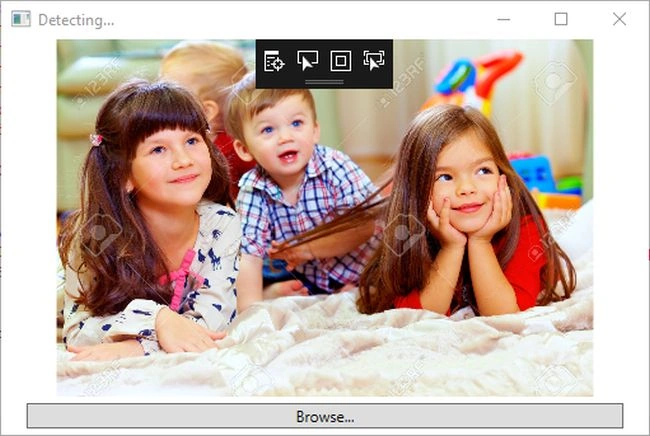
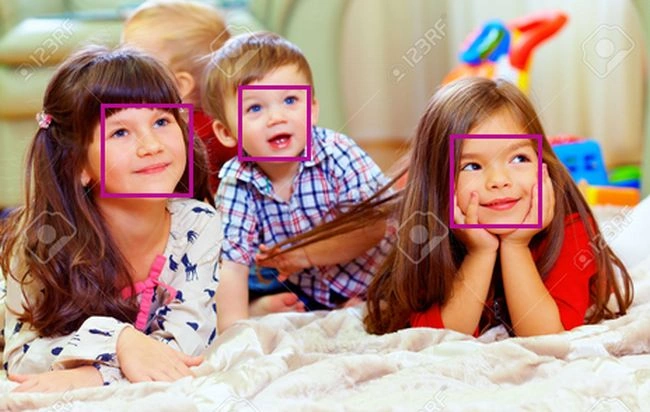
This article demonstrates how to use Face API with C# in Visual Studio 2017 and develop a simple Windows application that invokes the Face API to detect faces in an image, by framing the faces.
Prerequisites
This article demonstrates how to use Face API with C# in Visual Studio 2017 and develop a simple Windows application that invokes the Face API to detect faces in an image, by framing the faces.
Prerequisites
- Visual Studio 2015 or 2017
- Azure Subscription.
What is Face API?
It detects human faces and compares the similar ones. Also, it organizes images into groups based on the similarity by identifying the previously tagged people in images. The Face API is also a service that provides how to detect the human face with single or group of members and also shows the difference in the face expressions.The cloud-based Face API provides developers with access to advanced face algorithms. MIcrosoft Face Algorithms enable face attribute detection and face recognition.
Follow these steps to create the Face API
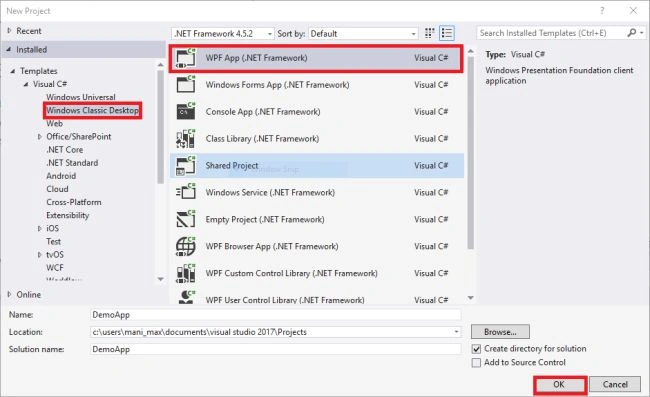
Open the new WPF app in the Classic Windows Desktop templates.
It detects human faces and compares the similar ones. Also, it organizes images into groups based on the similarity by identifying the previously tagged people in images. The Face API is also a service that provides how to detect the human face with single or group of members and also shows the difference in the face expressions.The cloud-based Face API provides developers with access to advanced face algorithms. MIcrosoft Face Algorithms enable face attribute detection and face recognition.
Follow these steps to create the Face API
Open the new WPF app in the Classic Windows Desktop templates.
Navigate to "File-->New--> Project-->Windows Classic Desktop-->WPF App(.NET framework) and give the name for your solution, followed by a click on "OK".
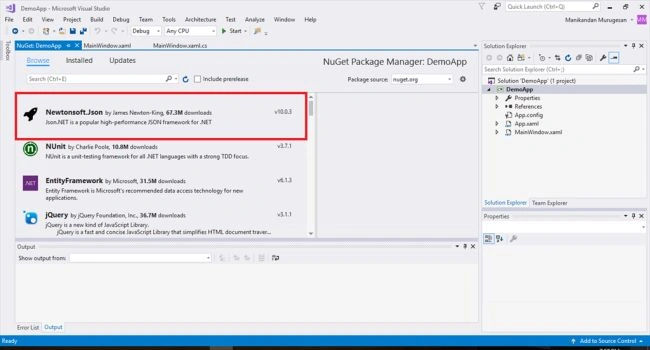
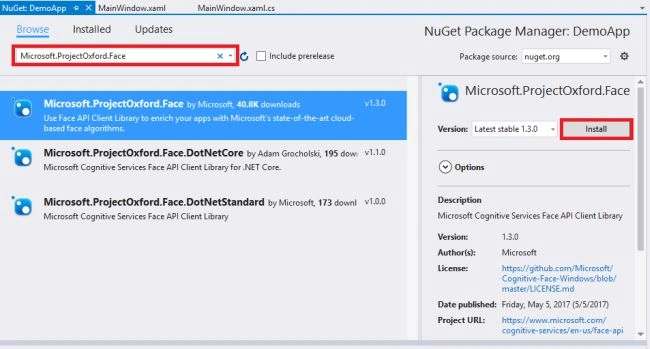
Our project is opened. In the Solution Explorer, we need to add two nuGet packages. Right click on your project (DemoApp) and click Manage NuGet Packages.
Then, we are going to get the Face API keys that are used in our app. To create the Face API keys, Click Here.
Our project is opened. In the Solution Explorer, we need to add two nuGet packages. Right click on your project (DemoApp) and click Manage NuGet Packages.
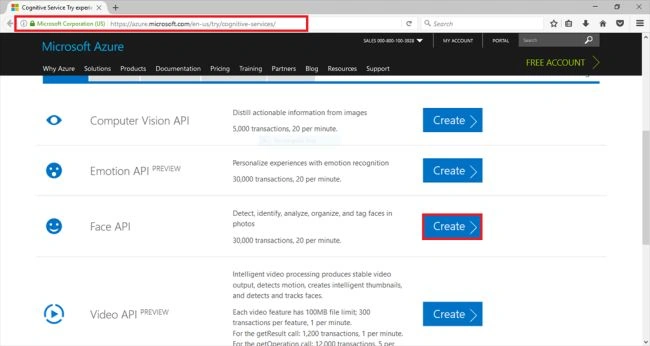
Then, we are going to get the Face API keys that are used in our app. To create the Face API keys, Click Here.
Press "Create" for the Face API to create the Face API.
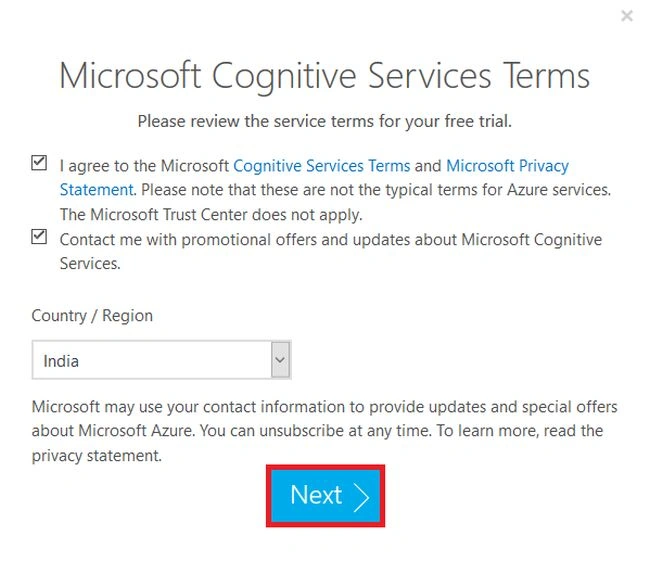
Accept the terms and conditions also, give the desired country name, and press " Next " to proceed to the next step.
Accept the terms and conditions also, give the desired country name, and press " Next " to proceed to the next step.
Choose the preferred account to login with.
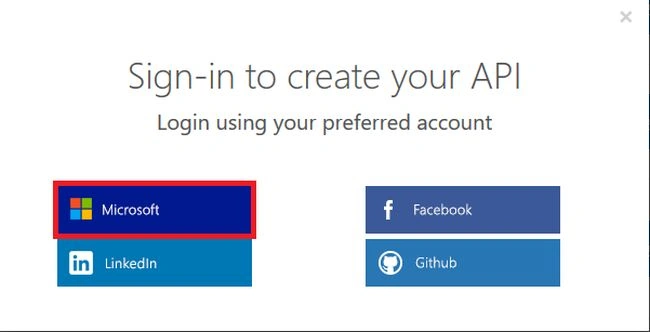
And also, login by givig the email and password to log into the ACOM Azure website.

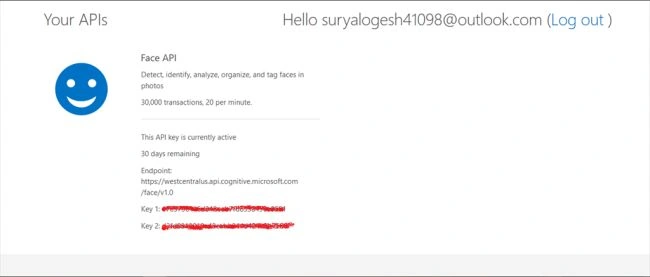
Then, it gives two keys - primary and secondary - to be used in our WPF application. Copy these keys from that website.
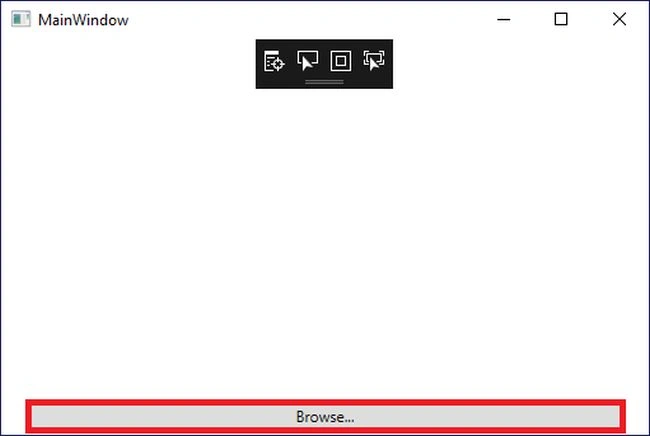
In Visual Studio, paste the following code in the MainWindow.xaml and replace the old code.
- <Window x:Class="DemoApp.MainWindow" xmlns="http://schemas.microsoft.com/winfx/2006/xaml/presentation" xmlns:x="http://schemas.microsoft.com/winfx/2006/xaml" xmlns:d="http://schemas.microsoft.com/expression/blend/2008" xmlns:mc="http://schemas.openxmlformats.org/markup-compatibility/2006" mc:Ignorable="d" Title="Face_API" Height="350" Width="525">
- <Grid x:Name="BackPanel">
- <Grid.ColumnDefinitions>
- <ColumnDefinition Width="194*" />
- <ColumnDefinition Width="323*" /> </Grid.ColumnDefinitions>
- <Image x:Name="FacePhoto" Stretch="Uniform" Margin="0,0,0,30" Grid.ColumnSpan="2" />
- <Button x:Name="BrowseButton" Margin="20,0,20,5" Height="20" VerticalAlignment="Bottom" Content="Browse..." Click="BrowseButton_Click" Grid.ColumnSpan="2" /> </Grid>
- </Window>
Then, paste the following code in the MainWindow.xaml.cs window. In the 18th line, change the "keys" word by the key that we copied from the subcription.
Manikandan MurugesanPosted Aug 8, 2017, 6:54 PM
For detecting the faces You want to refer the link and too add some extra line for that https://stackoverflow.com/questions/43948214/microsoft-cognitive-service-vision-api-clientexception-error
Erl May LerYamPosted Aug 8, 2017, 1:04 PM
Good Day to you sir. I had able to use your codes and it is pretty awesome. But my problem is that it can't detect any faces. I have tried a lot of means to troubleshoot this but still I can not figure it out. Can you help me? Thank you and God Bless..