

Step 1
Open Expression Blend 4 -> select Silverlight Application + Web -> change Name and Location accordingly -> hit OK, a Blank Window appears on the ArtBoard. Fill the background with the Gradient Brush.
Step 2
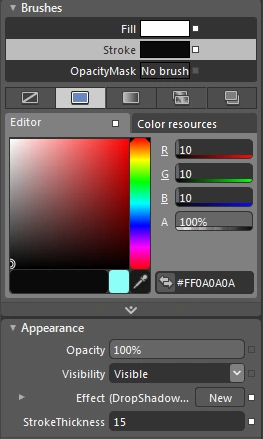
Select Ellipse Shape, draw Ellipse, manage Width & Height, Color, Stroke, StrokeThickness and DropShadowEffect from Brushes and the Appearance Property of the Property Panel located to the right of the Workspace as shown below:

Step 3
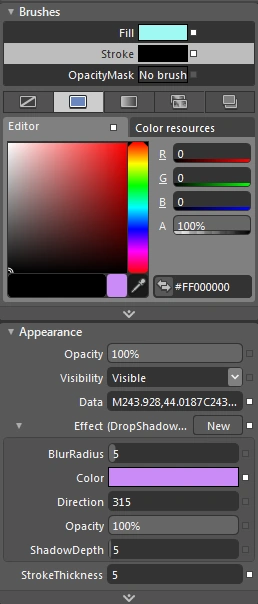
Again select an Ellipse Shape, draw an Ellipse (Handler), manage Width & Height, Color, Stroke, StrokeThickness and DropShadow Effect from Brushes and the Appearance Property of the Property Panel located to the right of the Workspace as shown below:

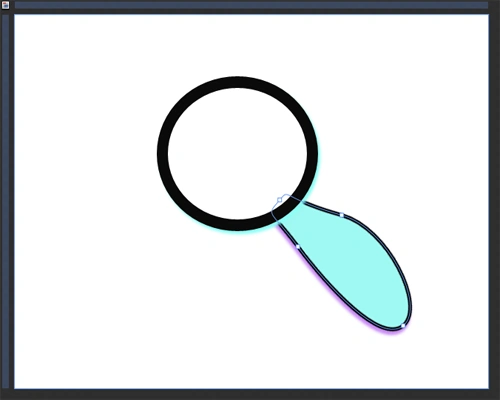
Note : Here, using the Convert To Path Option from the Object Tool, give shape to the Ellipse by Bending/Rotating the Points of the Object as shown below:
Summary
Through this article you are able to draw a Search Icon.
Join the conversation! Your thoughts help the community grow.