Introduction
Solution design documentation provides a structured record of how a CRM solution is designed, implemented, integrated, and maintained. It helps developers, architects, administrators, and business stakeholders understand how different components of a solution work together.
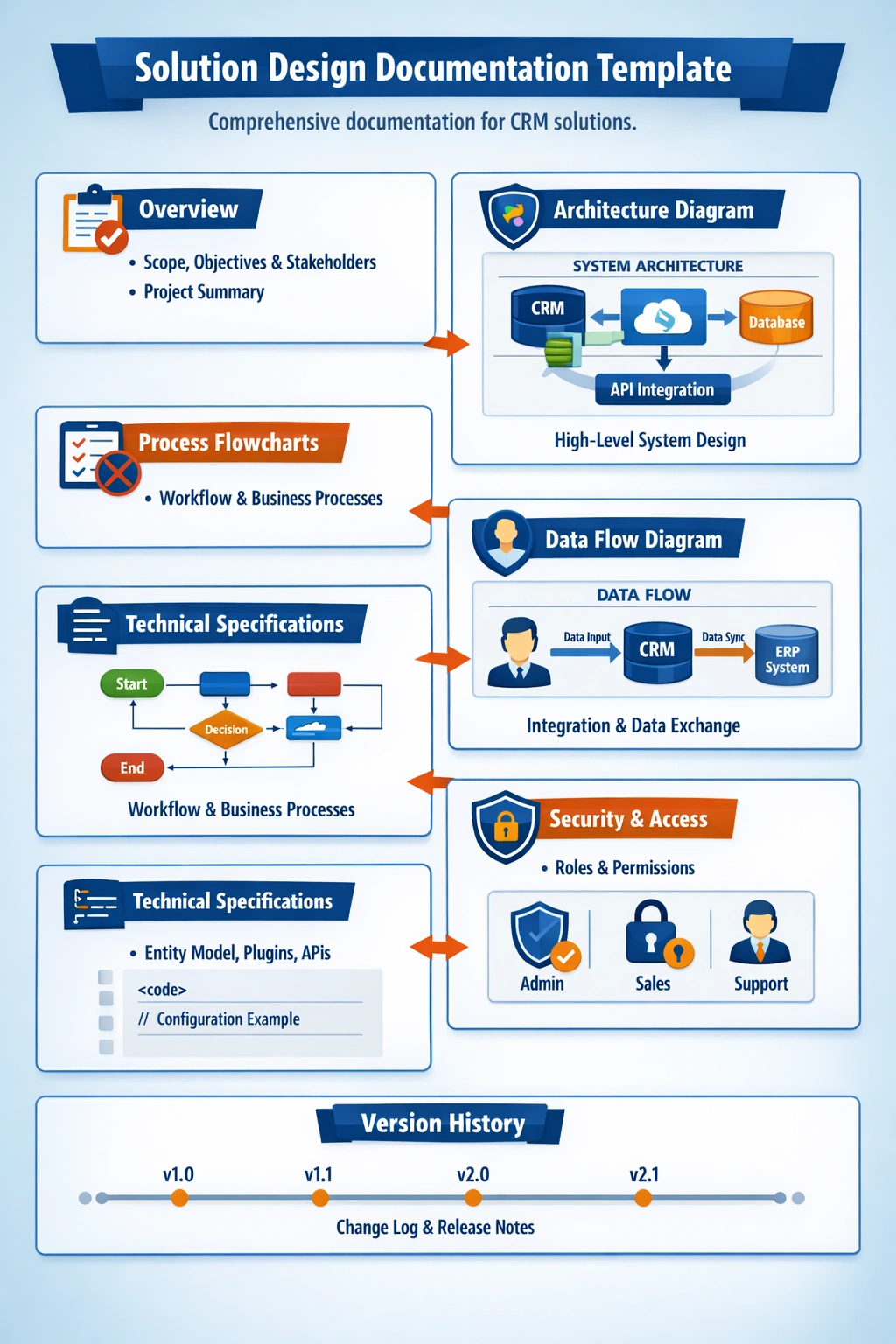
A well-maintained solution design document can include architecture diagrams, process flowcharts, data models, integration details, business rules, and technical specifications. It also provides a useful reference when troubleshooting existing functionality or planning future enhancements.
In this article, we will look at a practical approach for creating and maintaining solution design documentation using a CRM lead-to-opportunity process as an example.
What Is Solution Design Documentation?
Solution design documentation describes the technical and functional design of a solution before and during implementation.
For a CRM solution, the documentation may cover:
CRM entities and relationships
Business processes
Applications and system components
APIs and external integrations
Databases
Plugins and custom logic
Power Automate flows
Business rules
Security considerations
Data flow between systems
Deployment and version history
The goal is to make the solution understandable to someone who was not involved in its original implementation.
Example Scenario
Consider a CRM system where a sales representative creates a lead. After qualification, the lead is converted into an opportunity.
The solution contains the following components:
Sales User
|
v
CRM / Dynamics 365
|
+---- Lead
|
+---- Qualification
|
+---- Opportunity
|
v
Power Automate
|
v
External Notification Service
This simple architecture can be expanded in the solution design document to show the actual components, integrations, data flow, and business rules.
Step 1: Define Documentation Standards
Before creating individual documents, establish a consistent documentation structure.
A documentation standard can define:
Document naming conventions
Version numbering
Diagram standards
Required sections
Change history
Review and approval process
Document ownership
Storage location
For example, a solution design document can use the following structure:
1. Document Information
2. Business Requirements
3. Solution Overview
4. Architecture
5. Data Model
6. Process Flow
7. Integration Details
8. Business Rules
9. Security
10. Deployment
11. Testing Considerations
12. Change History
Keeping the same structure across projects makes documentation easier to review and maintain.
Step 2: Capture the Solution Architecture
The architecture section should describe the major components of the solution and how they communicate with each other.
For example:
+-------------------+
| Sales User |
+---------+---------+
|
v
+-------------------+
| Dynamics 365 |
| CRM |
+---------+---------+
|
+-------------------+
| |
v v
+-------------------+ +-------------------+
| Power Automate | | External API |
| Flow | | Service |
+---------+---------+ +-------------------+
|
v
+-------------------+
| Notification |
| Service |
+-------------------+
The architecture diagram should clearly identify the major systems, applications, databases, APIs, and integrations.
It should also explain the direction of data flow.
What to Document
For each component, document:
Component name
Purpose
Technology used
Dependencies
Input and output
Communication method
Authentication mechanism
Error-handling approach
For example:
Component | Purpose | Technology |
|---|---|---|
CRM | Stores leads and opportunities | Dynamics 365 |
Workflow | Automates notifications | Power Automate |
Integration | Exchanges data | REST API |
Notification | Sends notifications | External service |
Step 3: Create the Process Flowchart
Architecture diagrams show how systems are connected, while process flowcharts explain how a business process works.
For the lead-to-opportunity scenario, the process can be represented as:
Start
|
v
Create Lead
|
v
Validate Lead
|
+---- Invalid ----> Return for Correction
|
v
Qualify Lead
|
v
Create Opportunity
|
v
Trigger Notification
|
v
End
The flowchart should explain what triggers each step and what happens when a condition is not satisfied.
Document the Business Process
For every process, describe:
Trigger
Input
Processing logic
Conditions
Actions
Output
Error handling
For example:
Trigger:
Lead is qualified.
Action:
Create an opportunity.
Condition:
Lead must contain required customer information.
Outcome:
Opportunity is created and a notification workflow is triggered.
This provides more value than including a flowchart without explaining what each step represents.
Step 4: Document the Data Model
The data model describes the entities, fields, and relationships used by the CRM solution.
For example:
Lead
|
| 1
|
| N
v
Opportunity
The document should identify the important fields and relationships.
Example:
Entity | Field | Data Type | Description |
|---|---|---|---|
Lead | LeadId | Unique Identifier | Unique lead identifier |
Lead | Name | Text | Lead name |
Lead | Lead email address | ||
Lead | Status | Choice | Current lead status |
Opportunity | OpportunityId | Unique Identifier | Unique opportunity identifier |
Opportunity | Name | Text | Opportunity name |
Opportunity | EstimatedValue | Currency | Estimated opportunity value |
The exact fields should be based on the actual CRM implementation.
Step 5: Document Technical Specifications
Technical specifications explain how the solution is implemented.
For a CRM solution, this section may include:
Plugins
Custom workflow activities
Power Automate flows
Business rules
JavaScript
Custom APIs
Azure Functions
REST APIs
Authentication
Configuration values
Error handling
For example, if a Power Automate flow sends a notification after an opportunity is created, document its logic:
Trigger:
When an opportunity is created
Condition:
Estimated value > configured threshold
If Yes:
Send notification
If No:
Do nothing
This makes the automation easier to understand and troubleshoot.
Step 6: Document Integration Details
Integrations should have their own documentation because they often involve multiple systems.
A typical integration section can contain:
Source System
|
v
Authentication
|
v
API Request
|
v
External System
|
v
API Response
|
v
CRM
Document the following information:
Source system
Target system
API endpoint
HTTP method
Request format
Response format
Authentication mechanism
Timeout settings
Retry behavior
Error handling
Logging requirements
Sensitive credentials, access tokens, passwords, and secrets should not be stored directly in the documentation.
Step 7: Document Business Rules
Business rules should be written in a way that both technical and business users can understand.
For example:
Rule:
An opportunity can be created only when the lead
contains a valid email address.
Condition:
Email is not empty.
Action:
Allow lead qualification.
Otherwise:
Display a validation message.
Documenting business rules separately helps prevent important requirements from being hidden inside code or automation logic.
Step 8: Maintain Version History
Solution design documentation should evolve with the solution.
A simple change history can be maintained as follows:
Version | Date | Change | Owner |
|---|---|---|---|
1.0 | 2026-01-10 | Initial design | Development Team |
1.1 | 2026-02-05 | Added notification workflow | Development Team |
1.2 | 2026-03-15 | Updated integration flow | Development Team |
Version history makes it easier to determine what changed and when the change was introduced.
For source-controlled technical documentation, Git can also be used to track changes.
Step 9: Store Documentation Centrally
Documentation should be stored in a location that the appropriate project members can access.
Common options include:
Azure DevOps Wiki
Confluence
SharePoint
Git repositories
Project documentation portals
The important consideration is not only where the documentation is stored, but whether the team can easily find the latest approved version.
Step 10: Review Documentation After Changes
Documentation should be updated whenever the solution changes.
For example, if a new integration is added:
New Integration
|
+---- Update Architecture Diagram
|
+---- Update Integration Specification
|
+---- Update Process Flow
|
+---- Update Change History
|
+---- Review Documentation
This prevents the documentation from becoming different from the actual implementation.
Example Documentation Checklist
Before considering a solution design document complete, verify the following:
[ ] Introduction is included
[ ] Business requirements are documented
[ ] Architecture diagram is available
[ ] Data model is documented
[ ] Process flow is documented
[ ] Integrations are documented
[ ] Business rules are documented
[ ] Technical components are documented
[ ] Error handling is described
[ ] Security considerations are documented
[ ] Version history is updated
[ ] Document has been reviewed
This checklist can be adapted according to the complexity of the project.
Common Documentation Mistakes
Documentation Is Created Only at the End
Creating documentation only after development is complete can result in missing design decisions and implementation details.
Documentation should be updated throughout the development lifecycle.
Diagrams Are Not Updated
An outdated architecture diagram can be more confusing than having no diagram at all.
Every significant architecture change should be reflected in the relevant diagram.
Technical Details Are Missing
A document that only describes business requirements may not be sufficient for developers or support teams.
Important technical details such as integrations, APIs, workflows, dependencies, and error handling should also be documented.
Sensitive Information Is Included
Passwords, API keys, connection strings containing credentials, and access tokens should not be included in solution documentation.
Use appropriate secret-management mechanisms instead.
Benefits of Well-Maintained Solution Documentation
Good solution design documentation provides several benefits:
Improves communication between technical and business teams.
Makes onboarding easier for new developers.
Helps troubleshoot production issues.
Preserves important design decisions.
Makes future enhancements easier to plan.
Provides a reference during testing and deployment.
Reduces dependency on individual team members.
Helps maintain consistency across the solution.
Conclusion
Solution design documentation is an important part of developing and maintaining CRM solutions. It provides a central reference for understanding the architecture, data model, business processes, integrations, technical components, and implementation decisions.
In this article, we used a CRM lead-to-opportunity scenario to demonstrate how to structure solution documentation. We covered architecture diagrams, process flowcharts, data models, technical specifications, integrations, business rules, version history, and documentation maintenance.
The most important part of maintaining solution documentation is keeping it synchronized with the actual system. Whenever the solution changes, the relevant diagrams, specifications, and process documentation should be reviewed and updated.
Join the conversation! Your thoughts help the community grow.