

This is an article on the development aspects of PowerApps in Office 365. This article will be a series of complete development on PowerApps. We will see real-time scenarios and all the examples of what PowerApps has to offer. Here, we will see how we developers are connecting SharePoint to our PowerApps and using it for various functionalities through the app.
Why PowerApps?
Organizations can’t allow the free source of apps. They need to store some data with secured access, and who can provide better security than Microsoft?
You need to have Microsoft PowerApps for allowing the users to access the apps. So, you not only save money on the app hosting but also, you host that on one of the world’s best platforms. When it comes to development, it is a right tool to use for a quicker and smarter app development process.
Let’s see what the app has
- Go to PowerApps.
- Use this link to sign in with your organization’s Office 365 ID or with your Windows ID.
- Once you are logged in, you will be redirected to this portal.
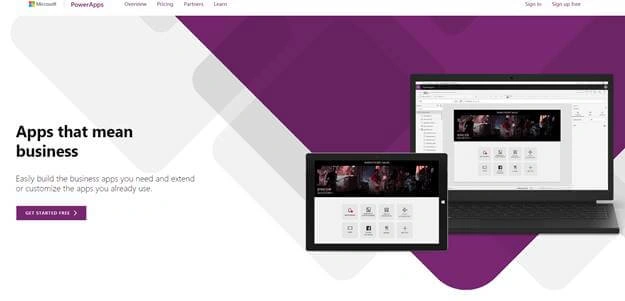
- Sign-in and you will see the portal.
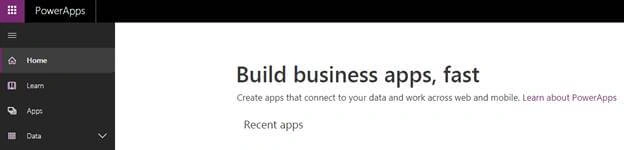
- Click on the Apps section.
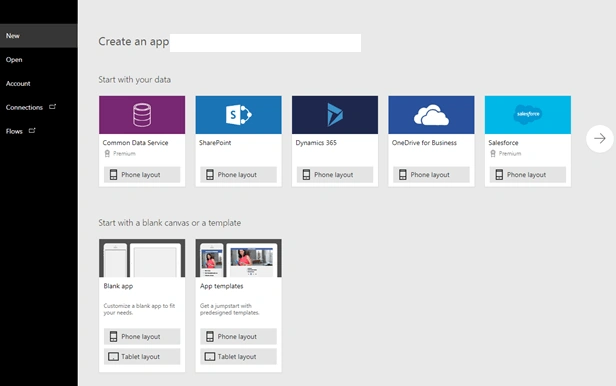
- You can connect your app with various everyday social or custom apps and use them in your process of development of your own PowerApps.
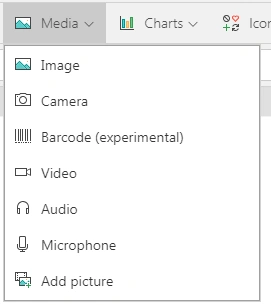
You can connect to the existing data sources and services like Excel files, SharePoint lists, CRM records, your custom APIs, your Dropbox, or any such, to collaborate with your app. The best part is that you use a designer to customize or build an app that uses device capabilities, including cameras, GPS, and pen control, without writing any code. - Click on Blank App (Tablet layout). You will come to the following screen.
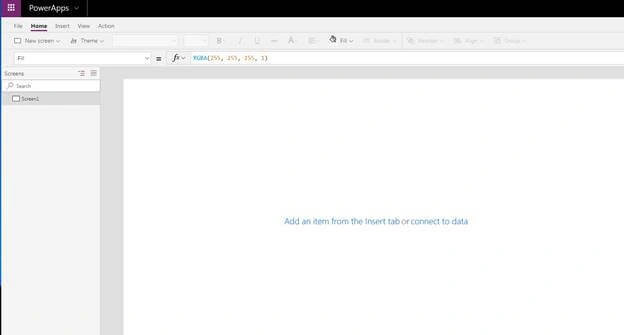
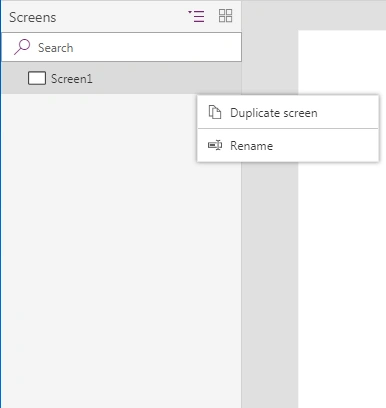
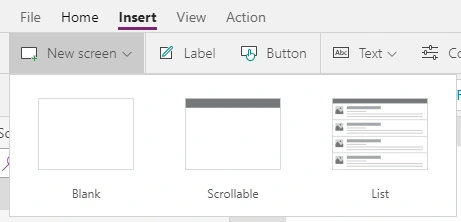
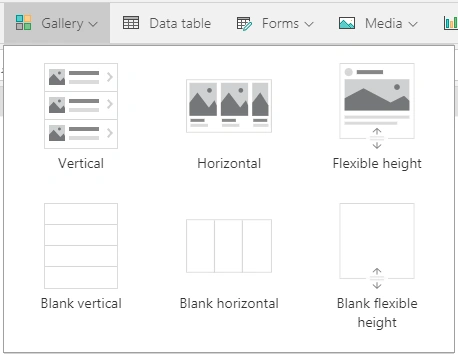
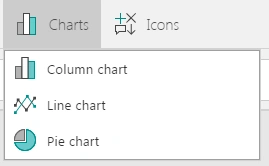
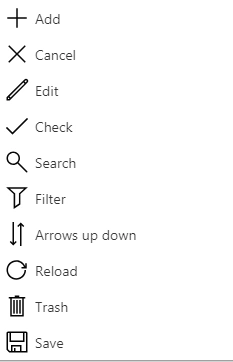
The app is divided into tabs on the top navigation screens through the left navigation, and the properties on the right navigation.

Join the conversation! Your thoughts help the community grow.