
Yesterday I was working on one of my applications that needs to include a digital clock. So I was looking for an easy way or a small piece of code to include it. From Googling, I saw that there is plenty of code available but unfortunately almost all of it contains a lot of time consuming code. So then I tried myself and did it by few lines. That's why I come here to share this with those friends who are beginners in C#, not for experts.
Much introduction here, so let's start.
1. Create a new Windows Forms Application project. Name the project as you wish.
2. Then go to the form's design view. Our form will look such as below:
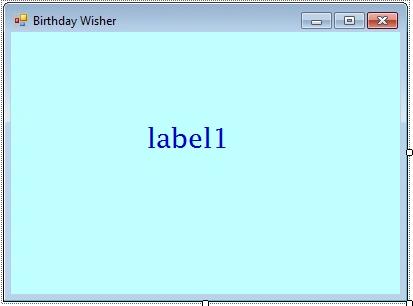
It contains a label at the center of the form and a timer control. So drag a label and a timer from the toolbox onto the form. Change the color of the label and expand it's text size.
3. Right-click on the form and select view code. In this page, write your timer_tick event for the timer control that you selected from the toolbox. This is the most important part here. Have a look:
private void timer1_Tick(object sender, EventArgs e)
{
    label1.Text = DateTime.Now.ToString("HH:mm:ss");
}
Here DateTime represents an instance of a time of a day and Now represents the current date and time of your computer. HH:mm:ss represents the time format as you wish to display it in this format.
4. Most functions are complete, but as a clock it should dynamically change it's time. Correct? For that we don't use any code here. Right-click on the timer control of design page and go to properties. Change the Interval and set it to 1.
Your clock is ready to operate..!! That's the end today. Happy Coding..
david varaPosted Sep 9, 2023, 7:27 PM
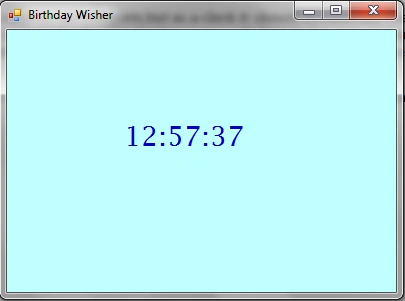
The format is 12:57:37 but every thing I made perfectly, it is showing as 12.57.37 What can be the error? in between hours and minutes dot is coming and also in between minutes and seconds dot is coming instead of colon : for few seconds it is showing colon and turning it as dot.
Sergejs JefremovsPosted Jun 21, 2021, 1:45 PM
Form_Load -> timer.Start();
Jason BPosted Jan 20, 2020, 3:46 AM
For anyone else coming across this lesson, be sure to set your "timer1" Behavior property Enabled to "True". Also, if "timer1_Tick" doesn't work, try "Timer1_Tick_1" (even though your timer is called timer1 with a lowercase "t"). HTH!
Faddy KhanPosted Feb 4, 2017, 2:56 PM
Nice example , awesome job..
Sinan AltaiiPosted Oct 23, 2015, 11:10 AM
Greetings from a begginer from Sweden!Thanks for the example, this solution was close to the one i was looking for, i think i just need to rework the code a little bit then mission acomplished, and again, thanks for sharing this! :)
John SathishPosted Nov 21, 2014, 10:20 AM
super ji
Shuvro PallPosted Dec 30, 2012, 2:51 AM
Glad to see you like this..@Anupam
AnupamPosted Dec 29, 2012, 2:36 AM
Thanks a lot Shuvro Pall....
AnupamPosted Dec 29, 2012, 2:35 AM
Done.... Change the "Enabled" property to "True" of the timer.... Clock will be working....
AnupamPosted Dec 29, 2012, 2:32 AM
Please help me .... want to add a continuously working clock in the form....
AnupamPosted Dec 29, 2012, 2:31 AM
Its not working.... Is there any more settings we have to do????
prem kcPosted Nov 15, 2012, 10:12 AM
not good
Edgar VidalPosted Jul 26, 2012, 10:50 AM
Excellent
Mohammad Sufiyan ShaikhPosted Jun 16, 2012, 1:46 AM
good example