

Introduction
We all know that Windows 10 has many new features, like high security, Battery Saver, notification turn on/off and so on. The Battery Saver mode is one of them. When it is in the active state, it conserves battery life by stopping the unused background activity, adjusting the hardware settings and brightness. It displays information related to the amount of battery remaining and the estimated time a user has remaining.
This feature helps the user to save the battery of the laptop. Another tweak saves and extends the battery life of your laptops and you can choose the best power plan, like (reduce brightness, optimize power and sleep). This article will guide you in changing and setting the battery saver mode with the procedure to do that.
Battery Saver Mode in Windows 10
When you turn on Battery Saver mode in Windows 10, the following happens-
- You will not automatically receive notifications.
- Live updating of apps and tiles may not work.
- Some applications will not be able to run in the background.
You need to go to the Start Menu and then click on the Settings as in the following.

Figure 1: Setting App
After clicking on Settings a window is opened. Select an entry in the System category.
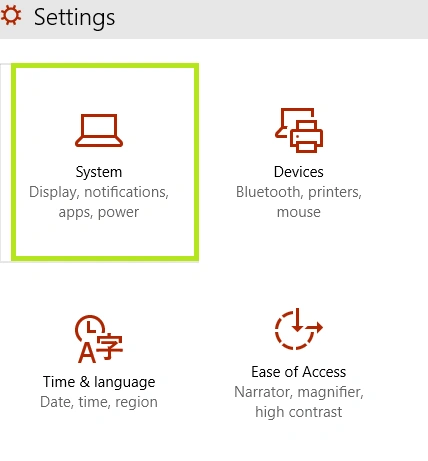
Figure 2: System Category
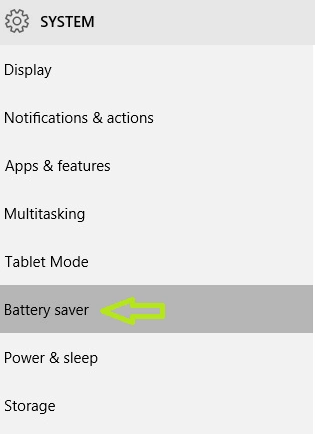
Figure 3: Battery Saver
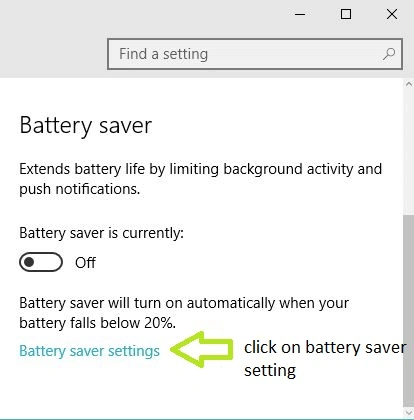
Figure 4: Battery Saver Setting
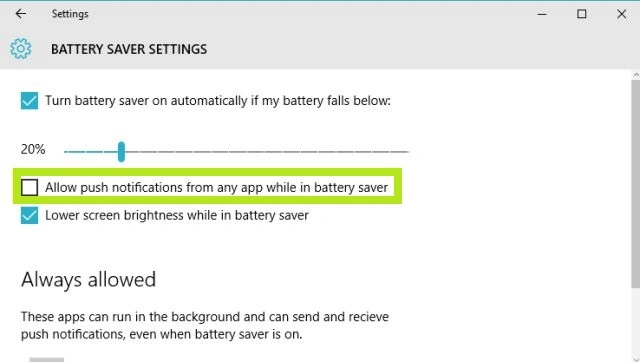
Figure 5: Enable or Disable Battery Saver
Disable that option and you are done.
Summary
In this article, we learned how to disable Push Notifications using Battery Saver Mode Settings in Windows 10.
Neeraj KumarPosted Aug 5, 2015, 5:57 PM
Nice
RakeshPosted Jul 31, 2015, 11:12 AM
Good
Chervine BhiwooPosted Jul 31, 2015, 9:42 AM
Very useful! Thanks!
Nilesh JadavPosted Jul 31, 2015, 6:27 AM
Nice one sir
Abhishek JaiswalPosted Jul 31, 2015, 2:24 AM
Still waiting to use this trick! ;)
Rajeesh MenothPosted Jul 31, 2015, 2:20 AM
Good Information
Sibeesh VenuPosted Jul 31, 2015, 1:57 AM
Nice Share!.
Debasis SahaPosted Jul 31, 2015, 12:43 AM
Good One..
Gopi ChandPosted Jul 31, 2015, 12:32 AM
Nice
Van LaiPosted Jul 30, 2015, 10:48 PM
thx for the information