

Introduction
When a GUI interface of Microsoft Windows was not introduced the CLI & Command Prompt was the only way to interact with a computer. Hence CLI & Command Prompt is the most important scenario from a Windows point of view. The Command Prompt lets us use switches to specify the behavior of the task that we want to perform and by giving the commands to the PC we can perform various functions. It is an important fact that until now some low-level system utilities can only be accessed using the Command Prompt but if your computer is prone to falling into the hands of other people you can disable the Command Prompt.
In this article, we will learn how to permanently disable the Windows 8 Command Prompt for all account holders as well as command prompt script processing in Windows 8.
Steps to Disable CLI & Command Prompt Script Processing In Windows 8
NOTE
Before starting the process we must be logged in as Administrator or have required administrative rights to open and change local policies.
Step 1
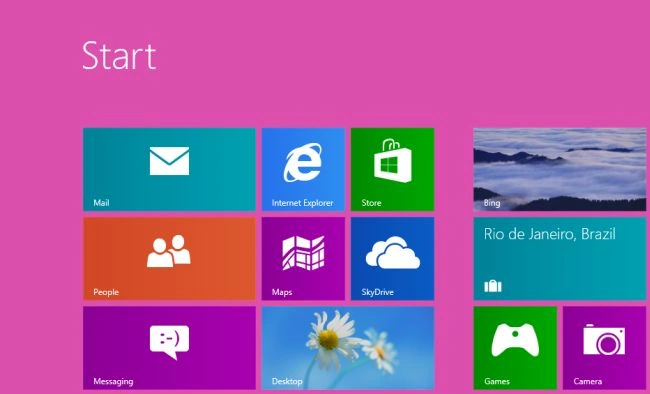
First, we must move on to the start window screen in Windows 8.
Step 2
Then move the cursor on the bottom-right of the window screen and click the search box which is helpful to search in Windows 8.

Step 3
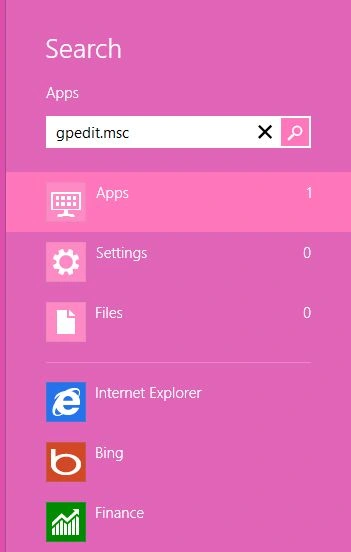
Then in the search box type "gpedit.msc" and click on Apps from the right sidebar then click gpedit.msc in the main window.
Step 4
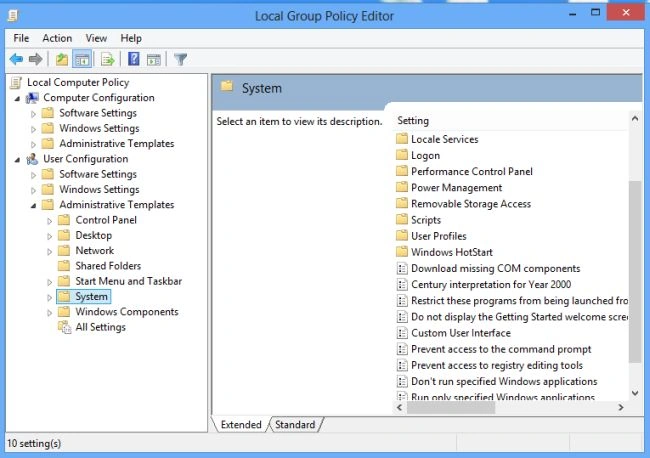
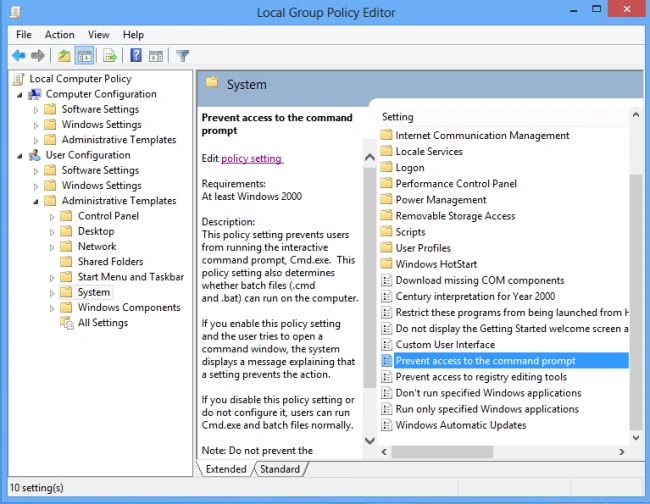
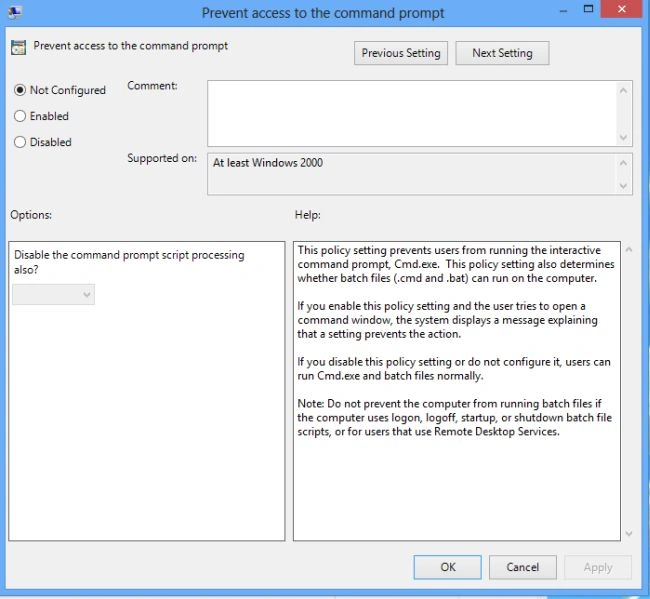
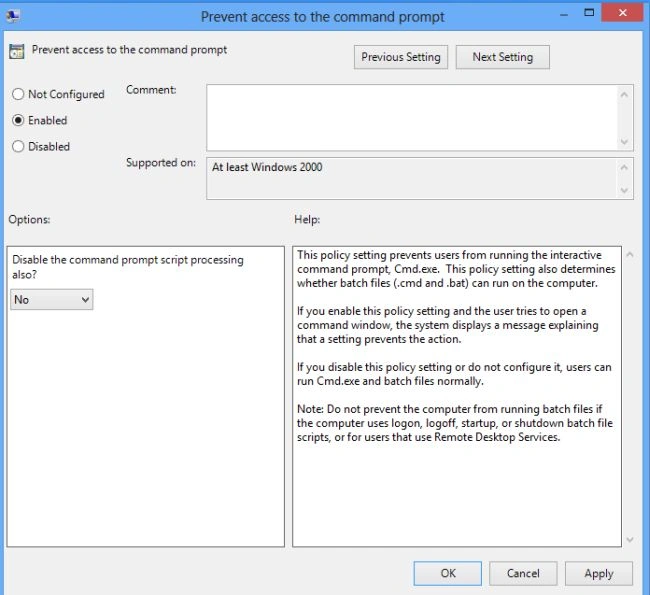
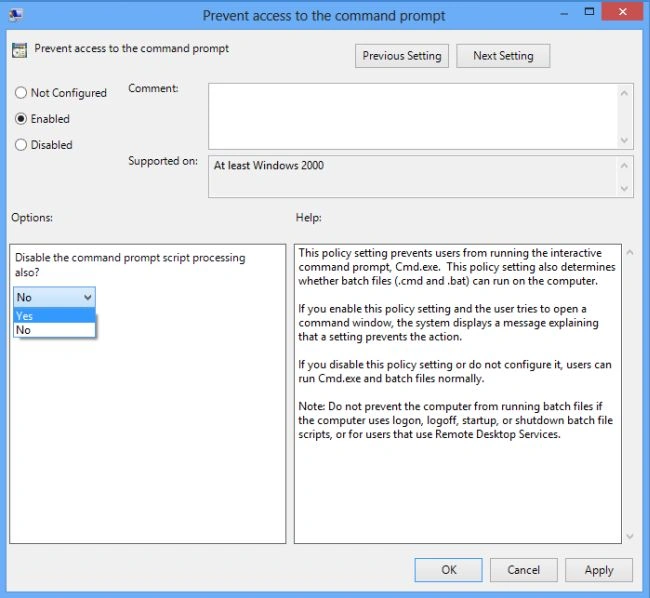
Once the Local Group Policy is opened then use the following.
Sam HobbseditedPosted Sep 14, 2012, 3:29 PMEdited Sep 14, 2012, 3:29 PM
Thank you for this article; it will help people that need extra security for their system(s). I am not sure, however, what "CLI" is. It would help to define it. If it is separate from the Command Prompt then perhaps it needs to be explained in a separate article. Also, I am sure not aware of Microsoft Windows existing without a GUI interface, so can you explain that? Originally, Windows was entirely GUI and DOS was the "command prompt" window. That is why some people incorrectly call the Windows Command Prompt window a DOS box.