

This article demonstrates how to display a popup using the Absolute layout in Xamarin.Forms.
We have to do the following things to display popup in Xamarin.Forms.
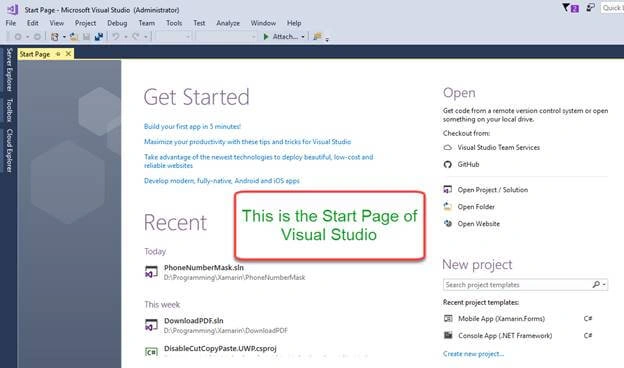
- In the Start screen, launch Visual Studio. This opens the Start page.
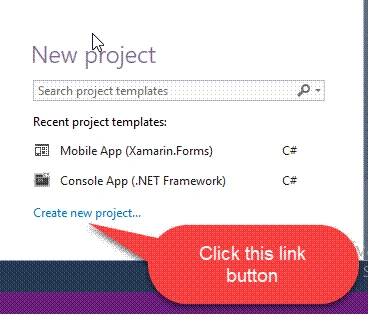
- In Visual Studio, click "Create new project..." to create a new project.
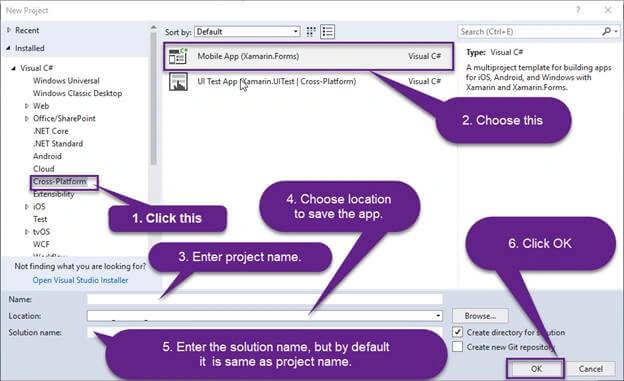
- In the New project window, click Cross-Platform from the left pane, select the Mobile App (Xamarin.Forms) template, set the Name and Solution name to DisplayPopUp , choose a suitable location for the project, and click the OK button.
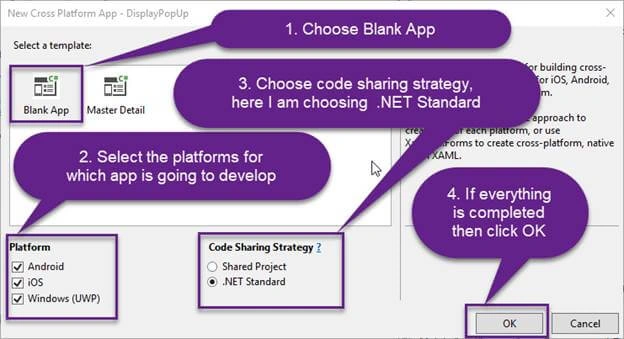
- In the New Cross Platform App dialog, click Blank App, select .NET Standard as the Code Sharing Strategy, and click the OK button.
- In Solution Explorer, the DisplayPopUp project will be displayed like below.
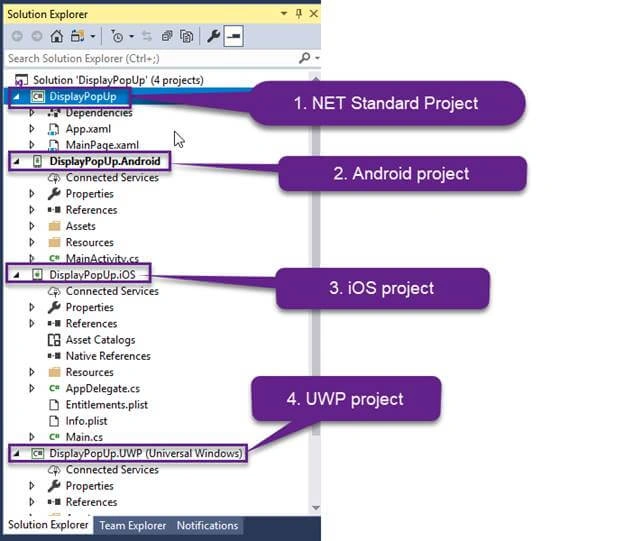
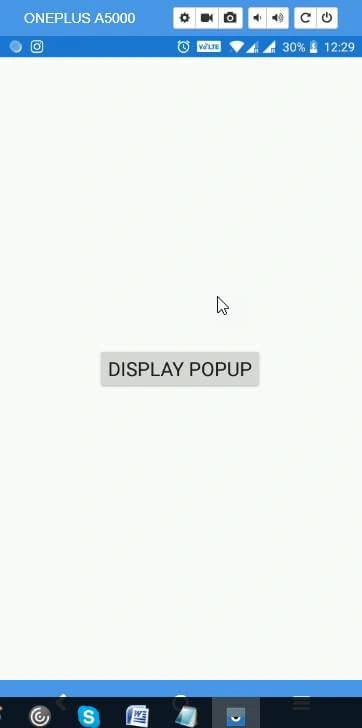
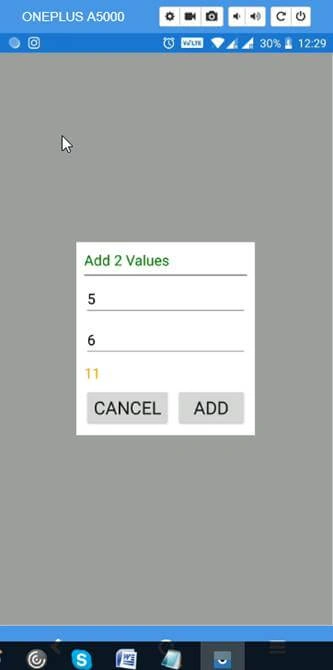
- Now, open XAML and paste the following code in it.
- <?xml version="1.0" encoding="utf-8" ?>
- <ContentPage xmlns="http://xamarin.com/schemas/2014/forms"
- xmlns:x="http://schemas.microsoft.com/winfx/2009/xaml"
- xmlns:local="clr-namespace:DisplayPopUp"
- x:Class="DisplayPopUp.MainPage">
- <AbsoluteLayout>
- <!-- Normal Page Content -->
- <StackLayout AbsoluteLayout.LayoutBounds="0, 0, 1, 1"
- AbsoluteLayout.LayoutFlags="All">
- <Button Text="Display Popup"
- FontSize="Large"
- VerticalOptions="CenterAndExpand"
- HorizontalOptions="Center"
- Clicked="OnButtonClicked" />
- </StackLayout>
- <!-- Overlay -->
- <ContentView x:Name="overlay"
- AbsoluteLayout.LayoutBounds="0, 0, 1, 1"
- AbsoluteLayout.LayoutFlags="All"
- IsVisible="False"
- BackgroundColor="#C0808080"
- Padding="10, 0">
- <StackLayout Orientation="Vertical"
- BackgroundColor="White"
- HorizontalOptions="Center"
- VerticalOptions="Center"
- Padding="10">
- <Label FontSize="18"
- TextColor="Green"
- HorizontalOptions="Fill"
- Text="Add 2 Values" />
- <BoxView Color="Gray"
- HorizontalOptions="FillAndExpand"
- HeightRequest="1.5">
- </BoxView>
- <Entry x:Name="entryFirstVal"
- Placeholder="First value"
- TextColor="Black"
- VerticalOptions="CenterAndExpand"
- HorizontalOptions="FillAndExpand"/>
- <Entry x:Name="entrySecondVal"
- Placeholder="Second value"
- TextColor="Black"
- VerticalOptions="CenterAndExpand"
- HorizontalOptions="FillAndExpand"/>
- <Label FontSize="18"
- TextColor="Orange"
- HorizontalOptions="Fill"
- x:Name="lblResult" />
- <StackLayout Orientation="Horizontal" HorizontalOptions="Center">
- <Button Text="Cancel" FontSize="Large"
- VerticalOptions="CenterAndExpand"
- HorizontalOptions="Center"
- Clicked="OnCancelButtonClicked"/>
- <Button Text="Add" FontSize="Large"
- VerticalOptions="CenterAndExpand"
- HorizontalOptions="Center"
- Clicked="OnAddButtonClicked" />
- </StackLayout>
- </StackLayout>
- </ContentView>
- </AbsoluteLayout>
- </ContentPage>
Nathan YorkPosted Jul 15, 2020, 3:09 AM
This is great. I did basically the same thing when trying to create a custom alert dialog but I ran into an issue with toolbars. The overlay can only cover the view of the content page, if there are any navigation elements being displayed they will not be covered. If you have a solution for that I would love to see it.
Sharvari DesaiPosted Jul 18, 2019, 6:12 AM
Superb Sir, Thank you so much
Rajesh JhaPosted Jun 15, 2018, 12:57 PM
Great tutorial sir...
Hiten PandyaPosted Jun 8, 2018, 10:21 AM
Good One sir.. keep sharing. Thanks.