

Django Templates
This is the fourth article of the Django series. Last time we customized our welcome page but remember, we had to embed the HTML code of the page into the view's Python code. There are a few problems with this approach:
- Good software engineering practices always emphasize the separation between UI and business logic, because it enhances reusability. However, embedding HTML within Python code clearly violates this rule.
- Editing HTML embedded within Python requires Python knowledge, but this is impractical for many development teams whose web designers do not know Python. (The scenario we discussed last time.)

Yeah, this could be you with HTML embedded in Python :D
- Handling HTML code within Python code is a tedious and error-prone task. For example, quotation marks in HTML may need to be escaped in Python string literals, and the overall result may be unclean and unreadable code.
And as I said I won’t leave you alone in the mess so here I am. We’re going to separate our HTML code from Django's views. Django provides a component that will help us accomplish this task; it is called the template system. Let’s apply it to our welcome page and see how it works.
First of all, create a separate folder called template in your project folder. This is just to keep our directory structure clean. A fun thing is if you’re using Pycharm then you can see this templates folder already created for you. It’s just not created but also its path is already added in settings.py. If you’re creating your own template folder then you need to inform Django about it. Open settings.py, look for the TEMPLATE_DIRS variable and add the absolute path of your template folder to it. Or if you don’t want to hard-code the path into settings.py then use the following code.
- import os.path
- TEMPLATE_DIRS = (
- os.path.join(os.path.dirname(__file__), ‘templates’),
- )
What it simply does is that it informed Django where to look for the template. Now, let’s move to our HTML part. Create a file called index.html in the template folder and edit it with the following content:
- <!DOCTYPE html>
- <html lang="en">
- <head>
- <meta charset="UTF-8">
- <title>Welcome Page</title>
- </head>
- <body>
- <h2>Hello World</h2>
- <p>Welcome to my first Application in Django</p>
- </body>
- </html>
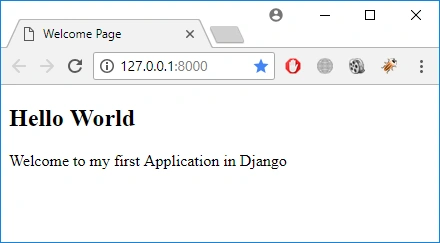
Pretty straightforward HTML code. All it does is display the same welcome message we did last time but this time without any Python code. Let’s see how to view this template in the view. Edit webapp/views.py file as follow:
- from django.shortcuts import render
- def main_page(request):
- return render(None, 'index.html')
- We imported the render method from Django.shortcut.
- We just defined the view using the main_page as its name and passing request object to it.
- In order to create HTML output from the template, we used the render method. It combines a given template with a given context dictionary and returns an HttpResponse object with that rendered text.
As per the documentation, render function is somewhat like this.
- render(request, template_name, context=None, content_type=None, status=None, using=None)
Required Arguments:
request:
The request object is used to generate this response. In our case, we are just displaying a static HTML page so we used request=None.
template_name:
The full name of a template to use or sequence of template names. If a sequence is given, the first template that exists will be used. We named our template as index.html so we used its name as an argument to our function.
Other arguments are all optional but let me explain them too.
Optional Arguments:
context:
A dictionary of values to add to the template context. By default, this is an empty dictionary. It means that it won’t make any difference if you call the function with an empty dictionary as render (None, 'index.html', {}) or without it. But if a value in the dictionary is callable, the view will call it just before rendering the template.
Join the conversation! Your thoughts help the community grow.