

Docker for windows
Docker is an open source technology that deals with container platforms. Docker container is a piece of software that contains a development platform to do the following.
- Code
- Runtime
- System tools
- System libraries
Requirements
- For windows - Windows 10 pro or Enterprise 64 bit
Advantages of Docker
The following are some of the advantages of Docker.
- Lightweight
- Open
- Secure
Lightweight
It requires less memory because a container running on a single machine shares the same operating system and kernel. It uses the same file system and is more efficient.
Open
Docker is an open source platform and runs on all the platforms such as Linux, Windows, and Mac etc. and on top of any infrastructure.
Secure
Container separates applications from one another and the essential infrastructure, and it provides some additional security.
Virtual machine Vs Container
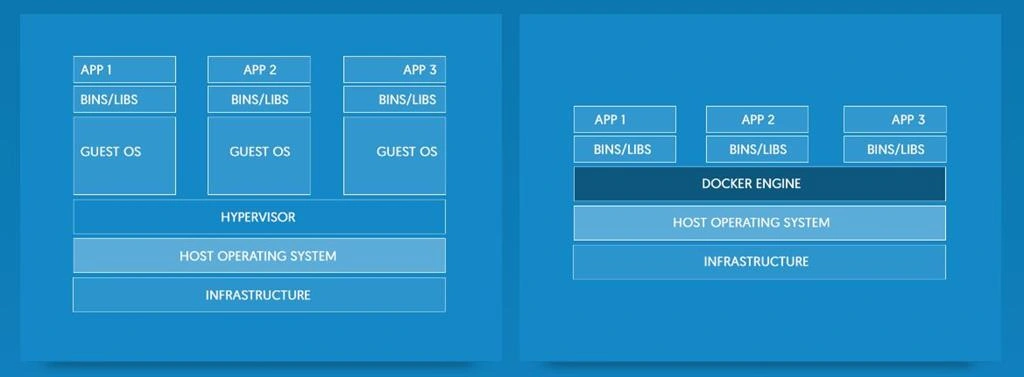
Image source - https://www.docker.com/what-docker
Container
A Container includes the applications and its dependencies but shares a common infrastructure, Host Operating systems, and Docker Engine on any cloud service.
Virtual Machine
Virtual machine includes the applications, libraries, binaries and shares common host operating systems.
Download Docker for windows
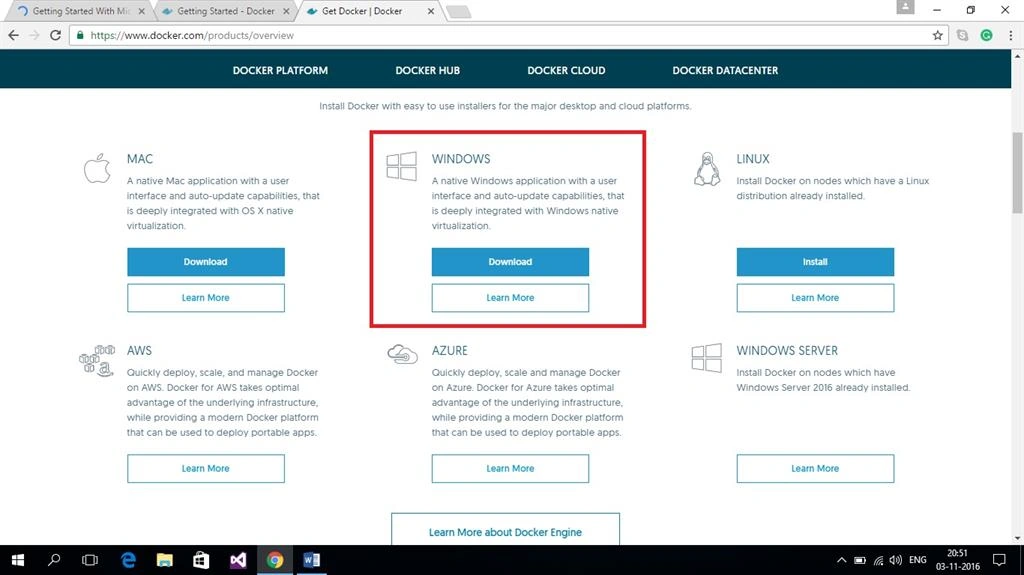
To download Docker software bundle, click here
Let’s get started.
Step 1. Install Docker on windows
Double click installdocker.msi and start the Docker installation. If you don’t have Docker, by clicking download Docker, you can download Docker.
Next, follow the installation wizard to install the Docker for Windows. Then, click "I accept license term" and start an installation process.
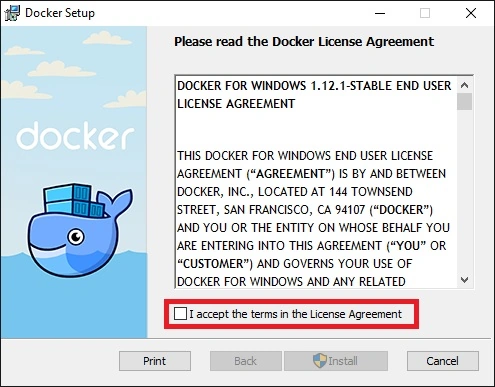
After sometime, it asks user to authorize Docker.app. Now click "Yes" to install Docker. It takes some time to validate and complete the installation.
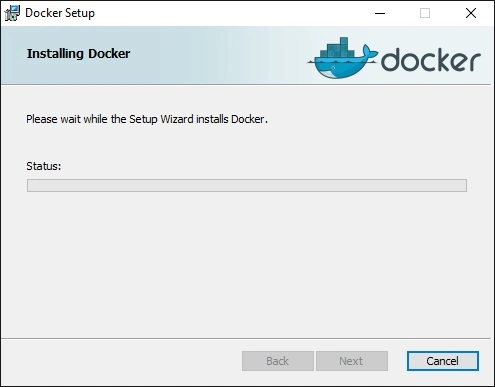
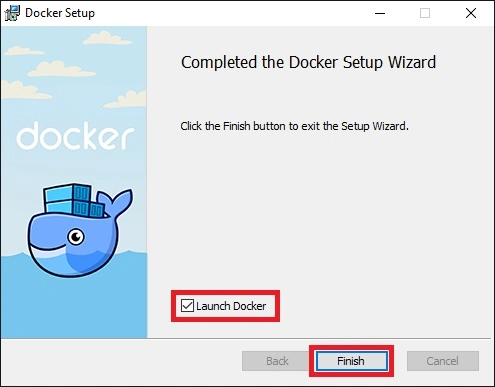
Click finish button to complete the installation process.
Step 2. Start Docker
Start Docker on Windows manually or it will start automatically if installation completes successfully. You get a toast notification as Docker is running with a whale icon on it and you are able to access terminal. If you installed Docker for the first time, you also get a Docker tour or documentation, as shown below.
Now, you are running a Docker on Windows.
Step 3. Check versions of Docker Engine, Compose, and Machine
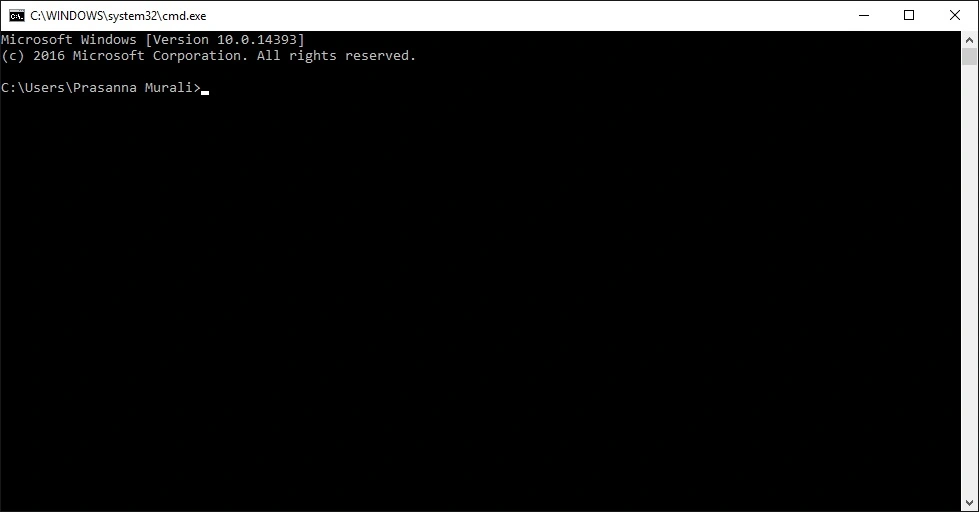
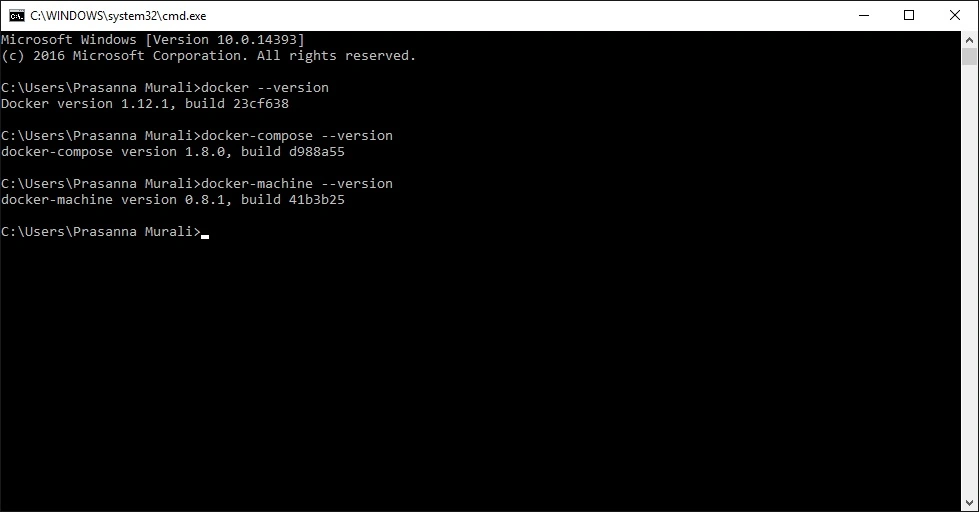
Start your Shell [cmd.exe] to check the version of Docker and docker-compose, and verify the installation
- docker –version
- docker-compose –version
- docker-machine –version
Next, follow the steps to run sample application using docker.
Open a shell [cmd.exe]
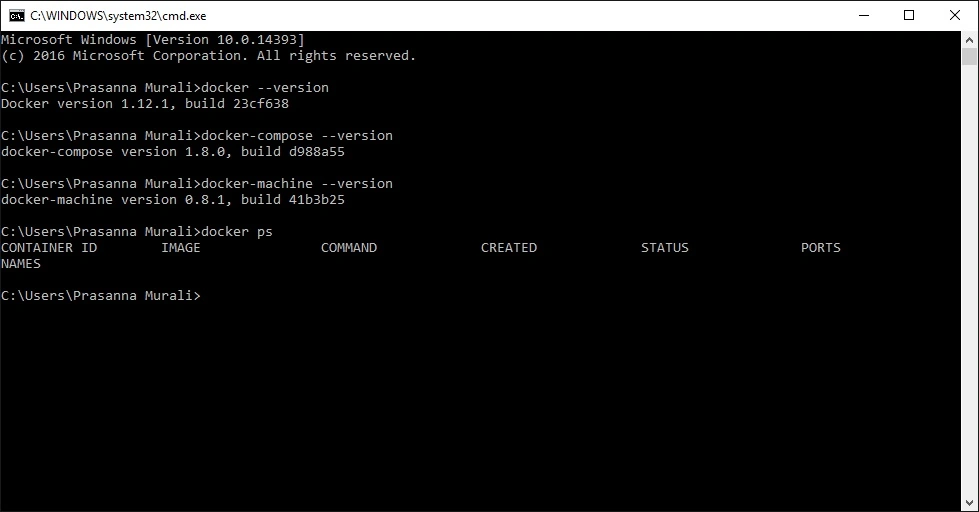
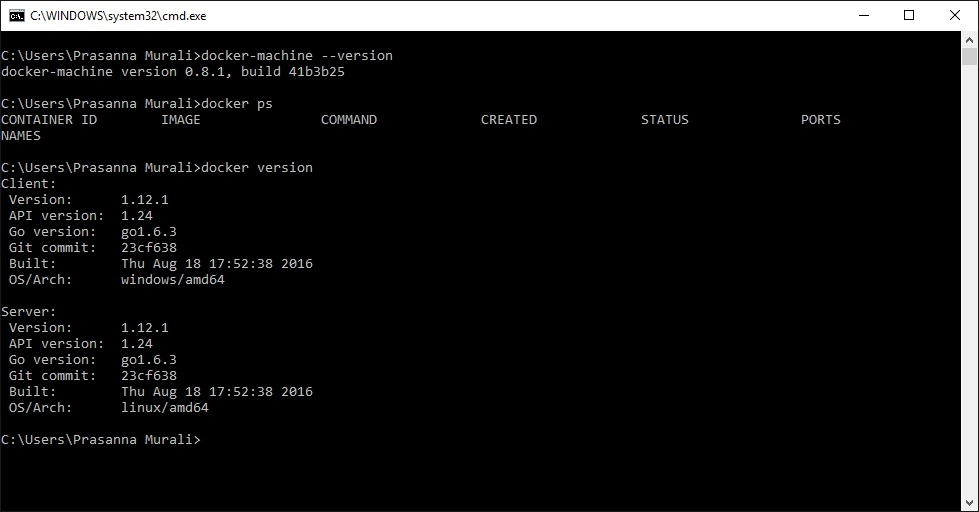
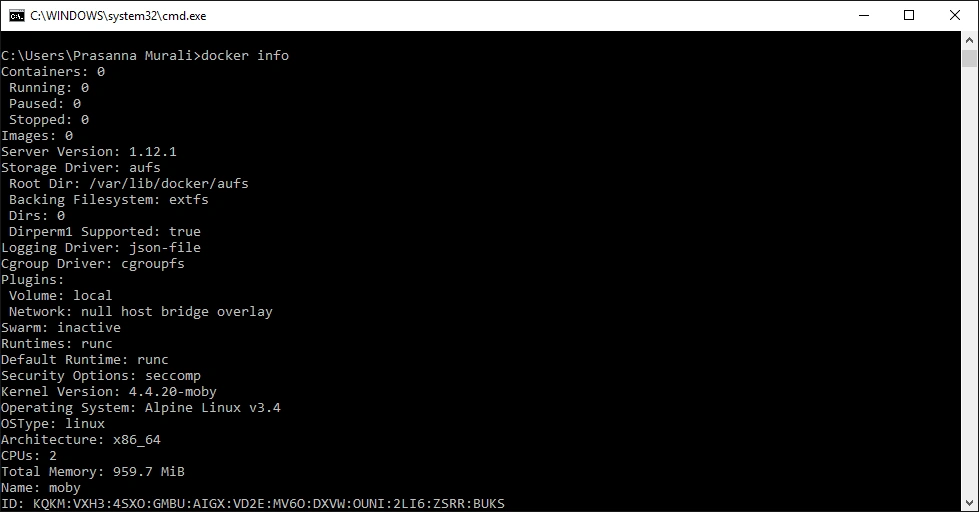
Run the following commands, such as docker ps, docker version, and docker info.
- docker ps
- docker version
- docker info
The Output is given below.
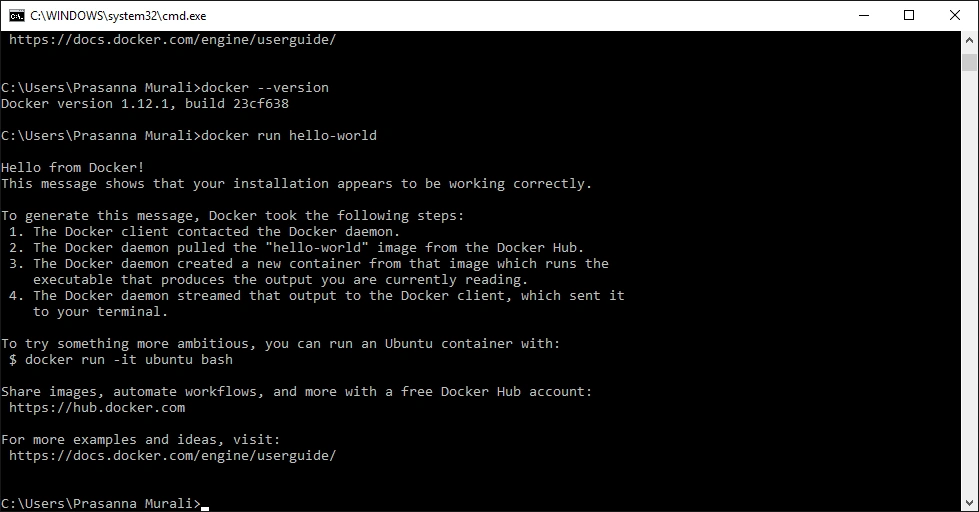
Next, run the Docker run hello-world to start pulling image from repositories and starting a container.
- docker run hello-world
Try something different, and run an Ubuntu container in a Bash shell.
- docker run -it ubuntu bash
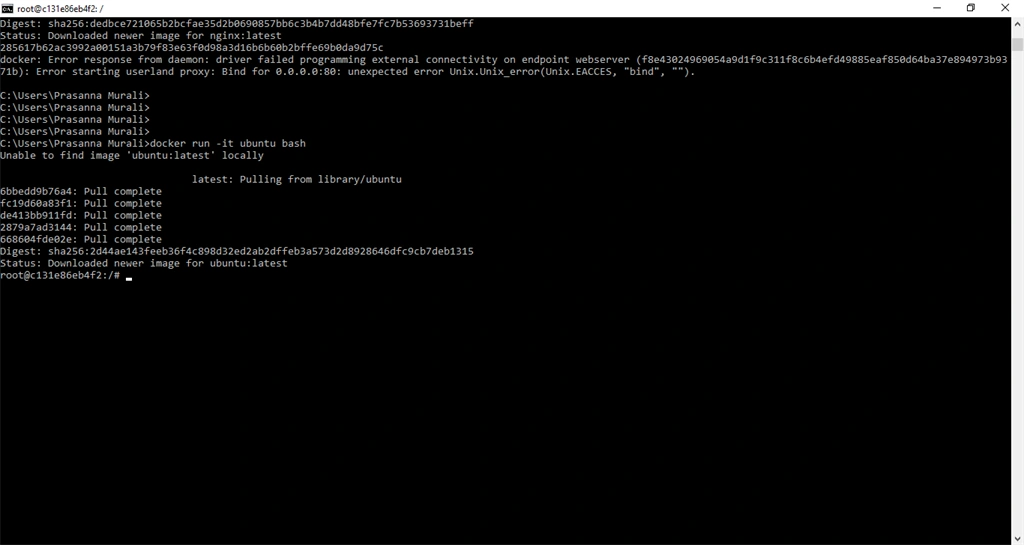
Type exit to stop the container and close the bash.
For the part, start a Docker web server with this command:
- docker run -d -p 80:80 --name webserver nginx
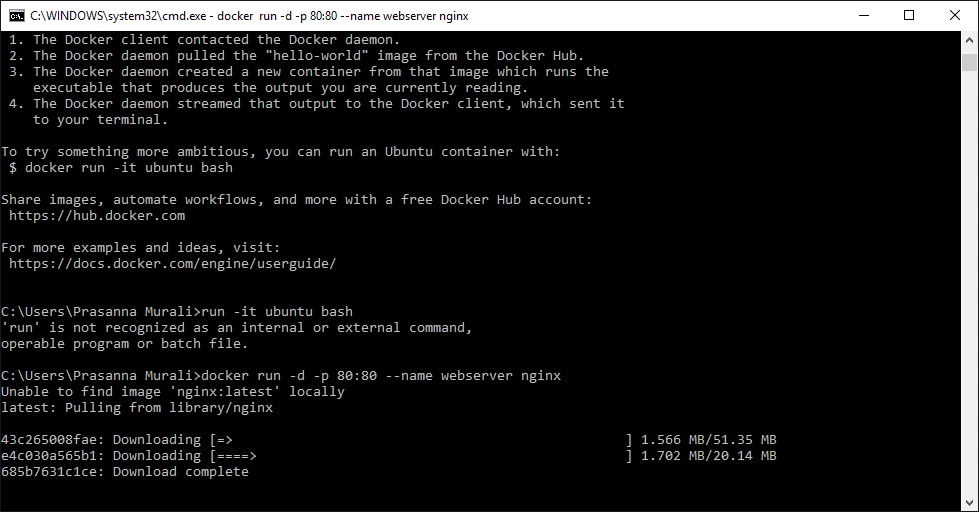
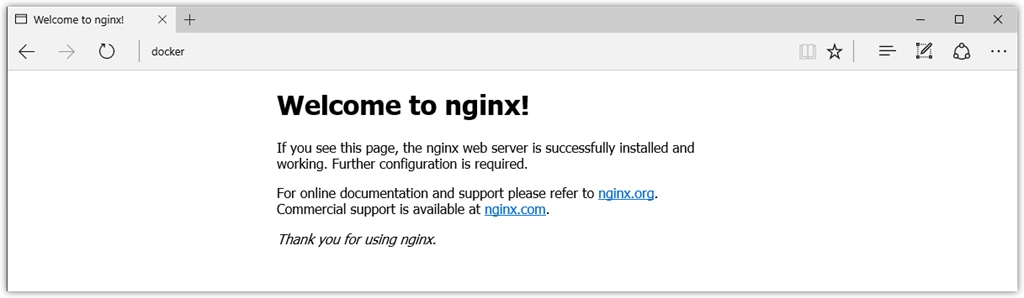
This will download the nginx container image from a repository and start it. Then, type the link http://localhost to display the start page. Here, the default port is 80. And the page given below displays the following.
Summary
In this article, we’ve learned the basics on setting up Docker on the Windows environment and learned how to create a simple hello world application using Docker web service.
References
- https://docs.docker.com/
- https://docs.docker.com/docker-for-windows/
Guest UserPosted Nov 9, 2016, 7:35 PM
Good start, i got basic info on docker and how to get started
Madhanmohan DevarajanPosted Nov 8, 2016, 11:05 AM
Very much informative, good work
Kumaresh RajalingamPosted Nov 8, 2016, 3:14 AM
Keep up the good work! Prasanna Murali