

A few months ago, I wrote an article on DotVVM, an open source MVVM framework that allows building ASP.NET web apps without knowledge of JavaScript.
In this article series, I would like to show how DotVVM works in more complicated web applications and demonstrate useful features you may appreciate in your next project – an admin site, intranet portal or a CRM/ERP web app.
Sample ApplicationI will be using NorthwindStore DotVVM Demo project in this article to demonstrate how DotVVM can be used in real-world scenarios.
If you want to try the project, follow the instructions in the README.
Application LayersThe sample application consists of 3 layers,
- DAL
this project is the Data Access Layer and contains the Entity Framework Core model. - BL
this project is the Business Layer of the application. It provides all the functionality required by the user interface and returns all data in a format that the UI needs. - App
this project is the Presentation Layer. It is the DotVVM web app itself and contains all the pages, CSS files and so on.
The purpose of this article is not to describe how the DAL and BL works. If you are interested in it, you can look at the source code – these projects use Riganti.Utils.Infrastructure library, which is also developed on GitHub.
From the DotVVM perspective, there are a couple of important things for the Business Layer:
- The BL exposes Facades which provide all functions that DotVVM pages need. A facade is a standard C# class with methods.
- All Facade methods accept and return Data Transfer Objects (DTOs), which are plain C# classes with properties and without any dependencies on Entity Framework.
- The Presentation Layer never works with Entity Framework entities; they are used only in the BL and DAL. The BL is responsible for the translation of the entities to DTOs and back.
From now on, I will be working with the NorthwindStore.App project. That is where the DotVVM pages and their ViewModels reside.
GridView ControlDotVVM contains a control called GridView. This control can render data in a table and supports inline editing, sorting, paging and other useful features.
GridView can be bound to any .NET collection, or to a special object called GridViewDataSet<T>. This class is a part of DotVVM and provides everything you may need to implement server-side paging and sorting.
The GridViewDataSet<T> contains the following properties:
- Items (List<T>) is a collection of records displayed on the current page.
- PagingOptions contains metadata for paging (PageIndex, PageSize, TotalItemsCount).
- SortingOptions contains metadata for sorting (SortExpression, SortDescending).
- RowEditOptions contains information about a currently edited row.
You can work with the GridViewDataSet in two ways,
- If you are using Entity Framework or other databases which supports IQueryable, you can just call dataSet.LoadFromQueryable(queryable).
The GridViewDataSet will apply paging and sorting automatically, based on the values in its PagingOptions and SortingOptions - You can load data in the GridViewDataSet,
- First, look in the PagingOptions and SortingOptions for the information you need to perform the query.
- Get the data.
- Add them in the Items collection.
- If you use paging, make sure you set the total number of records in the PagingOptions.TotalItemsCount property, so the pager controls can calculate how many pages they need.
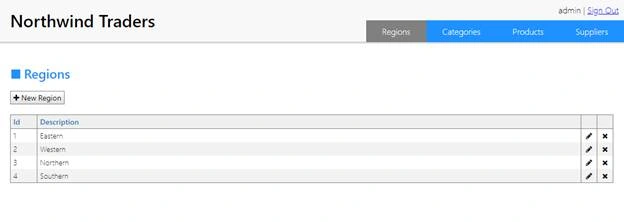
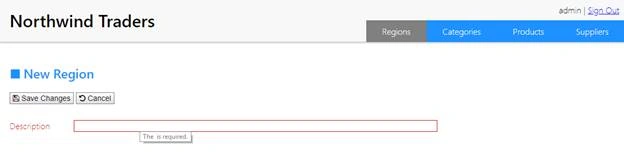
The sample application contains two pages that work with regions – RegionList.dothtml and RegionDetail.dothtml.
The viewmodel for a RegionList page looks like this,
- public class RegionListViewModel: AdminViewModel {
- private readonly AdminRegionsFacade pageFacade;
- public RegionListViewModel(AdminRegionsFacade pageFacade) {
- this.pageFacade = pageFacade;
- Regions = new BpGridViewDataSet < RegionDTO > () {
- PagingOptions = {
- PageSize = 50
- },
- SortingOptions = {
- SortExpression = nameof(RegionDTO.Id)
- }
- };
- }
- public GridViewDataSet < RegionDTO > Regions {
- get;
- set;
- }
- public override Task PreRender() {
- pageFacade.FillDataSet(Regions);
- return base.PreRender();
- }
- public void Delete(int id) {
- pageFacade.Delete(id);
- }
- }
Notice that the ViewModel constructor receives the instance of the facade for working with Regions. It works because of the Dependency Injection support in ASP.NET Core and DotVVM: all facades are registered in the service collection so they can be injected to constructor parameters.
In the constructor, I initialize the dataset with default page size and default sort order.
In the PreRender method, I pass the dataset to the facade which loads data in it.
The façade belongs to the Business Layer, which shouldn’t reference DotVVM because DotVVM is a presentation library. However, there is a package called DotVVM.Core which contains several interfaces (including IGridViewDataSet) which are useful in the Business Layer. That is why I can pass the dataset to the facade method to have it loaded.
I am using RegionDTO objects in my dataset. As I have mentioned before, the BL returns DTO objects, which are plain C# classes. They are JSON-serializable (so they can be placed in DotVVM ViewModels), they don’t depend on Entity Framework context and don’t contain any circular references.
- public class RegionDTO: IEntity < int > {
- public int Id {
- get;
- set;
- }
- [Required]
- public string RegionDescription {
- get;
- set;
- }
- }
In this case, it may look useless not to use the Entity Framework entity directly, as it is pretty much the same. However, there are other entities which are much more complicated, and there will be many differences between the entities and their DTOs. For example, there will be extra properties with data from linked tables, or some properties may be missing from the DTO as they are used in the user interface.
I am used to making specialized DTOs every place where they appear. When I display a list of customers, I need to see only some columns. When I am editing a customer, I will probably need all the columns from the Customers table. When I look at the report about the customer, there will also be a slightly different set of columns. Because there are typically more DTOs for every entity, I am using the AutoMapper library in my BL as it makes the mappings easy.
The UI of the page looks like this. I am using the GridView control to display the table with data, and the DataPager control to render links to other pages below my table.
The sample application uses GridView and DataPager from DotVVM Business Pack because they offer more features. However, if you use the controls from the open source framework, you can. They work the same way – just change <bp:GridView> to <dot:GridView>.
- <div class="toolbar">
- <dot:RouteLink RouteName="Admin_RegionDetail" class="dotvvm-bp-button">
- <bp:FAIcon Icon="Plus" /> New Region
- </dot:RouteLink>
- </div>
- <bp:GridView DataSource="{value: Regions}">
- <bp:GridViewTextColumn ValueBinding="{value: Id}" HeaderText="Id" Width="50px" />
- <bp:GridViewTextColumn ValueBinding="{value: RegionDescription}" HeaderText="Description" />
- <bp:GridViewTemplateColumn CssClass="icon">
- <dot:RouteLink RouteName="Admin_RegionDetail" Param-Id="{value: Id}">
- <bp:FAIcon Icon="Pencil" />
- </dot:RouteLink>
- </bp:GridViewTemplateColumn>
- <bp:GridViewTemplateColumn CssClass="icon">
- <dot:LinkButton Click="{command: _root.Delete(Id)}">
- <PostBack.Handlers>
- <dot:ConfirmPostBackHandler Message="Do you really want to delete the region?" />
- </PostBack.Handlers>
- <bp:FAIcon Icon="Remove" />
- </dot:LinkButton>
- </bp:GridViewTemplateColumn>
- </bp:GridView>
- <bp:DataPager DataSet="{value: Regions}" />
Join the conversation! Your thoughts help the community grow.