
Introduction Adding keyframes to an animation makes the coding of storyboards a little more complex, but they still follow the same general pattern. Create a storyboard, create an animation, create some keyframes, and add the keyframes to the animation, the animation to the storyboard, and the storyboard to the resources. private Storyboard MoveRight = new Storyboard(); DoubleAnimationUsingKeyFrames XAnim = new DoubleAnimationUsingKeyFrames();
Storyboard.SetTargetName(XAnim,"rectAnimate"); SplineDoubleKeyFrame SKeyFrame = new SplineDoubleKeyFrame();
SKeyFrame.KeyTime = KeyTime.FromTimeSpan(TimeSpan.FromSeconds(0.5)); DoubleAnimationUsingKeyFrames YAnim = new DoubleAnimationUsingKeyFrames();
Storyboard.SetTargetName(YAnim, "rectAnimate");
YAnim.SetValue(Storyboard.TargetPropertyProperty, new PropertyPath("(UIElement.RenderTransform).(TransformGroup.Children)[3].(TranslateTransform.Y)"));
YAnim.BeginTime = new TimeSpan(0, 0, 0);
SplineDoubleKeyFrame SKeyFrame1 = new SplineDoubleKeyFrame();
SKeyFrame1.KeyTime = KeyTime.FromTimeSpan(TimeSpan.FromSeconds(0.5));
SKeyFrame1.Value = 150;
YAnim.KeyFrames.Add(SKeyFrame1);
MoveRight.Children.Add(YAnim); That's it, you have successfully created a storyboard in code behind and did animation by writing the code behind for the DoubleAnimationUsingKeyFrames.
As you go through my previous animation articles you will find we have used DoubleAnimationUsingKeyFrames. But when you create a storyboard and do some animation the code will be generated in XAML. The same thing you can achieve in C# code behind too. So in this article we will explore on that.
Creating a Simple Silverlight Application
Open up Blend 3 and Create a new Silverlight Application.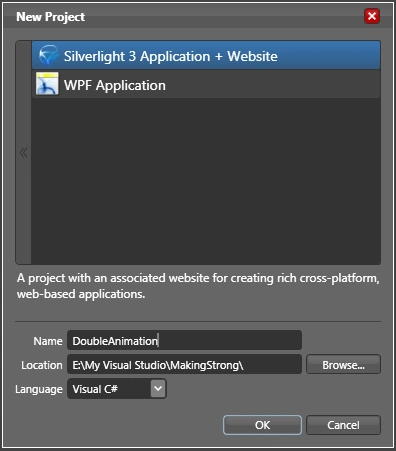
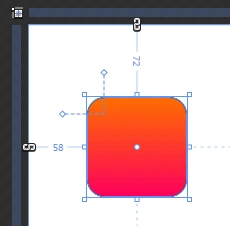
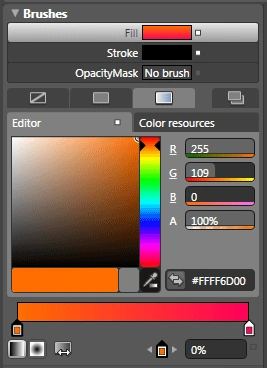
Now create a StoryBoard name it StoryBoard1 and add a TranslateTransform.
Remember we are going to do this in code behind. So delete all the storyboards you just created.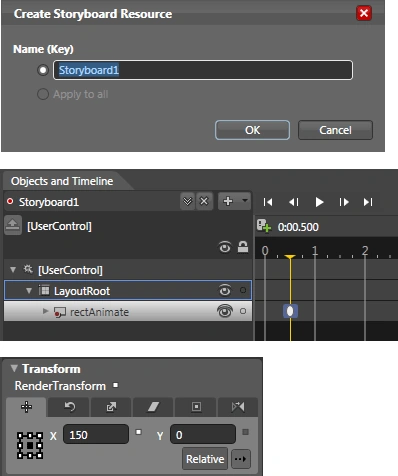
<Storyboard x:Name="Storyboard1">
<DoubleAnimationUsingKeyFrames BeginTime="00:00:00" Storyboard.TargetName="rectAnimate" Storyboard.TargetProperty="(UIElement.RenderTransform).(TransformGroup.Children)[3].(TranslateTransform.X)">
<EasingDoubleKeyFrame KeyTime="00:00:00.5000000" Value="150"/>
</DoubleAnimationUsingKeyFrames>
</Storyboard>
DoubleAnimationUsingKeyframes object called XAnim, and set the TargetName and TargetProperty values. This code will once again be targeting the X transform property of the object being animated.
XAnim.SetValue(Storyboard.TargetPropertyProperty, new PropertyPath("(UIElement.RenderTransform).(TransformGroup.Children)[3].(TranslateTransform.X)"));
XAnim.BeginTime = new TimeSpan(0, 0, 0);
SKeyFrame.Value = 150;
XAnim.KeyFrames.Add(SKeyFrame);
MoveRight.Children.Add(XAnim);
LayoutRoot.Resources.Add("MoveRight", MoveRight);
private void rectAnimate_MouseMove(object sender, MouseEventArgs e)
{
MoveRight.Begin();
}
Use F5 to compile and run the program again. With the second animation in place, the rectangle now moves down and to the right, holding the position at the end of the storyboard.
Remember that the FillBehavior on storyboards is set to HoldEnd, meaning that the storyboard will stay at its frame when it has finished playing through. If you would like to change the FillBehavior for a storyboard, you can do this through code as well. The following line of code will change the FillBehavior for the storyboard you just created so that when it reaches the end, the rectangle will return to the starting position of the animation:
MoveRight.FillBehavior = FillBehavior.Stop;
Enjoy Animating.

Join the conversation! Your thoughts help the community grow.