Introduction
In this article, we will learn how to drag and drop table columns Angular 10 applications.
Prerequisites
- Basic Knowledge of Angular 2 or higher
- Visual Studio Code
- Node and NPM installed
- Bootstrap
Create an Angular project by using the following command.
Open this project in Visual Studio Code and install bootstrap by using the following command.
- npm install bootstrap --save
Now open styles.css file and add Bootstrap file reference. To add reference in styles.css file add this line.
- @import '~bootstrap/dist/css/bootstrap.min.css';
Now install Table-dragger library using the following command.
- npm install table-dragger --save
Now create a new component by using the following command.
Now open dragtable.component.html file and add the following code:
- <div>
- <div class="row" style="margin-top:10px;margin-bottom: 10px;">
- <div class="col-sm-12 btn btn-success">
- Drag and drop table Columns in Angular application
- </div>
- </div>
- <div class="container">
- <div class="row">
- <div class="col-md-12">
- <table class="table" id="table">
- <thead class="thead-dark">
- <tr>
- <th>Id</th>
- <th>Name</th>
- <th>Age</th>
- <th>Address</th>
- <th>City</th>
- <th>Salary</th>
- <th>Department</th>
- </tr>
- </thead>
- <tbody>
- <tr *ngFor="let data of rowData">
- <td>{{data.Id}}</td>
- <td>{{data.Name}}</td>
- <td>{{data.Age}}</td>
- <td>{{data.Address}}</td>
- <td>{{data.City}}</td>
- <td>{{data.Salary}}</td>
- <td>{{data.Department}}</td>
- </tr>
- </tbody>
- </table>
- </div>
- </div>
- </div>
- <br/>
Open dragtable.component.ts file and add the following lines
- import { Component, OnInit } from '@angular/core';
- import tableDragger from 'table-dragger'
- @Component({
- selector: 'app-dragtable',
- templateUrl: './dragtable.component.html',
- styleUrls: ['./dragtable.component.css']
- })
- export class DragtableComponent implements OnInit {
-
- constructor() { }
- public rowData= [
- {
- Id: "1",
- Name: "Sanwar",
- Age: "25",
- Address: "Jaipur",
- City: "Jaipur",
- Salary: "500000",
- Department: "IT",
-
- },
- {
- Id: "2",
- Name: "Nisha",
- Age: "25",
- Address: "C-Scheme",
- City: "Jaipur",
- Salary: "500000",
- Department: "IT",
- },
- {
- Id: "3",
- Name: "David",
- Age: "25",
- Address: "C-Scheme",
- City: "Jaipur",
- Salary: "500000",
- Department: "IT",
- },
- {
- Id: "4",
- Name: "Sam",
- Age: "25",
- Address: "C-Scheme",
- City: "Jaipur",
- Salary: "500000",
- Department: "IT",
- },
- {
- Id: "5",
- Name: "Jyotsna",
- Age: "25",
- Address: "C-Scheme",
- City: "Mumbai",
- Salary: "500000",
- Department: "IT",
- },
- {
- Id: "6",
- Name: "Sid",
- Age: "25",
- Address: "C-Scheme",
- City: "Bangalore",
- Salary: "500000",
- Department: "IT",
- }
- ]
-
- ngOnInit(): void {
- var id = document.getElementById('table');
- console.log(id)
- var dragger = tableDragger(id, {
- mode: 'column',
- onlyBody: true,
- animation: 300
- });
- dragger.on('drop',function(from, to){
- });
- }
-
- }
Now open app.component.html file and add the following code:
- <app-dragtable></app-dragtable>
Now open app.module.ts file and add the following code.
- import { BrowserModule } from '@angular/platform-browser';
- import { NgModule } from '@angular/core';
- import { HttpClientModule } from "@angular/common/http";
- import { AppComponent } from './app.component';
- import { DragtableComponent } from './dragtable/dragtable.component';
-
- @NgModule({
- declarations: [
- AppComponent,
- DragtableComponent
- ],
- imports: [
- BrowserModule,
- HttpClientModule
- ],
- providers: [],
- bootstrap: [AppComponent]
- })
- export class AppModule { }
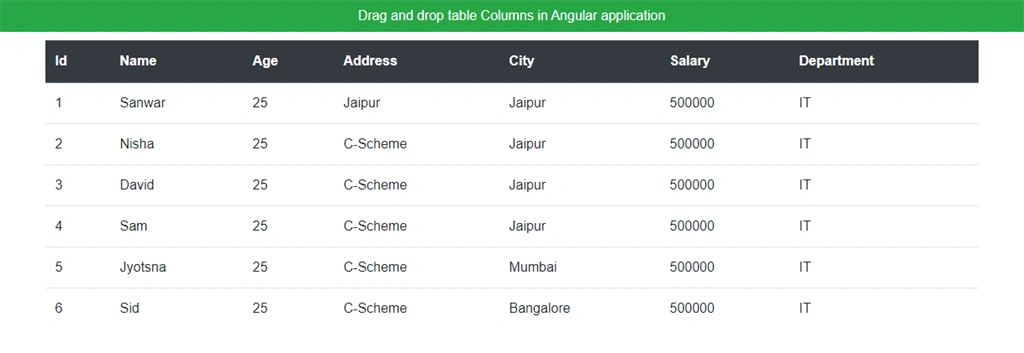
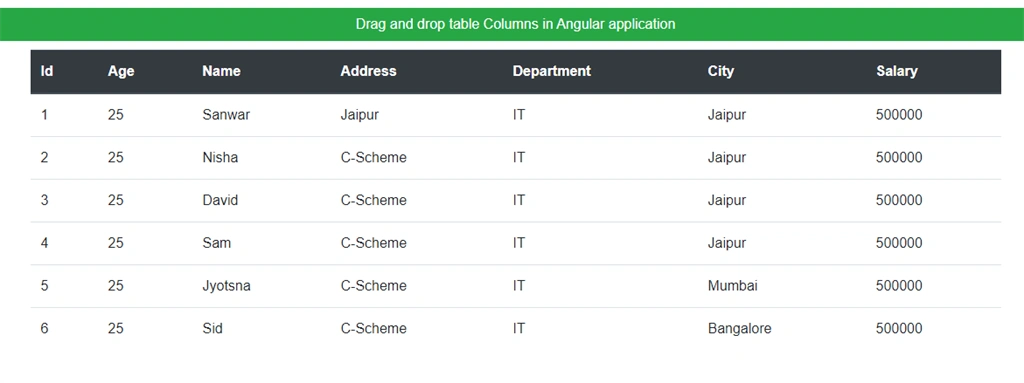
Now, run the application using the 'npm start' command and check the result.
Now click on header,drag and column and drop on another column.Its reorder columns.
We also drag and drop rows of the table. We need to change mode column to row.
Summary
In this article, we learned how to create drag and drop table columns Angular 10 application.


Varsha GPosted Jan 13, 2022, 12:13 PM
Can anyone please help me on this.
Varsha GPosted Jan 13, 2022, 12:01 PM
Hi... I am facing error in 72 line of component.ts file. Error is : Cannot find module 'table-dragger' or its corresponding type declarations.
Hamid KhanPosted Feb 6, 2021, 5:31 PM
Very Nice...................
Siddharth GajbhiyePosted Feb 2, 2021, 5:36 AM
Hi Sanwar can we drag and drop rows also ?