

Introduction
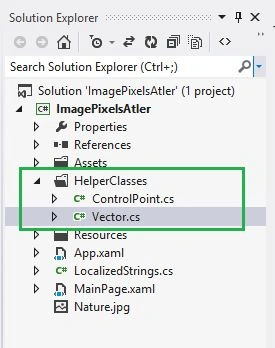
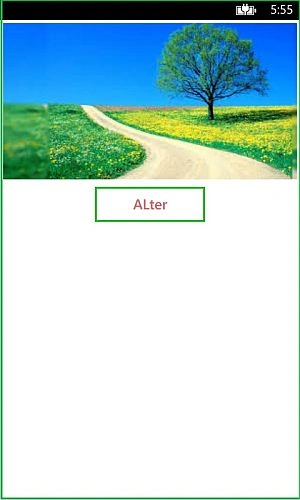
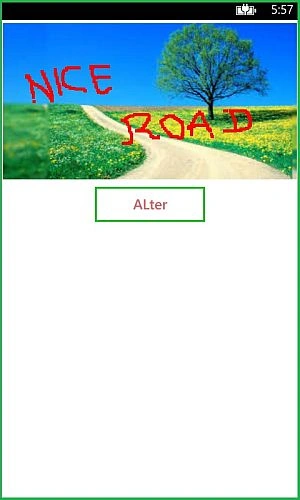
For this question my previous article is enough but not efficient. Because there I set the text on the image using static (x,y) co-ordinates using WriteableBitmap. In this sample we need to draw text on dynamic (x,y) co-ordinates on a touch move and so I thought the "WriteableBitmapEx" library is the best match for this requirement. Because this library adds more extensions to WriteableBitmap, thereby we can do direct manipulation of a bitmap and could be used to generate fast procedural images by drawing directly to a bitmap.
Requirements:
- This sample is targeted to the Windows Phone 8.0 OS
- Additionally we need to add the "WriteableBitmapExWinPhone" DLL from http://writeablebitmapex.codeplex.com/
Description:
Let's start development with the following procedure.
Step 1
- Open Visual Studio
- Create a new project and give it a name (for example: "ImagePixelsAtler")
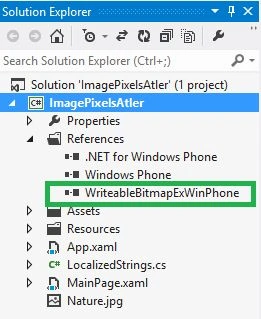
- Add the "WriteableBitmapExWinPhone" DLL from the link (or) you may get the DLL by unzipping this sample source code from the following of this article. And make sure the DLL is added to the references as in the following:
Step 2
Open MainPage.xaml and add the following XAML code having two image controls and one button.
XAML code
- <Grid x:Name="ContentPanel" Margin="5">
- <Grid.RowDefinitions>
- <RowDefinition Height="Auto"/>
- <RowDefinition Height="Auto"/>
- <RowDefinition Height="*"/>
- </Grid.RowDefinitions>
- <Image Grid.Row="0" MouseMove="Image_MouseMove" Name="OrginalImage" Stretch="Fill" Height="250" Source="/Nature.jpg"/>
- <Button Grid.Row="1" Content="ALter" Width="200" Height="80" Click="AlterButton_Click" Foreground="#FFD66A6A" BorderBrush="#FF16C71E"/>
- <Image Grid.Row="2" Name="AlterImage" />
- </Grid>

Asfend YarPosted Feb 21, 2016, 4:08 AM
thanks
Subramanyam RajuPosted Nov 25, 2014, 11:53 PM
Thanks :D
Hussain AfridiPosted Nov 25, 2014, 9:16 AM
nice tutorial