

Introduction
We sometimes encounter the requirement to work on 2 or 3 dropdownlists. The second dropdown should be populated on the basis the first dropdown and the third dropdown list on the second and so on.
In this article I will explain in details how to achieve the cascaded dropdown in Infopath from a SharePoint List.
The following is the step-by-step procedure.
- Create two lists in your SharePoint site. I have created two lists, Regions and Countries. Region is a lookup within Country.

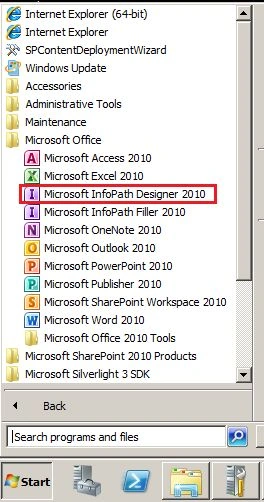
- Select Microsoft Infopath Designer 2010 from Start and Microsoft Office.
- Select the Blank form from the templates.

- Design the form as below:

- Double-click the Region Dropdown List. Select Control Properties inside the Properties Tab.

- Select Get choice from an external data source and click Add.

- Select Receive Data.

- Select SharePoint library or list and click Next.
- Enter the URL of the site.

- Select Region List from the List.

- Check Id and Title.

- Name the data connection (leave it as the default).

- Click Finish, Apply and then OK.

- Repeat all the above processes for Country and bind Country.

- Create another connection Country.

- In the Entries section, click on the tree button to select XPath.

- In Select a Field or Group dialog, click on the Filter Data… button.

- In Filter Data click on the Add… button.
- In specify Filter Conditions, in the first drop-down list choose Select a field or group.
- Select a Field or Group opened. Select Country as the Data Source, choose Region in the dataFields then click OK.

- In specify Filter Conditions, in the last drop-down list choose Select a field or group.
- Select a Field or Group opened. Select Main as the Data Source then choose Region in the dataFields then click OK.

- Click on OK to close the specify Filter Conditions dialog.
- Click on OK to close the Filter Data dialog.
- Click on OK to close the Select a Field or Group.
- In the Drop Down List box properties, choose d:ID in the Value: section then click OK to close this.
- Publish the Infopath form to the SharePoint Form Library.
- The form will opened as below.


Conclusion
In this article I have explained how to create a cascade dropdownlist in Infopath.
Abhay ShankerPosted May 31, 2014, 11:07 PM
No..,Its OOB
Lakshmanan Sethu SankaranarayanPosted May 31, 2014, 10:53 PM
Abhay, Did you use SPServices?