

Introduction
Before AngularJS, the same thing was performed using jQuery which was very lengthy and time-consuming. The same functionality is performed using Angular now and the process is very quick and much faster than jQuery.
Recommended Prerequisites
- Visual Studio 2017
- ASP.NET MVC
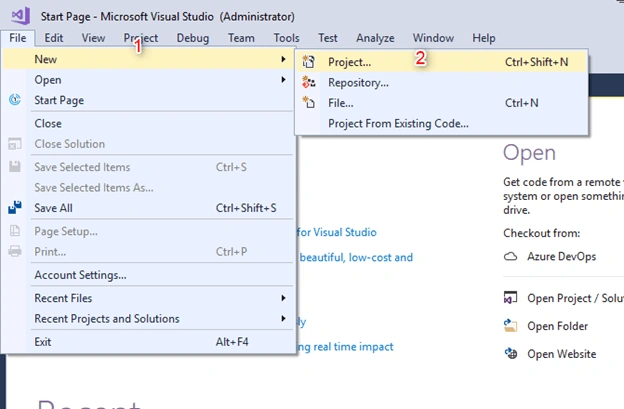
Open Visual Studio and select "File" >> "New". Then, click on Project. (Remember, don't go with the option 'File->New->Website').
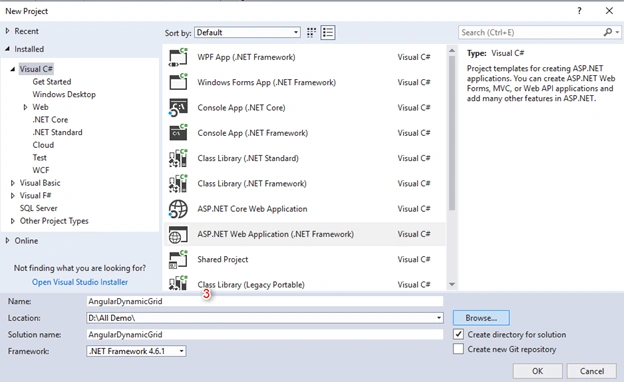
Select "Templates" >> Visual C# >> Web then ASP.NET Web Application (.NET Framework), and put appropriate project name.
- And click the "OK" button.
Now, choose the project template as MVC.
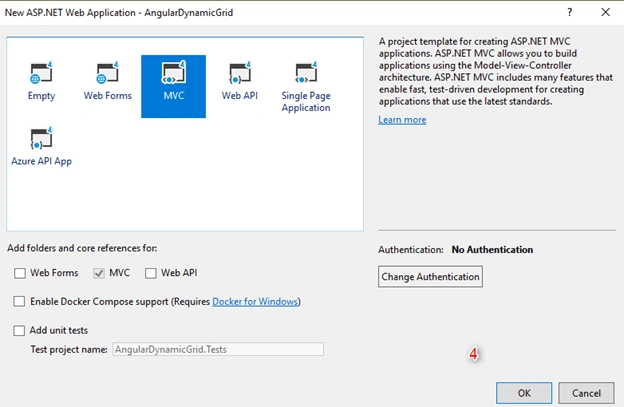
Now, your project will begin to start once you click the OK button.
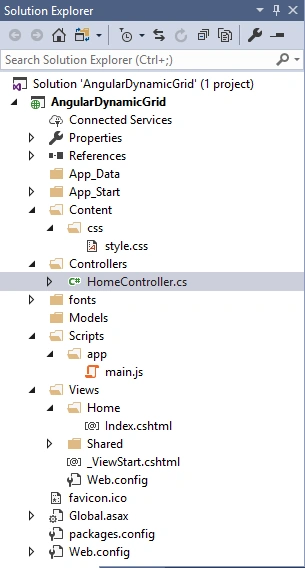
Great! Now first, we will see the project structure in which we will work. So, our solution explorer will look something like this.
Now, let's code the amazing design.
First, we will begin with HTML file, i.e., Go to View -> Home -> Index.cshtml.
- @{ ViewBag.Title = "Home Page"; Layout = null; } <!DOCTYPE html>
- <html>
- <head>
- <title>AngularJS</title>
- <meta charset='utf-8'>
- <meta name="description" content="AngularJS and Angular Code Example">
- <link rel="stylesheet" href="https://netdna.bootstrapcdn.com/bootstrap/3.0.0/css/bootstrap.min.css">
- <link href="~/Content/css/style.css" rel="stylesheet" />
- <script type="text/javascript" src="https://ajax.googleapis.com/ajax/libs/angularjs/1.4.4/angular.min.js"></script>
- <link rel="stylesheet" href="https://cdnjs.cloudflare.com/ajax/libs/font-awesome/4.7.0/css/font-awesome.min.css">
- <script src="~/Scripts/app/main.js"></script>
- </head>
- <body ng-app="demo" ng-controller="DemoCtrl">
- <div class="container" width="800px" id="invoice">
- <div class="row">
- <div class="col-xs-12 heading"> Dynamic Grid in Angular JS </div>
- </div>
- <div class="items-table">
- <div class="row header">
- <div class="col-xs-1"> </div>
- <div class="col-xs-5">Title 1</div>
- <div class="col-xs-2">Title 2</div>
- <div class="col-xs-2">Title 3</div>
- </div>
- <div class="row invoice-item" ng-repeat="item in invoice.items" ng-animate="'slide-down'">
- <div class="col-xs-1 remove-item-container"> <a href ng-click="removeItem(item)" class="btn btn-danger"><i class="fa fa-times"></i></a> </div>
- <div class="col-xs-5 input-container"> <input ng-model="item.description" placeholder="Description" /> </div>
- <div class="col-xs-2 input-container"> <input ng-model="item.qty" value="1" size="4" ng-required ng-validate="integer" placeholder="Quantity" /> </div>
- <div class="col-xs-2 input-container"> <input ng-model="item.cost" value="0.00" ng-required ng-validate="number" size="6" placeholder="Cost" /> </div>
- </div>
- <div class="row invoice-item">
- <div class="col-xs-12 add-item-container"> <a class="btn btn-primary" href ng-click="addItem()"><i class="fa fa-plus"></i></a> </div>
- </div>
- </div>
- </div>
- </body>
- </html>
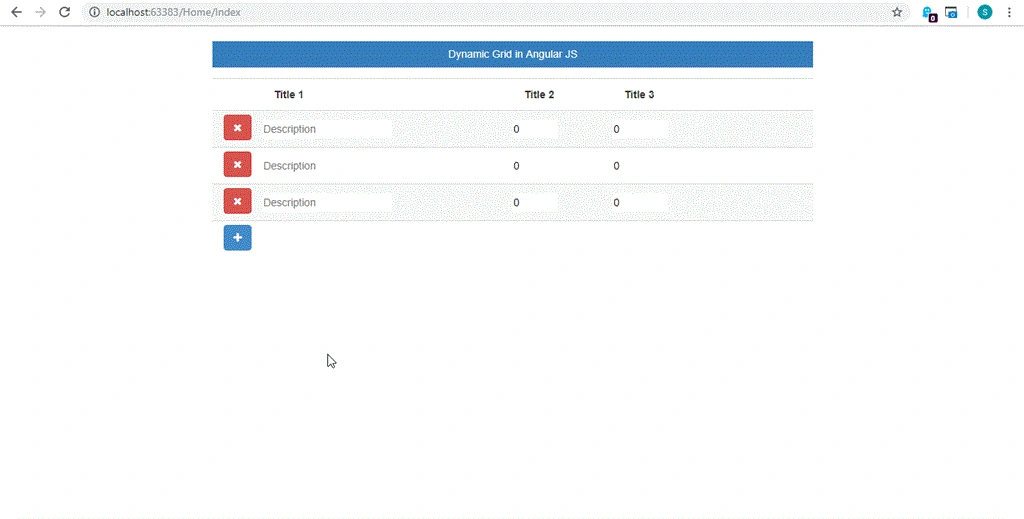
Here, we have included the CDN for AngularJS, Bootstrap, and font-awesome.
Our Angular controller name is DemoCtrl and app module name is demo.
Now, let's code our Angular file and name it as main.js in the location path - Script -> app -> main.js.
- angular.module('demo', []).service('LocalStorage', [function () {
- var Service = {};
- var hasInvoice = function () {
- return !(localStorage['invoice'] == '' || localStorage['invoice'] == null);
- };
- Service.getInvoice = function () {
- if (hasInvoice()) {
- return JSON.parse(localStorage['invoice']);
- } else {
- return false;
- }
- };
- return Service;
- }]).controller('DemoCtrl', ['$scope', '$http', 'LocalStorage', function ($scope, $http, LocalStorage) {
- (function init() {
- ! function () {
- var invoice = LocalStorage.getInvoice();
- $scope.invoice = invoice ? invoice : 0;
- }();
- })() $scope.addItem = function () {
- $scope.invoice.items.push({
- qty: 0,
- cost: 0,
- description: ""
- });
- }
- $scope.removeItem = function (item) {
- $scope.invoice.items.splice($scope.invoice.items.indexOf(item), 1);
- };
- }])
Join the conversation! Your thoughts help the community grow.