


Introduction
Power Apps, a low-code development platform by Microsoft, offers a variety of controls to create interactive applications. Among these is the Toggle control, which allows users to switch between two states - On and Off. In this article, we will explore the Toggle control in Power Apps and learn how to bind data from SharePoint, enhancing the functionality of your applications.
Benefits
- User-Friendly Interface: The Toggle control provides a simple and intuitive interface for users to toggle between two states, improving usability.
- Space Efficiency: Toggles occupy less space on the screen compared to other controls, making them ideal for mobile and tablet devices with limited screen real estate.
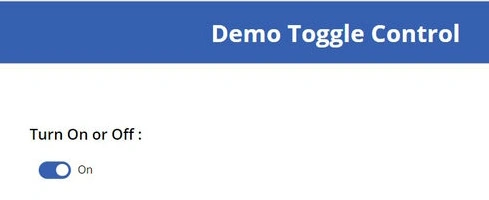
- Visual Feedback: The Toggle control provides visual feedback, indicating the current state (On or Off) to users, enhancing user experience.
- Data Binding: Binding data from SharePoint to the Toggle control allows for dynamic updating of states based on changes in SharePoint data, ensuring real-time synchronization.
Features
- Two-State Functionality: The Toggle control supports two states - On and Off, allowing users to easily switch between them.
- Customizable Appearance: Toggles can be customized in terms of color, size, and style to match the design requirements of the application.
- Event Handling: Power Apps allows developers to handle events associated with the Toggle control, such as OnChange events, to trigger actions based on user interactions.
- Accessibility: Toggles are accessible to users with disabilities and can be used in compliance with accessibility standards.
Limitations
- Limited States: Toggles support only two states - On and Off, making them unsuitable for scenarios requiring more than two options.
- Visual Clarity: In some cases, users may find it challenging to discern the current state of the Toggle control, especially if it lacks clear visual indicators.
- Complexity with Large Data: When binding large datasets from SharePoint, the Toggle control may experience performance issues or delays in data retrieval.
Step-by-Step Guide
- Open Power Apps
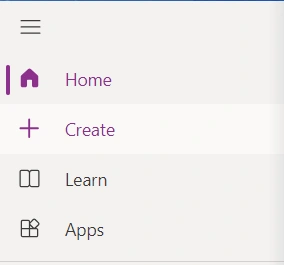
- Click on the "Create" button.
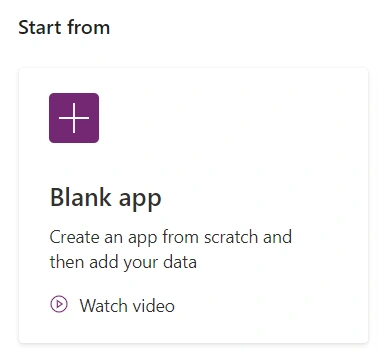
- Select "Blank app".
- Choose "Blank tablet app" for tablet device compatibility.
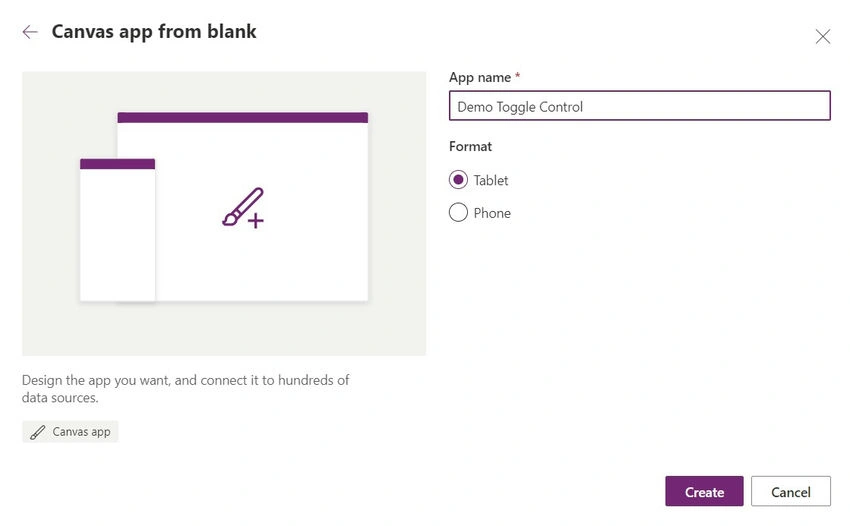
- Provide a name for your app.
- Select "Create" to proceed.
- Click on the "Create" button.
- Add SharePoint Data Source
- Go to the "View" tab.
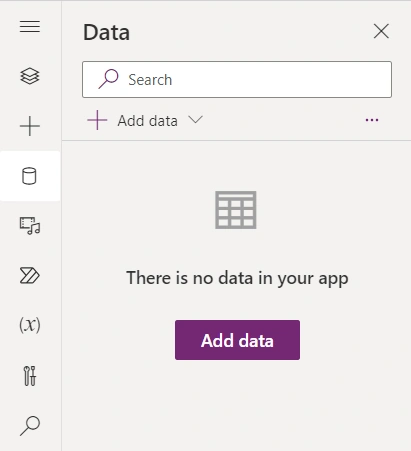
- Click on "Data sources".
- Select "Add data source".
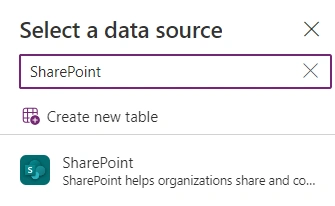
- Choose "SharePoint" and provide connection details.
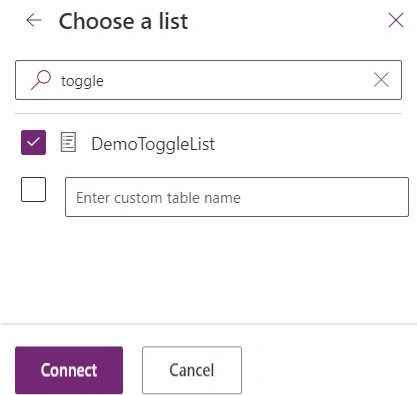
- Select the SharePoint list from which you want to bind data.
- Go to the "View" tab.
- Insert Toggle Control
- Navigate to the screen where you want to add the Toggle control.

- Click on the "Insert" tab.
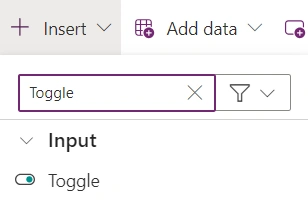
- Select "Input" and then choose "Toggle" from the dropdown menu.
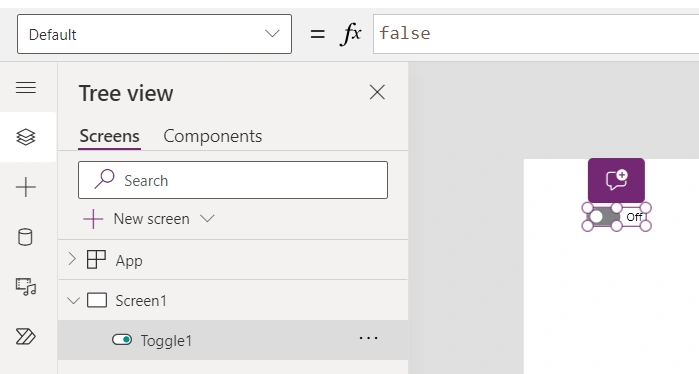
- Position the Toggle control on the screen.
- Navigate to the screen where you want to add the Toggle control.
- Bind Data from SharePoint

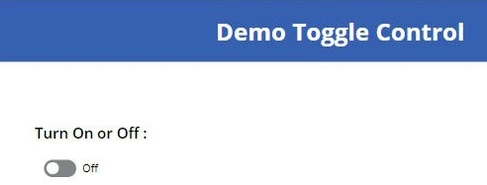
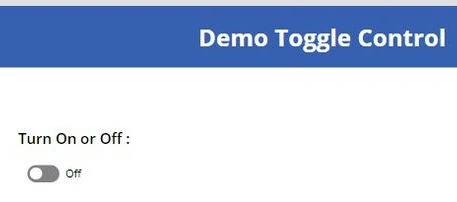
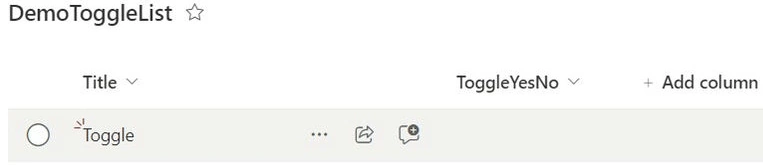
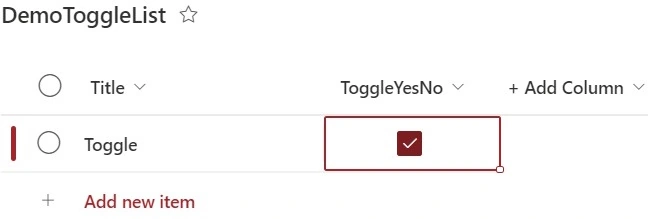
Join the conversation! Your thoughts help the community grow.