


Introduction
.NET MAUI, a cross-platform framework, empowers developers to build native mobile and desktop applications using C# and XAML. It enables the creation of apps that seamlessly operate on Android, iOS, macOS, and Windows, all from a unified codebase. This open-source platform is an advancement of Xamarin Forms, expanding its reach to desktop scenarios while enhancing UI controls for improved performance and extensibility.
In this article, we will see how we can implement Dynamic Status Bar in the .NET MAUI project.
Quick Links
- Project Setup
- Implementation
- Demo
- Full Code
- Download Code
Project Setup
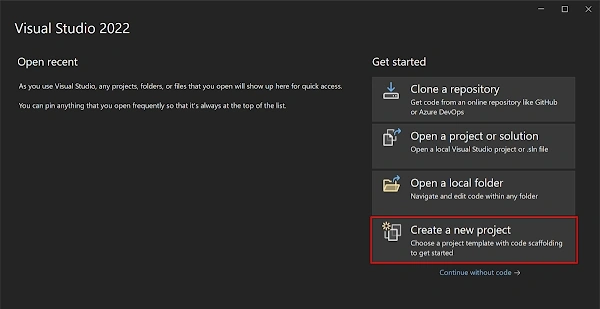
- Launch Visual Studio 2022, and in the start window, click Create a new project to create a new project.
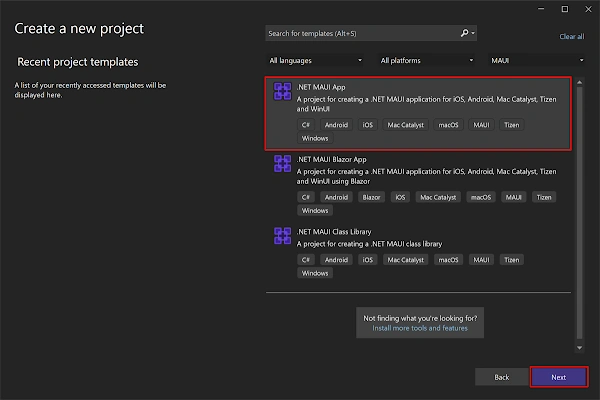
- In the Create a new project window, select MAUI in the All project types drop-down, select the .NET MAUI App template, and click the Next button.
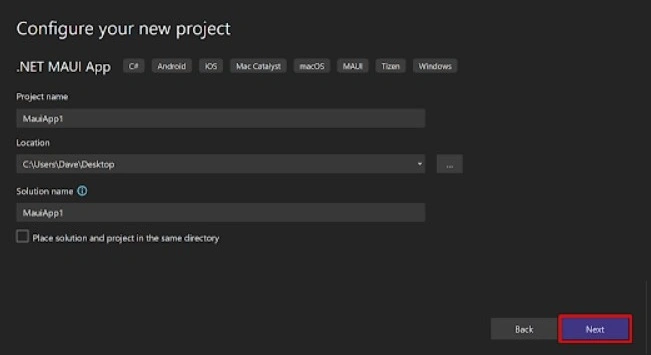
- Configure your new project window, name your project, choose a suitable location, and click the Next button.
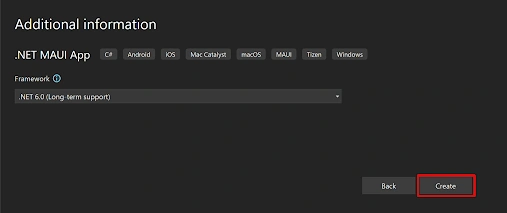
- In the Additional Information window, click the Create button.
- Once the project is created, we can able to see the Android, iOS, Windows, and other running options in the toolbar. Press the emulator or run button to build and run the app.

Screen Design
First, we need to implement the screen design as per our requirements. We will use 3 buttons in this code example, like in the following code block.
<?xml version="1.0" encoding="utf-8" ?>
<ContentPage xmlns="http://schemas.microsoft.com/dotnet/2021/maui"
             xmlns:x="http://schemas.microsoft.com/winfx/2009/xaml"
             x:Class="MauiStatusBarBehaviour.MainPage">

    <ScrollView>
        <VerticalStackLayout
            Spacing="25"
            Padding="30,0"
            VerticalOptions="Center">

            <Button
                Text="Blue"
                SemanticProperties.Hint="Counts the number of times you click"
                Clicked="OnBlueClicked"
                HorizontalOptions="Center" />

            <Button
                Text="Green"
                SemanticProperties.Hint="Counts the number of times you click"
                Clicked="OnGreenClicked"
                HorizontalOptions="Center" />

            <Button
                Text="Default"
                SemanticProperties.Hint="Counts the number of times you click"
                Clicked="OnDefaultClicked"
                HorizontalOptions="Center" />

        </VerticalStackLayout>
    </ScrollView>

</ContentPage>
Join the conversation! Your thoughts help the community grow.