


Introduction
In the realm of app development, interactivity is key. Being able to dynamically show or hide elements based on user actions can greatly enhance the user experience. Power Apps, a low-code development platform by Microsoft, empowers users to create custom apps without the need for extensive coding knowledge. One common requirement in app development is the ability to show or hide a text box based on the selection made in a dropdown control. In this article, we'll delve into how to achieve this functionality step by step.
Step-by-Step Guide
- Open Power Apps: Launch the Power Apps platform.
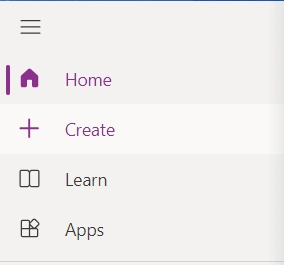
- Click on the "Create" Button: Locate and click on the "Create" button to start a new app creation process.

- Click on "Blank App": From the options presented, select "Blank app" to start with a clean slate.
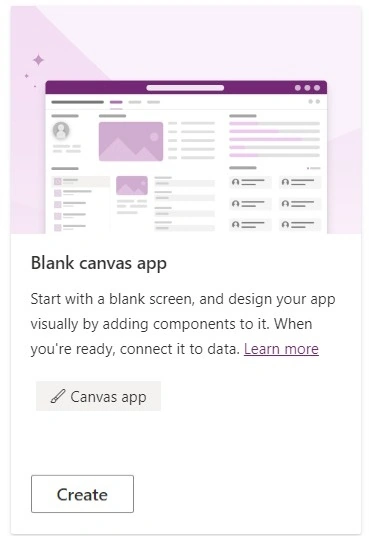
- Select "Blank Tablet App": Since we are creating an app for tablet devices, choose the "Blank tablet app" option.
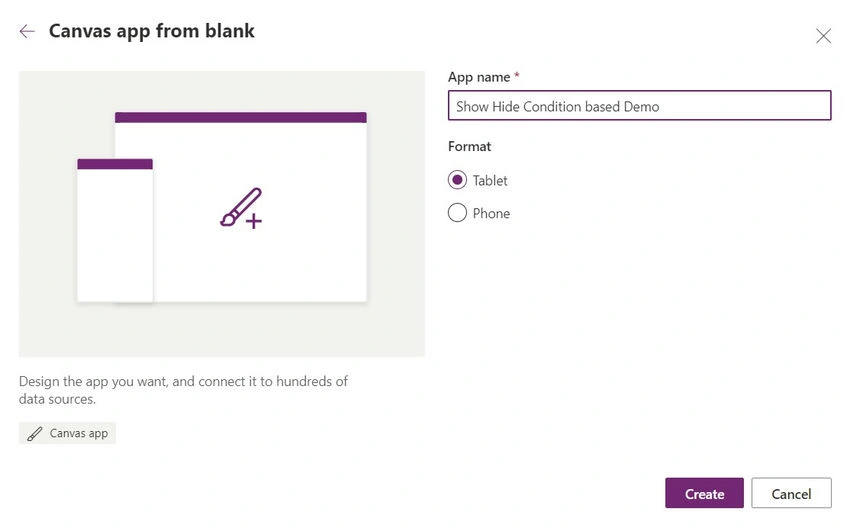
- Provide a Name for Your App: Enter a descriptive name for your app, something that reflects its purpose or functionality.
- Click on "Create" to Proceed: Once you've entered the app name, click on the "Create" button to initiate the app creation process.
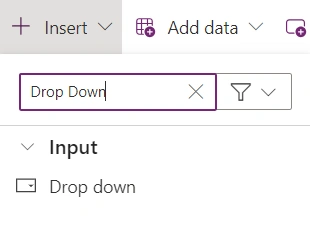
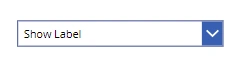
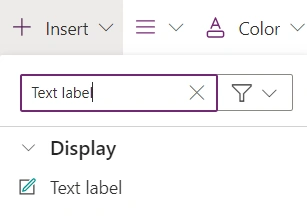
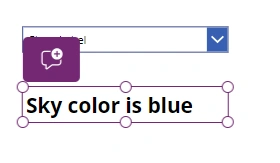
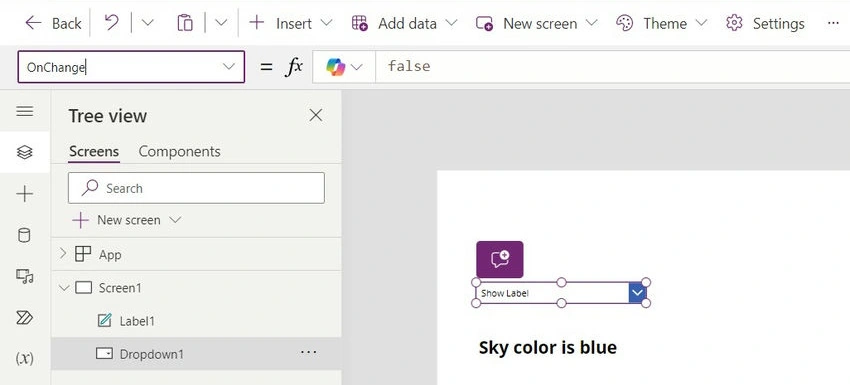
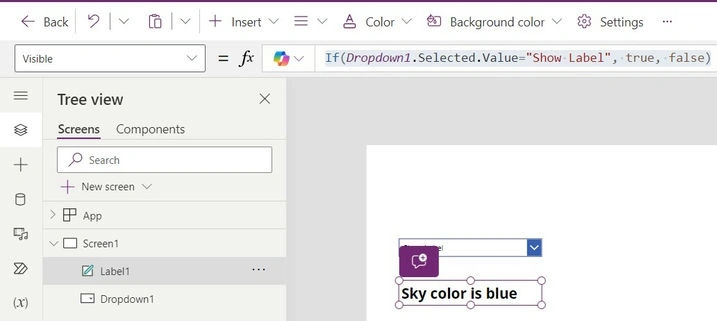
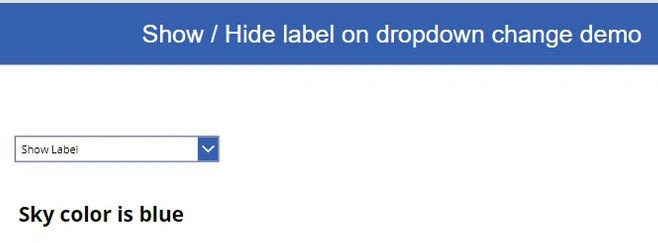
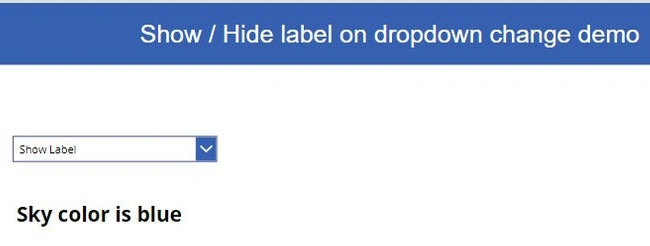
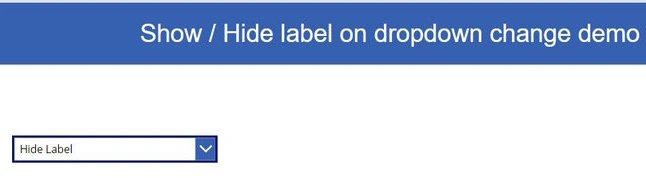
Now that we've set up our Power App environment, let's proceed with implementing the functionality to show/hide a text box based on the selection in a dropdown control.


Join the conversation! Your thoughts help the community grow.