

Introduction
- Best user of JavaScript in Dynamics 365
- How to add JavaScript file to entity
- How to attach JavaScript function to form event
JavaScript in Microsoft Dynamics CRM Scenarios
Form Scripts
In order to have actions performed in form scripts JS is used. The results of this style are instantaneous; it is the most preferred method and the most used. It is also highly adaptable to interact with various customer scenarios. Form scripts are used most for the following tasks:
- Data Validation
- Automation
- Process enhancement and enforcement
To configure commands for the controls those are added to the ribbon command. There are three items that the ribbon command delineates:
- Enabling rules
- Displaying rules
- Actions
Ribbon Command
It is possible to delineate at what point ribbon elements are enabled. The <EnableRule> (RibbonDiffXml) element is used as follows:
- Use the /RuleDefinitions/EnableRules/EnableRule element to define rules controlling when the ribbon element should be enabled.
- Use the /CommandDefinitions/CommandDefinition/EnableRules/EnableRule element to associate specific enable rules to a command definition.
It is possible to delineate at what point ribbon elements are displayed.
- Use the /RuleDefinitions/DisplayRules/<DisplayRule> (RibbonDiffXml) element to define rules controlling when the ribbon element should be displayed.
- Use the /CommandDefinitions/CommandDefinition/DisplayRules/<DisplayRule> (RibbonDiffXml) element to associate specific display rules to a command definition.
Also it is possible to delineate the actions performed by a ribbon control in a <CommandDefinition> (RibbonDiffXml) element together with rules that control whether the control is enabled or visible in the ribbon.
A ribbon control can perform two types of actions and may include multiple actions:
- JavaScript Functions: A <JavaScriptFunction> (RibbonDiffXml) element references a function defined in a Script Web resource.
- Open a URL: The ribbon opens a URL using the value from an Address attribute in the <Url> (RibbonDiffXml) element. Additional parameters can pass information about how query string parameters are passed and the mode in which the window opens.
Add JS to a Form
Step 1
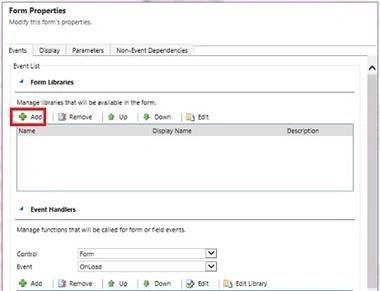
Go to Form >> Click on Form Properties.
Step 2
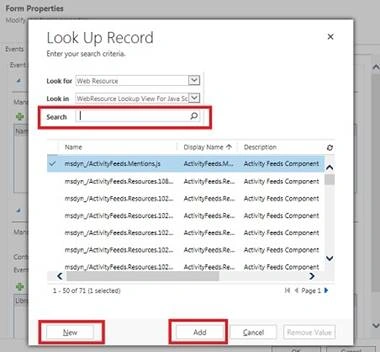
Click on "+Add ". Lookup window will pop up.
Step 3
If there are any JS Web Resources Search it and then click on Add to add it to the form. If there are no JS Web Resources click on New to add a new web resource.
Step 4
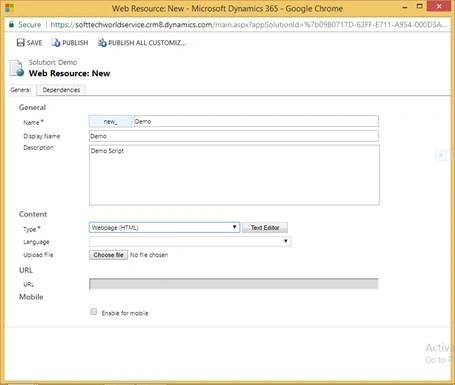
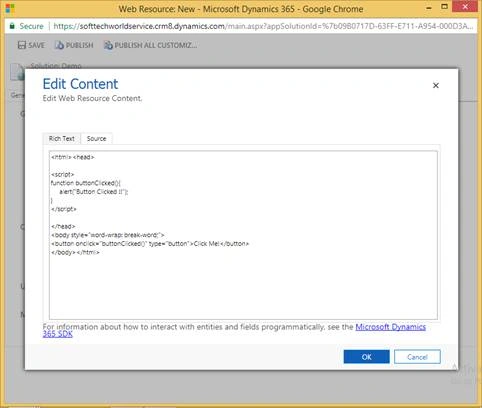
In order to create a New JS Web Resource follow the steps below,
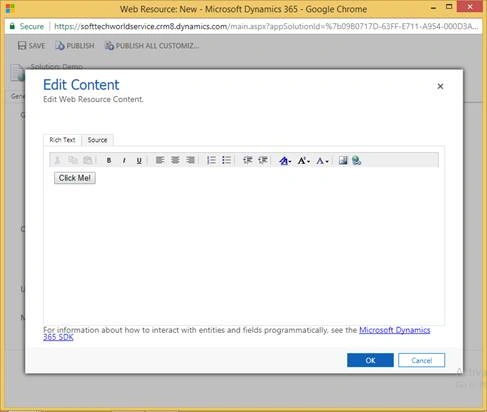
Step 5
Save the changes and publish the customizations.
Step 6
It is now possible to add this web resource to the form and view it on the main form.
Summary
In the above article, we explained the best use of JavaScript in Dynamics 365. We also explored how to add JavaScript in a form and attach it to an event.
Join the conversation! Your thoughts help the community grow.