Prerequisites
Azure account and Visual Studio 2019.
Create a Blazor Server app in Visual Studio 2019
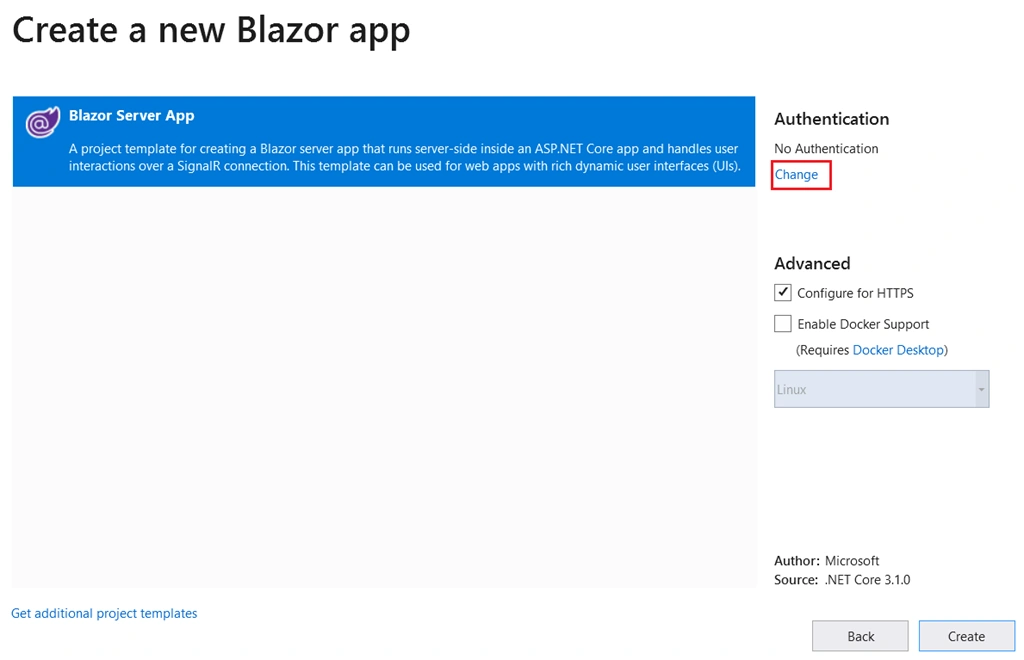
We can create a Blazor Server app in Visual Studio 2019 using Blazor Server template. You can click the “Change” link to change the authentication type.
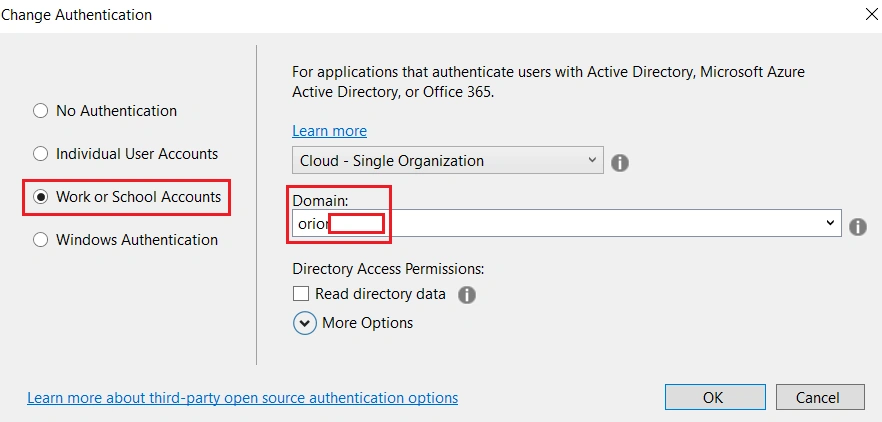
You must choose authentication type as ”Work or School Accounts”. Please choose the correct domain. I am using my office domain in this application. Please note that your Visual Studio profile must be integrated in the Azure portal.
Click OK button and click the “Create” button from the previous dialog box.
That’s all. Your simple Blazor app with Azure AD authentication will be created in a few seconds.
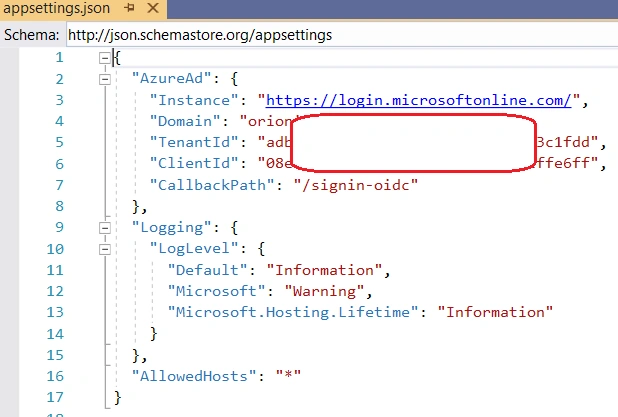
You can see a new section “AzureAd” created in the appsettings.json file. In your Azure account, one new app registration will be created automatically.
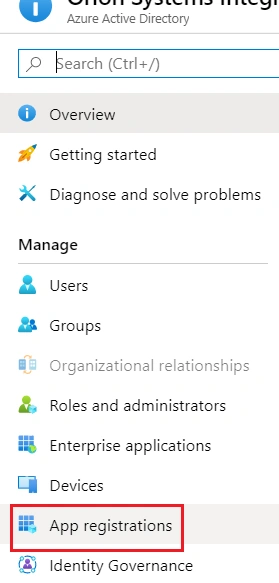
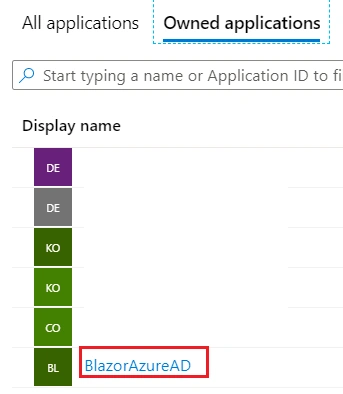
You can see the app registration details in the Azure portal. Click Azure Active Directory blade and choose “App registrations” menu.
You can see the newly created app registration under “Owned applications” tab. This is the same name of the Blazor project.
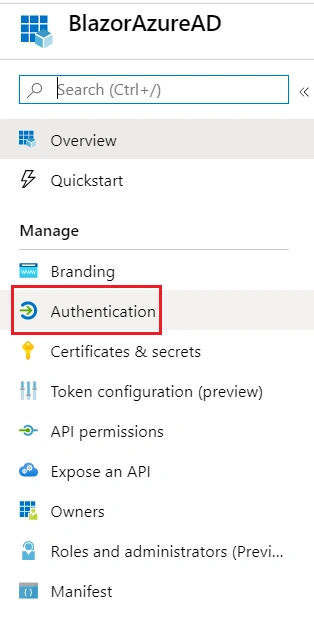
You can click the app registration and click “Authentication” tab.
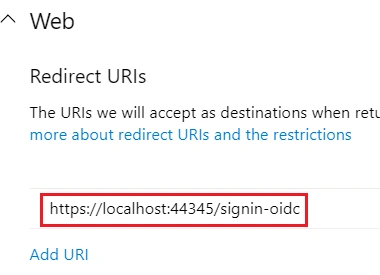
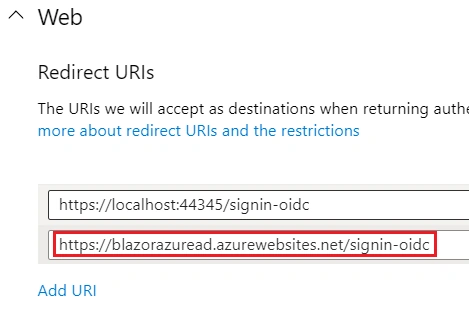
You can see the Redirect URI same as your Blazor application settings.
In the Blazor project, you can see a new component “LoginDisplay” added under “Shared” folder.
LoginDisplay.razor
- <AuthorizeView>
- <Authorized>
- Hello, @context.User.Identity.Name!
- <a href="AzureAD/Account/SignOut">Log out</a>
- </Authorized>
- <NotAuthorized>
- <a href="AzureAD/Account/SignIn">Log in</a>
- </NotAuthorized>
- </AuthorizeView>
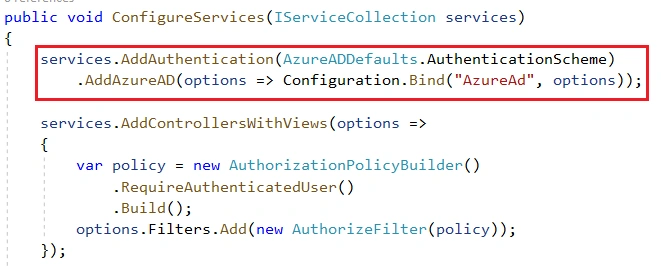
We can notice that AzureAD has registered in “ConfigureServices” method inside the Startup class.
We can run the application. It will ask your AD credentials. I login with my office Azure AD account.
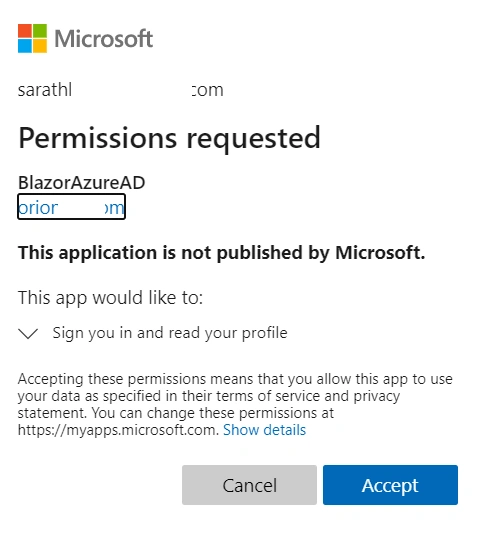
After successful login, it will ask the permission for accessing the application (only one time per user)
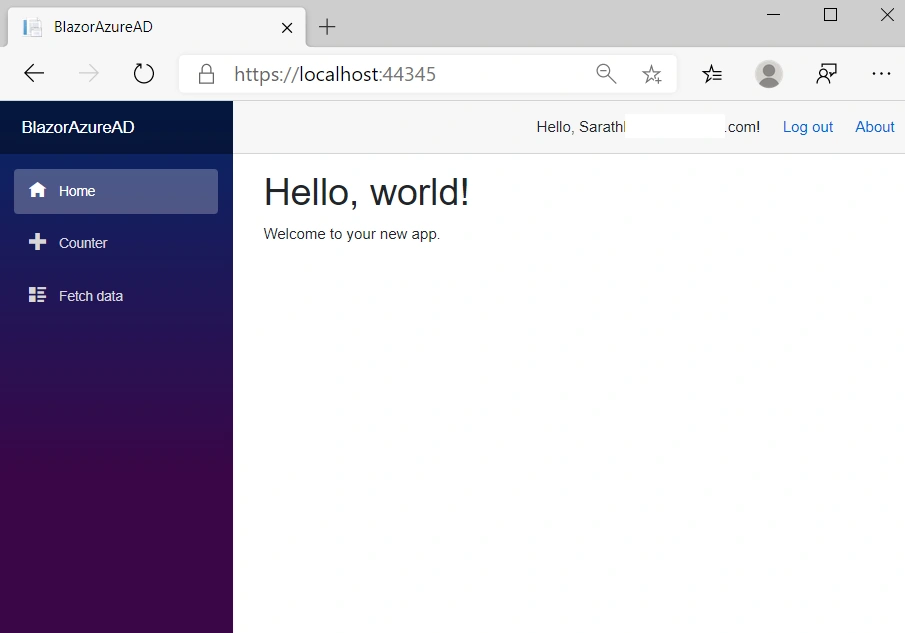
After you accepted your permission, Blazor app will be loaded successfully.
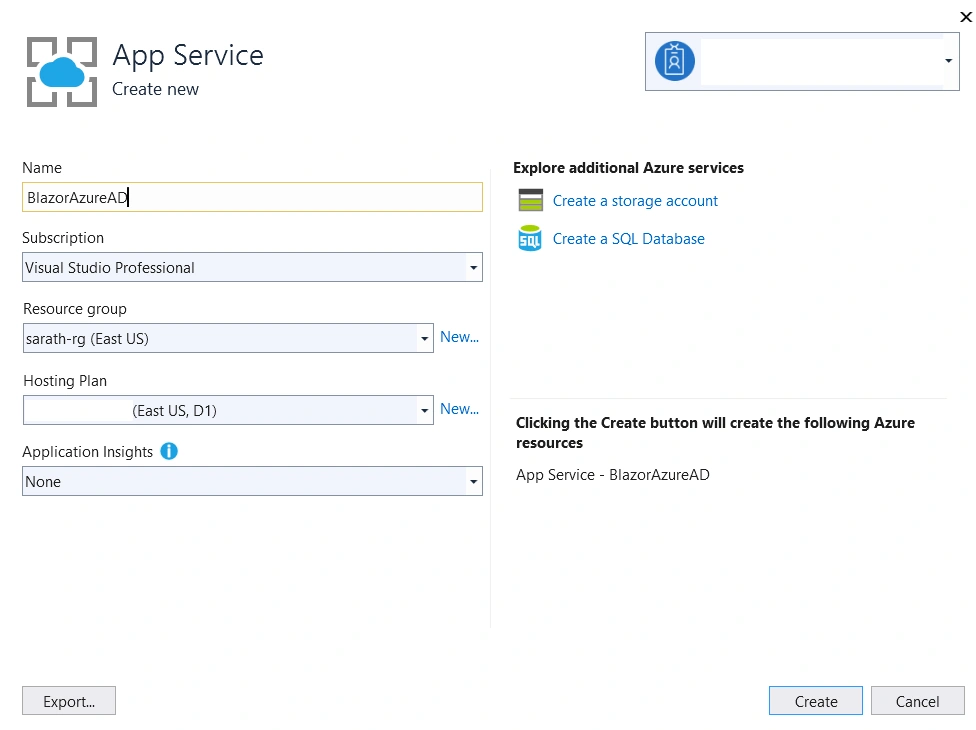
We can deploy this app to the Azure portal also.
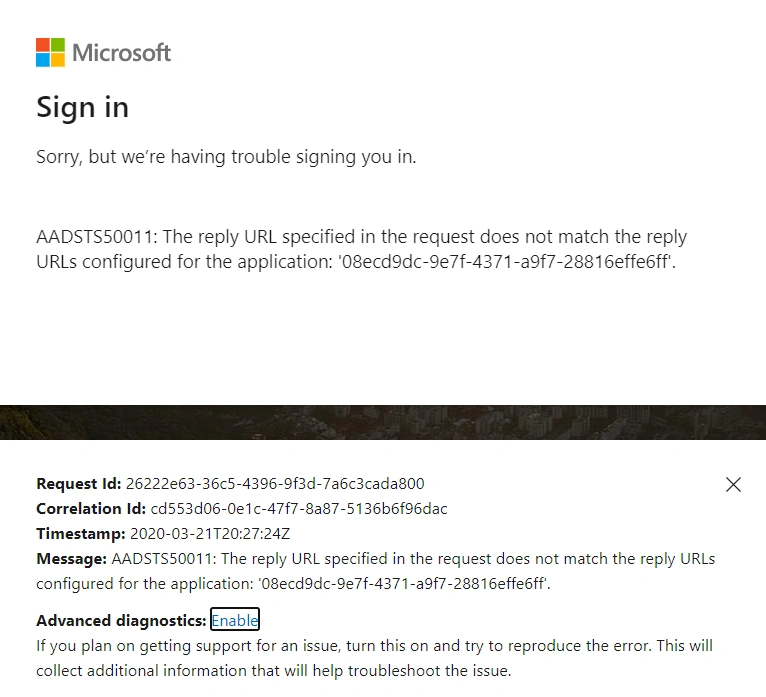
You will get the below error while accessing the web app after deployment.
This is because you have set redirect URI in app registration as localhost. We can add one more redirect URI with web app address.
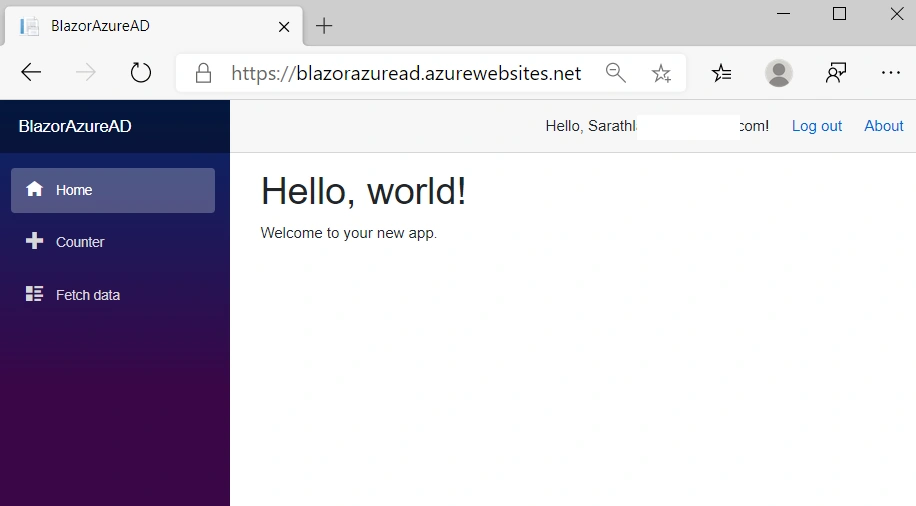
We can access the web app again. It will ask the AD credentials. After successful login, your web app will be loaded.
Conclusion
In this post, we have seen how to create a Blazor with Azure active directory authentication with simple steps. We have deployed same app to the Azure portal also.


Usman JalilPosted Oct 17, 2023, 3:57 PM
In Above example By default when you run the Blazor Server Application it immediately goes (redirect) to Microsoft Signin Page. How we can prevent that. Let's say I want from users when they run the application they will see first Login Page where they can have choice, Login with Microsoft Account, Google Account or FB, Once they choose Microsoft then they will be directed to Azure AD Authentication and then come back to same application. Need that with Razor Components (.Net 7 or 8) not with MVC View Model.
Mithun SandeepPosted Sep 28, 2020, 2:15 AM
This article is good.. but I am not getting the sign in page and sign out page.. can you help me configure AzureAD/Account/Signin and Signout... thanks