

Introduction
Welcome to Part 2 of the Elucidate LightSwitch article series.
In this article we will see a walkthrough of LightSwitch. We will have a look at one of the most important building blocks of a LightSwitch application, how organize data in columns and rows in a table. We will see how to create and work with screens in LightSwitch.
Previous articles have provided an introduction to LightSwitch and the creation of the contact entity. You can get them from the following:
Now let's continue with the next steps.
Step 1: Open the Properties window and select a property on the entity and we will see the related settings we can configure for it depending on the perspective as indicated at the bottom of the designer. The Server perspective allows us to configure the storage and validation properties as well as the default display name of the field.
We will see various settings depending on the type of data we chose for the property. All properties have an “Appearance” section in the property window that allow you to specify the Display Name that will appear in field labels on screens in the application. By default, if you use Upper Camel Case (a.k.a Pascal case) for your entity property names then LightSwitch will put a space between the phrases. For instance, the Display Name for the “LastName” property will become “Last Name” automatically. So it's best practice to use this casing for your entity properties.
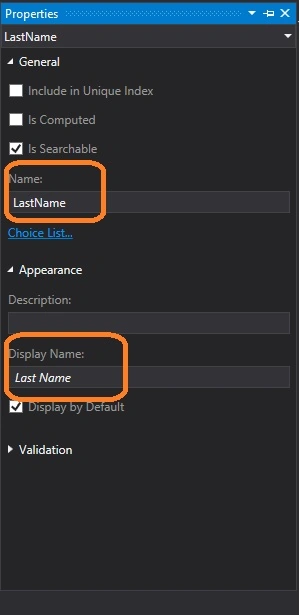
Now let's set a few additional settings for the Contact entity. First, select the Id field and in the Appearance section, uncheck “Display by default”. This makes that the property doesn't show up anywhere in the user interface. As mentioned earlier, the primary key is an internal field used to locate a row in the table and isn't modifiable so the user does not need to see it on any screens in the application.
Join the conversation! Your thoughts help the community grow.